
Transfer anything from/to iPhone, iPad, and iPod.

Transfer Files from iPhone to PC: 5 Wired/Wireless Ways

Posted by Alvin Cantero to iOS Transfer Feb 28, 2026
With thousands of photos on your iPhone, you now need them on your PC for backup. But then, the realization hits you that Apple and Windows do not have the same language. How can you transfer files from iPhone to PC? Here's some good news! Today's guide is all about sharing the five most efficient ways to send files from iPhone to PC, from iTunes and cloud storage to software solutions, making the process feel almost as seamless as using a Mac.
Guide List
Quick and Safe Way to Transfer Files from iPhone to PC How to Transfer Files from iPhone to PC with iTunes Use Cloud Storage to Transfer Files from iPhone to PC How to Transfer Files from iPhone to Windows PC via iCloud Transfer Files from iPhone to PC with File ExplorerQuick and Safe Way to Transfer Files from iPhone to PC
For a professional-grade solution that bypasses the limitations of standard sync tools for moving files from iPhone to PC, 4Easysoft iPhone Transfer is a premier choice. This program handles everything, from massive video libraries to contact lists with no data loss. It provides anyone with a stable, high-speed connection that outperforms the traditional wireless methods, especially when moving a large collection of files. But beyond just moving data, it serves as a complete manager that lets you preview files before finalizing the transfer.
Move data from iPhone to PC, PC to iPhone, or iPhone to another.
Select photos, videos, contacts, etc., rather than syncing the whole device.
Includes a built-in manager to create albums, delete duplicates, and preview files.
Handle large files much faster with advanced acceleration technology.
100% Secure
100% Secure
Step 1Start 4Easysoft iPhone Transfer. Connect your iPhone to your PC via a compatible cable, and once it gets detected, your iPhone details will be displayed on the main screen.
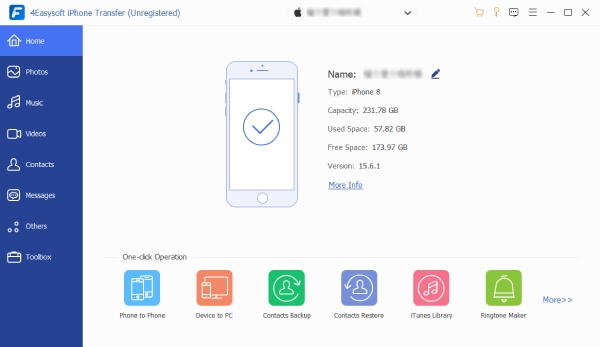
Step 2On the left side, choose the files you wish to transfer, such as Photos, Music, Videos, Contacts, and more. Upon selecting, your files will be organized by type.
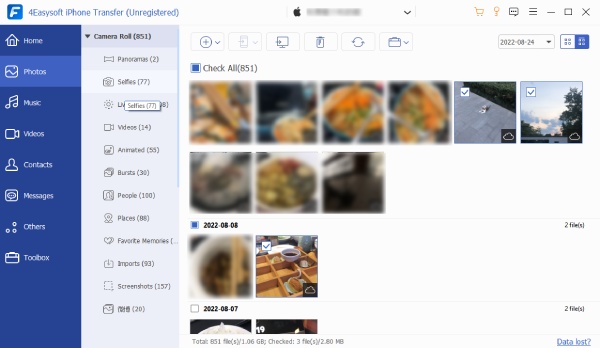
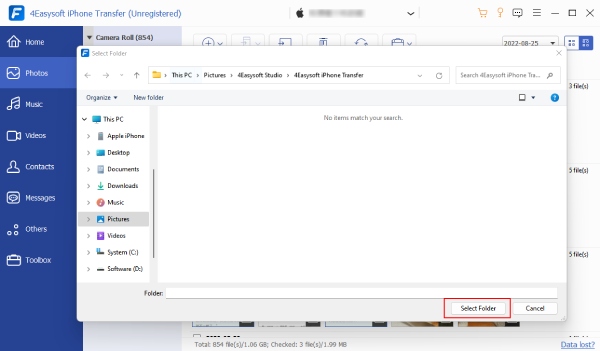
Step 3Select all the ones you want to transfer, then click the "Export to PC " button. Next, pick a folder on your computer or create a new one, then click the "Select Folder " button to successfully copy files from iPhone to PC.
100% Secure
100% Secure
How to Transfer Files from iPhone to PC with iTunes
Meanwhile, Apple's official software remains a reliable solution for users who want to get iPhone files on PC. This approach is particularly great for heavy apps or media plates where you need to move specific project files. Your data here is ensured not to be uploaded to any server during the process. If iPhone not showing up in iTunes, you can restart and reconnect iPhone first.
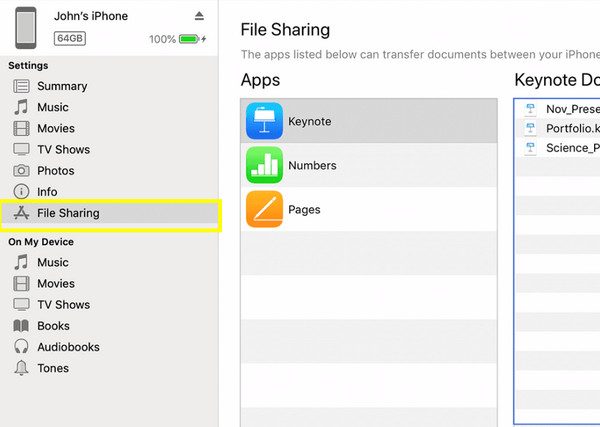
Step 1First, pair your iPhone with your PC via a compatible cable. Launch the latest version of iTunes, then click the "iPhone" icon in the top-left corner of the window.
Step 2There, select "File Sharing" from the list, and choose the app that holds the file you want to move.
Step 3Select the specific file and click the "Save" button. Pick a folder on your PC and confirm the transfer.
Use Cloud Storage to Transfer Files from iPhone to PC
Moving to the cloud method to transfer photos and videos from iPhone to PC. For this, Google Drive offers a wireless way to move your files using the power of the internet. Here, you can simply upload your media from your iPhone, and it becomes accessible on your PC once opened in a web browser. Follow the steps below:
Step 1Start the Google Drive app on your iPhone, and tap the "Add" button. Choose "Upload" and tap "Photos and Videos" or "Browse" for other documents.
Step 2Afterward, go to the Google Drive website on your PC, and log in to the same account.
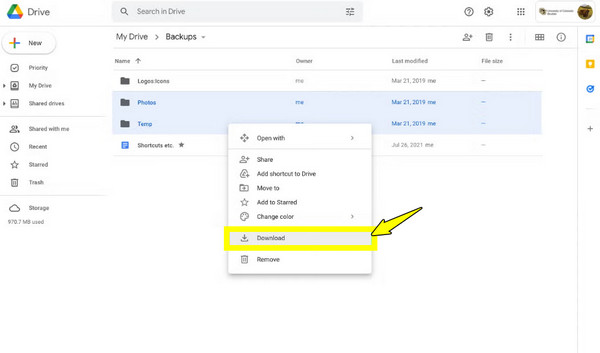
Step 3Locate the chosen files earlier in the "My Drive" section. Right-click on them and click "Download" to save to your PC.
How to Transfer Files from iPhone to Windows PC via iCloud
For a more integrated experience, the iCloud website is an excellent option to transfer files from iPhone to PC. By logging into the website, you can access your entire library, notes, and other content within your browser. See below the steps to transfer photos from iPhone to PC, as well as other data types.
Step 1First, make sure iCloud Photos or iCloud Drive is turned on your iPhone. Go to "Settings", tap on your "Apple ID", then tap "iCloud".
Step 2Now, on your PC, open a browser and search for the iCloud website. Sign in with your Apple ID and complete the two-factor authentication if required.
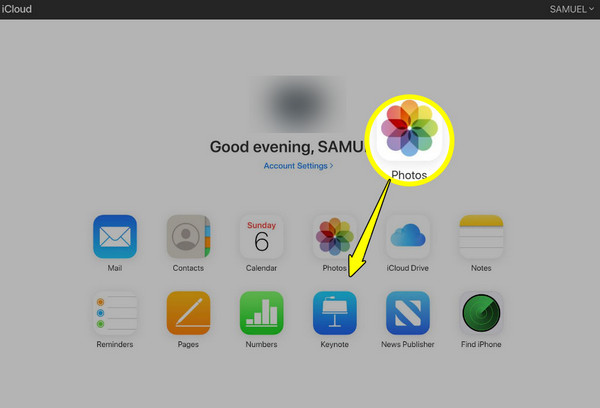
Step 3Next, click on the "Drive" or "Photos" icon to browse the files synced from your iOS device.
Step 4Choose all items you want to transfer, then click the "Download" button at the top to save them to your PC.
Transfer Files from iPhone to PC with File Explorer
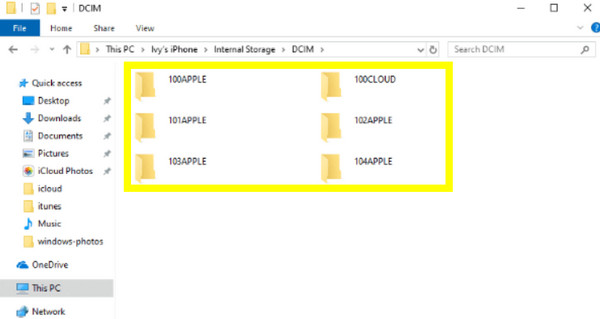
Lastly, if you do not want to install any software and need to move photos and videos, using the File Explorer on Windows is the fastest way to transfer files from iPhone to PC. By connecting your device via a USB, Windows detects the device as a digital camera, allowing you to have direct access to the DCIM folder. Here's how it works when you're in a hurry:
Step 1Pair your iPhone with your PC first using a USB cable. Unlock your iOS device and allow permission to access photos.
Step 2After that, open "File Explorer" on your PC and go to "This PC". There, double-click on your "iPhone" icon from the "Devices and Drives" section.
Step 3Head to "Internal Storage" and select "DCIM". Look through the folders to find your desired media to transfer, choose all you want, and drag them into a PC folder.
Conclusion
Whether that is speed or convenience you're looking for, the correct method can help you transfer large files from iPhone to PC easily. You can use the cable-free transfers like Google Drive or iCloud, or the classic File Explorer method. However, if you wish to avoid such headaches of compatibility issues and slow speeds, a dedicated tool like 4Easysoft iPhone Transfer is the best path to take! Enjoy a seamless experience of transferring every photo, video, message, music, and more here. With its speed and management capabilities, it makes it the most complete solution for keeping your iPhone and PC perfectly in sync.
100% Secure
100% Secure
