
Recover deleted/lost data from PC/Mac, HDD, USB, SD card and more.

Recover Deleted Voicemail on iPhone: 4 Step-by-Step Guide

Posted by Paula Pailaga to iOS Recovery Jan 08, 2026
Voicemails contain personal messages or essential information that makes their loss especially frustrating. The good news? You can recover deleted voicemail on iPhone, as they are not always permanently erased. In this article, only the right approaches are given, with four ways to retrieve recently or permanently deleted voicemail on iPhone. Both built-in iOS options and alternative recovery are shared, so you can choose the one best for your case.
Guide List
Safely and Easily Recover Deleted Voicemails on Your iPhone Restore Deleted iPhone Voicemails Using the Software Itself How to Recover Deleted Voicemails from an iPhone Using an iCloud/iTunes Backup How to Delete iPhone Voicemails PermanentlySafely and Easily Recover Deleted Voicemails on Your iPhone
Losing important voicemails on iPhone, especially if work instructions or personal messages are involved, can be really stressful. Fortunately, if you want a safe, flexible, and reliable way to retrieve deleted voicemail on iPhone, using 4Easysoft iPhone Data Recovery is the best choice. Even though you don't have any backup, you can still recover permanently deleted voicemails on iPhone with high success rate. Remember to stop saving new content or make changes before the recovery.
Can recover deleted voicemails on iPhone without backup safely.
Supports three recovery modes: no backup, iTunes, and iCloud backups.
Allows previewing voicemails before finally restoring them.
Support iPhone 17 and iOS 26.
100% Secure
100% Secure
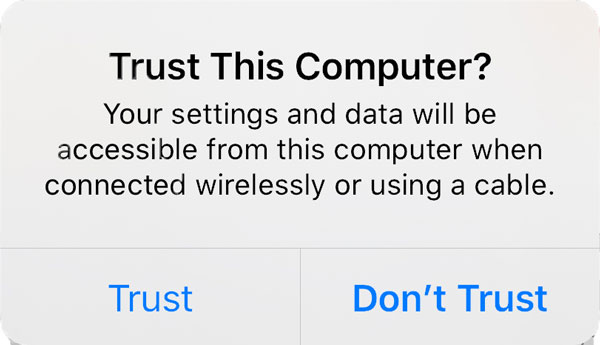
Step 1Start 4Easysoft iPhone Data Recovery on your computer. Use a USB cable to connect your device to the computer. When a prompt shows up on your iPhone screen, tap "Trust" to allow the software to access your device.
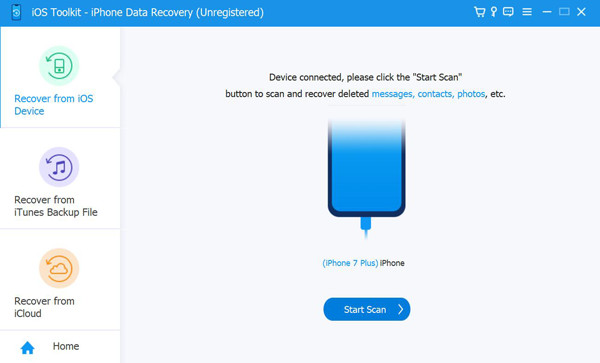
Step 2After your device is successfully recognized, choose "iPhone Data Recovery". Next, select "Record from iOS Device", then click the "Start Scan" button to begin searching for the lost voicemails.
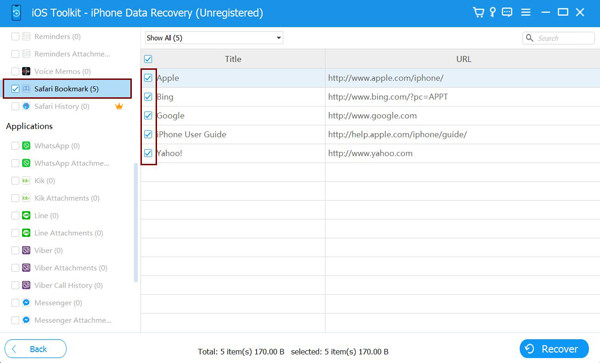
Step 3Go to the "Voicemail" section; double-click each voicemail to preview. Tick the checkbox next to the chosen voicemails. Then, click the "Recover" button to retrieve iPhone voice messages on PC.
Restore Deleted iPhone Voicemails Using the Software Itself
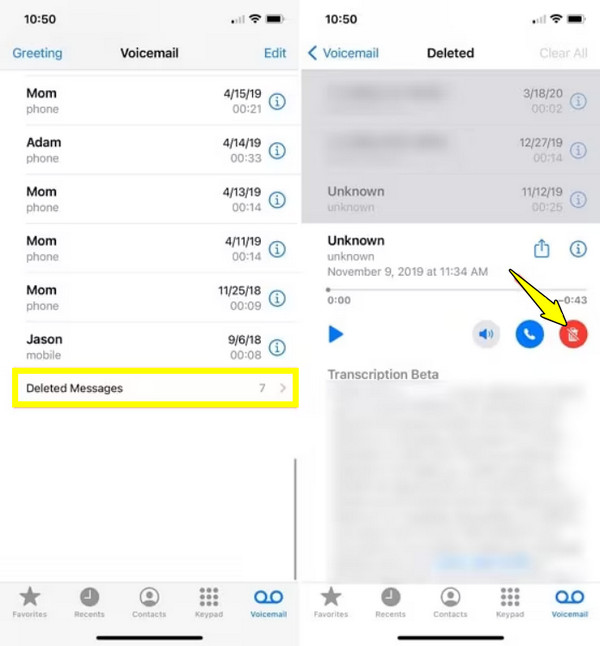
If the voicemail was deleted just recently, your iPhone may still have it in the Deleted Messages folder. By the way, you can check the Recently Deleted folder on iPhone to retrieve other iPhone files first. Apple stores deleted voicemails temporarily, giving you a chance to undelete voicemails on iPhone without any extra tools. This approach is quick, simple, and works very well for voicemails within a short period. Here's how to get back a deleted voicemail on iPhone directly:
Step 1Launch the "Phone" app on your iPhone.
Step 2There, tap "Voicemail" at the bottom. Scroll down and look for the "Deleted Messages".
Step 3Next, tap the voicemail you wish to recover, then select "Undelete". The voicemail will be recovered to your main voicemail list.
How to Recover Deleted Voicemails from an iPhone Using an iCloud/iTunes Backup
Meanwhile, if you regularly back up your iPhone, Apple has built-in backup services to help you retrieve iPhone voicemails. If the voicemail is no longer available on your device, Apple's iCloud and iTunes backup can help. However, this approach replaces your current data with the backup content.
How to Restore Deleted Voicemail on iPhone from iCloud Backup:
Step 1Open the "Settings" app. Tap "General", "Transfer or Reset iPhone", and "Erase All Content and Settings" buttons. Set up your iPhone again as usual.
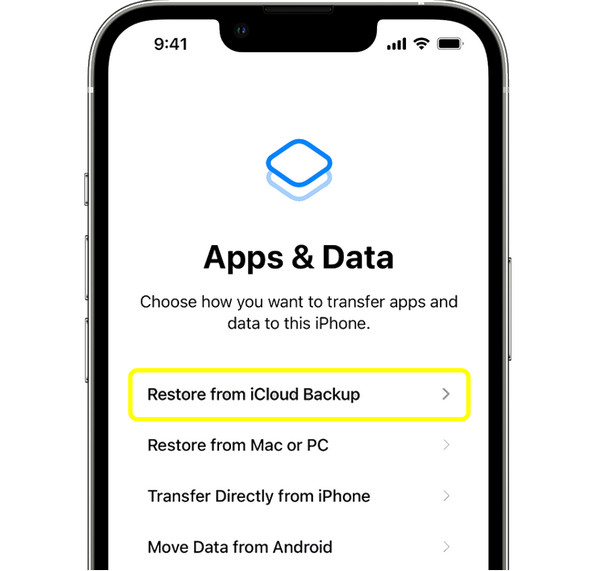
Step 2Then, tap "Restore from iCloud Backup" "Apps & Data" screen. Sign in with your Apple ID.
Step 3Pick the backup created before the voicemail was deleted.
How to Retrieve Deleted Voicemail on iPhone from iTunes Backup:
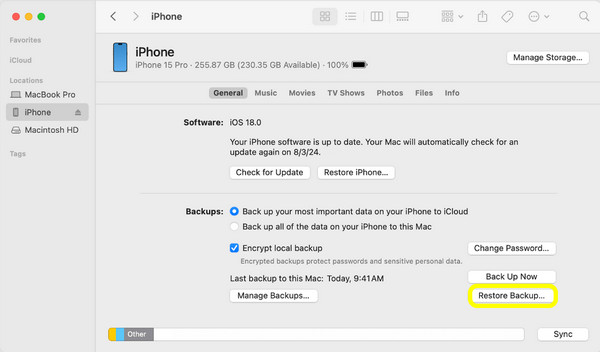
Step 1Connect your iPhone to a computer. Open "iTunes" or "Finder". Select your device and click "Restore Backup".
Step 2Choose an iTunes backup that covers the deleted voicemail.
Step 3Please wait for the restore process to finish before disconnecting your iPhone.
How to Delete iPhone Voicemails Permanently
Once you have recovered vital voicemails, it is also helpful to know how to delete unwanted voicemails to save up more storage space. Simply deleting a voicemail does not erase it right away, so manually delete it in the Deleted Messages folder to ensure that it can no longer be recovered.
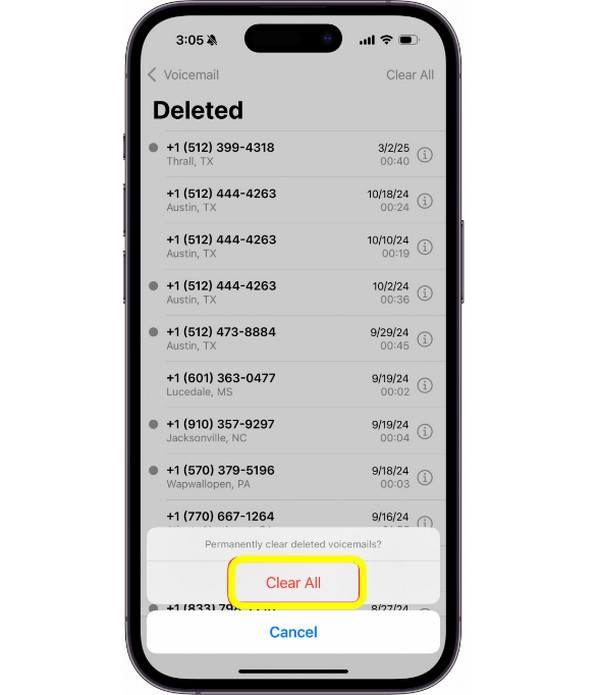
Step 1Inside the "Phone" app, tap on "Voicemail". Scroll down and tap "Deleted Messages".
Step 2Next, tap "Clear All" to permanently remove all deleted voicemails, or choose individual ones to delete. Confirm the action if prompted.
Conclusion
Whether the voicemail on iPhone was recently deleted or stored in a backup, multiple ways are given today to retrieve deleted voicemails on iPhone safely and effectively. Each solution has its own advantages, and choosing the right one depends on how and when it was deleted. If you haven't backed up iPhone or you want to keep recently saved files, use 4Easysoft iPhone Data Recovery. It lets you preview deleted voicemails, and recover only what you need without sacrificing other data. So, to get your important iPhone data back quickly, this tool's an excellent choice.
100% Secure
100% Secure
