
Recover all data from your iOS devices, iTunes and iCloud backup.

4 Effective Ways to Recover Deleted Text Messages on iPhone

Posted by Alvin Cantero to iOS Recovery Mar 17, 2026
Knowing how to recover deleted text messages on iPhone can be helpful since they often contain important information such as verification codes, addresses, and personal conversations. Fortunately, iPhone offers several ways to recover deleted text messages, depending on how long ago they were removed and whether a backup exists. This guide introduces practical solutions to help retrieve lost messages under different conditions.
Guide List
Part 1: How to Recover Recently Deleted Text Messages on an iPhone Part 2: A Workable Solution to Recovering Permanently Deleted Text Messages on iPhone Part 3: From iCloud: Recover Deleted Text Messages from Backup Part 4: Recover Deleted Text Messages from iPhone Using iTunes Part 5: FAQs About How to Recover Deleted Text Messages on iPhonePart 1: How to Recover Recently Deleted Text Messages on an iPhone
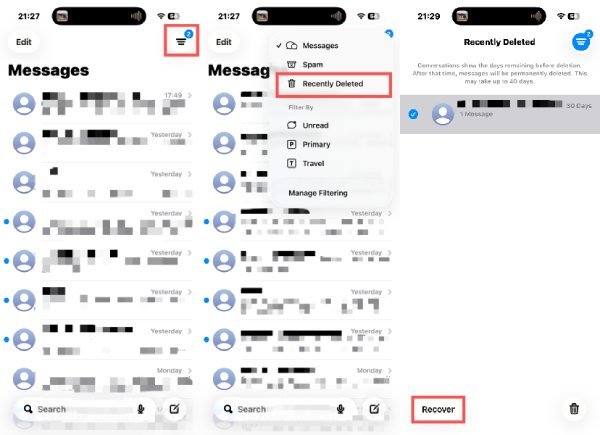
On newer iOS versions, deleted text messages are not removed immediately. With this newly added feature, you can quickly restore the text messages that were mistakenly deleted recently. The deleted messages stored in this space can be retained for a maximum of 30 days. If you don't know where to enter this interface, you can follow the following steps to access it quickly:
Step 1Open "Messages" on your iPhone and tap the "Filter" button. A list of options will be provided.
Step 2Tap the "Recently Deleted" button to access a new page that contains all the recently deleted text messages on your iPhone.
Step 3Tap to select the text messages that you want to recover. Once you finish the selection, tap the "Recover" button.
Part 2: A Workable Solution to Recovering Permanently Deleted Text Messages on iPhone
When messages are no longer available in recent folders or backups, a professional iPhone data recovery tool becomes a practical option. This is why you need 4Easysoft iPhone Data Recovery, which is designed to be a solid solution to recover permanently deleted text messages selectively. This approach offers more flexibility and is suitable for complex recovery scenarios.
Directly recover the deleted text messages and important data from your iOS device.
With automatic scanning, classify all data into different file types listed on the program.
Preview desired messages and recover a batch of chosen files simultaneously.
Help you recover data, fix iOS system, and backup important files on all Apple devices.
100% Secure
100% Secure
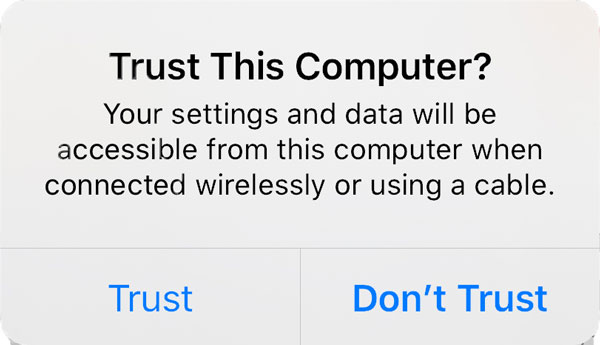
Step 1Launch 4Easysoft iPhone Data Recovery and connect your iPhone to the computer. Follow the instructions to trust your device.
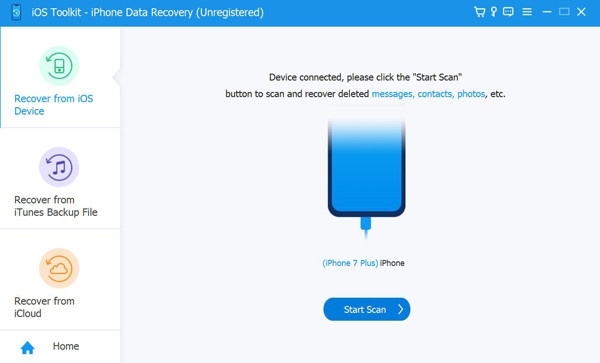
Step 2Click the "iPhone Data Recovery" button on the main interface. Then, click the "Recover from iOS Device" button. Click the "Start Scan" button.
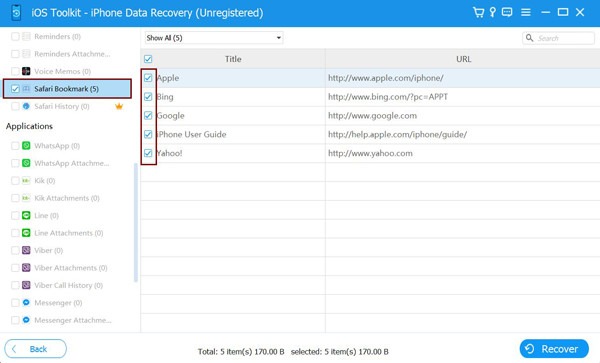
Step 3All the data will be categorized and displayed. Use filters to archive your iPhone messages and recover deleted text messages on your iPhone.
Part 3: From iCloud: Recover Deleted Text Messages from Backup
Another way to retrieve deleted text messages is to use the backup created through iCloud. However, the prerequisite for this method is that you have previously created an iCloud backup for your text messages. At the same time, you must ensure that the text message you want is indeed backed up, to avoid any unnecessary loss of your existing data, because this method requires resetting the device and replacing the current data with backup content.
Firstly, you need to check if you have backed up all your text messages on your iPhone via iCloud:
Step 1Open "Settings" on your iPhone and tap the "Apple ID" button at the top.
Step 2Tap the "iCloud" button and open a new page where you can manage your iCloud.
Step 3Tap the "See All" button to check all the information about your iCloud backup.
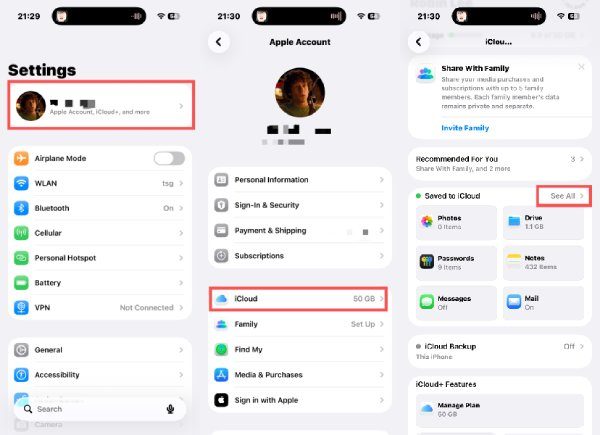
Warning: If your Messages have not been backed up before, it means that your deleted text messages are not saved. You cannot recover deleted text messages from iCloud backup. There is no need for you to restore the iPhone.
To create the iCloud backup of Messages for the future, you can do as follows:
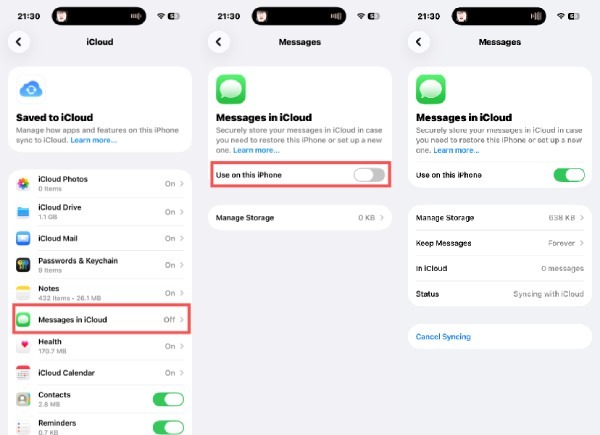
Step 4Under the "iCloud" tab, tap the "Messages in iCloud" button.
Step 5Tap the "Use on this iPhone" button to create a backup of your Messages on your iPhone.
Step 6Tap the "Sync Now" button, and the process of creating the backup will start automatically.
For those who are 100% sure that the deleted text messages have been backed up via iCloud, you can restore your iPhone and retrieve them from the iCloud backup. To restore your iPhone, open "Settings" > "Transfer or Reset iPhone" > "Erase All Content and Settings". Then, follow the instruction to restore your iPhone.
Warning again: This action wipes all the data on your iPhone. Please make sure that you have a backup before you start this process.
Part 4: Recover Deleted Text Messages from iPhone Using iTunes
iTunes allows deleted text messages recovery through local backups stored on a computer. By restoring an iPhone from an existing iTunes backup, deleted text messages can be retrieved if they were backed up previously. This method does not rely on internet access but may overwrite current data, so it is best used when message recovery is the priority. But DO make sure that the deleted text messages from your iPhone have been backed up before.
Step 1Launch iTunes and connect your iPhone to your computer using a USB cable. Under the "Summary" tab, click the "Restore Backup..." button.
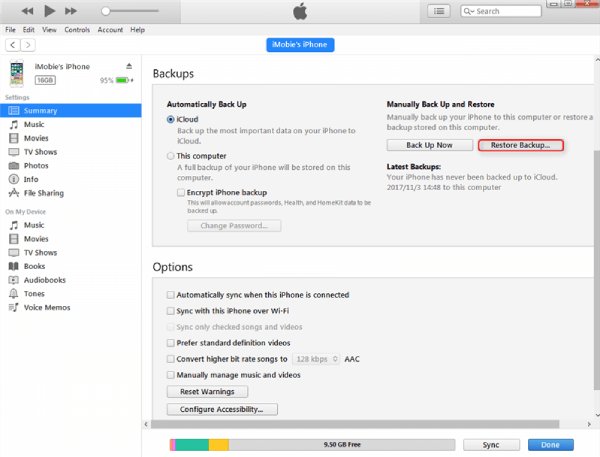
Step 2In the pop-up window, click the "iPhone Name" button to select the backup where your deleted text messages are saved.
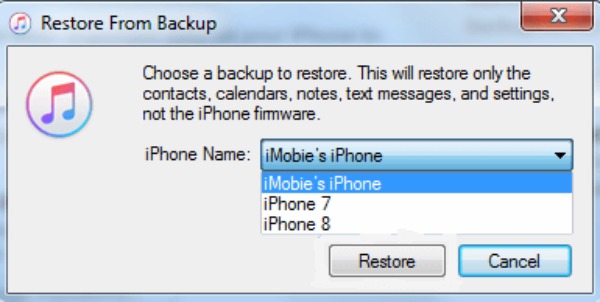
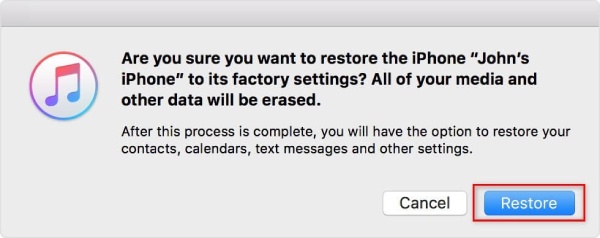
Step 3Finally, click the "Restore" button to restore your iPhone and download text messages from iPhone to Mac again.
Part 5: FAQs About How to Recover Deleted Text Messages on iPhone
-
1. Can deleted text messages be recovered without a backup?
In some cases, yes. If the messages were deleted recently, they may still be available in the "Recently Deleted" section on supported iOS versions. Once that period expires, recovery without a backup becomes more difficult. In such situations, a professional data recovery tool may help scan the device for recoverable message data.
-
2. Will recovering text messages overwrite current data on iPhone?
This depends on the recovery method used. Restoring messages from an iCloud or iTunes backup usually replaces existing data with the backup content. Selective recovery tools, on the other hand, are designed to restore deleted messages without affecting current files, photos, or conversations.
-
3. How long are deleted text messages kept on an iPhone?
On newer iOS versions, deleted messages are typically stored in the "Recently Deleted" folder for up to 30 days. After that period, they are permanently removed from the Messages app. Once permanently deleted, recovery options rely on backups or advanced recovery software.
Conclusion
Recovering deleted text messages on an iPhone can be accomplished using the built-in options. However, they don't always work. This is why you need a professional tool for difficult situations. 4Easysoft iPhone Data Recovery can help you increase the chances of retrieving deleted text messages successfully.
100% Secure
100% Secure
