
Record, edit, and share video from all sources.

Record Skype Calls as a Host or Participant: A 2026 Guide

Posted by Ethan Brooke to Record Video Jul 17, 2026
Are you saving a Skype catch-up with family, or interview details? Whatever that is, knowing how to record Skype calls is a handy skill. The need for a rock-solid copy of important conversations remains as important as ever. Thus, this post shares with you the four practical ways to seamlessly record Skype meetings and calls on any device, followed by a quick troubleshooting checklist to rescue your recording files if things ever go wrong.
Guide List
How to Record Skype Calls as a Participant Secretly on Windows and Mac How to Record Skype Calls as a Host with Built-in Recorder How to Record Skype Calls on iPhone How to Record Skype Calls on Android Reasons and Solutions to Fix Skype Call Recording Not WorkingHow to Record Skype Calls as a Participant Secretly on Windows and Mac
Do you wish to record Skype calls secretly? For this specific task, using a dependable program like 4Easysoft Screen Recorder is an excellent option for both Windows and Mac. This tool allows you to bypass this notification entirely, capturing your desktop screen, internal sound, and mic at once discreetly. Additionally, you can customize your capture area to focus strictly on the Skype call window rather than your entire screen layout. It also has advanced audio tools like noise cancellation to ensure your recorded conversation sounds perfectly crisp and clear on any device.

Can record full screen, specific app windows, or a custom-selected region.
Dual audio recording: system audio and microphone, without audio quality loss.
Allows you to quickly cut unwanted parts from the beginning or end before saving.
Lets you take screenshots or add annotations to the frame during a live session.
100% Secure
100% Secure
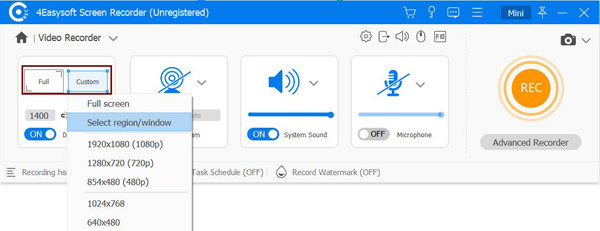
Step 1Start 4Easysoft Screen Recorder. To capture visual conversation, select "Video Recorder" and choose "Full" or "Custom". For a voice-only recording, choose "Audio Recorder".
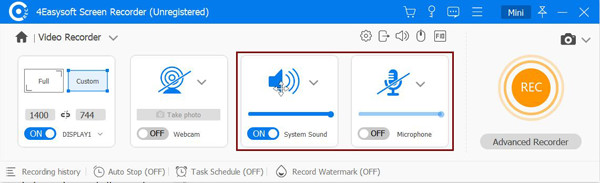
Step 2Enable both "System Sound" and "Microphone" toggles to capture Skype calls from both ends. Click the "Settings" button to keep your file size optimized to your exact needs.
Step 3Now, start your Skype call and click the "REC" button. While the recording session occurs, you can use the floating toolbar to apply real-time annotations or take snapshots of the visuals.

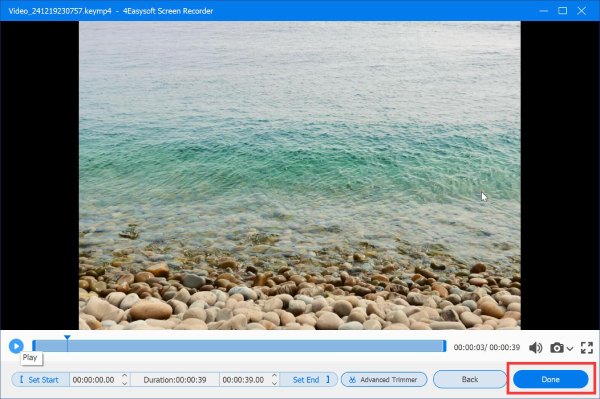
Step 4Once it concludes, click the "Stop" button. A built-in preview will be launched. You can watch the recorded call and trim away any extra parts. Click the "Save" button to secure your local drive.
How to Record Skype Calls as a Host with Built-in Recorder
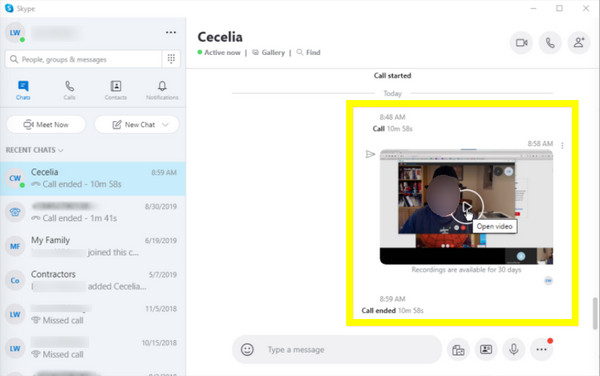
Suppose you're hosting the Skype call and privacy is not a concern, using Skype's native feature is the effective choice of Skype call recording. This cloud-based tool is convenient since it works instantly without extra software. However, the most obvious downside is the lack of secrecy, as it notifies every participant that recording has begun. And once your call ends, the recording is not saved to your local drive; it will be posted in the chat window instead.
If you don't mind it, follow the steps below to record Skype video calls directly as a host:
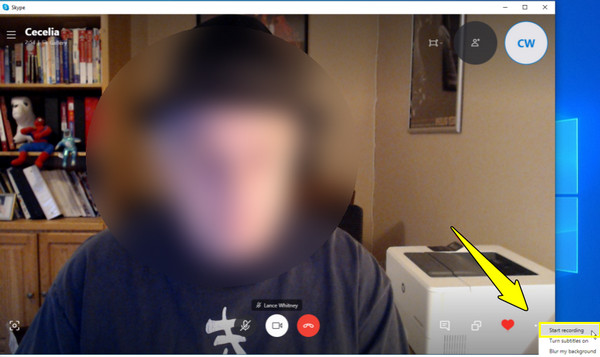
Step 1Start your Skype video or voice call as the host and wait for your participants to join. Click the "More" button in the bottom-right corner of your active call control panel.
Step 2There, select "Start recording", which will trigger the notification banner for everyone in the call. Once done, click the "Stop recording" at the top.
Step 3The final video file can be accessed directly in the chat log and will be available for download for 30 days.
How to Record Skype Calls on iPhone
While desktops use flexible screen recorder software to record Skype calls, moving over to Apple's ecosystem will let you enjoy the built-in screen recording utility. But, due to Apple's strict policies, the native recorder can't record internal audio. For this, you'll need a cloud-based recording service to route the audio externally.
Anyway, here's how the built-in recorder works for recording Skype conversations:
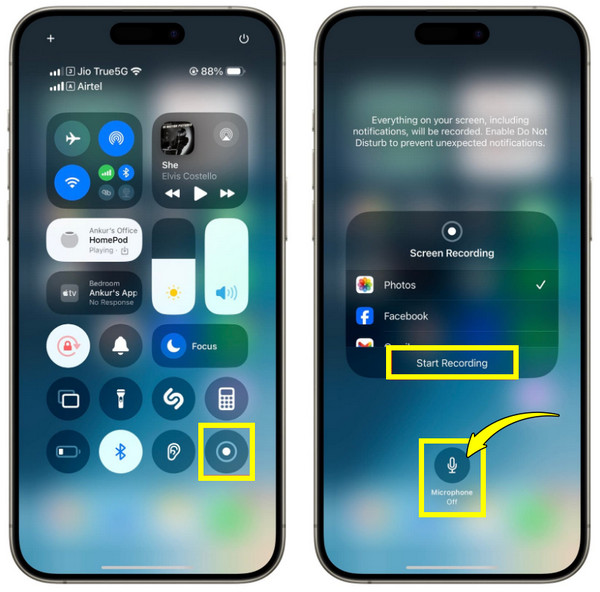
Step 1Swipe down from the right corner (or top of the screen) to open the "Control Center", long-press the "Screen Recorder", and tap the "Microphone" to enable it.
Step 2Tap the "Start Recording" button and quickly switch over to the Skype call.
Step 3After a while, tap the "red status bar" and tap on "Stop" when finished, and your final video will be saved in the "Photos" app.
How to Record Skype Calls on Android
In a similar way to iOS users, most modern Android devices come with a built-in screen recorder from the Quick Settings, helping you record calls on Skype. Since Android frequently blocks third-party apps from recording the microphone during a call, using the factory-installed system recorder is your best bet.
Here's how to record Skype calls on Android:
Step 1Swipe down twice from the top of your Android screen to have full access to your "Quick Settings".
Step 2From there, locate and tap the "Screen Record" tile, then choose the option to record microphone audio. Tap the "Start Recording" button or similar options, and launch Skype to start your call.
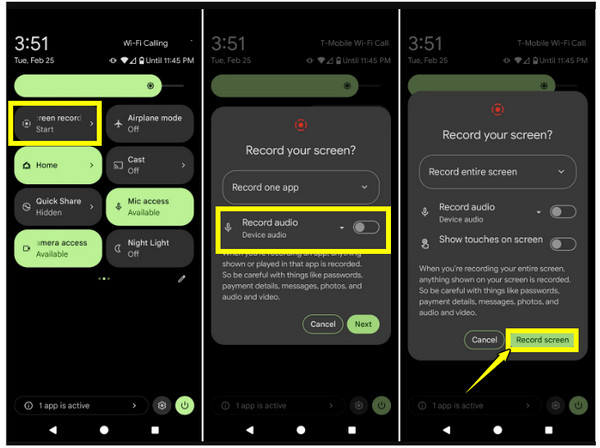
Step 3Later, swipe down again and click the "Stop" button once you're done. The video file will be saved directly into your phone's Gallery.
Reasons and Solutions to Fix Skype Call Recording Not Working
Facing technical glitches when trying to record Skype calls can be incredibly frustrating. Even though Skype's recorder is straightforward, incorrect settings can quickly disrupt the entire process.
Here are some of the common pain points that you may experience, alongside quick fixes.
- 1.Recording Option Not Available. If you're using an older version of Skype, recording may not work as expected. Try updating Skype first. If the issue continues, switch to a dedicated screen recorder.
- 2.No Audio in the Recording. Getting a silent video usually starts from a hardware mismatch within your app settings or permissions. So, open your Skype app settings and go to the Audio & Video panel to check that your active headset and microphone are selected as the default devices.
- 3.Recording File Missing. If you can't locate your recording file after hanging up, it may be in the wrong location, or it is still processing. For this, open the exact chat or group thread to locate the embedded video thumbnail.
Conclusion
Recording Skype calls should not feel like a headache every time you click the start call. From built-in options for quick host calls to using dedicated tools on your desktop or mobile, you can now ensure that Skype conversations are saved, whether you're the host or not. However, it's best to operate completely outside Skype to avoid delays, host notifications, and low-quality files. Try 4Easysoft Screen Recorder to record Skype video calls, entirely bypassing all those frustrating issues and limitations common to built-in tools.
100% Secure
100% Secure
