

How to Play DVD on Windows 10 with Original Quality

Posted by Paula Pailaga to DVD/Blu-ray Player Jul 02, 2026
Many people are wondering how to play DVDs on Windows 10 computer. This process not only involves playing the video content in the DVD, but also relates to whether the accompanying contents, such as menus and subtitles, included in the DVD can be presented normally. During this process, choosing a reliable video player is of utmost importance. This post recommends three DVD player programs specifically designed for Windows 10, helping you enjoy the full content of DVDs on your computer.
Guide List
A Built-in Software to Play a DVD on Windows 10 Quickly How to Play DVDs on Windows 10 While Keeping Their Original Quality VLC Media Player: A Compatible Tool to Play DVDs on Windows 10A Built-in Software to Play a DVD on Windows 10 Quickly
If you're curious about whether Windows Media Player can play DVDs, the straightforward answer is NO. The default player included with Windows does not support the playback of DVD content. However, as a playback tool under the Windows system, Windows DVD Player enables you to directly play DVD content or watch 4K movies. You can find this tool in the Microsoft Store. However, as a Windows application, it is not free. The price of $14.99 has made many users give up on it, not to mention its numerous bugs.
Step 1Launch the Microsoft Store on your PC. Search "Windows DVD Player" in the search bar and click the "Buy" button to purchase and install it.
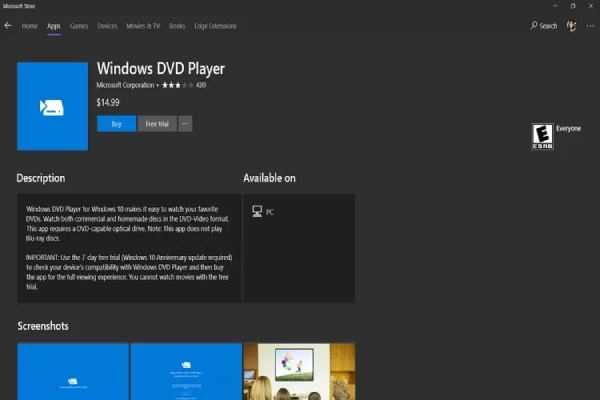
Step 2Then, launch Windows DVD Player on your Windows 10 computer and insert your DVD.
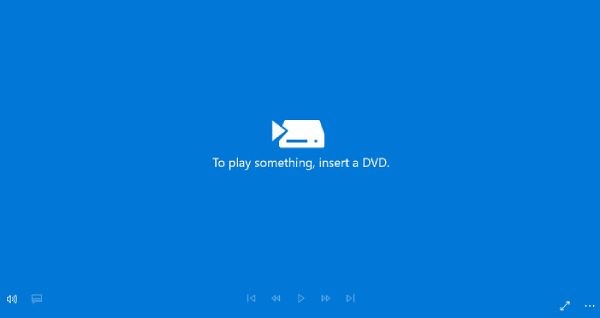
Step 3Finally, click the "Play" button to play the DVD on your Windows 10 computer.
How to Play DVDs on Windows 10 While Keeping Their Original Quality
For users who wish to enjoy high-definition full DVD playback on Windows 10 system, the processing performance of the player must be taken into consideration. Therefore, the 4Easysoft Blu-ray player becomes the most ideal choice. Through intelligent enhancements in picture quality and sound effects, you can enjoy your videos as if you were in a cinema. Moreover, a series of additional functions also allow you to have full control over the DVD content.

No need to purchase an additional 4K UHD player to play 4K videos.
Adjust audio tracks, subtitles, and so on according to your needs.
Run your menus and titles, etc., included in 4K discs in their entirety.
Support using shortcuts to take screenshots while playing your DVDs.
100% Secure
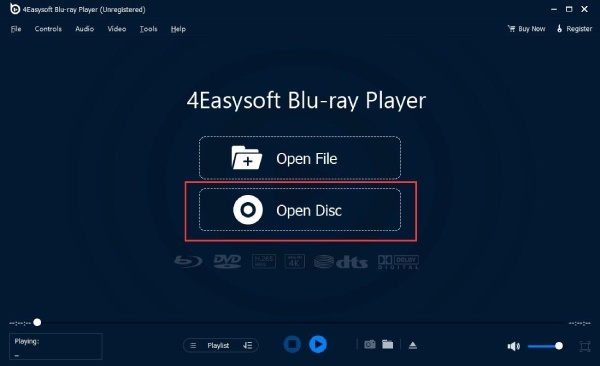
Step 1After inserting your DVD into your Windows 10 computer, launch 4Easysoft Blu-ray Player and click the "Open Disc" button.
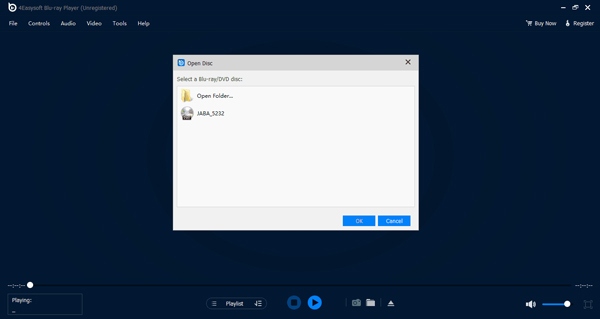
Step 2In the pop-up window, click to select the DVD to play on the Windows 10 computer. Then, click the "OK" button to proceed.
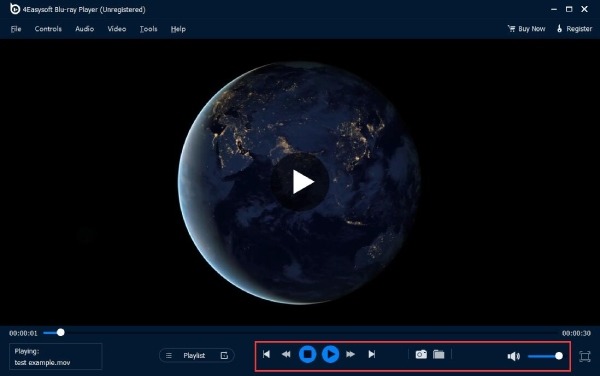
Step 3Now, you can enjoy the DVD content with its original quality. With the panel, you can control the playback the way you want.
VLC Media Player: A Compatible Tool to Play DVDs on Windows 10
The name VLC media player is not unfamiliar to those users who often watch videos on their computers. Whether it's local videos or online streams, you can easily play them on the VLC media player. For those users who wish to play DVDs on their Windows 10 computers, the VLC media player can also assist you in accomplishing this task. All you need to do is perform a few simple operations after inserting the disc, and the DVD can be played. If you want to know how to view DVDs on Windows 10 using VLC media player, you can follow the steps below to do it.
Tips
DVD playback on Windows 10 using VLC media player will be restricted strictly by the DVD region code policy. It means that you can only play the DVDs of your region and cannot access DVDs of other regions on VLC DVD player.
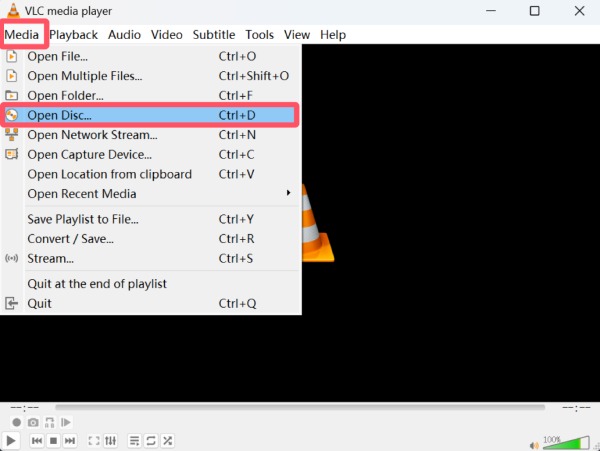
Step 1After inserting the DVD into your computer, launch VLC media player and click the "Media" button and the "Open Disc" button.
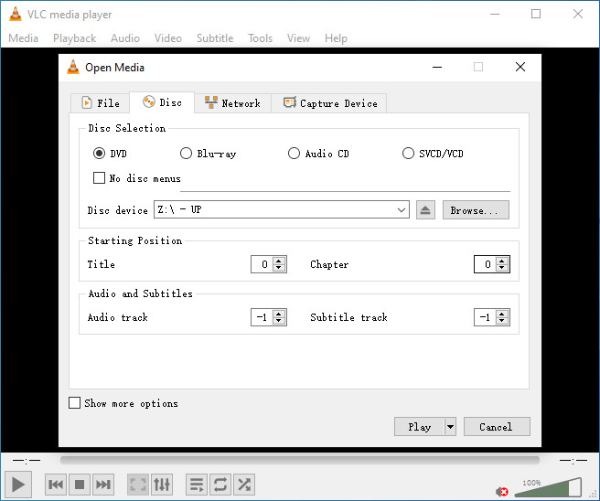
Step 2In the pop-up window, click the "Browse..." button under the "Disc" tab to select your DVD to play on Windows 10.
Step 3Finally, click the "Play" button to play DVDs on Windows 10/11 within VLC media player.
Conclusion
This post recommends 3 reliable DVD player programs for you, which can help you enjoy smooth playback of DVDs. As a tool under the Windows family, Windows DVD Player has a relatively high price and some bugs that affect its usability. At the same time, VLC media player is restricted by DVD region codes. If you want to enjoy the DVD content in its original quality without any restrictions on your Windows 10 computer, then choosing 4Easysoft Blu-ray Player is definitely the right choice.
100% Secure
100% Secure
