
Reliable video converter, editor, and compressor for daily tasks.

4 Best MP3 to FLAC Converters Without Losing Quality

Posted by Aira Lesly Escoto to Convert Audio Jan 30, 2026
While MP3s are the universal format for audio files, here comes the catch: compressed data and lost strong detail. So, if you're a music lover, converting MP3 to FLAC is the best way to ensure no further quality is lost during editing or archiving. Fortunately, you don't need to be a sound expert to make the switch. This post has got you four methods to change MP3 to FLAC, from high-speed programs to online platforms. Achieve the perfect audio balance today!
Guide List
Batch Convert MP3 to FLAC without Losing Quality CloudConvert: Multi-Format Online Converter FreeConvert: Customizable Conversion for Large Files Clideo: Simple and Secure MP3 to FLAC TransformationBatch Convert MP3 to FLAC without Losing Quality
To ensure no further quality is stripped away during the conversion, you need a professional desktop app like 4Easysoft Total Video Converter to turn MP3 to FLAC. This software is effective for audiophiles who wish to batch convert large MP3 files into the FLAC format without the stability issues you may find on other tools. It also supports more than 600 formats besides MP3 and FLAC, as well as utilizes hardware acceleration that speeds up the conversion process.
- Pros
- Very fast speed conversion.
- Maintains high-fidelity audio quality.
- Cons
- The full version needs a paid license.

Massive format support, including MP3, FLAC, WAV, AAC, and more.
Convert an entire folder of MP3s simultaneously with batch conversion.
Hardware acceleration for ultra-fast processing without quality loss.
Deep control over the file's bitrate, channels, and sample rates.
100% Secure
100% Secure
Step 1Click the Add Files button to add videos into 4Easysoft Total Video Converter.

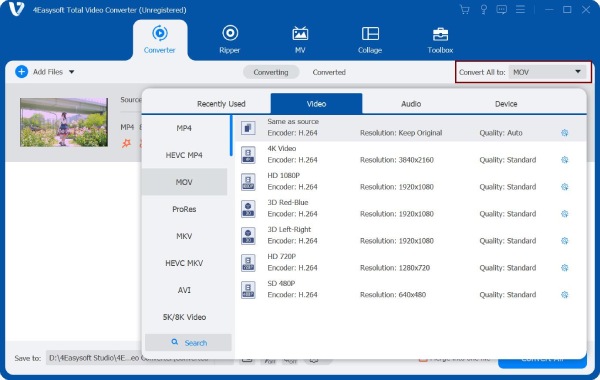
Step 2In the Convert All to dropdown menu, switch to the Audio tab. Then click the FLAC format.
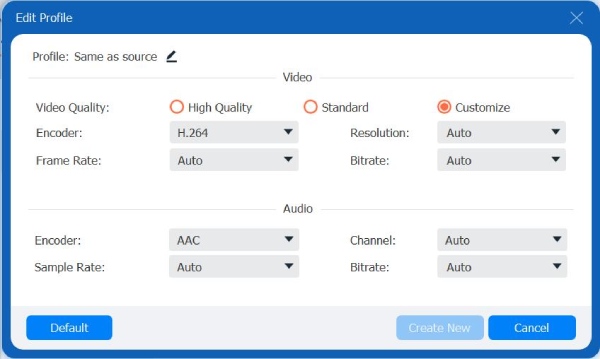
You can adjust audio output settings, such as sample rate, bitrate, or channels, click the Custom Profile button next to your chosen format.
Step 3Once you have finalized everything, return to the main interface to assign a saving location and name for your file. Finally, click the Convert All button to initiate the .mp3 to .flac conversion.

100% Secure
100% Secure
CloudConvert: Multi-Format Online Converter
While a desktop converter offers much power, you may still prefer a cloud-based solution to turn MP3 to FLAC without installation. CloudConvert stands out for its wide output formats support. It also provides control over your audio file. Thus, you can change the audio codec and volume before the conversion.
- Pros
- Offers high-quality output.
- Integrates with Google Drive and Dropbox.
- Cons
- Needs stable internet access.
- Limited to 25 conversions per day.
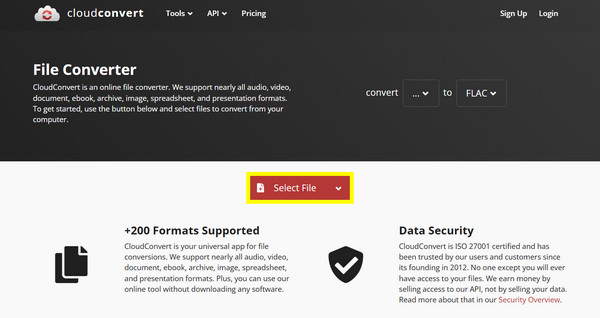
Step 1Head to the CloudConvert official website.
Step 2Once in there, click on Select File to upload your MP3 audio file from your computer or cloud storage.
Step 3Choose FLAC as the target format in the Convert to menu, then click the Convert button and download the FLAC audio file once it is complete.
FreeConvert: Customizable Conversion for Large Files
Moving forward to another strong online MP3 to FLAC converter, FreeConvert is very accessible, with a focus on working with larger file sizes than its rivals. Besides that, it offers a compression level to help you balance the file size and quality during the MP3 to FLAC conversion. Plus, it comes with advanced options such as fade-in/out effects that can be applied.
- Pros
- Advanced audio effects are supported.
- Supports secure file deletion.
- Offers large file size limits.
- Cons
- Its free version includes ads.
- The speed depends on your upload bandwidth.
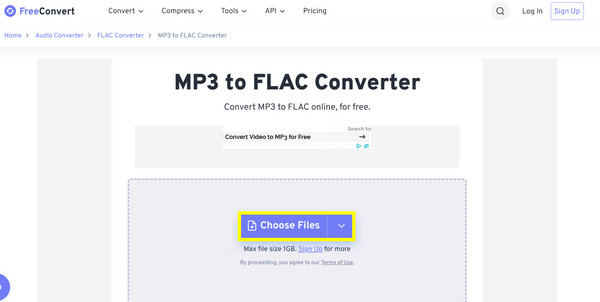
Step 1Visit the FreeConvert MP3 to FLAC main website. From there, click the Choose Files button to import your MP3s.
Step 2Optionally, you can adjust the FLAC compression level by clicking the Settings button.
Step 3Then, click the Convert to FLAC button and download your new lossless file.
Clideo: Simple and Secure MP3 to FLAC Transformation
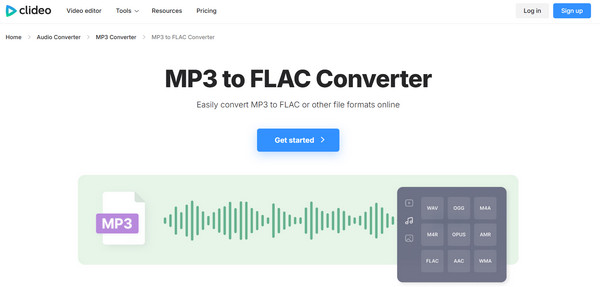
In contrast to more technical layouts, Clideo here has a streamlined interface that makes it perfect for your quick MP3 to FLAC and other conversions. This online FLAC converter focuses on giving users simplicity by not having complex settings and just enjoying a three-click workflow. It also works great with mobile browsers, so you can directly transform MP3 to FLAC on your Android or iPhone.
- Pros
- Works great on mobile devices.
- Extremely easy to use.
- Has SSL security.
- Cons
- It can be slower for large files.
- Fewer advanced customization options.
Step 1Search for the Clideo MP3 to FLAC converter page.
Step 2There, upload your MP3 audio file by clicking the Choose file button.
Step 3Next, ensure to select FLAC from the list of available audio formats.
Step 4Wait for the process to finish, and click the Download button to save your file.
Conclusion
Out of the MP3 to FLAC converters mentioned, the best one depends on what you need. You can go for a quick online fix or the powerful desktop software. Regardless of the tool, the goal is to transform MP3 to FLAC while still preserving the audio integrity. For this reason, it's best to use 4Easysoft Total Video Converter. Aside from several formats supported, it handles batch conversions with hardware acceleration combined. It offers the most efficient, high-speed, and feature-rich solution that makes it a standout choice for anyone serious about their sound quality.
100% Secure
100% Secure
