
Convert and edit videos and audio to 600+ formats with high quality.

Top 5 MP3 Converters: Fast, Free, and High-Quality Picks

Posted by Aira Lesly Escoto to Convert Audio Feb 06, 2026
From YouTube links to local music files, having them in MP3 format will allow you to manage your music library easily, share them quickly, and play them anywhere comfortably. For this, a reliable MP3 converter is a must-have tool. However, there are tons of them with many ads or not-so-good results. So, this guide has got you the top 5 picks of MP3 audio converters, from desktop suites to cloud-based services, featuring their pros, cons, steps, and more.
Guide List
1. 4Easysoft Total Video Converter - All-in-One MP3 Converter with Customizable Settings 2. Freemake Audio Converter - Windows MP3 Converter with iTunes Export 3. VSDC Free Audio Converter - High Speed MP3 Converter for Older Hardware 4. CloudConvert - Quick MP3 Conversions with High-Security 5. FreeConvert - Free MP3 Converter Even for Large Files1. 4Easysoft Total Video Converter - All-in-One MP3 Converter with Customizable Settings
A powerhouse designed for anyone who's looking for a professional-grade desktop solution is the 4Easysoft Total Video Converter. This robust MP3 converter program covers more than 600 formats, such as MP3, AAC, FLAC, MP4, MOV, AVI, and more, so it is impossible to find a file it can't handle. These formats come with customizable profile settings that will meet your preferences. Beyond that, its multi-core processor guarantees that even huge batch conversions are completed at a fast speed, allowing you to get your files at once.
MP3 and 600+ formats supported, including 4K UHD and lossless audio.
Hardware acceleration and multi-core processing for fast batch conversion.
Preview audio before exporting and fine-tune bitrate or sample rate.
Built-in audio editor to trim, merge, and adjust volume or delay.
100% Secure
100% Secure
- Pros
- Works very fast, even for batch processing; maintains lossless quality.
- Cons
- Needs to be paid for the full feature set.
Step 1Start by opening 4Easysoft Total Video Converter. Click the "Add Files" button to browse your folders to import your audio/video files.

Step 2Navigate to the "Format" dropdown menu to view all available formats. Inside the "Audio" section, locate and choose "MP3", selecting a particular quality profile that best fits your needs.
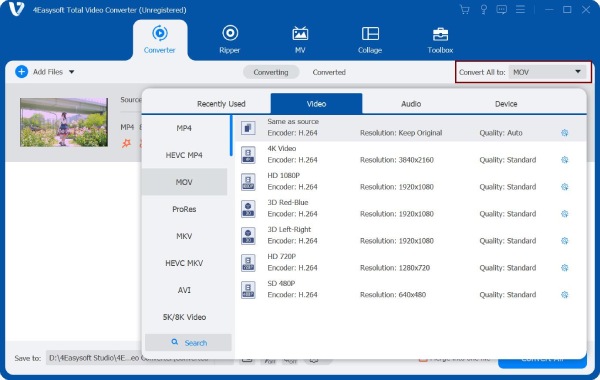
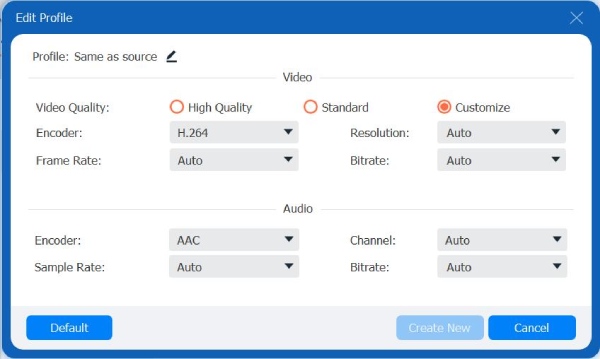
You can refine the bitrate or sample rate by clicking the "Custom Profile" button next to your chosen format.
Step 3Once your settings are done, head back to the main screen to set a save folder and name for your file. Later, click the "Convert All" button to save your new MP3.

100% Secure
100% Secure
2. Freemake Audio Converter - Windows MP3 Converter with iTunes Export
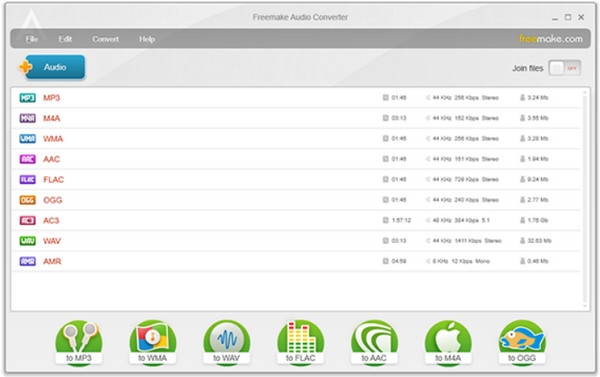
Another reliable choice for converting files to MP3 for Windows is the Freemake Audio Converter. This desktop MP3 converter software centers on ease of use, featuring large, clear buttons that make the conversion process much easier. One of its standout features is its iTunes exports, which send your converted MP3 files automatically to your Apple library.
- Pros
- Smooth integration with iTunes for easy sharing; very low learning curve.
- Cons
- Its free version may include a watermark.
Step 1Open Freemake Audio Converter, then click the "Audio" button to load your files. Choose the desired format button at the bottom.
Step 2Following that, choose a preset from the dropdown list.
Step 3Click the "Convert" button to save the converted file to your computer.
3. VSDC Free Audio Converter - High Speed MP3 Converter for Older Hardware
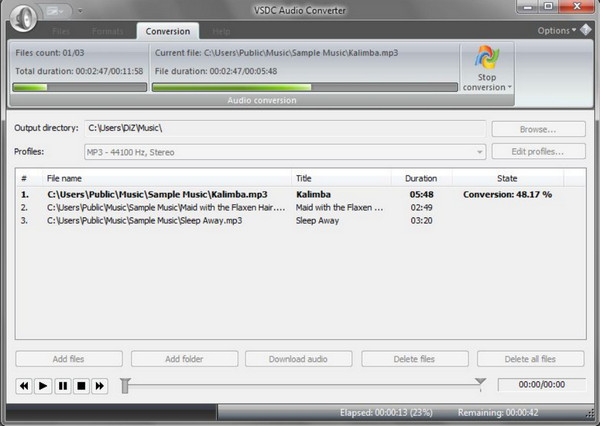
VSDC Free Audio Converter prioritizes high performance over flashy aesthetics. It is well-known for its advanced export presets, which let you select profiles specifically made for different devices like smartphones, consoles, or old MP3 players. Furthermore, this free MP3 converter ensures that even under heavy batch upload, your computer remains responsive.
- Pros
- High-performance engine that supports hyper-threading; includes basic editor.
- Cons
- Windows-only support; its interface is slightly outdated than others.
Step 1Launch VSDC, then use the "Add Files" button to import your source audio or video file.
Step 2Next, click the "Audio" tab above and pick "To MP3".
Step 3After that, select an export preset that perfectly matches your device.
Step 4Then, click the "Start conversion" button to finish the MP3 conversion.
4. CloudConvert - Quick MP3 Conversions with High-Security
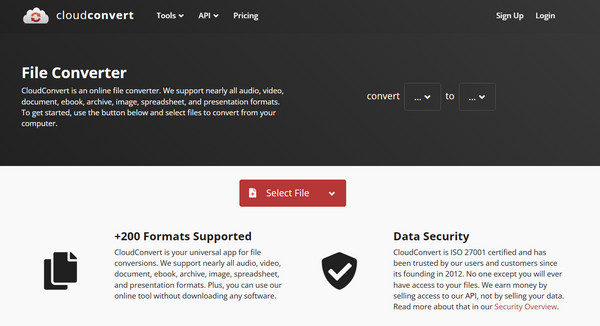
Switching to the cloud options, the first one here is CloudConvert, one of the most versatile online MP3 converters available today. Using this, you won't have to worry about system compatibility as it works entirely in your browser. It handles more than 200 formats, so you can convert video to MP3, and others, and has deep customization over settings like audio codecs, bitrates, and volume levels.
- Pros
- Works on any device with browsers; files are encrypted.
- Cons
- Limited to 25 conversions per day; the speed depends on your internet connection.
Step 1Inside the CloudConvert website, click the "Select File" button to upload your file from your device or get it from cloud storage.
Step 2Choose "MP3" in the "Convert To" dropdown. Click the "Settings" button if you wish to tweak audio settings.
Step 3Click the "Convert" button to turn any video or audio to MP3.
5. FreeConvert - Free MP3 Converter Even for Large Files
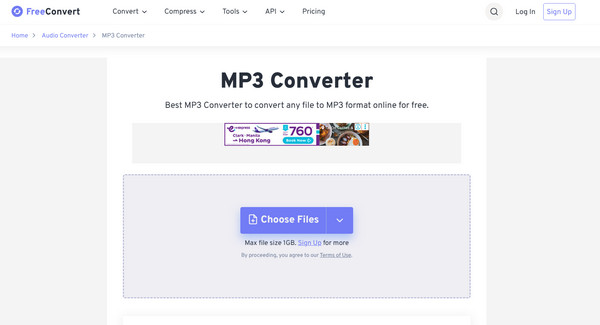
Lastly, if you wish to handle massive MP3 files without paying that much, use FreeConvert as your MP3 converter online. While many online services limit you to 100MB, this tool lets you upload files up to 1GB for free. It also has an Advanced AI to make sure the audio quality is not ruined during the conversion process. After that, you can use an MP3 compressor to reduce audio file size for further sharing or uploading.
- Pros
- Huge file size limit for free users; audio effects options included.
- Cons
- Heavy files can take a lot of time to upload; the page has several ads.
Step 1From the main page of FreeConvert, click the "Choose Files" button to import your audio/video file.
Step 2Make sure the output is set to "MP3". Then, click the "Settings" button to adjust volume and other effects.
Step 3Click the "Convert to MP3" button and download it once it's done.
Conclusion
Finding the right MP3 audio converter in 2026 is all about your preference in terms of speed, convenience, and quality. You can use a no-install solution like CloudConvert or rely on the offline stability of a desktop converter. While each converter here excels in its unique way, if you want a batch MP3 converter and editor, 4Easysoft Total Video Converter is highly recommended. Its support for more than a hundred formats, lightning-fast conversion, and customizable settings makes it the ideal all-around solution for any video or audio project.
100% Secure
100% Secure
