
Remove screen passcode, Apple ID, MDM and Screen Time from iPhone safely.

How to Use Lockdown Mode on iPhone - The Ultimate Guide

Posted by Alvin Cantero to iOS Unlocker May 12, 2026
Lockdown Mode is one of the most powerful Apple security options, built for high-risk people to defend against targeted cyberattacks. As iPhone users become more concerned about privacy and advanced malware threats, more people are interested in learning how Lockdown Mode works and whether they should enable it.
If you're researching what is Lockdown Mode on iPhone, planning to enable it for extra protection, or accidentally turned it on and want to revert the settings, this guide covers everything you need to know.
Guide List
Part 1: What is Lockdown Mode on iPhone Part 2: How Does Lockdown Mode Affect Your iPhone Part 3: How to Turn on/off Lockdown Mode on iPhone Part 4: How to Exclude Apps from Lockdown Mode Part 5: How to Unlock an iPhone If It's Not a Lockdown Mode IssuePart 1: What is Lockdown Mode on iPhone
Lockdown Mode is an optional security feature introduced by Apple in 2022 to protect iPhone users from sophisticated spyware attacks. Although such attacks are extremely rare for most people, they typically target high-profile people, such as journalists, activists, politicians and government officials.
This feature is available in iOS 16 or later, iPadOS 16 or later, watchOS 10 or later, and macOS Ventura or later. Once Lockdown Mode is enabled on your device, the system restricts certain apps, services, websites, and features to reduce potential security risks. While these limitations may affect everyday convenience, they significantly strengthen your device's privacy protection and data security.
Part 2: How Does Lockdown Mode Affect Your iPhone
When you enable Lockdown Mode on your iPhone, you are taking steps to minimize an attack, which means that apps, calls, messages, and even your browser will function differently, and some features will stop working or slow down.
What does Lockdown Mode do on iPhone?
1. Messages
Most message attachment types, such as documents, audio files, and certain links, are blocked by default. Only image attachments are allowed. Some features, like link previews, are disabled.
2. Web Browsing
Some advanced web technologies are disabled in Safari and other browsers. As a result, certain websites may load more slowly or have limited functionality, such as not being able to display certain fonts and images.
3. FaceTime Calls
Incoming FaceTime calls from people you have never contacted within the past 30 days are automatically blocked. Some features, like SharePlay and Live Photos, are unavailable.
4. Device Connections:
When your iPhone is locked, wired connections to computers and accessories are restricted. You must unlock your device to connect to another device.
5. Photos
If you share photos while Lockdown Mode is enabled, the location details will be removed automatically. You cannot use the Share Albums feature, and new invitations to shared albums will be blocked.
6. Configuration Profiles:
Installing configuration profiles or enrolling the device in mobile device management (MDM) systems is blocked.
7. Wi-Fi Network
Your device cannot connect to non-secure or unfamiliar Wi-Fi networks automatically; it will disconnect from the risky Wi-Fi network when you enable Lockdown Mode on iPhone.
Part 3: How to Turn on/off Lockdown Mode on iPhone
It's important to consider whether your device is truly at risk before enabling Lockdown Mode. If you are already aware of how Lockdown Mode affects your iPhone's functionality but still want the extra protection, you can easily turn it on after restarting your iPhone, and turn it off anytime in Settings.
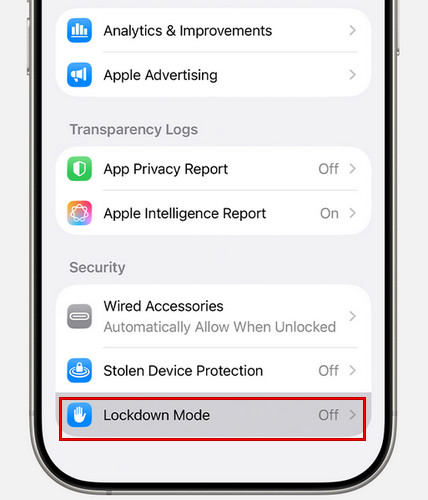
Where is Lockdown Mode on iPhone ?
Step 1Open the Settings app and tap "Privacy & Security".
Step 2Scroll down and tap "Lockdown Mode", then tap "Turn On Lockdown Mode".
Step 3Tap "Turn On Lockdown Mode" again.
Step 4Tap "Turn On & Restart", then enter your device passcode. After your iPhone restarts, Lockdown Mode will be active.
The steps to turn off Lockdown Mode are the same as turning it on, only in reverse.
Part 4: How to Exclude Apps from Lockdown Mode
Apple also allows you to exclude certain trusted apps or websites from Lockdown Mode restrictions when necessary. This gives you more flexibility while still maintaining a high level of security.
How to Exclude a Website While Browsing:
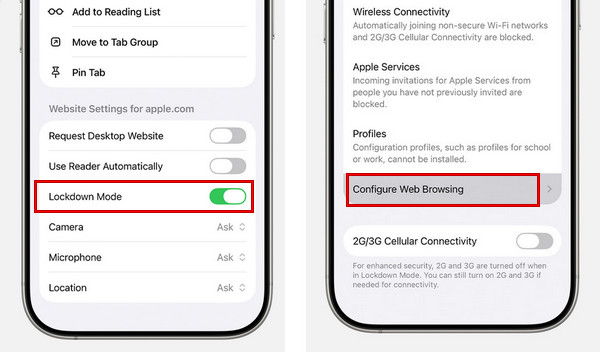
Step 1Tap the "Page Menu" button, then select "More".
Step 2Find Lockdown Mode, then turn it off.
How to Exclude an App from Lockdown Mode on iPhone:
Step 1Open the Settings app on your iPhone.
Step 2Tap "Privacy & Security" and tap "Lockdown Mode".
Step 3Tap "Configure Web Browsing" or "App Restrictions", then toggle off the app you want to exclude.
Only exclude apps or websites that you fully trust. Keeping most protections enabled ensures your device remains better protected against sophisticated threats while still letting essential tools work smoothly.
Part 5: How to Unlock an iPhone If It's Not a Lockdown Mode Issue
If you're having trouble accessing your iPhone, it's important to first confirm whether the issue is actually caused by Lockdown Mode. As explained earlier, Lockdown Mode mainly restricts app functionality, device connections, and web browsing, but it does not lock your screen or make your iPhone disabled.
So, if your iPhone is disabled, stuck on the lock screen, or shows messages like "iPhone Unavailable" or "Security Lockout", the problem is not related to Lockdown Mode. In these situations, you'll need a different solution to regain access. To unlock an iPhone safely and quickly, you can use a professional tool like 4Easysoft iPhone Unlocker. It helps remove various types of screen locks and get into your locked iPhone in various scenarios.
Wipe 4-dgit/6-dgit screen passcode, Face ID, Touch ID from your iPhone easily.
Delete the previous owner's Apple ID and bypass Activation Lock safely.
Remove MDM profiles and Screen Time passcodes without data loss.
Compatible with all iPhone models and versions.
100% Secure
100% Secure
How to Use 4Easysoft iPhone Unlocker:
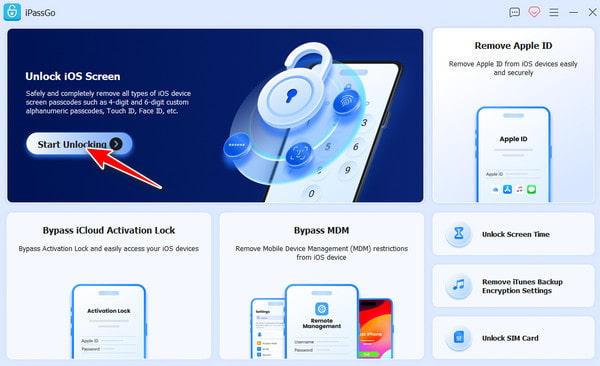
Step 1Launch the software on your computer, and click "Unlock iOS Screen" on the interface. Connect your iOS device to your computer with a USB cable.
Step 2Check the device information about your iPhone. If everything is correct, click the "Start Now" button to download the firmware from the network.
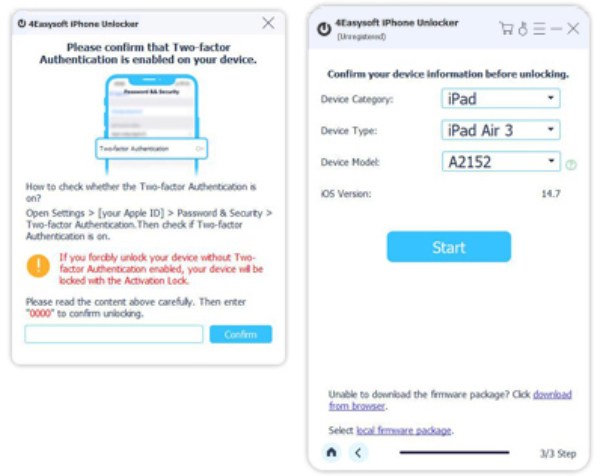
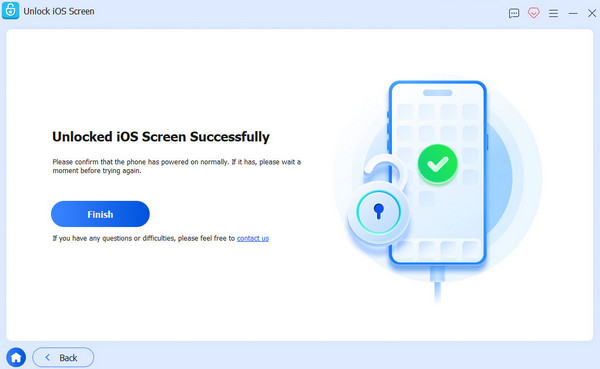
Step 3Hit on the "Start Removing" button to continue. Follow the on-screen instruction to confirm unlocking. Then, your screen passcode will be removed soon.
Conclusion
To wrap up, Lockdown Mode is not a setting to enable casually. It's a powerful security measure that better protects your iPhone from targeted threats. Now you know how to turn it on or off, how it affects your device, or how to set up app exclusions.
Keep in mind that enabling Lockdown Mode on iPhone will limit certain app features, block unknown attachments and connections, and may slow down web browsing. For this reason, think twice before you enable it.
100% Secure
100% Secure
