
Fix 150+ iOS system problems without data loss.

5 Methods to Fix iPhone Black Screen with Different Models

Posted by Alvin Cantero to iOS Recovery Feb 27, 2026
Is your iPhone screen black, but the phone is still functional? It's possible the system is still running normally. You'll need to troubleshoot the issue using relevant methods before applying the appropriate solution to fix the iPhone black screen problem. This article provides five methods applicable to most models. Continue reading for detailed steps.
Guide List
Several Causes of iPhone Black Screen Hard Reset Your Black Screen iPhone Use a Professional Tool to Fix an iPhone Black Screen Fix Black Screen iPhone with the Recovery Mode Other 2 Methods to Check and Fix iPhone Black ScreenSeveral Causes of iPhone Black Screen
Battery Depletion
When the battery is completely depleted, the device will automatically shut down and enter a black screen state. At this point, the screen will display nothing, including the battery indicator pattern.
System Crash or iOS Freeze
Severe software conflicts, app malfunctions, or excessive system resource usage during iOS operation may cause the system to freeze and display a black screen.
Screen Hardware Damage
If the phone has been dropped or subjected to pressure, the display (LCD or OLED) may be damaged. In this case, the device may still vibrate, produce sounds, or alert for incoming calls, but the screen will remain completely blank.
Motherboard or Power Management Chip Failure
Abnormalities in the power management IC or motherboard circuitry can prevent the device from receiving proper power or booting up, resulting in a black screen and inability to power on.
iOS Update Failure or Corrupted System Files
Network interruptions, low battery, or installation errors during system upgrades may corrupt system files, causing the device to remain stuck on a black screen during startup.
Overheating Protection Mechanism Triggered
When the device operates for extended periods in high temperatures or runs resource-intensive applications, excessive internal heat may trigger the system to automatically shut off the screen to protect hardware components.
Hard Reset Your Black Screen iPhone
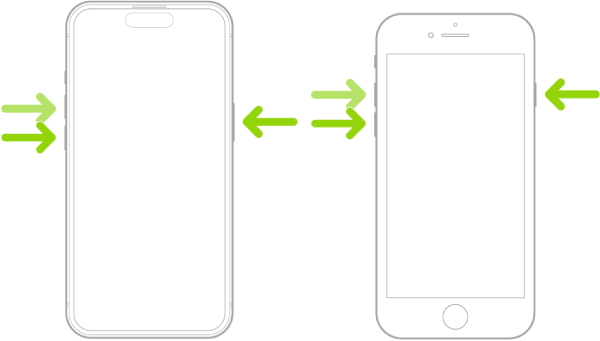
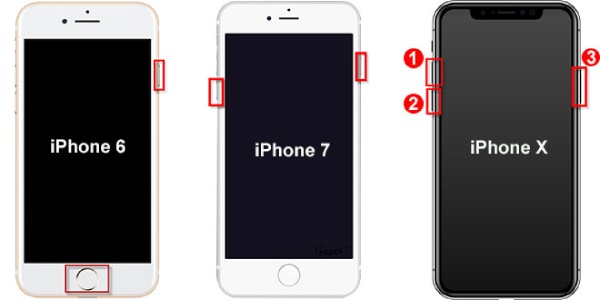
If you encounter a situation where your iPhone screen is black but the phone functions normally, don't worry; there are still steps you can take. This is likely caused by a software issue. Such a scenario typically indicates that your iPhone has frozen or crashed. Fortunately, you can resolve this problem by performing a hard restart on your iPhone. Every iPhone has a combination of buttons that can perform a "hard restart," forcing the device to shut down and then restart. The specific button combination varies depending on the iPhone model.
iPhone without a Home button: ress the "Volume Up" button, then press the "Volume Down" button, and hold the "Side" button until you see the Apple logo appear.
iPhone 7 or 7 Plus: Press and hold the "Volume Down" button and the "Lock" button until the Apple logo appears.
iPhone 6s and earlier: Press and hold the "Home" button and the "Lock" button simultaneously until the Apple logo appears.
Use a Professional Tool to Fix an iPhone Black Screen
If the first method doesn't work, it could also be a more complex software issue that's difficult to fix. You can use a professional iOS system repair tool to resolve it. For example, 4Easysoft iOS System Recovery can fix over 50 issues without damaging your data. It offers multiple repair modes and is compatible with the latest iPhone 17 and iOS 26.

Compatible with all models and iOS versions of iPhone, iPad, and iPod.
Support Quick Mode and System Reinstallation two modes to fix iPhone issues.
Recover your iPhone and other iOS devices in different situations, like a red screen, system crash, physical damage, and more.
With all their solutions provided for recovering and fixing iOS devices, no data loss will occur.
100% Secure
100% Secure
Step 1Launch it on your computer. Click "iOS System Recovery" and connect your black screen iPhone to your computer via a USB cable. Click "Start" to continue, and your device will be detected automatically.
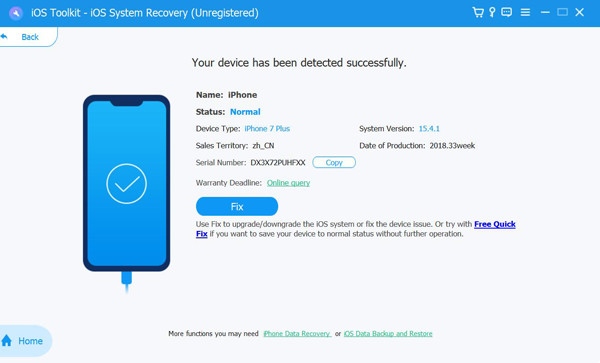
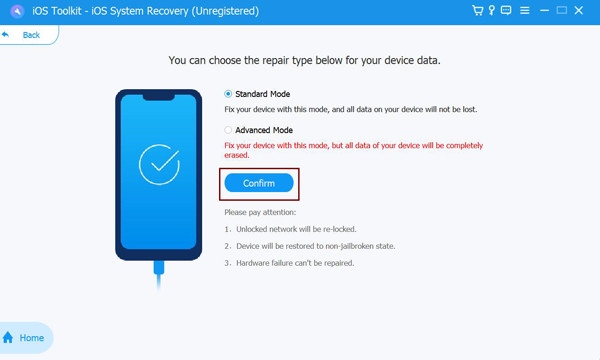
Step 2Click "Free Quick Fix" to solve simple issues like a crashed iOS system. Or, click "Fix" to choose Standard Mode or Advanced Mode to fix your iPhone.
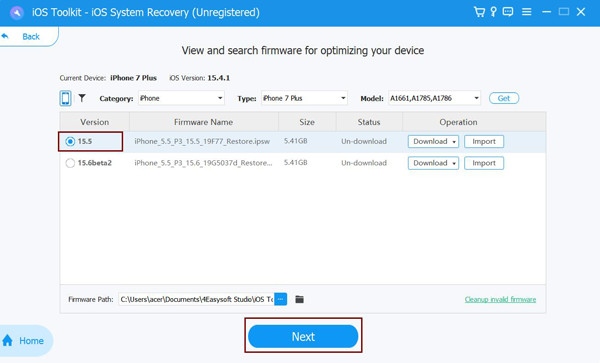
Step 3Choose the proper category, type, and model of your device. Then, download your preferred firmware with a different iOS version. Click "Next" to start fixing your iPhone with a black screen.
Fix Black Screen iPhone with the Recovery Mode
Recovery Mode is also a feature that can fix system issues like iPhone black screens. It allows you to connect your iPhone to a computer so the computer can repair it. This repair is typically achieved by installing a fresh version of iOS. However, this method may erase all data on your iPhone. You should back up your iPhone's data to an external drive before using it.
Step 1Connect your iPhone to your computer using the data cable. Open the latest version of iTunes or Finder.
Step 2Press and hold the corresponding button combination for your iPhone model until "Connect to Computer" appears. Your computer will prompt that it has detected an iPhone in recovery mode.
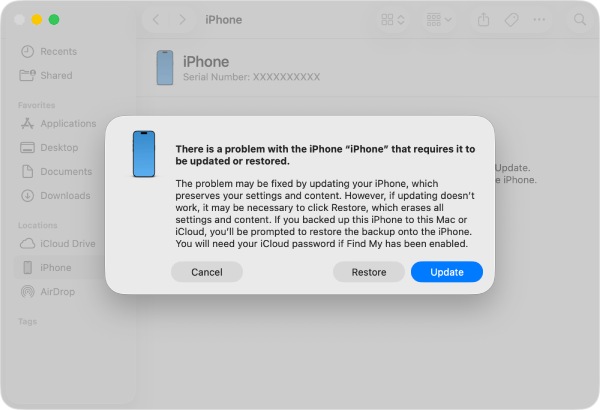
Step 3Click "Update" to reinstall iOS without deleting your data. The system will automatically download and install the latest version.
Step 4If the update fails, then select "Restore." This action will erase all data and reinstall the operating system.
Other 2 Methods to Check and Fix iPhone Black Screen
Charge Your iPhone to Resolve the Black Screen Issue
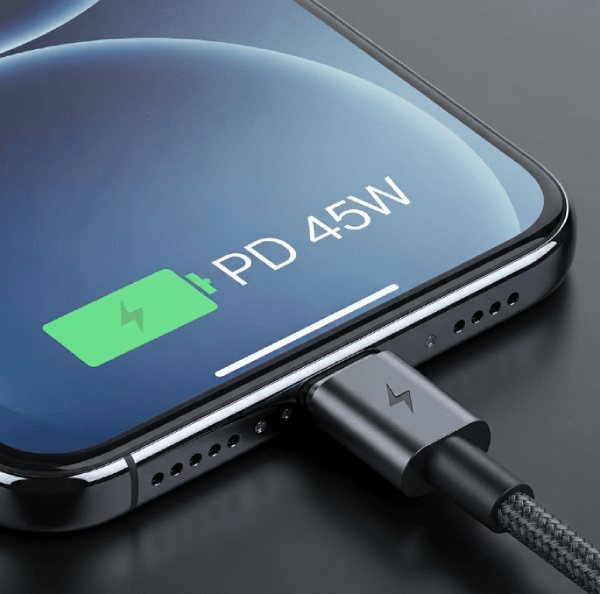
When you try to use an iPhone with low battery power, it typically displays an empty battery pattern. However, if the battery is completely depleted, the screen may go completely black. In this case, charging it promptly will restore functionality. Long-term battery depletion can accelerate battery drain faster.
Contact Apple Support to Repair a Black-screen iPhone
If none of the above methods work, you may be facing an issue beyond your ability to resolve. This is likely a hardware problem; for example, the power supply circuit for your iPhone screen may have failed. You can visit the Apple Support website to get started, or bring your device to an Apple Store retail location for assistance.

Conclusion
Here are several effective methods to fix an iPhone black screen. You can eliminate possibilities based on the likely cause and choose the most suitable approach. If standard methods fail, 4Easysoft iOS System Recovery offers the fastest and most convenient solution. No technical expertise is required; most iPhone issues can be resolved in just a few steps.
100% Secure
100% Secure
