
Record, edit, and share video from all sources.

How to Take Screenshots on ASUS? 4 Ways to Master for 2026

Posted by Ethan Brooke to Screenshot Feb 28, 2026
Using a high-end gaming rig or a sleek Zenbook for work? Regardless of the device, knowing how to take a screenshot on ASUS is a huge productivity booster. Powered by Windows, ASUS devices have several options that cater to different capture needs, from the entire screen to a custom section. Thus, the following shares the four most effective methods to take an ASUS laptop screenshot, ensuring you don't miss a moment of crucial on-screen information.
Guide List
The Most Effective and Convenient Asus Screenshot Method Quick but Limited Keyboard Shortcut Screenshot Method How to Take a Screenshot on an Asus with Xbox Game Bar Screenshot on Asus with Snipping ToolThe Most Effective and Convenient Asus Screenshot Method
For a much more comprehensive solution for taking screenshot on ASUS, especially when standard shortcuts fall short for you, a dedicated tool like 4Easysoft Screen Recorder is what you must have. This recording software is far more than that, as it lets you take high-resolution snapshots that can be edited in real-time with text, shapes, callouts, and more. It is particularly great for creators and professionals who need to capture a screenshot on ASUS in specific regions or scrolling windows. Plus, its intuitive interface makes it the most convenient choice for anyone, at any skill level, for perfect capture on ASUS devices.

Easily capture full-screen, specific windows, custom areas, or scrolling pages on ASUS.
Create your own personalized shortcuts for quick, one-press screenshots.
Polish your images right away with the built-in preview and editing tools.
Control details by adjusting the image resolution and choosing the file format.
100% Secure
100% Secure
Step 1Launch 4Easysoft Screen Recorder on your ASUS device. From the main dashboard, locate the "Camera" button and click the dropdown arrow to select "Screen Capture".
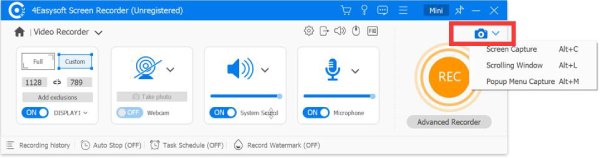
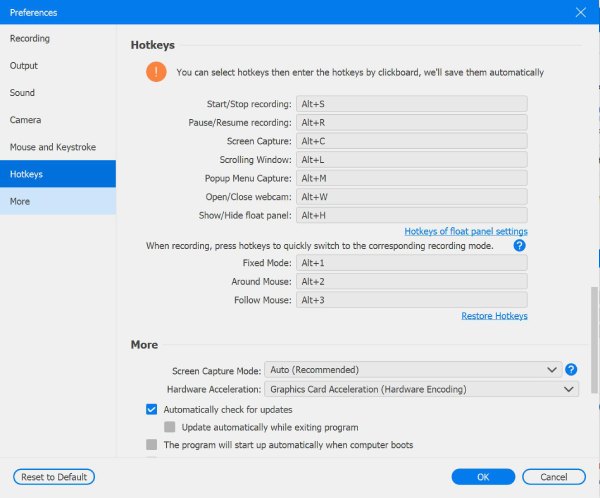
Note: You can trigger the snapshot quickly using "Alt + C" keys. This shortcut can be customized inside "Settings", then go to "Hotkeys".
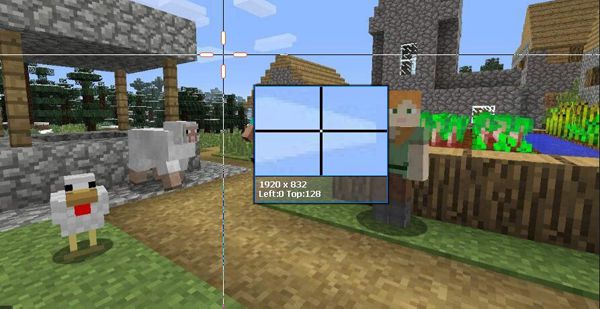
Step 2Once you choose "Screen Capture", your cursor will turn into a crosshair. Simply click and drag the crosshair across your ASUS screen to highlight the exact part you want to capture.
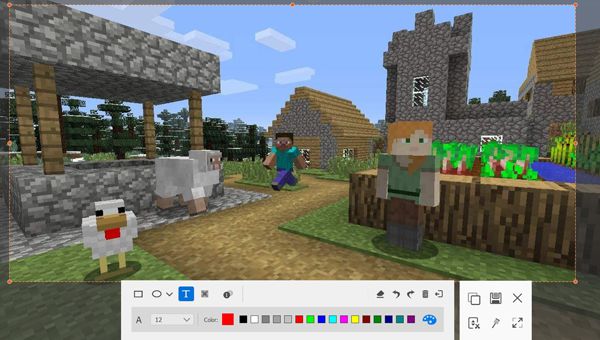
Step 3After you release the mouse, an editing toolbar will show up. Use this to add shapes, drawings, text, callouts, and more to make your ASUS screenshots more informative.
When you're satisfied, click the "Save" button, then name your file and pick a file location.
100% Secure
100% Secure
Quick but Limited Keyboard Shortcut Screenshot Method
Suppose you don't need the advanced editing features of a recorder; you can always rely on the standard keyboard shortcuts for a quick screenshot on ASUS. The most universal way to capture an image is with the Print Screen key, bypassing any menus and software interfaces. While it is considered limited as it may need manual cropping afterward, it is the best choice to take an ASUS screenshot quickly.
Take a Screenshot on ASUS: Full Screen
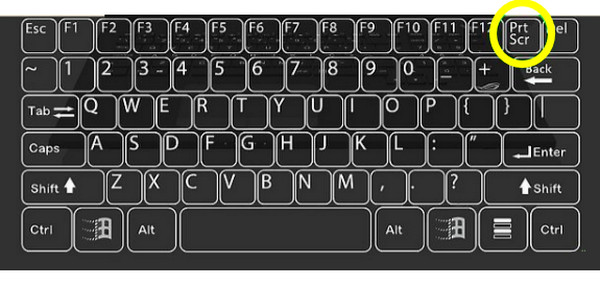
For the full screen capture on ASUS, simply press the "Print Screen" key. Then, open any image editor like Paint, paste the image, and save it to your device. (Solutions you may need to fix Print Screen not working.)
Take a Screenshot on ASUS: Full Screen and then Save
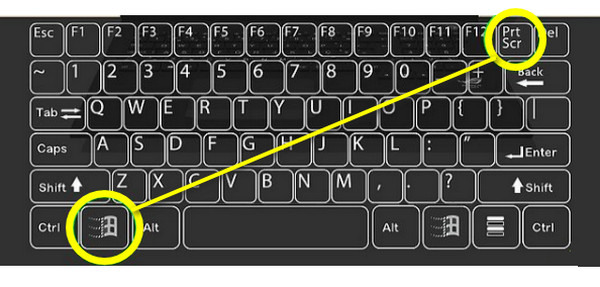
To capture the screen in full page and save the image directly, press the "Windows + Print Screen" key at once. Your screen will be slightly dimmed, indicating the screenshot has been taken. Go to the "Pictures" library in File Explorer and find the folder named "Screenshots".
Take a Screenshot on ASUS: An Active Window
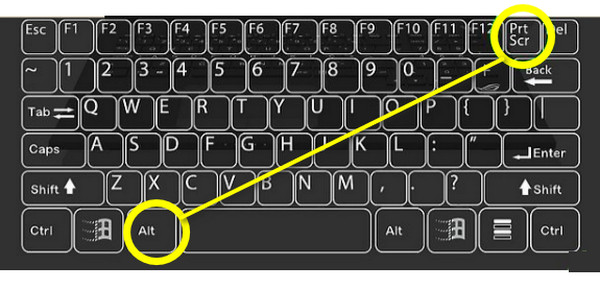
For an active window screenshot, press the "Print Screen + Alt" keys. Paste the captured image into the image editor, then save it.
How to Take a Screenshot on an Asus with Xbox Game Bar
Windows Game Bar can handle media capture specifically for high-seed scenarios. Here, you can take a screenshot on ASUS, especially for ASUS ROG or TUF gaming laptops. Once captured, the images can be accessed in a Gallery widget, making it easy for you to review all gaming moments later.
Step 1To open the Game Bar overlay, press the "Windows + G" keys.
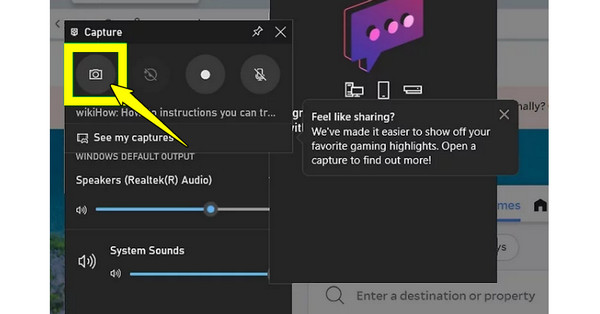
Step 2Locate the "Capture" widget, which is usually in the top-left corner.
Step 3Click the "Camera" button to screenshot on ASUS. Otherwise, you can press the "Windows + Alt + Print Screen" keys to capture instantly without opening the menu.
Screenshot on Asus with Snipping Tool
If you need just a particular shape or part of a webpage, use Snipping Tool shortcuts to you take a screenshot on an ASUS device. It features a bunch of modes, including free-form and rectangular snips, allowing you to have complete control over the composition. Also, it has a delay timer feature that lets you set up menus before the capture triggers.
Step 1Press the "Windows + Shift + S" keys on your keyboard to open the Snipping overlay instantly. There, select your mode, such as Rectangular, Free-form, Window, or Full-screen.
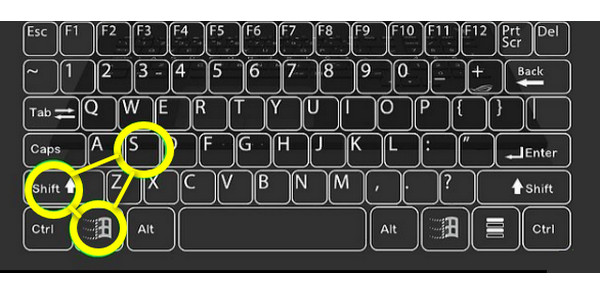
Step 2After choosing, click and drag your mouse over the part of the ASUS screen you want to capture.
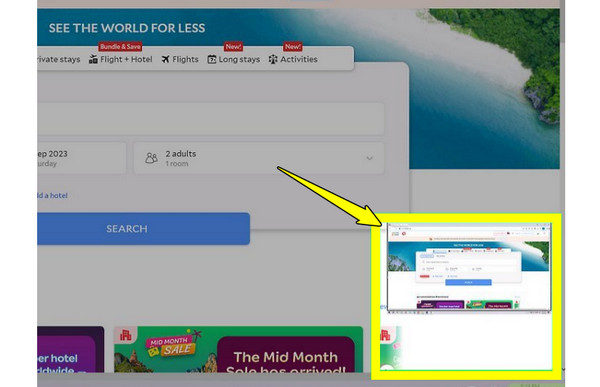
Step 3Later, click the notification that shows up to open the editor and save it to your PC.
Conclusion
Now, you can easily save information and share gaming moments by capturing your screen on your ASUS device! Whether you rely on keyboard shortcuts or the Xbox Game Bar, perhaps you want the built-in Snipping Tool; each method ensures you can take an ASUS screenshot, from a quick full-screen to a selected section. If you want more than just a basic snapshot, 4Easysoft Screen Recorder does a better job that default tools. You can get real-time annotations, scrolling window captures, and customizable settings that elevate your screenshot game. Get this ultimate all-in-one toolkit for your ASUS device!
100% Secure
100% Secure
