
Fix 150+ iOS system problems without data loss.

3 Ways to Soft Reset iPhone [and Steps When It Doesn't Work]

Posted by Alvin Cantero to iOS Recovery Jan 29, 2026
Between glitches, full storage, or system crashes on your iOS device, there will be times when you need to know how to soft reset iPhone. Whether you're struggling with a stuck screen or minor bugs, knowing which reset technique is essential; you may need a soft reset, a hard restart, or a deep reset. Therefore, for every iPhone model, here are the ways to soft reset iPhone alongside steps when it does not work, and more reset approaches to get your device performing again.
Guide List
The Difference between Soft and Hard Reset on iPhone How to Soft Reset All Models of iPhone for All Versions Professional Way to Reset iPhone When Soft Reset Doesn’t Work How to Reset Your iPhone to Factory SettingsThe Difference between Soft and Hard Reset on iPhone
To really understand how to fix your iPhone when it begins to lag, freeze, or act up, first distinguish the difference between a soft reset and a hard reset. While they sound similar, that saves you a trip to repair costs; they serve very different purposes in troubleshooting.
- Soft Reset. The standard restart, where you can turn the phone off and then back on again. It is the gentlest solution to get rid of minor bugs and give your iPhone a fresh start without affecting your existing data.
- Hard Reset. The force restart, which is usually used when your device is completely unresponsive. It cuts the power and forces the hardware to restart. No data will be deleted, but this approach is a more aggressive way to restart a stuck system.
How to Soft Reset All Models of iPhone for All Versions
Once you understand the difference, you can now attempt to reset iPhone to see if it clears the issue. Depending on which model of iPhone you own, the combination varies. Here's the breakdown to soft reset iPhone 17 and earlier models:
How to Soft Reset iPhone 8 and Newer?
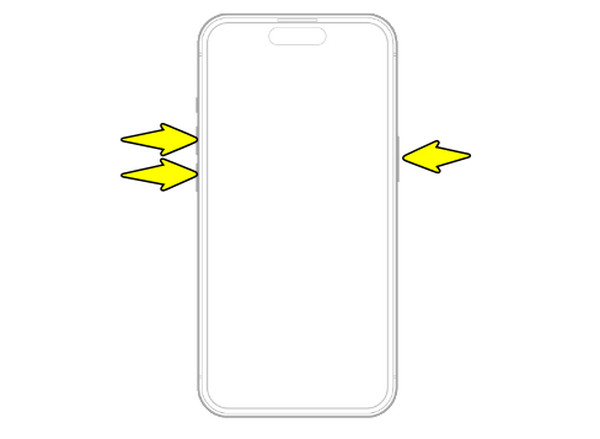
- 1.Quickly press and then release the "Volume Up" button.
- 2.Then, quickly press and release the "Volume Down" button.
- 3.After that, press and hold the "Power" button until the Apple logo shows up on the screen.
How to Soft Reset iPhone 7 and 7 Plus?
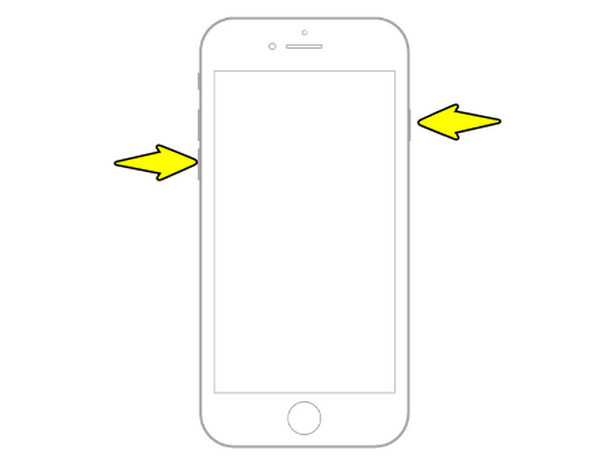
- 1.Press and keep the "Volume Down" and "Power" buttons on hold at the same time.
- 2.Hold the two buttons until the Apple logo appears on your screen.
How to Soft Reset iPhone 6s, SE, and Earlier?
- 1.Press and keep the "Home" and "Power" buttons on hold together.
- 2.Only release them after the Apple logo shows up on your screen.
Professional Way to Reset iPhone When Soft Reset Doesn’t Work
When manual soft resets fail, 4Easysoft iOS System Recovery is highly suggested for restoring your iPhone to a healthy state. This software is made to fix more than 50 different iOS issues, covering phones stuck on the Apple logo, black screen, or recovery mode loops. It stands out because it has a Standard Mode that fixes your system without affecting a single photo or message. Also, with its Advanced Mode, you can repair deeper system corruptions that need a total refresh. Thanks to these features, it takes the technical stress out of the iPhone repair when a soft reset won't work.
Select Standard Mode to keep data or Advanced Mode for deep repair.
Resolves freezing, crashing, black screens, loop restarts, and more iPhone issues.
Supports all iPhone models and the newest versions alongside iPad and iPod models.
Scans your device for system errors with smart detection technology.
100% Secure
100% Secure
Step 1Plug in your iPhone to your computer using a compatible USB cable. After the program detects your phone, select the "iOS System Recovery" option from the home menu and click the "Start" button.
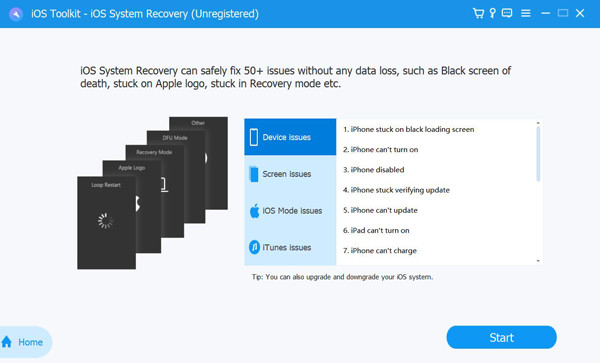
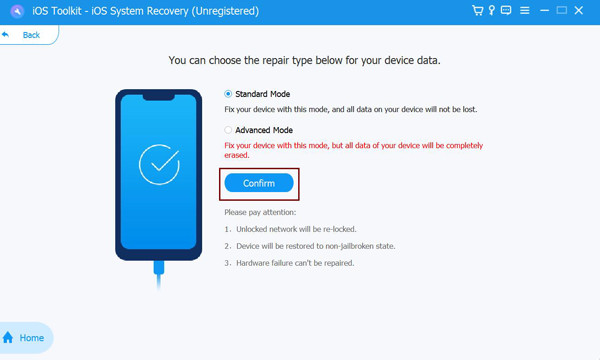
Step 2The tool will do an automatic scan to identify your iPhone errors, causing it to freeze. Click "Fix" to move forward, then you'll have two choices:
Select "Standard Mode" for fixing system glitches and resetting your device without any data loss. Or the "Advanced Mode" to perform a deep reset, which will wipe your device data.
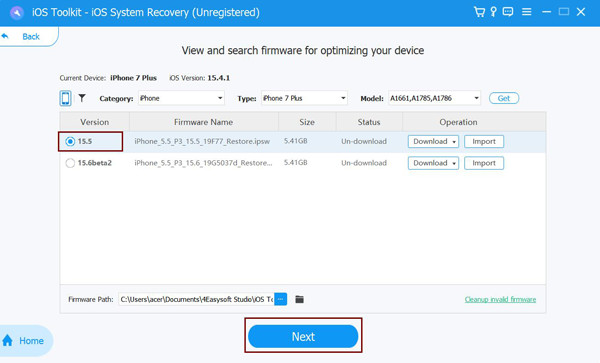
Step 3After choosing, review the on-screen details to ensure the iPhone model and version are accurate. Pick the appropriate firmware package for your device. Once it finishes, click the "Next" button to repair the system and reset your iPhone.
100% Secure
100% Secure
How to Reset Your iPhone to Factory Settings
While the previous approach fixes system errors, there are times when you just want to wipe everything and not just restart iPhone. For this, a factory reset is the most extreme reset way you can do. Unlike soft or hard resets, this solution permanently deletes data and settings, returning your device to its default state and starting from scratch.
Step 1Always make sure your iPhone data is backed up to iCloud or your computer first. If so, navigate to the "Settings" app on your iPhone, then go to "General".
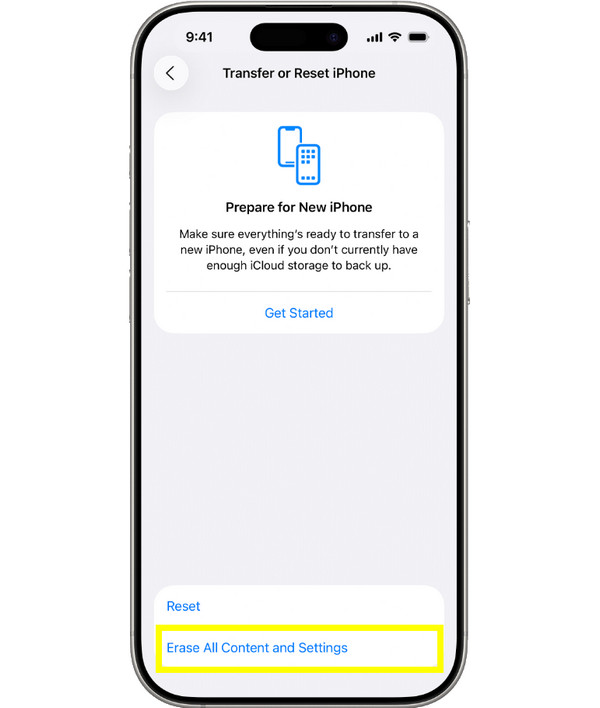
Step 2Next, scroll to the bottom and tap "Transfer or Reset iPhone", then tap "Erase All Content and Settings".
Step 3Tap "Continue" and enter your Apple ID credentials, and confirm the reset.
Conclusion
From a simple soft reset iPhone to a complete factory reset, these different iPhone restarting ways are essential skills to know. By knowing the difference between a soft reset and a hard reset, you can solve any minor technical hurdles your iPhone experiences. However, if your device is still unresponsive after a soft reset, use this reliable and friendly solution, 4Easysoft iOS System Recovery. This tool is specifically made to fix the limitations of buttons, letting you repair the iOS system and reset your iPhone from your computer with a 100% success rate.
100% Secure
100% Secure
