
Convert, edit, and compress videos/audios in 1000+ formats with high quality.

How to Convert MOV to MP4? Get 6 Ways for Batch Conversion

Posted by Aira Lesly Escoto to Convert Video Dec 10, 2025
While known for their high quality, MOV files aren't always friendly with every device or player. Whether you aim for a smoother playback, easier sharing, or a more universal format, the need to convert MOV to MP4 is the simplest solution. Luckily, you don't need any advanced skills to do the task. In this guide, you'll see six quick ways to convert .mov to .mp4 in just a few clicks. No matter which device you use, you will discover here the best way to convert safely and with high quality.
Guide List
How to Convert MOV to MP4 Quickly and with High Quality Convert MOV to MP4 with iMovie on iPhone Enjoy High-Quality MOV to MP4 with CloudConvert Online Quickly Convert MOV to MP4 Using FreeConvert Use Online-Convert to Turn MOV to MP4 with Advanced Optimization Use Popular VLC Player to Convert MOV to MP4How to Convert MOV to MP4 Quickly and with High Quality
When you opt for a fast and reliable MOV to MP4 conversion, the dedicated desktop tool is the most efficient option. Among so many choices today, 4Easysoft Total Video Converter stands out for its friendliness, speed, and quality. It supports hardware acceleration, so your MOV files can be turned into MP4s in seconds without overloading your computer, and keeping the video clarity as sharp as the original MOV video. Beyond simple MOV to MP4 conversion, it provides editing tools, which you can use to trim, apply effects, rotate, crop, and do more to your video before converting. Overall, the program is one of the best choices for anyone who wishes for a high-quality MOV to MP4 converter with consistent results.

Can convert MOV to MP4 with lossless or high-quality output.
Supports GPU acceleration for ultra-fast conversion speeds.
Includes video editing tools like trimming, cropping, merging, filters, and more.
Allows you to customize output settings, e.g., resolution, format, and frame rate.
100% Secure
100% Secure
Step 1Launch 4Easysoft Total Video Converter. Start importing your MOV files by clicking the "Add Files" button or dragging and dropping them into the field.

Step 2Once loaded, open the "Format" dropdown beside the video. There, select "Video" and pick "MP4" as your output format. You can then choose your desired quality settings by clicking the "Custom Profile" button next to the format you've selected.
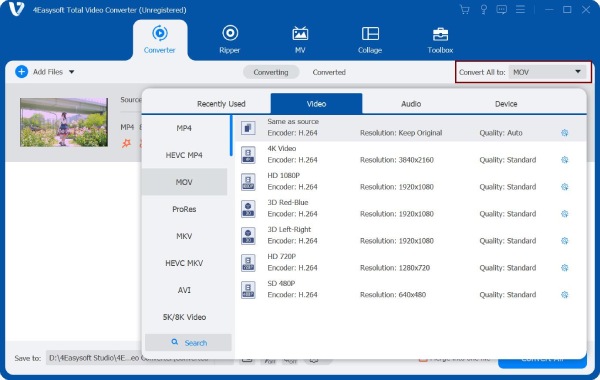
Step 3After that, from the main window, select your output destination folder and name your file. If needed, click the "Edit" or "Trim" button to trim, crop, and apply filters before conversion.
Step 4If satisfied with all that, click the "Convert All" button to start converting the MOV file to MP4. Please wait for the process to finish, then locate the exported MP4 video in the output folder.

100% Secure
100% Secure
Convert MOV to MP4 with iMovie on iPhone
If you want to export MOV to MP4 files on your iPhone, iMovie is a convenient and built-in way to achieve this. It supports high-quality exporting, making it great for keeping video sharp and smooth. Also, since it is preinstalled on most iPhones, you won't need to get another app or an online service. Now, let's follow steps below to export iMovie to MP4.
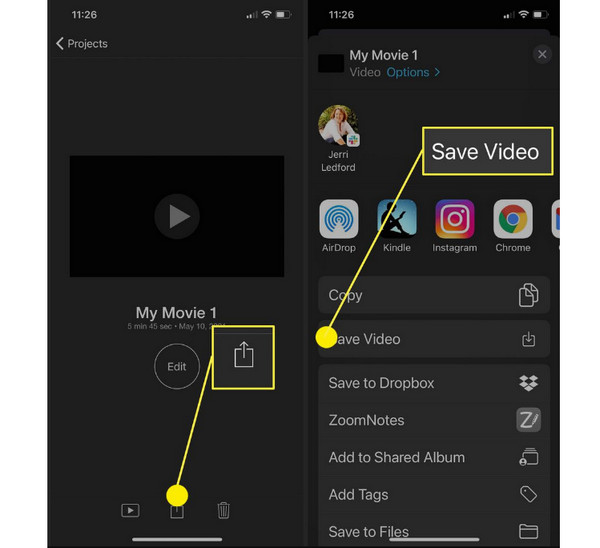
Step 1Launch iMovie on your iPhone, tap "Create Project" then select "Movie" from the options. Import the MOV video file you want to convert.
Step 2Once it is ready, tap the "Share" button. Select "Save Video", then determine the resolution you prefer. iMovie will then export the MOV file as an MP4 file format to your library.
Enjoy High-Quality MOV to MP4 with CloudConvert Online
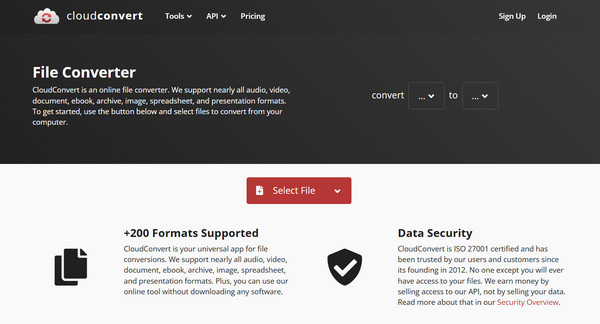
When you need a browser-based MOV to MP4 online converter with refined controls, CloudConvert is highly recommended. You can convert MOV videos uploaded from your computer, phone, Google Drive, Dropbox, and online links to MP4 for free. Just make sure each MOV video file should be smaller than 10MB. And you can get 10 free MOV to MP4 conversions per day.
Step 1Search for CloudConvert on your web browser.
Step 2There, click on "Select File" to upload your MOV video file. Set the "MP4" as your output format.
Step 3Optionally, click "Options" to adjust quality, resolution, bitrate, or codecs.
Step 4Click the "Convert" button to start the conversion. Download the MP4 file after it is done.
Quickly Convert MOV to MP4 Using FreeConvert
For those who want speed and simplicity for their online tool, FreeConvert offers a quick and simple solution to turn MOV to MP4. This tool comes with preset settings that help you make converting videos a much easier process. In addition, it supports batch conversion, which is helpful for multiple MOV files. And since it works entirely online, you don't have to install anything to start, just simply upload your file and convert it right away!
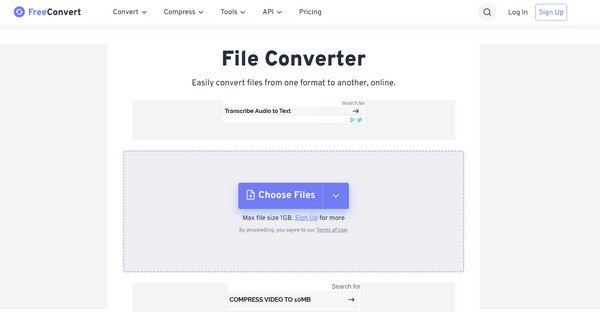
Step 1Go to the official website of FreeConvert.com. Then select "MOV to MP4".
Step 2Upload your MOV video by clicking the "Choose Files" button.
Step 3If you want to tweak quality or compression, select "Advanced Options".
Step 4Next, click the "Convert to MP4" button to successfully save MOV to MP4. Download this MP4 video once finished.
Use Online-Convert to Turn MOV to MP4 with Advanced Optimization
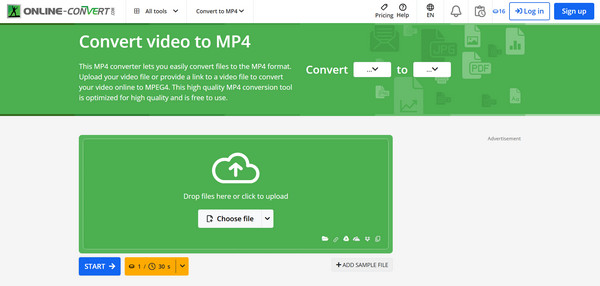
Perhaps you prefer more control over output settings, then Online-Convert offers what you need! Aside from basic MOV to MP4 conversion, this online tool allows you to modify frame rate, audio quality, aspect ratio, and even apply filters. Additionally, it supports uploading files from local storage, cloud storage, and video URLs. And while you navigate through customization options, the platform remains simple and beginner-friendly.
Step 1Go to the Online-Convert MOV to MP4 tool.
Step 2Then, upload your MOV video file from your computer or linked storage.
Step 3You can scroll through the "Optional Settings" to adjust the quality, resolution, or filters.
Step 4Click the "Start Conversion" button. Download the MP4 video to your device after the process is done.
Use Popular VLC Player to Convert MOV to MP4
Another convenient way to convert MOV to MP4, other than online services, is using the VLC Media Player. The open-source MOV converter is known for its compatibility with almost every video format, but besides that, it has a conversion feature that works completely free on both Windows and Mac. While its interface may look technical at first, the conversion steps are straightforward once you know where to click. If you already have it installed on your computer, here's how to change MOV to MP4 using VLC:
Step 1Once VLC Media Player is launched on your computer. Head to the "Media" menu and select the "Convert/Save" option.
Step 2In this window, import your MOV video file by clicking the "Add" button, then click the "Convert/Save" button to proceed.
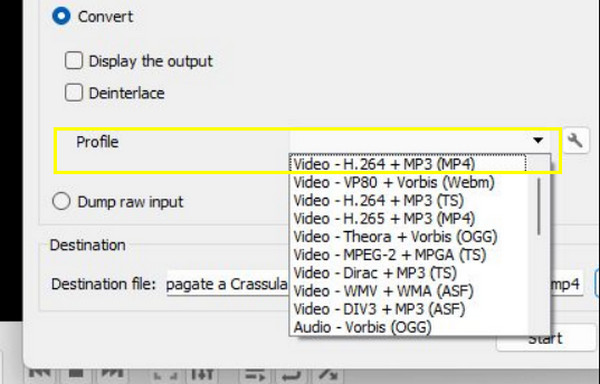
Step 3Now, in the "Profile" field, select "Video - H.264 + MP3 (MP4)" format. You can also click the "Settings" button beside it for more output customization. Later, select the destination and click the "Start" button to convert your MOV file.
Conclusion
Thanks to the above online and offline MOV to MP4 converters, you can turn any MOV video to MP4 format easily. Considering the batch conversion support, 120× faster conversion speed, and 20+ editing tools, 4Easysoft Total Video Converter wins. This MOV video converter combines speed, flexibility, and professional-grade features in one powerful converter on Windows and Mac.
100% Secure
100% Secure
