
Recover all data from your iOS devices, iTunes and iCloud backup.

A Guide to Change SIM Card on iPhone (Quick SIM Swap)

Posted by Paula Pailaga to iOS Backup&Restore Jan 09, 2026
Usually, switching a SIM card on iPhone is a quick and straightforward task. Whether you upgrade to a new phone or switch carriers, many users might have overlooked some steps that can lead to problems like No SIM. Therefore, in this guide, you can get easy steps to change a SIM card on iPhone correctly, alongside things to consider before doing so. Plus, it covers solutions for when a SIM card is not working, walking you through everything you need to know.
Guide List
Things to Consider Before Replacing Your SIM Card Step-by-Step Guide to Replacing a Physical SIM Card in Your iPhone How to Switch from an eSIM to a Physical SIM Card on Your iPhone Solutions to SIM Card Not Working on Your iPhoneThings to Consider Before Replacing Your SIM Card
In case of unexpected data loss during or after SIM card replacement, it is highly suggested to make an iPhone backup using 4Easysoft iOS Backup & Restore. This program gives you complete control over what data to back up without iCloud or iTunes. You can decide what to back up selectively. And it is safe to restore iPhone from your previous backup. No data overwritten. Everything stays in the original place.
Backup important data like contacts, messages, photos, and more.
Quick backup and restore speed without sacrificing existing data.
Make encrypted backups to protect sensitive information.
Support iPhone 17 and iOS 26, including earlier versions.
100% Secure
100% Secure
More Things to Consider Before Changing SIM Card on iPhone:
- Check if your iPhone is carrier-locked, since a locked iPhone won't recognize a SIM card from a different carrier.
- Power off your iPhone to prevent SIM from connecting to network issues.
- Confirm the SIM card size that matches your iPhone model.
- Make sure your carrier plan is active because an inactive SIM will not connect to a network.
- Save important contacts to avoid losing contacts that are stored on your old SIM.
Step-by-Step Guide to Replacing a Physical SIM Card in Your iPhone
It's time to change SIM card on iPhone! Now modern iPhones have a small SIM tray, but being familiar with the process will prevent mistakes like inserting the card the wrong way or damaging the tray.
Step 1From the SIM tray, take your SIM-ejector or a small paperclip, then insert it gently into the hole beside the tray. Press inward until the tray pops out.
Step 2Next, carefully pull the tray out of your iOS device. Take out the old SIM card and place the new one into the tray; make sure it matches the tray's shape.
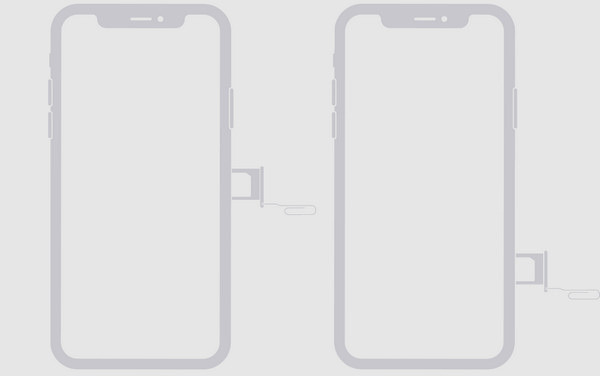
Step 3After that, slide the tray back into your iPhone. Now, turn your device back on and check for the signal bars to confirm the new SIM card is recognized.
How to Switch from an eSIM to a Physical SIM Card on Your iPhone
Aside from removing and inserting SIM card on iPhone, switching from an eSIM to a physical SIM card involves more than simply swapping hardware. Doing so requires coordination with your carrier and a few additional steps since you are moving from a digital identifier to a physical one. Follow the steps below:
Step 1Contact your network provider to get a new SIM card (or steps for transitioning your service from eSIM to a physical SIM card).
Step 2Before inserting, head to "Settings" first, then "Cellular" on your iPhone, tap the eSIM profile, and select "Remove Cellular Plan" to deactivate it.
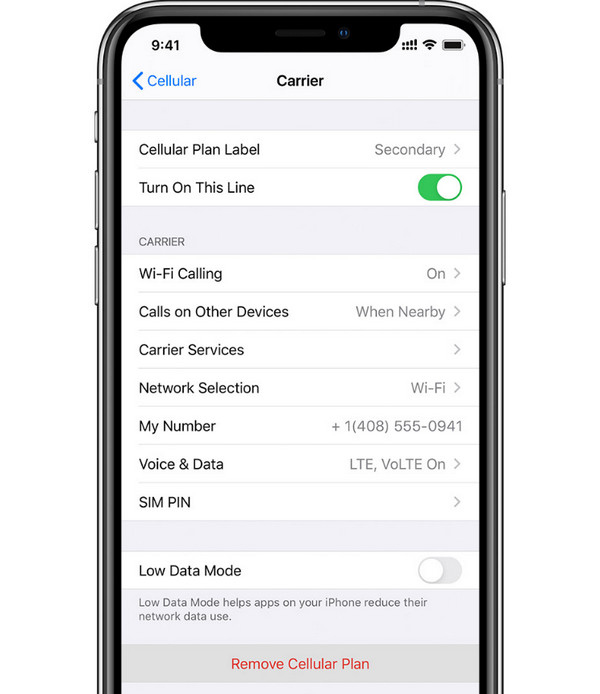
Step 3Now, follow the same physical SIM insertion steps above. After that, your carrier may need you to complete activation, then follow their activation steps to make sure our service works properly. Later, restart your iOS device to ensure the network recognizes your new SIM.
Solutions to SIM Card Not Working on Your iPhone
Following the correct steps to put a SIM card in iPhone won't safeguard you from issues like failing to recognize or losing network connectivity. So, when this happens, it is helpful to work using a few troubleshooting steps. Listed below are solutions for resolving SIM-related problems on iPhone.
1. Check the SIM Card and Tray. First, ensure the SIM card is inserted correctly, and the tray is properly seated in your iPhone. Or you may see invalid SIM or no SIM on iPhone.
2. Restart Your iPhone. A simple restart fixes minor glitches that affect the SIM detection, refreshing the system, and restoring proper connectivity.
3. Reset Network Settings. If restarting did not help to fix SIM card not working on iPhone issue, try resetting your network settings. Do so by going to "Settings", then "General", and tap "Transfer or Reset iPhone". Select "Reset" then tap on "Reset Network Settings".
4. Test the SIM Card in another iPhone. To determine whether the issue is related to the SIM card itself or the device, insert the SIM card into another iPhone.
5. Contact Your Network Provider. If none of the above fixes work to solve SIM cards not working on iPhone issues, reach out to your mobile carrier as they can check for network issues, verify the activation process, or assist you further.
Conclusion
Changing SIM card on iPhone is a simple process, but doing it the right way makes a huge difference in avoiding issues. Knowing what to consider before will help you ensure a smooth transition. Likewise, the practical solutions will help you quickly resolve No SIM errors and more. Finally, to make the changing of SIM card process even safer, use 4Easysoft iOS Backup & Restore to back up important data with ease. This tool will help keep essential files protected in case anything goes wrong. With the right preparation, it is quick and stress-free to switch SIM
100% Secure
100% Secure
