
Transfer anything from/to iPhone, iPad, and iPod.

3 Ways to Transfer iPhone Videos to PC Wirelessly or via USB

Posted by Alvin Cantero to iOS Transfer Mar 06, 2026
Before you transfer videos from iPhone to PC, consider the total video size and the file formats. For example, it may take a long time to transfer large 4K videos from an iPhone to Windows. Moreover, iPhone HEVC and MOV videos are not compatible with some Windows PCs. Thus, if you want to bypass file size limits, slow transfers, format errors, and other confusing video transfer problems, you can do so as follows.
Guide List
Transfer Very Large Videos from iPhone to PC [Fast Way] Move Videos from iPhone to PC Using USB [with a Cable] Send Videos from iPhone to PC Using iCloud Photos [without a Cable] FAQsTransfer Very Large Videos from iPhone to PC [Fast Way]
Best for: Beginners; bulk import/export; fast speed; transfer all iPhone files.
4Easysoft iPhone Transfer can batch transfer very large videos in different formats to Windows and Mac. Compared with cloud storage services, this iPhone transfer software is stable, has no file size limit, and supports high-quality video output. You won't experience video transfer stuck issues. Just preview, select, and export iPhone videos to your computer quickly.
Transfer long, large, 4K/5K/8K videos from iPhone to PC in bulk.
Use the original, high, normal, or low video quality before exporting.
Keep the original data on the device or use modified versions.
Transfer selected photos, music, contacts, messages, and other iPhone files to PC.
100% Secure
100% Secure
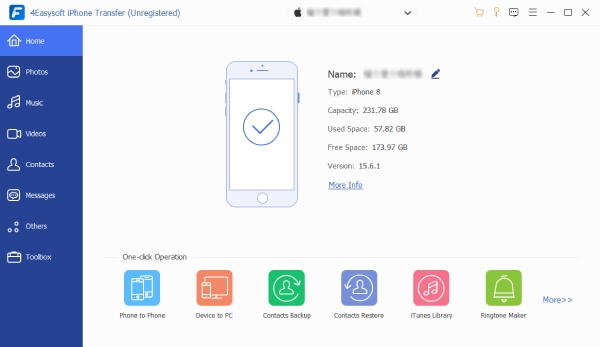
Step 1Open 4Easysoft iPhone Transfer. Connect the iPhone to your computer using a USB cable. Follow the on-screen instructions to confrim trusting this computer on iPhone.
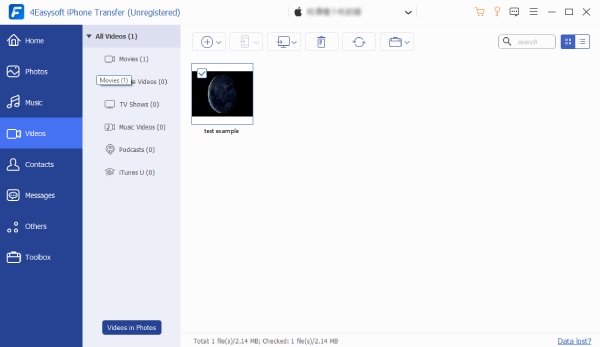
Step 2Click the "Videos" button in the left pane. In the "All Videos" section, you can see all video folders. Find which iPhone videos you want to move. Tick the checkmark.
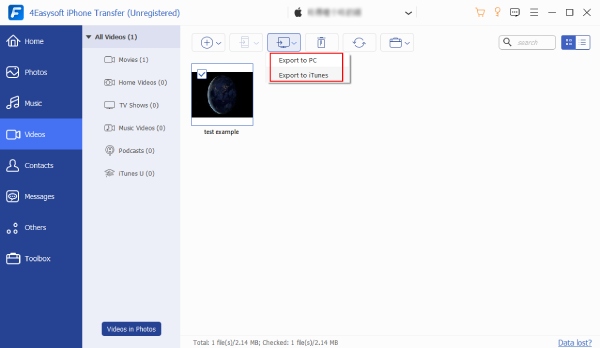
Step 3Click the "Export" button. Then click the "Export to PC" button. Now you can transfer all your iPhone to PC in a short time.
100% Secure
100% Secure
Move Videos from iPhone to PC Using USB [with a Cable]
Best for: Transfer large videos for free; no long-time waiting; no internet required.
If you just want to transfer iPhone videos to your computer without advanced features, you can use File Explorer (the Photos app also works) as your free iPhone transfer software. See the steps below to transfer videos from an iPhone to a PC without iTunes. (You may interested in getting iTunes alternatives for Windows and Mac.)
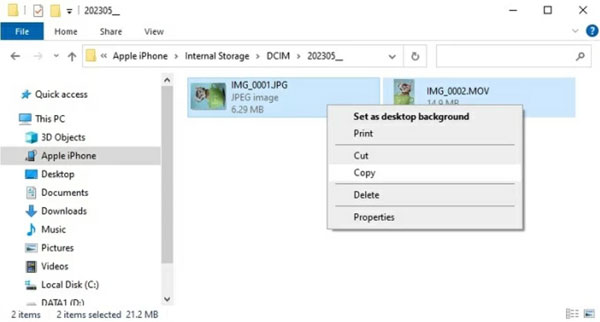
1. Use a USB cable to connect the iPhone to the PC. Open File Explorer under This PC or Devices.
2. Click your device name in the left pane of File Explorer. It usually shows under "Devices" or"This PC".
3. Open the "Internal storage" or "DCIM" folder.
4. Find your target video. Right-click on this video, click the "Copy" button.
5. Later, paste your iPhone video into the destination folder on your PC.
- Pros
- No quality loss during video transferring.
- Fast video transferring speed.
- Cons
- If iCloud Photos is enabled, your videos may not appear.
Send Videos from iPhone to PC Using iCloud Photos [without a Cable]
Best for: Automatic sync videos from iPhone to PC; wireless iPhone transfer; transfer small videos without a cable.
Is there any way to transfer videos from iPhone to PC wirelessly? Of course, the answer is Yes. You can use iCloud to sync iPhone videos to Windows or Mac without a cable. It is free to sync videos from iPhone to PC via iCloud for less than 5GB. Otherwise, you need to pay to upgrade your iCloud storage. By the way, if you want to delete photos from iPhone but not iCloud, you need to turn off "Sync this iPhone" or "iCloud Photos" manually.
1. Open the Settings app on iPhone. Tap your name. Then tap the "iCloud" and "Photos" button.
2. Turn on the toggle button before "Sync this iPhone" (or "iCloud Photos" on some older iPhone devices.)
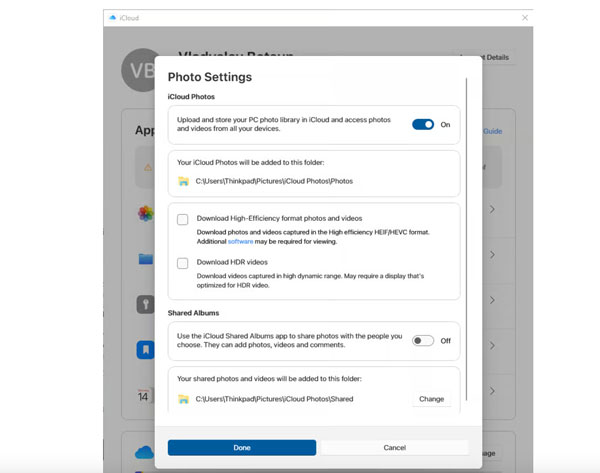
3. Connect your PC to the same Wi-Fi network. Download iCloud for Windows. Sign in with the same Apple ID.
4. Turn on the toggle button of the "iCloud Photos" option on your computer. Tap the "Done" button to save changes.
5. Wait a while as your videos and photos are automatically downloaded from iPhone to PC. You can go to the iCloud Photos folder to see all synced iPhone videos.
- Pros
- Download high-efficiency format and HDR videos from iPhone to your computer.
- Share photos from iPhone to PC wirelessly and automatically.
- Cons
- The large video transfer takes a long time.
- Requires an internet connection.
FAQs
-
Why won't my iPhone videos import to PC?
Format incompatibility, driver issues, connection problems, or Windows permissions can cause the failed video transfer. You can select "Automatic" in iPhone "Transfer to Mac to PC" to convert videos to a PC-friendly format, confirm that you trust this computer during the connection, and try other solutions to resolve the problem.
-
How to fix the "Device is unreachable" error when importing videos from iPhone to Windows 10 PC?
Open the Settings app on your iPhone. Tap the "Photos" button. Tap the "Keep Originals" button under "Transfer to Mac or PC". Later, disconnect and reconnect your iPhone to the PC. You can copy videos from an iPhone to PC again.
-
What to do to fix the iPhone that stop transferring videos to PC?
In the Settings app, tap the "Photos" button, then set "Transfer to Mac to PC" to "Keep Originals". Moreover, you can keep your iPhone screen active throughout the process, use a different cable, or use third-party programs (4Easysoft iPhone Transfer) to fix iPhone-to-PC video transfer that stops halfway.
Conclusion
To transfer large videos from iPhone to PC at the original quality and fast, using 4Easysoft iPhone Transfer is the most reliable method. There are no slow transfers, missing files, or random DCIM folders. You can save hours of frustration of moving large 4K videos safely without compression. If you prefer automatic sync, iCloud Photos can serve as your primary backup tool. Or you can use the USB connection to transfer and manage large iPhone videos too. Click the "Free Download" button below and test what works best for you.
100% Secure
100% Secure
