
Transfer contacts, photos, music, and more between iOS devices and computers without data loss.

6 Practical Ways to Transfer Contacts to New iPhone

Posted by Paula Pailaga to iOS Transfer Mar 18, 2026
Knowing how to transfer contacts to a new iPhone can be helpful when you upgrade to a new model. Phone numbers, emails, and notes stored in the Contacts app are used daily, making an accurate transfer essential. While Apple offers several built-in options, each method works under different conditions and comes with its own limitations. This guide introduces practical ways to transfer contacts from iPhone to iPhone safely, helping ensure that no critical contact information is missed during the switch.
Guide List
Part 1: The Most Powerful Way to Transfer Contacts from iPhone to iPhone Part 2: SIM Card Import: Transfer Contacts to New iPhone Part 3: How to Transfer Contacts to a New iPhone via Quick Start Part 4: How to Use iCloud for Contacts Transfer from iPhone to iPhone Part 5: Transfer a Single Contact from iPhone to iPhone Using AirDrop Part 6: iTunes - A Desktop Tool to Transfer Contacts Between iPhonesPart 1: The Most Powerful Way to Transfer Contacts from iPhone to iPhone
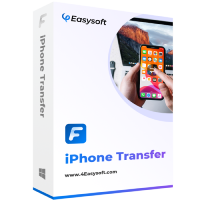
When built-in methods feel restrictive or unreliable, a dedicated iPhone transfer tool becomes a more flexible option. 4Easysoft iPhone Transfer is designed to move contacts directly between iPhones with greater control, higher success rates, and no dependency on Apple ID or iCloud storage. This approach is beneficial for large contact lists or selective transfers.
Support transferring contacts between various devices and operating systems.
Allow you to transfer data related to contacts, such as call history, avatar, etc.
Provide functions to organize your contacts with customized information.
Create a backup of your contacts easily without any information and data loss.
100% Secure
100% Secure
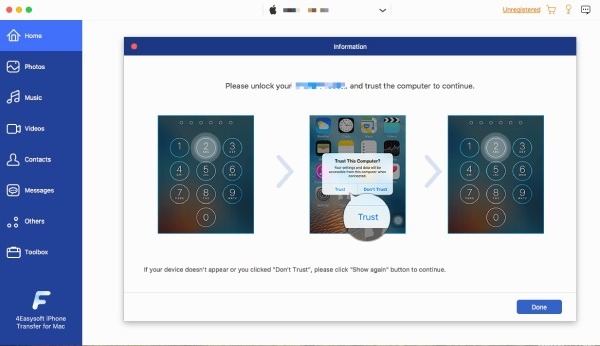
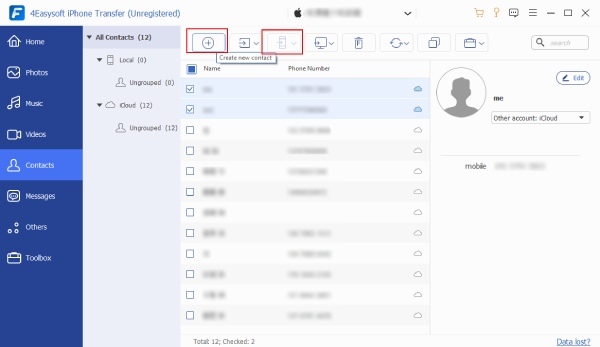
Step 1Launch 4Easy iPhone Transfer and connect your previous iPhone to the computer via a USB cable. Follow the instructions to trust the device.
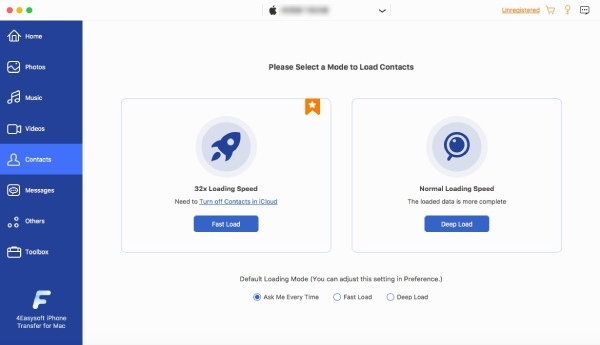
Step 2Click the “Contacts” button on the left panel, then click the “Deep Load” button to transfer all contacts from iPhone to iPhone.
Step 3The process of loading your iPhone contacts will start automatically. Once finished, click the “Export to PC” button.
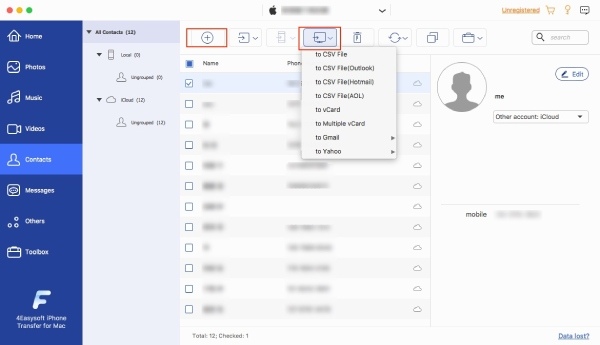
Step 4Now, connect your new iPhone to the computer as before. Under the “Contacts” tab, click the “Export to Device” button to transfer contacts to the latest iPhone.
100% Secure
100% Secure
Part 2: SIM Card Import: Transfer Contacts to New iPhone
Using a SIM card is one of the most straightforward ways to transfer contacts to a new iPhone. This method is based on your SIM card, where the old contacts are initially saved. Therefore, it can work without internet access and avoids cloud-related risks. However, it comes with apparent limitations, including storage capacity and compatibility, making it suitable mainly for basic contact lists.
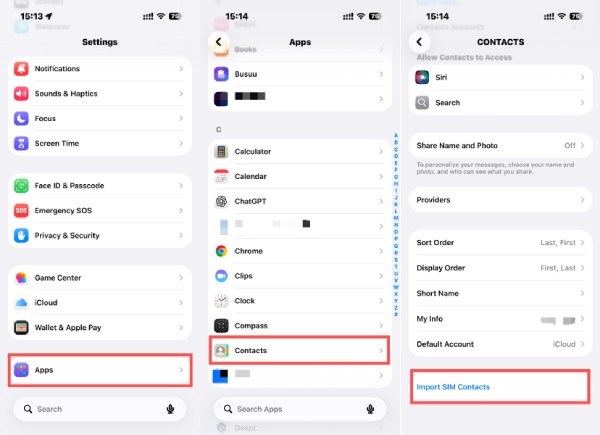
Step 1Open “Settings” on your iPhone and scroll down, navigate to tap the “Apps” button.
Step 2Under the “Apps” tab, find and tap the “Contacts” app to open a new window.
Step 3Scroll down and tap the “Impost SIM Contacts” button to transfer contacts from iPhone to iPhone using your SIM card.
Part 3: How to Transfer Contacts to a New iPhone via Quick Start
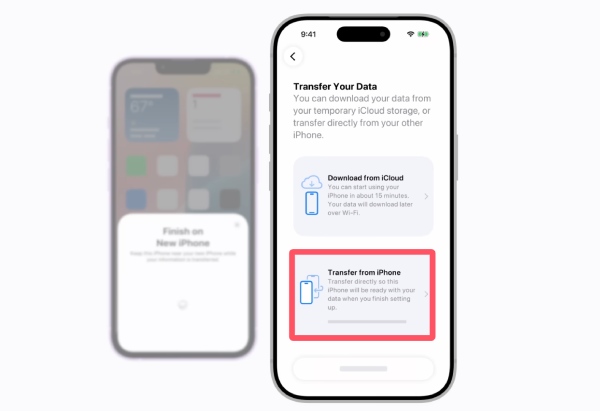
Quick Start is Apple’s built-in migration feature designed for setting up a new iPhone quickly. When both devices are nearby, this method allows contacts to transfer automatically during the initial setup process. It works best for users moving all data at once, not just contacts. Still, it requires stable device conditions and may fail if the setup is already completed.
Tips: Wi-Fi and Bluetooth should be activated on your old iPhone before getting started.
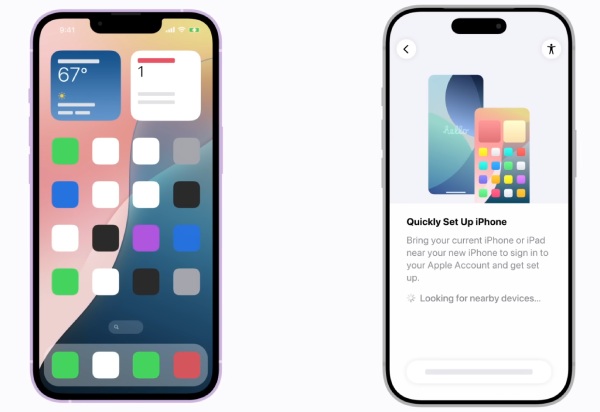
Step 1Once you turn on the new iPhone, place the old one next to it. And “Quick Set Up iPhone” will appear on your previous iPhone.
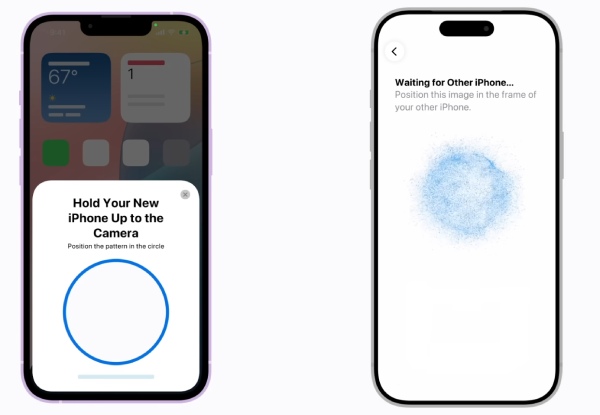
Step 2Hold your new iPhone up to the camera of your previous iPhone, following the instructions.
Step 3Tap the “Transfer from iPhone” button. Follow the instructions later, and your contacts will be transferred to the new iPhone.
Part 4: How to Use iCloud for Contacts Transfer from iPhone to iPhone
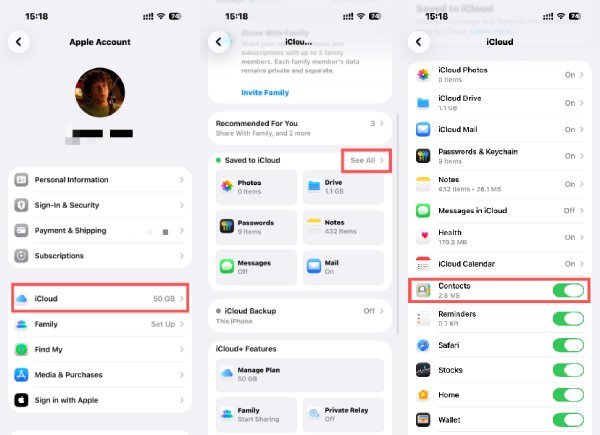
iCloud offers a wireless and widely used solution for transferring contacts between iPhones. By syncing contacts to the same Apple ID, contact data can appear on a new device automatically. In short, once you sync and upload your contacts to iCloud, you can access its ongoing backups without trouble. The only thing that matters is that the method depends heavily on network stability and sufficient iCloud storage, which may limit its effectiveness for larger contact lists.
Step 1Open “Settings” and tap the “Apple ID” button at the top. Then, tap the “iCloud” button on the new page.
Step 2Tap the “See All” button to check all the iCloud backup information.
Step 3To create a backup of your contacts, tap the “Contacts” button.
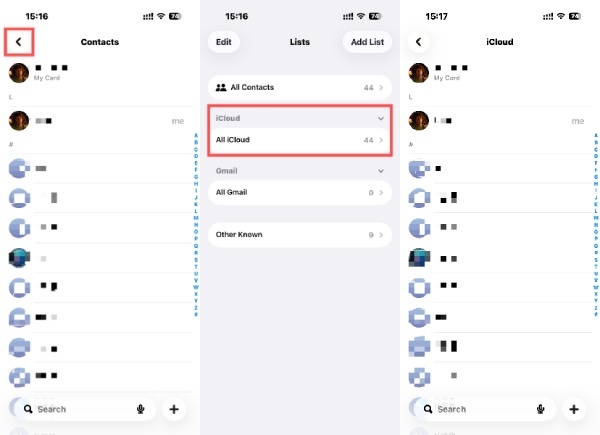
Now, you can check the contacts transferred from iPhone to iPhone via iCloud:
Step 1Access “Contacts” and tap the “Back” button to check contact lists.
Step 2Under the “iCloud” tab, tap the “All iCloud” button to check all the contacts transferred via iCloud.
Step 3Now, all the contacts will be listed, and you can check them one by one.
Part 5: Transfer a Single Contact from iPhone to iPhone Using AirDrop
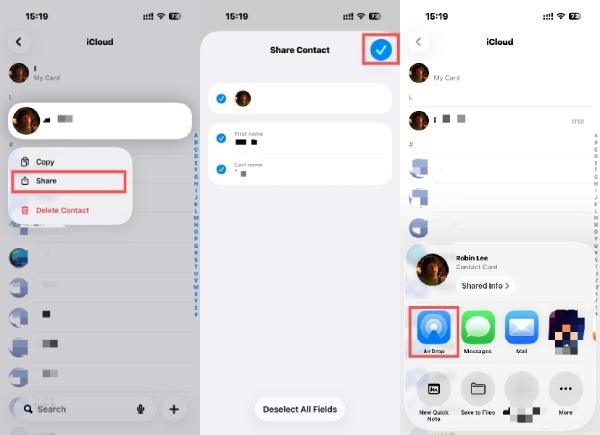
Ideal for transferring individual contacts without syncing entire contact lists, AirDrop provides a fast, direct, and cable-free way to transfer a small number of contacts between iPhones. If you happen to be in a situation where you want to share a single contact with a friend nearby, you can follow the steps below to share the contact on your iPhone manually.
Step 1Open “Contacts” and long-press the contact that you want to share using AirDrop. Tap the “Share” button.
Step 2Check if all the information about your contact is correct. Once confirmed, tap the “OK” button.
Step 3Tap the “AirDrop” button to select the one that you want to transfer contacts from iPhone to iPhone.
Part 6: iTunes - A Desktop Tool to Transfer Contacts Between iPhones
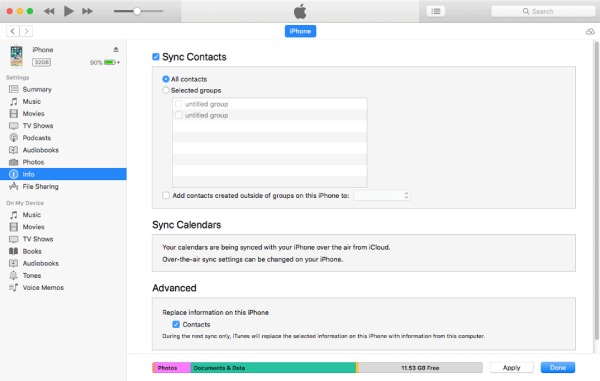
As a traditional desktop-based solution for managing iPhone data, iTunes has always been popular when it comes to sharing data with your computer, including transferring contacts from iPhone to iPhone. By backing up contact information from one iPhone and restoring it to another, contacts can be transferred without relying on cloud services. While effective, this method requires a computer and may overwrite existing data if not handled carefully.
Step 1Connect your old iPhone to a computer and open iTunes. Select your iPhone and click the “Info” button and then the “Sync Contacts” button.
Step 2Click the “Apply” button to create a backup. Then, connect your new iPhone to the computer and click the “Info” button.
Step 3In iTunes, click to choose your new iPhone. Click the “Sync Contacts” button to turn on the function.
Step 4Under the “Advanced” tab, click the “Contacts” button. Click the “Contacts” button under the “Replace information on this iPhone” tab.
Step 5Finally, click the “Apply” button to transfer contacts between your iPhones.
Conclusion
Transferring contacts from iPhone to iPhone does not have to be complicated, but choosing the correct method matters. While iPhone provides built-in solutions, 4Easysoft iPhone Transfer helps ensure a smooth and secure transition to a new iPhone.
100% Secure
100% Secure
