
Capture screen, system audio, microphone, webcam, and take snapshots on Windows and Mac.

Take Scrolling Screenshot: A Guide Across All Your Devices

Posted by Ethan Brooke to Screenshot Mar 13, 2026
Did you know that there's a better way to share a long-form article or an entire message without making it cluttered? Take a scrolling screenshot! Here, you can grab everything from the top to the bottom in a single, straight image file; you just need to know the best way to do so. Whether you're on your desktop, in your favorite browser, or on your mobile devices, this guide shows 5 ways to take full-page screenshots that capture everything on your screen.
Guide List
Use Powerful Recorder to Take Scrolling Screenshots on Any Page Built-in Way to Take Scrolling Screenshots on Chrome/Firefox How to Take Scrolling Screenshots on Mac with Safari Default Way to Take Scrolling Screenshots on iPhone Steps of Taking Scrolling Screenshots on AndroidUse Powerful Recorder to Take Scrolling Screenshots on Any Page
If you're hunting for a powerful but friendliest way to take long scrolling screenshots of any massive webpage, 4Easysoft Screen Recorder can change the game! This recording software features a dedicated Snapshot mode that captures full-screen, window, scrolling, and selected-area views, ensuring you do not lose any data from top to bottom. One of its biggest perks is that it preserves the original crispness and detail of the full-page content, so you will never have to zoom in on blurry text in your final file. You can ensure you will get the smooth, reliable experience you've been looking for, whether you're working on a PC or a Mac.

Slide to any window or website to take scrolling screenshots.
Export your final image in multiple formats, including JPG, PNG, GIF, and BMP.
Set and customizable hotkeys for taking screenshots for easy access.
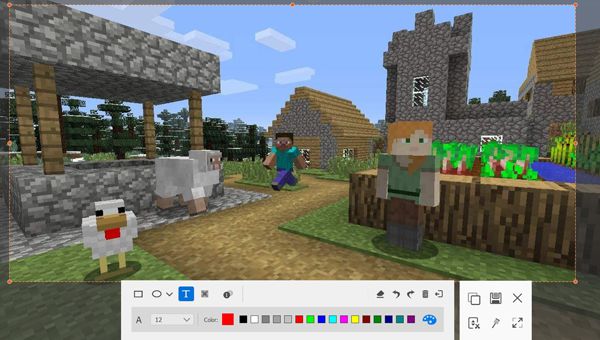
Drop in text, arrows, shapes, and more to emphasize important parts.
100% Secure
100% Secure
Step 1Fire up 4Easysoft Screen Recorder on your desktop. From the main dashboard, locate the "Snapshot" button, click the dropdown arrow beside it, and select "Scrolling Screenshot".
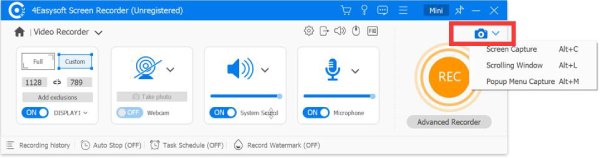
Step 2Use your cursor to click the page in the window you want to take a scrolling screenshot of. Then, start scrolling down to let the program stitch the content together. Once done, click the "Esc" key to finish.
Step 3A preview window will show up on your screen. At this point, use its built-in editing tools to mark up the image, and click the "Save" button to export your full-page screenshot.
100% Secure
100% Secure
Built-in Way to Take Scrolling Screenshots on Chrome/Firefox
Thankfully, both Google Chrome and Mozilla Firefox hold a powerful Command Menu to help you capture entire webpages. This solution is highly reliable as it loads the page exactly as it shows in the browser's engine, and you don't need any third-party help to do so.
How to Take Scrolling Screenshots on Chrome
- 1. From the Chrome page you want to capture, press the "Ctrl + Shift + I" keys to open "Developer Tools".
- 2. Then, launch the "Run Command Box" by pressing the "Ctrl + Shift + P" keys, and type "screenshots" in the search bar.
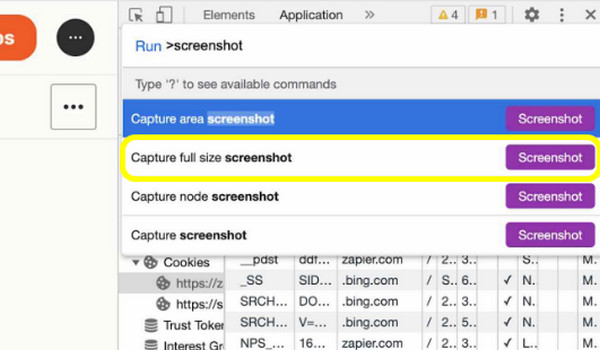
- 3. Choose "Capture full-size screenshot", and the Chrome browser will save it automatically to your Downloads folder.
How to Take Scrolling Screenshots on Firefox
- 1.Navigate to the Firefox webpage you want to capture. Right-click on any blank part of the page to access the context menu.
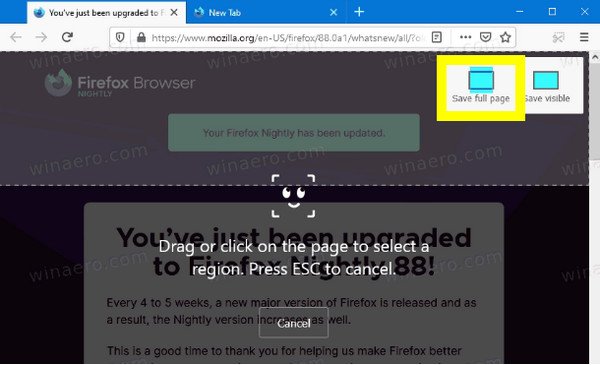
- 2.There, select "Take Screenshots", and click the "Save full page" button in the top right corner.
- 3.Review the preview and click the "Download" button to save the image.
How to Take Scrolling Screenshots on Mac with Safari
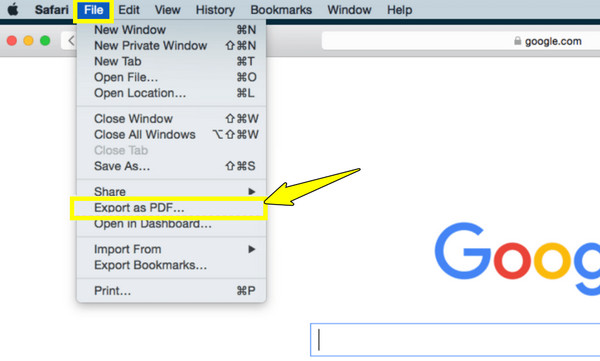
Safari has a unique approach to taking scrolling webpages on Mac. It treats long-form content more like documents, saving them directly into PDF, which is particularly useful for students or professionals. Unlike the previous method, this approach is more integrated into the macOS experience.
Step 1Go to your desired site in Safari, then click "File" in the menu bar. There, choose "Export as PDF" for the document version, or press "Cmd + P".
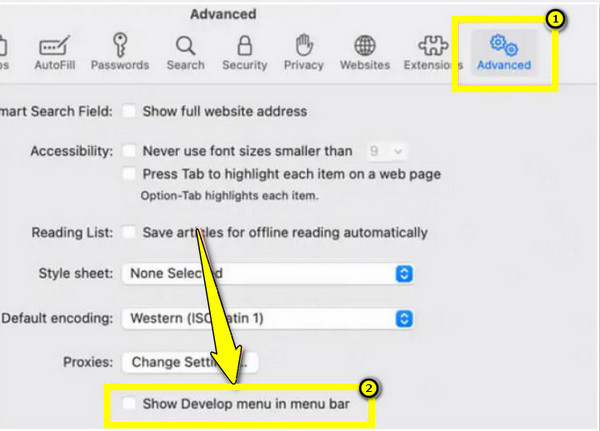
Step 2Another way to get an image is to go to "Safari", then "Settings", and select "Advanced". Check the "Show Develop menu" box.
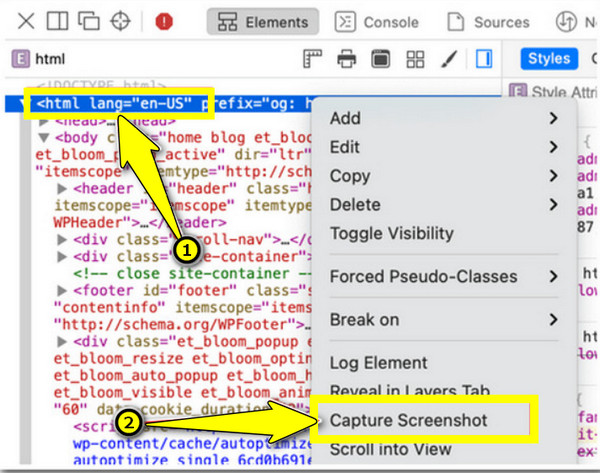
Step 3Next, from the "Develop" menu, select "Show Web Inspector". Right-click the upper line of code, which is usually "<html>", and click "Capture Screenshot" to make a scrollable screenshot on Mac.
Default Way to Take Scrolling Screenshots on iPhone
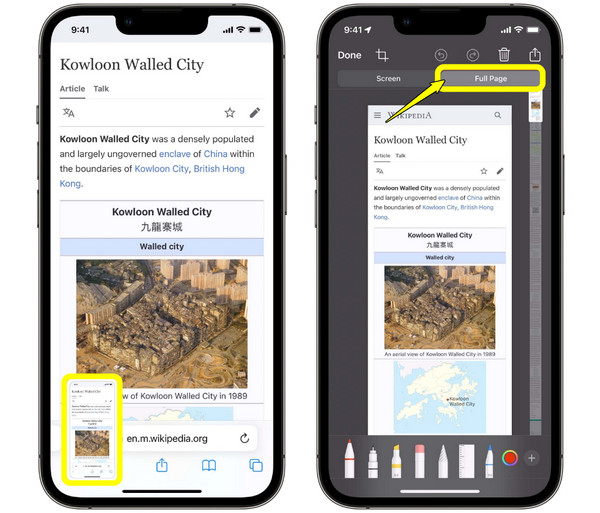
Since the release of iOS 13, Apple has included a Full Page option in its screenshot feature. It works perfectly in Safari and Mail, taking a lengthy screenshot on iPhone, while it saves the image output as a PDF rather than a JPG. With it, you can save beautiful long threads, emails, and articles straight to the Files app.
Step 1First, take a standard screenshot of your selected content by pressing the "Side" and "Volume Up" buttons.
Step 2Then tap the "thumbnail" button and tap the "Full Page" tab.
Step 3Now use the slider to preview the entire page. Tap "Done," then select "Save PDF to Files" to successfully capture long pages.
Steps of Taking Scrolling Screenshots on Android
For those using an Android device, its Capture More feature has a highly visual way to take scrolling screenshots on Android. It is connected to the screenshot interface, so it works in almost any app but is mainly effective for capturing long threads or settings menus.
Step 1Inside the web page or content, press the "Power" and "Volume Down" buttons to trigger the screenshot feature.
Step 2Once the preview bubble appears below, tap the "Capture More" button. The screen will scroll right away, taking a scrolling screenshot.
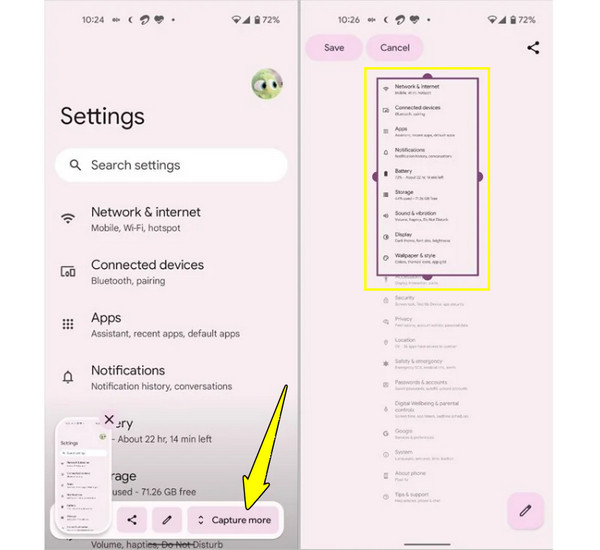
Step 3Tap to stop or drag the crop handles to select the exact area. Later, tap "Save" to send the image to Google Photos or Gallery.
Conclusion
You moved past the days of manually stitching multiple screenshots into one, thanks to methods for taking long screenshots. Now, whether you want to save an entire conversation or a long social media thread, you can ensure your captures are readable and complete. Using 4Easysoft Screen Recorder to capture scrolling screenshots with the original quality of the text and images every time. It is a lightweight yet powerful tool that ensures you never miss a detail again, regardless of the page.
100% Secure
100% Secure
