
Reliable video converter, editor, and compressor for daily tasks.

Top 6 Media Converters for PC, Mac, iPhone, Android, Online

Posted by Aira Lesly Escoto to Video Converter Mar 13, 2026
Ever tried to open a video or audio file but only to see the "format not supported" error? You are not alone! Just use a media converter to file the incompatibility issue. Instead of searching or recording media files for workarounds, you can convert your files quickly. Check the following professional and free media file converters and choose your best one.
Guide List
Best Media Converter to Change 600+ Formats on Windows and Mac Top 5 Free Media Converters for All Platforms How to Convert Media FilesBest Media Converter to Change 600+ Formats on Windows and Mac
Best for: Support hundreds of formats; batch conversion; quick video editing; convert DVD to MP4.
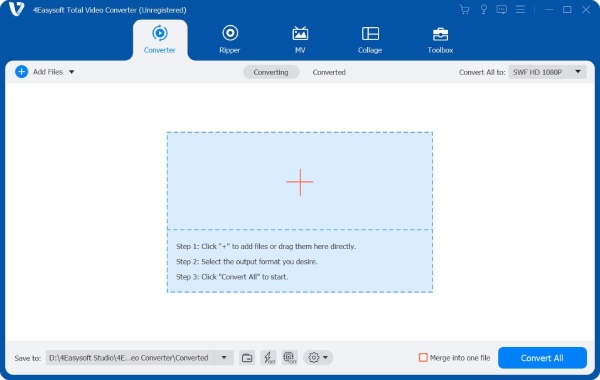
4Easysoft Total Video Converter is highly recommended for beginners to convert, edit, enhance, compress, and customize video and audio files in one stop. All advanced editing tools are simplified with easy operations. You can finish most video conversions and editing tasks within clicks.
Moreover, if you have DVD collections, you can convert DVDs to MP4 within 5 minutes using this program too. Its Ripper section can digitize commercial and homemade DVDs to your computer or external hard drive without losing quality. You can get ripped movies from your DVD collections and then watch them on your iPhone and other devices directly.
Convert to MP4, MP3, AVI, FLV, and 600+ formats at 60× faster speed.
Export your media files to iPhone, Android, Xbox, and 100+ presets.
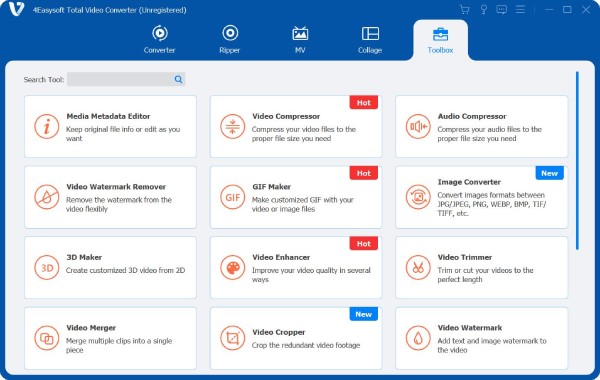
Get 20+ editors from Toolbox, including compressor, watermark remover, etc.
Offer hardware acceleration for smooth video conversions and editing.
100% Secure
100% Secure
Top 5 Free Media Converters for All Platforms
If you want to change video formats without extra features, there are also many online and offline media converters that can you choose from.
| Media Converter | Input/Output Format Support | Batch Conversion | Quality Control | Why Choose |
| HandBrake | Wide (video-mainly) | ✔ | Excellent | Strong presets + video size control. |
| VLC | Wide | Limited | Moderate | Convert and play media files. |
| FFmpeg | Extremely wide | ✔(scriptable) | Excellent | Automation + presets. |
| Online-Convert | Wide (video/audio/image) | Limited | Good | Works in browsers. |
| Media Converter App | Wide (mobile focus) | Limited | Good | Fully mobile workflow. |
Best for quality control: HandBrake
Best for quick and occasional use: VLC or Online-Convert
Best for advanced users and automation: FFmpeg
Best for mobile only: Media Converter app
Top 1. HandBrake
Best for: Convert media files with advanced video compression control.
HandBrake video transcoder is a free and open-source media converter for Windows, Mac, and Linux. It provides highly efficient video compression tools. You can make a video smaller up to 80% to 90% while maintaining good quality. Choose HandBrake if you need a media converter and compressor.
- Pros
- Support multiple formats and built-in device presets.
- Reduce video file and adjust output video quality with multiple options.
- No watermarks or hidden purchases.
- Cons
- Export videos in MP4 and MKV formats mainly.
- HandBrake crashes occasionally with weird codecs.
Top 2. VLC Media Player
Best for: Free media converter and player for desktop users.
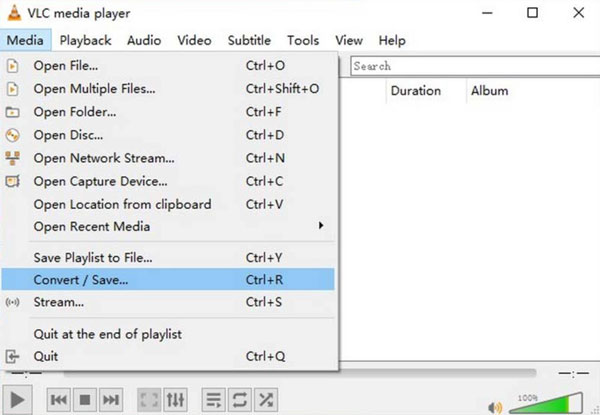
VLC is a media player, and it includes the video conversion feature too. If you have installed VLC on your computer before, you can switch formats with it too. However, the VLC video converter is basic.
- Pros
- Quick for small and one-off media conversions.
- Free and cross-platform support (Windows, Mac, Linux, iOS, Android).
- Handle many input formats that other media players choke on.
- Cons
- The video converter hides in VLC. You need to click multiple options to access it.
- No idea for complex or high-quality media conversions.
Top 3. FFmpeg
Best for: Familiar with command lines to convert and edit media files.
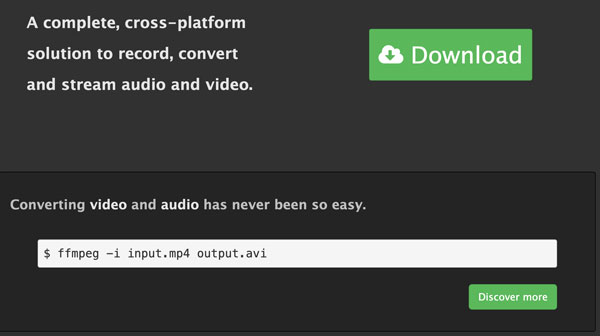
Advanced users and developers can convert video, extract audio, batch process, and even stream media with FFmpeg. Compared with other media converter freeware, FFmpeg supports rare formats. You can solve conversion problems that other converter software can't solve using FFmpeg.
- Pros
- Support virtually every video and audio format known.
- Get maximum controls to automate conversions.
- Have stable performance once you are familiar with it.
- Cons
- No graphical interface. It has a steep learning curve for command line beginners.
- Mistakes in commands can lead to errors easily.
Top 4. Online-Convert
Best for: Occasional small conversions without technical skills.
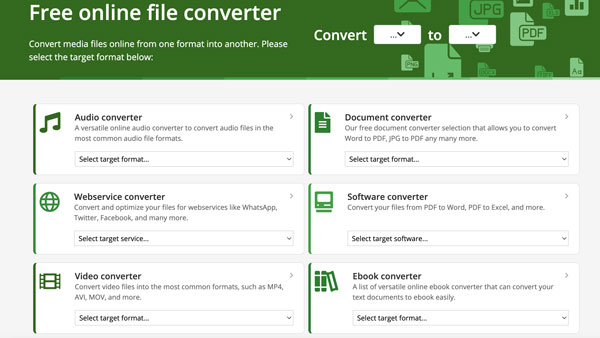
Online-Convert is a classic all-in-one online media converter for video, audio, image, and document files. You can change file formats without installing extra tools. The entire media conversion process is easy. Just upload a file, choose a format, and then download the result.
- Pros
- Wide support of media types, including videos, audios, images, and PDFs.
- Works on any device with a browser.
- It is straightforward to convert video files online.
- Cons
- Require a fast Internet connection to use the online media converter.
- Slow speed and limited usage on the free version.
Top 5. Media Converter App
Best for: Turn videos into MP3 and other formats directly.
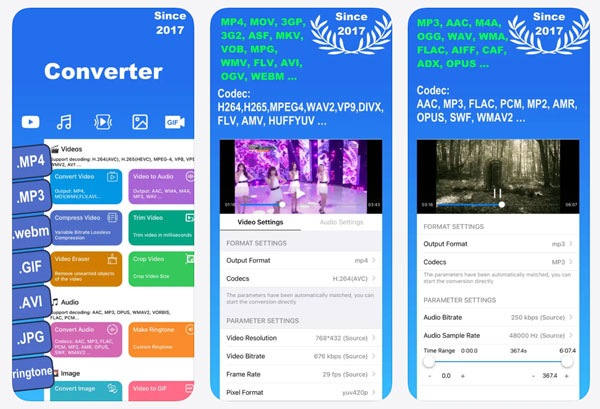
The Media Converter app works on iPhone and iPad. If you want to change file formats and struggle with sharing large files, you can convert and compress media files on your phone easily.
- Pros
- Edit media files with handy tools, including ringtone maker, compression, etc.
- Include video trimming, compressing, cropping, and small editing tools.
- Cons
- Contain ads on the free media converter app. You need to upgrade to remove ads and access all features.
- Lag on larger files and sometimes crashes during long media conversions.
How to Convert Media Files
If you are looking for a desktop media converter with powerful editing tools, 4Easysoft Total Video Converter can be your first choice. Click the Free Download button below to access those features.
100% Secure
100% Secure
1. Open the program. Click the "Add Files" button to import your media files.

2. To change the video or audio format, click the "Format" button or unfold the list next to the "Convert All to" list on the top right corner.
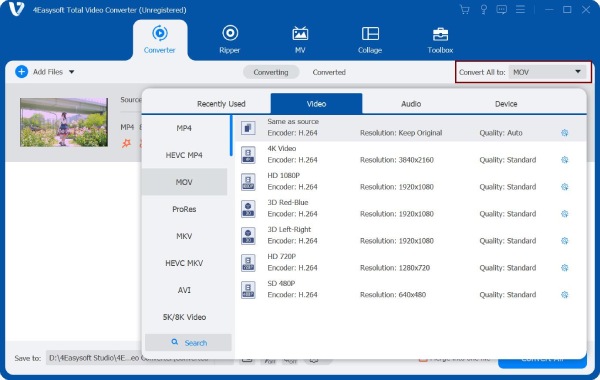
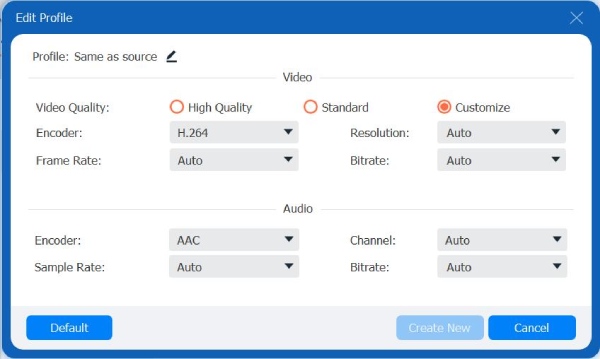
3. Choose the "Same as source" preset or click the "Settings" button to create a new profile for your media conversion.
4. You can click the "Edit" button or go to the "Toolbox" section to get more video editing tools. (optional)
5. Click the "Convert All" button to complete the media file conversion.

Conclusion
A good media file converter can save your time, storage space, and plenty of frustrations. Don't let unsupported media formats slow you down. If you are tired of limited or online tools, you can use 4Easysoft Total Video Converter to handle video and audio conversions with better quality, faster speed, and more controls. Click the Free Download button below to access now!
100% Secure
100% Secure
