
Fix 150+ iOS system problems without data loss.

A Comprehensive Guide to iPhone Stuck on Apple Logo

Posted by Alvin Cantero to iOS Recovery Apr 24, 2026
When an iPhone gets stuck on the Apple logo during startup, it can prevent the device from loading the system properly and leave you unable to use it. This issue may happen after a failed update, system crash, or other software-related problems. Although it looks serious, there are several ways to troubleshoot and fix the problem. This guide will explain the possible causes and introduce effective solutions to help you get your iPhone working normally again.
Guide List
Why is Your iPhone Getting Stuck on the Apple Logo A Quick Fix for iPhone Getting Stuck on Apple Logo Recovery Mode for iPhone Won't Turn on/Stuck on Apple Logo How to Fix iPhone Stuck on Apple Logo in No Time FAQs About iPhone Stuck on Apple LogoWhy is Your iPhone Getting Stuck on the Apple Logo
When your iPhone gets stuck on the Apple logo during startup, it usually means the system cannot complete the boot process. This issue of iPhone getting stuck on the Apple logo is often related to software errors rather than hardware failure. Understanding the common causes behind this problem can help you choose the right method to fix it and restore your iPhone quickly.
1. Failed or Interrupted iOS Update
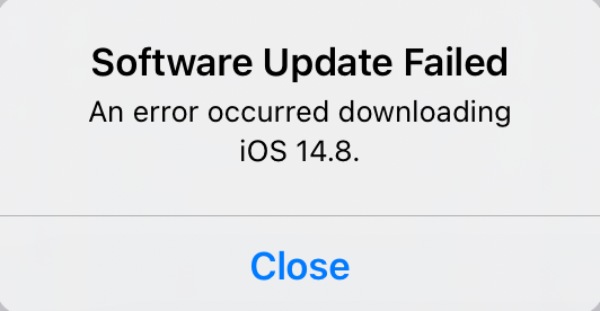
If an iOS update is interrupted due to a poor internet connection, low battery, or unexpected shutdown, the installation process may not complete properly. As a result, the system may become corrupted, causing the iPhone to remain stuck on the Apple logo during startup. So, you just need to learn how to install latest iOS version.
2. Problems During Data Transfer or Restoration
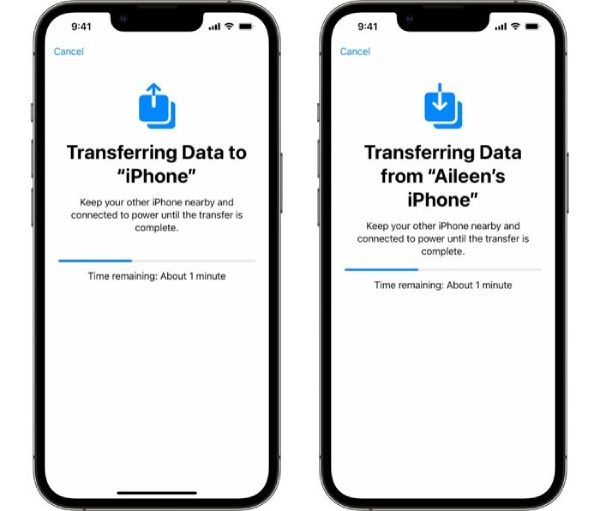
If the issue of iPhone getting stuck on the Apple logo happens during the process of restoring data from a backup or transferring files, the problem can stem from system conflicts. This means the process is interrupted, or incompatible data is restored.
3. Jailbreaking Issues
If your iPhone gets stuck on the Apple logo when you are trying to jailbreak, then you may have failed. This issue indicates that your device has encountered boot errors.
4. Hardware Damage or Internal Component Problems
Although less common, hardware issues such as a damaged logic board, faulty storage, or other internal component failures can also prevent the iPhone from booting normally. In such cases, the system may stop at the Apple logo because the device cannot complete its startup process.
A Quick Fix for iPhone Getting Stuck on Apple Logo
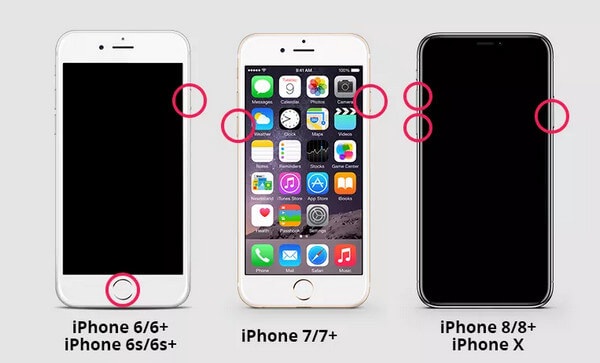
Before trying more advanced repair methods, performing a force restart is often the quickest and simplest way to fix an iPhone stuck on the Apple logo. Restarting your iPhone refreshes the system and clears temporary glitches that may prevent the device from booting properly.
Recovery Mode for iPhone Won't Turn on/Stuck on Apple Logo
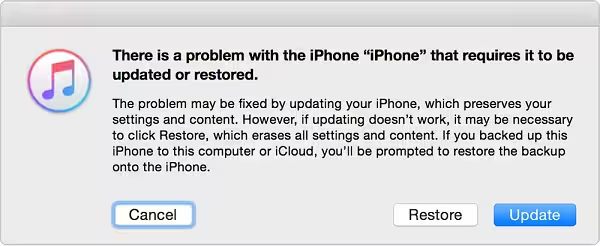
Recovery Mode is a built-in troubleshooting feature that allows you to update or restore your iPhone through a computer. And you can use iTunes or Finder as free data recovery software. When your device enters Recovery Mode, iTunes or Finder can detect it and reinstall the iOS system, which may help fix problems like an iPhone stuck on the Apple logo.
Step 1Launch iTunes on your computer and use a USB cable to connect your iPhone to the computer.
Step 2
Step 3Long-press the "Side" button until you see the pop-up window on iTunes. Click the "Restore" button to fix an iPhone stuck on the Apple logo.
How to Fix iPhone Stuck on Apple Logo in No Time
To fix an iPhone stuck on the Apple logo easily and quickly, 4Easysoft iOS System Recovery provides a reliable solution. This professional software is designed to fix a wide range of iOS system issues, including iPhone stuck on the Apple logo, boot loops, frozen screens, and devices that fail to turn on.

Save your iOS device from not working with Face ID.
Enter iPhone without any data loss when you forget the passcode.
Fully support all models and versions of iPhone, iPad, and iPod.
High success rate in restoring your iOS devices to a new one.
100% Secure
100% Secure
WARNING: To fix and restore your iPhone that gets stuck on the Apple logo, it may wipe all your data. Before the process, make sure that you have backed up all your data from your iPhone.
Step 1Launch 4Easysoft iOS System Recovery. Use a USB cable to connect your iPhone to the computer. Click the "iOS System Recovery" button.
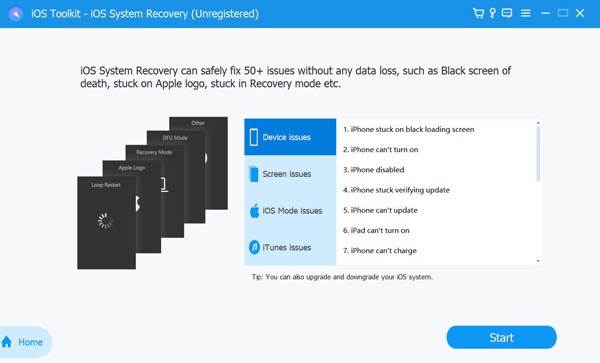
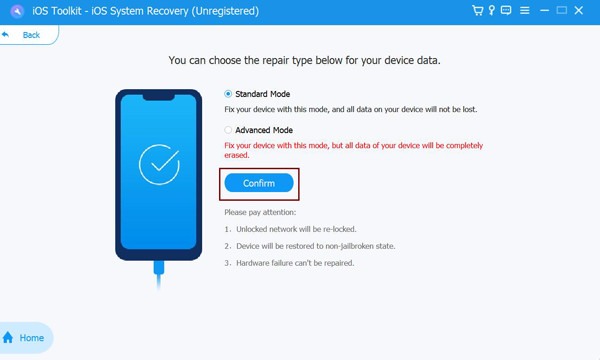
Step 2In the new page, click the "Fix" button. Then, click the "Advanced Mode" button to start the process.
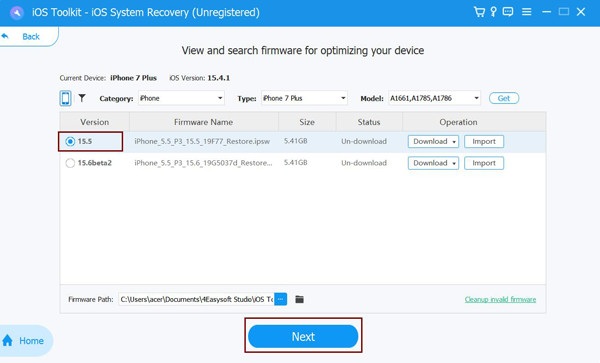
Step 3From the list, click to select the desired iOS version. Once finished, click the "Download" button and then the "Next" button to fix the issue.
FAQs About iPhone Stuck on Apple Logo
-
Why is my iPhone stuck on the Apple logo for a long time?
When your iPhone gets stuck on the Apple logo, the most common reasons are as follows: interrupted iOS update, corrupted system files, or errors during data restoration. A quick restart can help solve the issue.
-
Will force restarting delete my iPhone data?
No, force restarting your iPhone will not erase any data. It simply refreshes the system and helps clear temporary software glitches that may prevent the device from booting normally.
-
How long should the Apple logo stay on the screen during startup?
Normally, the Apple logo should only appear for a short time while the system loads. If it stays on the screen for several minutes without progress, your iPhone may be experiencing a system error that requires troubleshooting.
Conclusion
Now you've learned how to fix iPhone that gets stuck on the Apple logo. By trying the quick fixes provided, you can get your iPhone back on track quickly. However, if you find these fixes not useful, you can use 4Easysoft iPhone Data Recovery, which ensures your iPhone works again.
100% Secure
100% Secure
