
Record, edit, and share video from all sources.

How to Screen Record on Dell: A Guide with Detailed Steps

Posted by Ethan Brooke to Record Video Aug 27, 2026
For those users who want to know how to screen record on a Dell device, you may have already searched for and heard about some options. So, which one is the best solution? In fact, depending on usage scenarios and requirements, the answers often vary because different tools have different features. This post recommends the most suitable tools for various scenarios. If you want to know how to screen record on a Dell laptop for various purposes, start reading this post right now.
Guide List
The Best Solution: How to Screen Record on a Dell with High Quality OBS Studio - How to Screen Record on a Dell for Content Creators How to Screen Record on a Dell with Original Video Playback within VLC During Gameplay: How to Screen Record on a Dell Using Xbox Game Bar A Quick Loom Extension for Recording the Screen on a Dell via BrowsersThe Best Solution: How to Screen Record on a Dell with High Quality
Although you can find the most suitable options for various tools, it is troublesome to switch between recorders for different scenarios and to learn how to screen record on a Dell. Therefore, a one-in-all solution is very convenient, as it can be applied to multiple different scenarios and provide you with high-quality output. 4Easysoft Screen Recorder is such a powerful tool. No matter what you want to record on Dell laptops, you can rely on them to achieve high-quality and smooth recordings.
Record the screen on Dell in HD with 1080p and 4K resolution.
Capture your webcam, system audio and microphone sound at once.
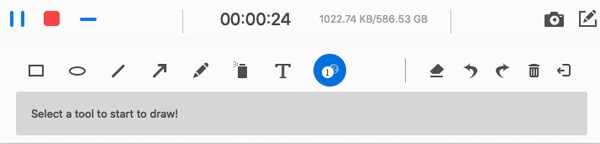
Provide real-time annotating and drawing during recording on Dell.
Save video in various file formats including MP4, MOV, AVI, MKV.
100% Secure
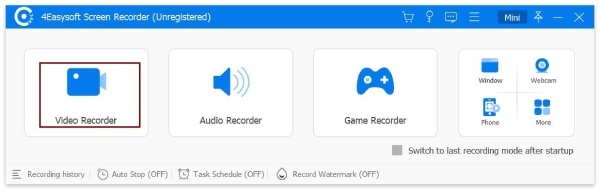
Step 1Launch 4Easysoft Screen Recorder on your Dell device and click the "Video Recorder" button. You can select another mode based on your needs.
Step 2After adjusting the recording settings, click the "Record" button to start recording the screen on Dell. A control panel is offered for precise control.
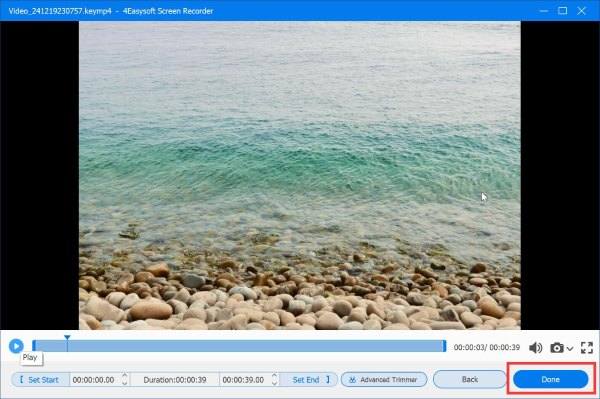
Step 3Once finished, click the "Stop" button. A window will pop up, allowing you to edit the recording. Finally, click the "Done" button.
OBS Studio - How to Screen Record on a Dell for Content Creators
When you are browsing platforms like YouTube, you may often come across creators who record their computer screens as content and upload it to the platform. So, what tools do they usually use to complete the recording? After the investigation, it was found that a significant number of creators were using OBS Studio to record. Because it offers very precise settings for different parameters, OBS Studio is chosen by many people. If you also have a similar need, follow the steps below to learn how to screen record on a Dell.
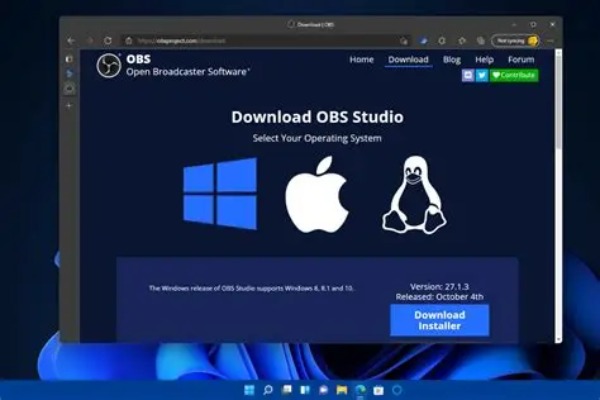
Step 1Download OBS Studio from the official website and launch the software on your Dell laptop.
Step 2Click the "Add" button from the "Scenes" tab. Then click the "Add" button, followed by the "Display Capture" button under the "Sources" tab.
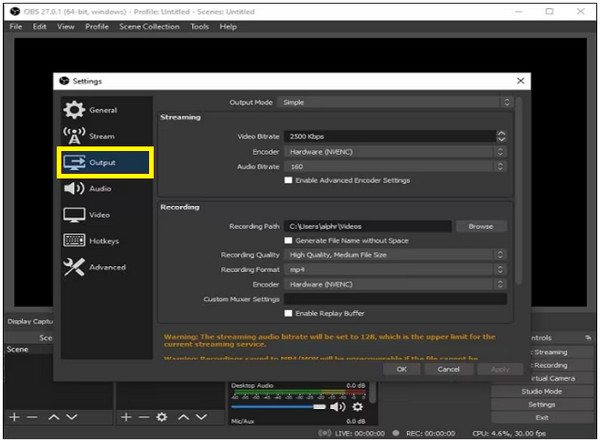
Step 3After adjusting the settings by clicking the "Output" button under the "Settings" tab, click the "Start Recording" button to screen record on Dell.
How to Screen Record on a Dell with Original Video Playback within VLC
If you usually use VLC media player as your default player on your Dell laptops to play various video files, then you can also use it as a reliable screen recorder. Although the process is a bit complicated, you can quickly learn how to screen record on a Dell. However, you should be aware that VLC media player, as a video player, does not offer you many editing options.
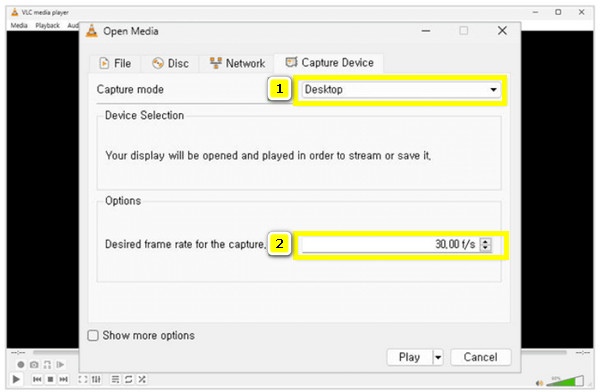
Step 1Launch VLC media player and click the "Convert/Save" button under the "Media" tab. In the pop-up window, click the "Desktop" button under the "Capture Device" tab.
Step 2Then click the "Play" button, followed by the "Convert/Save" button, to prepare to record videos using VLC.
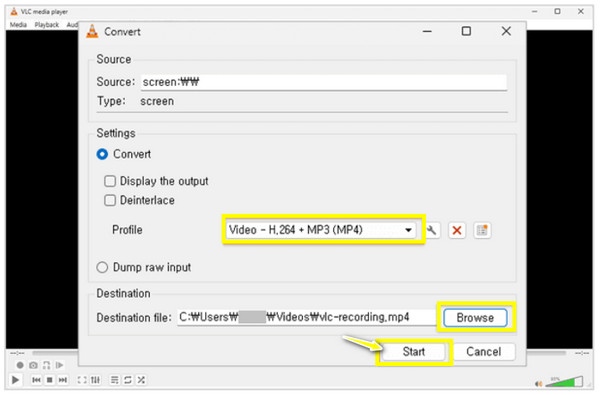
Step 3You can click the "Profile" and "Destination" buttons to adjust the format and destination folder. To screen record on a Dell, click the "Start" button.
During Gameplay: How to Screen Record on a Dell Using Xbox Game Bar
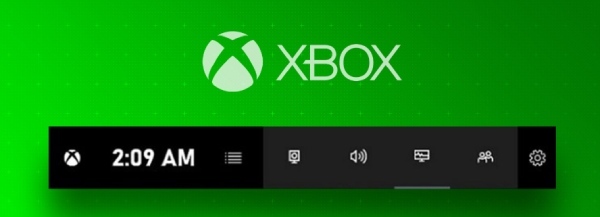
During your gaming session on your Dell, you might encounter many exciting moments you would like to save. Since these moments are always fleeting, a quick recording solution is necessary. In this case, Dell devices running Windows offer a built-in option. All you need to do is use the shortcut to summon the Xbox Game Bar during the game quickly, and then you can start screen recording on Dell immediately.
Step 1During the gameplay, press the "Windows + G" buttons together on your Dell laptop to summon the Xbox Game Bar.
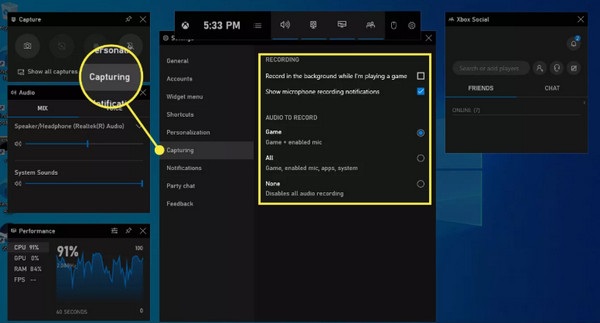
Step 2To adjust the recording options, you can navigate to the "Settings" and "Capturing" tabs.
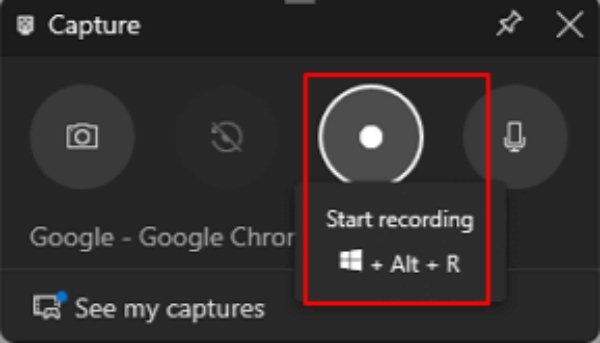
Step 3To start screen recording on Dell during gameplay, click the "Record" button. Once finished, click the "Stop" button.
A Quick Loom Extension for Recording the Screen on a Dell via Browsers
When you are browsing the web, how do you screen record on Dell Chromebooks? Using an extension is one of the quickest ways. You can start recording the screen without installing any additional software. Loom Screen Recorder is one of the most reliable options. Although its functions are relatively limited, its operation is simple, allowing you to complete a screen recording while browsing the web quickly.
Step 1Launch Google Chrome and click the "Options" button. Then, click the "Visit Chrome Web Store" button under the "Extensions" tab.

Step 2Search "Loom" and click the "Add to Chrome" button. Sign in and click the "Loom" button while browsing the page.
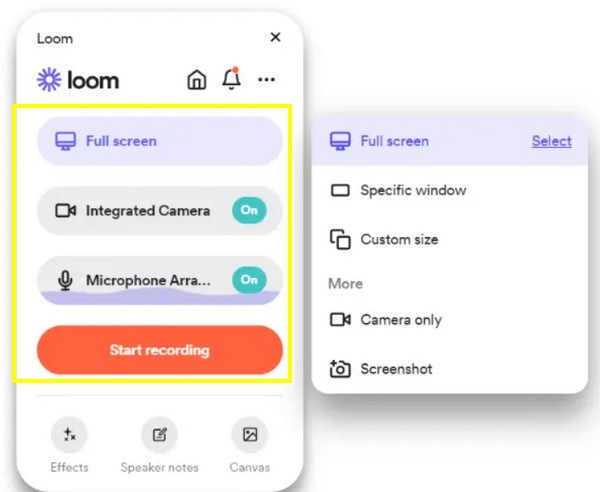
Step 3To screen record on a Dell Chromebook, click the "Start recording" button after selecting the desired area.
Conclusion
This post teaches you how to record screens on Dell laptops in various situations. Since each situation has different requirements for tool characteristics, you can choose the tools recommended in this post based on your usage to record content on your Dell device. However, if you are looking for a tool that can handle all usage scenarios, download and use 4Easysoft Screen Recorder for free right now.
100% Secure
