
Rip DVD disc/folder/iOS file to any digital format with no playback issue.

The Ultimate 2-Step to Rip Blu-ray on Windows and Mac

Posted by Paula Pailaga to Rip Blu-ray Jul 31, 2026
Waiting for those unskippable copyright warnings just to watch a movie feels outdated. So, learning how to rip Blu-ray discs just makes sense. Not only does it protect your expensive discs from any damage, but it also gives you the freedom to enjoy your favorite Blu-ray films across any device. Making things easier for you, here's everything you need to know to rip 4K Blu-ray movies to MP4, featuring their legality, preparation, and more for a smooth transition.
Guide List
Is Ripping Blu-ray Legal? What You Need Before You Start Blu-ray Ripping Two Steps of Ripping Blu-ray Most People Don't Expect 4Easysoft DVD Ripper MakeMKV HandBrake How Much Storage Do You Need to Rip a Blu-ray Disc FAQsIs Ripping Blu-ray Legal?
The short answer is that it's in a gray area that depends on where you live and what you intend to do with the ripped Blu-ray disc.
In many countries, such as the US and the UK, bypassing digital copy protection technically violates copyright laws, even just to make a personal backup of a disc you own. However, if you're simply ripping a Blu-ray for personal and private use with no intention of distributing it, the risk of enforcement is essentially zero.
After that legal context about ripping Blu-ray, if your goal is for personal entertainment, how are you planning to rip your Blu-ray movie collection?
What You Need Before You Start Blu-ray Ripping
Prior to knowing Blu-ray ripping, you will need to gather a few essential tools to get the job done right.
Here's what you need before you start ripping:
- A Blu-ray Drive. A standard DVD drive won't work, so you need an internal or external Blu-ray drive for your computer to rip movies from Blu-ray.
- Ripping Software. With this software, you can bypass copy protection and extract raw video data.
- Plenty of Storage Space. High-definition files are huge. A single Blu-ray can take up to 50GB of space.
- Transcoding Software. This is optional if you wish to compress those large files into smaller formats without much loss in quality.
Two Steps of Ripping Blu-ray Most People Don't Expect
While gathering the tools for ripping Blu-ray collections seems pretty simple, the process may catch you off guard. You might expect a single click, but to get your files to play nicely, you might need these two different steps.
Step 1: Ripping / Decryption
The chosen ripping tool will bypass the copy protection and copy the raw video and audio directly to your hard drive.
Step 2: Transcoding (Optional but Common)
Since those raw files can be huge, which may cause playback stuttering, this step will help to compress the video into a smaller, highly compatible format like MP4 without noticeable loss in quality.
4Easysoft DVD Ripper
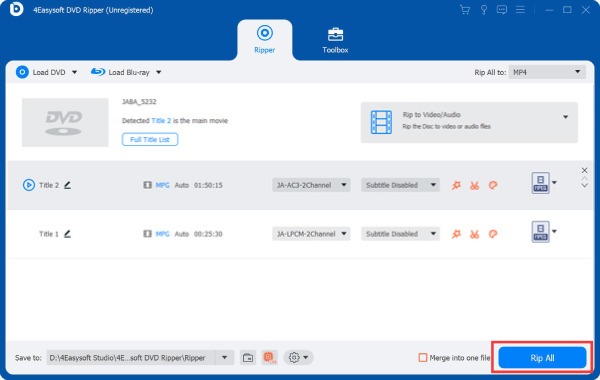
From decryption to final formatting, 4Easysoft DVD Ripper is a premium option to help you rip a Blu-ray. This software is designed to eliminate the guesswork of transforming your media library by combining heavy-duty decryption with friendly editing tools (trim, crop, rotate, and more). Thanks to its advanced hardware acceleration, it does the ripping task faster than traditional methods while giving you complete control over the output. Whether protected or not, it is a perfect choice for anyone who wants a simple, polished DVD/Blu-ray ripping experience.
Rips both Blu-rays and DVDs to over 500 digital formats (MP4, MOV, MKV, etc.)
Fine-tune key audio and video settings to get the exact quality you want.
High-speed process for both Blu-ray and DVD without the long wait times
Save time by queuing up and ripping multiple ones simultaneously.
100% Secure
100% Secure
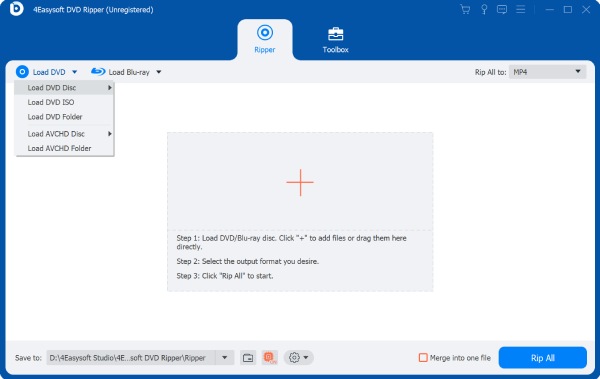
Step 1Pop your Blu-ray movie disc into your computer's drive and open up 4Easysoft DVD Ripper. On the main screen, click the "Load Disc" button and select "Load Disc" to import your movie data or drag and drop it quickly.
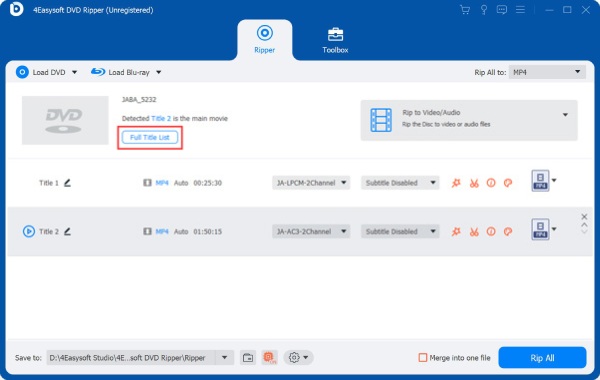
Step 2The software will scan your disc and display all main movie titles. To ensure you aren't missing anything, click the "Full Title List" button, check the box next to the chapters you want to keep, and click the "OK" button.
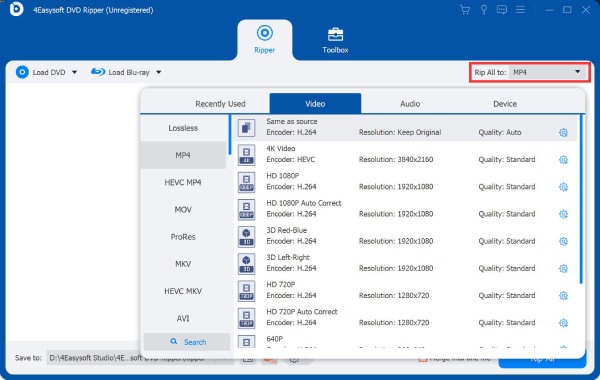
Step 3Head over to the "Rip All to" dropdown menu to pick your desired format, like MP4, MKV, MOV, or AVI. To adjust the output quality, codec, or resolution, click the "Custom Profile" button next to your chosen format.
Step 4Before finishing up, look at the main screen to check all selected audio tracks and subtitles. Then, set your desired output folder, and when everything looks good, click the "Rip All" button to begin creating your Blu-ray digital copy.
MakeMKV
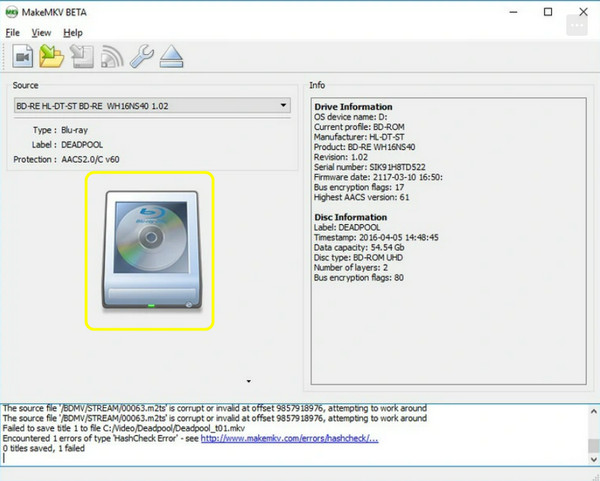
Meanwhile, MakeMKV is widely considered for lossless extraction. This software does not care about compression as its sole objective is to rip a Blu-ray disc on PC, stripping away the locks and copying the exact digital streams to your hard drive.
Step 1Open MKV now. Insert your Blu-ray disc, and let the program analyze it.
Step 2Click the "Optical Drive" button to start scanning the disc's title.
Step 3Uncheck any features or languages you don't want.
Step 4Set your output folder and click the "Make MKV" button to begin the lossless ripping.
Best for: Users who want the exact, perfect copies of their disc collection with full original quality.
HandBrake
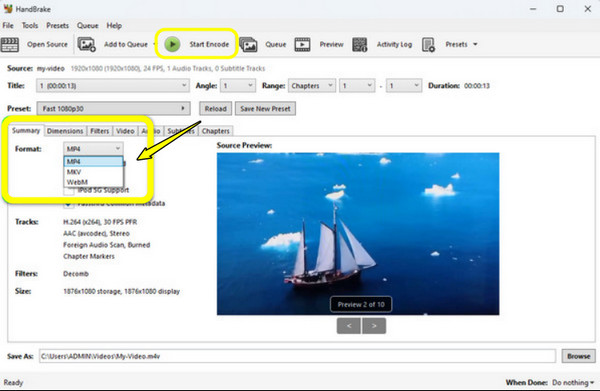
Following the ripping of Blu-rays, Handbrake steps in to handle the post-rip optimization. Using this free, open-source transcoder, you can take those huge files and shrink them into efficient formats.
Step 1Launch Handbrake and drag your newly ripped file into the window.
Step 2Then, select a preset from the menu that matches your target device, e.g., Apple TV, Roku, or Web.
Step 3Next, choose your format below and adjust your video codec settings and audio tracks as needed.
Step 4Select your destination file path at the bottom and click the "Start Encode" button.
Best for: Users looking to compress videos into lightweight formats that are compatible with phones, tablets, and home media servers.
How Much Storage Do You Need to Rip a Blu-ray Disc
To wrap up your Blu-ray ripping journey, the final step is to plan out your digital storage space. Since movie files can vary depending on how you choose to process them, understanding the file sizes will ensure you won't run out of hard drive space.
See the table below to determine how much storage space you will need for each film, depending on whether you choose to keep them at full quality or shrink them down for easier streaming.
| Rip Type | Approximate Size Per Film |
| Lossless MKV (Standard Blu-ray) | 25 to 50 GB |
| Lossless MKV (4K UHD) | 60 to 80 GB |
| Compressed MP4 H.264 1080p | 6 to 12 GB |
| Compressed MP4 H.265 1080p | 3 to 7 GB |
| Compressed MP4 H.265 4K | 15 to 30 GB |
FAQs
-
Can I rip a 4K UHD Blu-ray using a standard Blu-ray drive?
Unfortunately, no. Standard Blu-ray drives can't read 4K UHD discs. You'll need a specific 4K drive that can handle UHD data.
-
How long does it take to rip a Blu-ray movie?
It takes anywhere from 15 to 45 minutes for each disc. The exact time depends on the speed of your Blu-ray drive, the movie length, and whether your computer is powerful enough for fast transcoding.
-
What's the difference between MP4 and MKV when saving a Blu-ray movie?
MKV is a giant container that holds multiple audio tracks, subtitles, and menus at maximum quality, which is a favorite for home archives. Meanwhile, MP4 is highly compressed and compatible with almost every phone, tablet, and smart TV.
Conclusion
Switching your favorite Blu-ray films from physical to digital is the upgrade for any movie lover! While the legal side can seem intimidating at first, ensure you digitize your media you rightfully purchase. By ensuring you have the right tools beforehand, you can easily rip Blu-ray to MP4, saving your movies for so many years. To ensure great results, 4Easysoft DVD Ripper is highly recommended for download! It allows you to convert your heavy Blu-ray discs into lightweight, compatible digital files, a perfect place for your digital movie library.
100% Secure
100% Secure
