
Rip DVD disc/folder/iOS file to any digital format with no playback issue.

4 Ways to Convert Blu-ray to Digital and More (No Headache)

Posted by Paula Pailaga to Rip Blu-ray Jul 31, 2026
Turning Blu-rays to digital is not about saving physical space on your shelf, but also losing those plastic cases, skipping trailers, and keeping your Blu-ray discs safe from damage. The good news is here! From preparation to finally digitizing your Blu-ray collections, the following has everything you need to digitalize Blu-ray. Read on and see the 4 best ways to get those movies off the disc, what is the best format, and what you need to do before anything else.
Guide List
What You Need to Rip Blu-ray to Digital What Format to Choose to Convert Blu-ray to Digital Convert Blu-ray to Digital with 4Easysoft DVD Ripper Digitalize Blu-ray with MakeMKV Rip Blu-ray to Digital with HandBrake Use Blu-ray to Digital Service FAQsWhat You Need to Rip Blu-ray to Digital
Building from Blu-ray to a digital library is one of the most satisfying projects you'll do. But before you do and start streaming, here are a few important tools you need to get started:
- A Blu-ray Drive. Your standard computer disc drive won't work here. You can go with an internal Blu-ray drive for your desktop PC, or a portable external USB Blu-ray drive for your laptops.
- Storage Space. Plenty of storage space is needed for high-definition video files. Expect each movie to eat up to 50 GB of space for a lossless rip.
- Ripping Software. You will need a dedicated Blu-ray ripper to bypass the copy protection and copy the exact data to your hard drive.
- Media Server Software. Setting up a free media server for your movies is optional. This will let you organize your files with posters, cast lists, and make them watchable on any of your devices.
What Format to Choose to Convert Blu-ray to Digital
Now that you have all things ready for converting a Blu-ray disc to a digital file, choosing the right format comes next. The following table outlines the most common formats you'll encounter in Blu-ray to digital conversion:
| Format | Video/Audio Codec | File Size | Video Quality | Device Compatibility |
| MKV | H.264/H.265 and DTS/Dolby | 25 to 50 GB | Original disc quality | High on PCs/Media Server; limited on native Apple devices |
| MP4 | H.264 and AAC | 3 to 8 GB | Very good | Plays on almost anything |
| M4V | H.264/H.265 and AAC/AC3 | 3 to 8 GB | Very good | Apple ecosystem |
Which Format Should You Choose?
- Choose MKV for zero quality loss and have a lot of storage. It preserves a full HD or UHD video quality and keeps surround sound audio formats intact.
- Choose MP4 to play movies anywhere. You can enjoy watching on an iPad for a road trip, on an older TV, or share them with others quickly.
- Choose M4V if your primary playback device is an iPhone, iPad, or other Apple device. It displays metadata beautifully and uses hardware acceleration for smooth playback.
Convert Blu-ray to Digital with 4Easysoft DVD Ripper
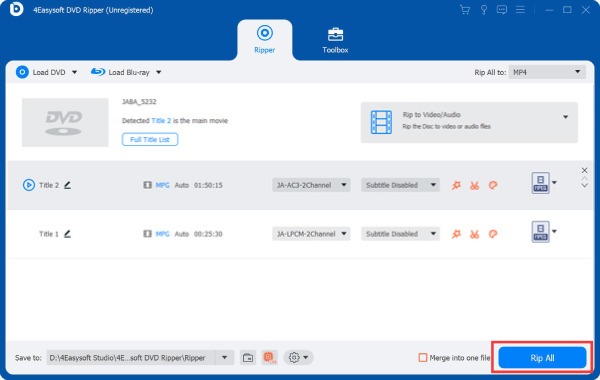
4Easysoft DVD Ripper is a fantastic choice for a hassle-free way to digitize your Blu-ray collection with complex encoding settings. This software handles the heavy lifting of eliminating disc protections while giving you optimized Blu-ray to digital files. It strips away those intimidating learning curves, making it ideal for anyone to convert Blu-ray to digital and enjoy their films on an iPad, a smart TV, or save them to a hard drive.
Easily disable codes and protections to convert Blu-rays to digital.
Covers over 500 formats, e.g., MP4, MKV, AVI, and device-specific ones.
High-speed GPU acceleration to deliver faster ripping speed without quality loss.
Built-in editing tools to trim scenes, crop black bars, merge titles, and do more.
100% Secure
100% Secure
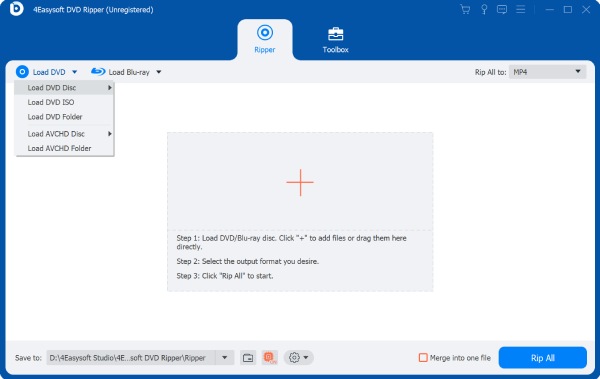
Step 1Slide your Blu-ray disc into your computer's drive, and launch 4Easysoft DVD Ripper. From the main dashboard, click the "Load Disc" button and select "Load Disc" to let the software read your movie.
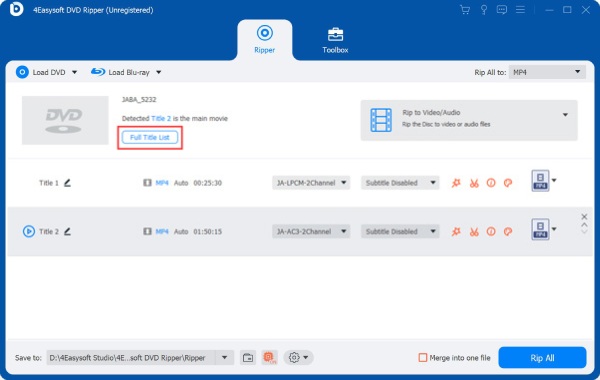
Step 2The program will then analyze your disc and show the primary movie titles. To see all bonus features or extra footage, click the "Full Title List" button, then tick the boxes of all specific chapters you want to digitize, and click the "OK" button.
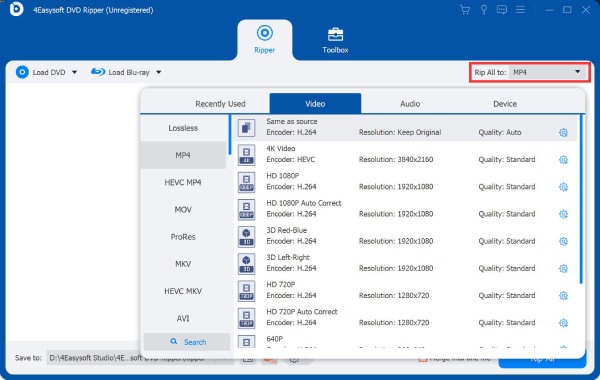
Step 3Next, move to the "Rip All to" dropdown menu and select your target file format. To dive a bit deeper, click the "Custom Profile" next to your format choice to fine-tune settings.
Step 4Before kicking off the process, double-check your selected audio language and subtitles tracks. Finally, pick a saving destination folder on your hard drive, and click the "Rip All" button to begin the Blu-ray to digital conversion.
Digitalize Blu-ray with MakeMKV
If your priority is the highest quality possible when you convert Blu-ray to digital, MakeMKV is best at this job. Instead of re-encoding video, the software takes the raw video and audio streams off the disc and wraps them into a modern MKV file. See steps below to rip Blu-ray with MakeMKV.
Step 1Once you pop your Blu-ray disc into the drive, open MKV on your computer. Click the "Optical Drive" button to let the program scan your disc and decrypt its protection.
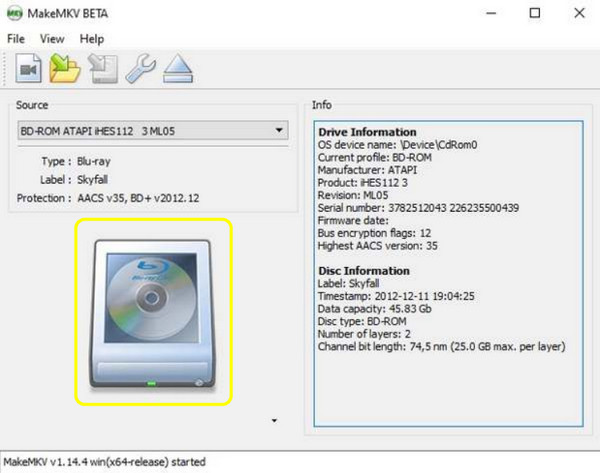
Step 2Next, you'll see its contents. Check the box for the main titles and expand it to uncheck any unwanted audio language or subtitle tracks. On the right side, select where to save your MKV file later.
Step 3Click the "Make MKV" button in the corner. The program will then copy the raw data from your Blu-ray to your computer.
Rip Blu-ray to Digital with HandBrake
Since those massive files can overwhelm your hard drive, turn Blu-ray to digital with Handbrake instead. It is a powerful transcoder that turns those huge files into lightweight digital versions.
Step 1Run Handbrake and drag and drop your MKV file you previously extracted into the main window. Locate the "Preset" menu at the top, choose a standard preset like Fast 1080p30.
Step 2Then, on the "Summary" tab, select your desired container format. Go to the following tabs to ensure your main track is selected, and add any subtitle tracks you want to burn into your video.
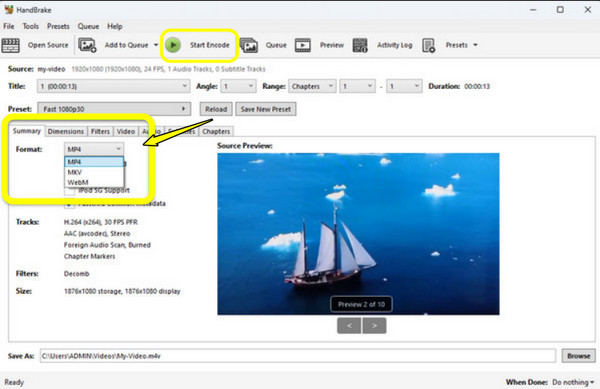
Step 3At the bottom of the screen, give your file a name and click "Browse" to choose your output directory. Click the "Start Encode" button at the top to start the compression.
Use Blu-ray to Digital Service
If the idea of those previous Blu-ray to digital methods sounds too much for you, there's a much simpler shortcut. You can use a Disc-to-Digital service to trade your physical Blu-ray disc for a cloud-based digital copy.
Step 1Get the Fandango at Home or Vudu app on your device, and log in to your account. From the app menu, go to "My Movies" and select the "Disc to Digital" option.
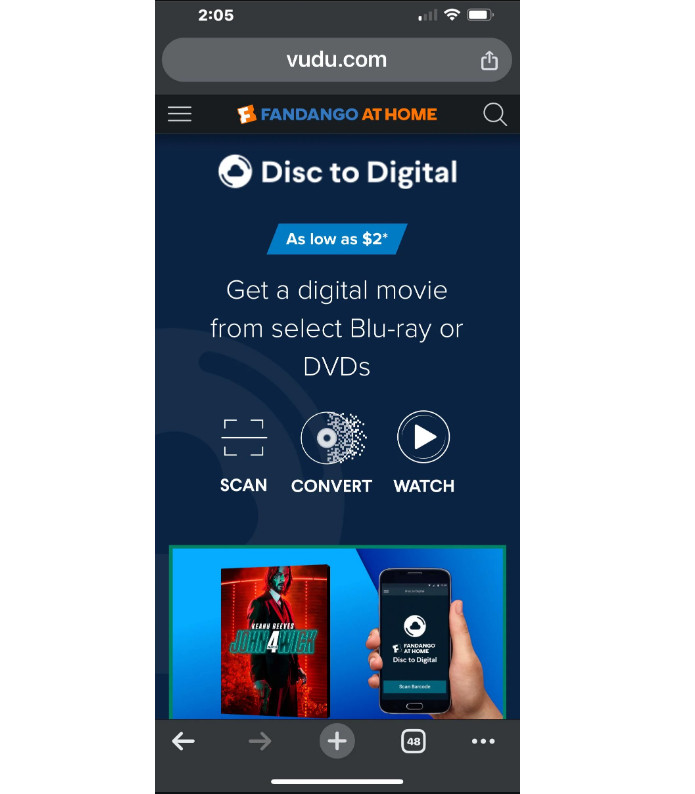
Step 2Grant all permissions to use your camera, then hold your phone over the barcode on the back of your Blu-ray case. After verifying, choose your quality option and pay.
Step 3Once all is done, the movie is instantly unlocked in your digital cloud locker. You can stream it through apps like Apple TV, Roku, a gaming console, or a Smart TV without a disc drive.
FAQs
-
Is it legal to rip my own Blu-ray disc to digital?
It falls a bit into a gray area. Bypassing a DRM breaks the copyright laws, but if you are simply creating it for your own copy, the risk of any legal trouble is zero.
-
Will ripping a disc ruin the physical Blu-ray?
No. The drive simply shines a laser light at the spinning disc to read the data.
-
Why is my ripped Blu-ray video lagging during playback?
Either your file size is too massive, and your device is struggling to play it, or your Wi-Fi network is not fast enough to stream it. Try compressing your video file into a more manageable format.
Conclusion
Whether you want to save every pixel of your favorite Blu-ray or just want lightweight MP4s, converting Blu-rays to digital formats is a massive upgrade. The right method depends on how much space you have and how much time you want to spend ripping. If you'd rather avoid the learning curve and just want a smooth choice, hands down to 4Easysoft DVD Ripper for handling disc protections and converting your movies with just clicks! Give it a spin and enjoy your instant access to your digital library.
100% Secure
100% Secure
