

Reliable video converter, editor, and compressor for daily tasks.

How to Reverse a Video on iPhone with Apps or Software

Posted by Aira Lesly Escoto to Edit Video/Audio Mar 27, 2026
With lots of videos on social media, you might notice a video containing a reverse effect. But do you know how to reverse videos on your iPhone? This effect is used to imply a flashback scene that shows an event from the past. Other than that, some people use this effect to produce an entertaining visual presentation. If you want to learn how to reverse video on your iPhone, this post is your best page! This post collects 6 professional tools you can use to reverse a video! Discover them now!
Guide List
Part 1: 4 Easy Ways to Reverse Videos on iPhone with Professional Tools Part 2: How to Reverse Videos on iPhone through Online Tools Part 3: FAQs about How to Reverse Videos on iPhonePart 1: 4 Easy Ways to Reverse Videos on iPhone with Professional Tools
The easiest and most convenient way is to use an app to reverse a video on your iPhone. Check out these three apps to see which one works best for you.
1. InShot App
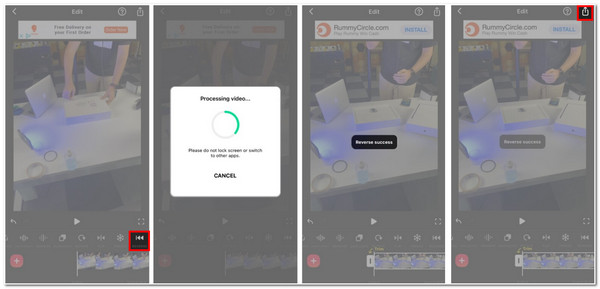
The first application you can download is the InShot app. This professional video and photo editor application supports many presets, eye-catchy text designs, emojis, filters, and transition effects. This application is a handy editor to reinvent a video, making it social media-worthy. However, this tool keeps popping up various advertisements, which you can only get rid of if you pay for a premium version. Despite that, if this tool caught your interest, here are the steps showing you how to reverse video on iPhone:
Step 1Download the InShot app on your iPhone and launch it. Then, tap VIDEO on the application’s interface and tap New.
Step 2After that, select the video you wish to reverse under the VIDEO tab, then tap Done with the Check icon at the lower right corner of your screen to confirm your selection.
Step 3Then, tap Canvas and select your preferred Aspect ratio depending on which social media you want to share the video. Once you are done choosing an aspect ratio, tap Check.
Step 4Next, swipe to the right and tap Reverse. Wait for the app to apply the reverse effect on your video. You can preview the changes by tapping Play.
Step 5If you are satisfied with your selection, tap Export at the upper right corner of your screen and then tap Save.
2. Reverse Vid
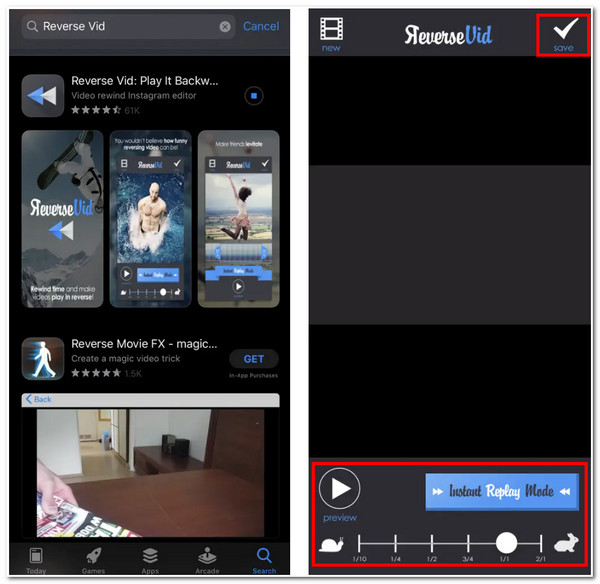
Another app suitable for playing videos in reverse is Reverse Vid. In addition to reverse playback, it offers various adjustment options, such as playback speed and the ability to select specific segments to play in reverse. Once the video has been reversed, you can immediately share it on major social media platforms. However, you may encounter issues such as the app crashing or lagging, especially when attempting to reverse longer videos. Here are the steps for reversing videos using Reverse Vid on an iPhone.
Step 1Head to your iPhone’s App Store and look for Reverse Vid to download and install it. After that, launch the app and tap Choose from library to import the video you wish to reverse.
Step 2Next, select the video and tap the Choose button at the lower right corner of your screen. Then, the app will automatically reverse your video.
Step 3On the slide bar beneath the video preview, you can adjust the speed of your video if you want to. Once you are satisfied with the result, tap save at the upper right corner of the app.
3. Reverse Movie FX
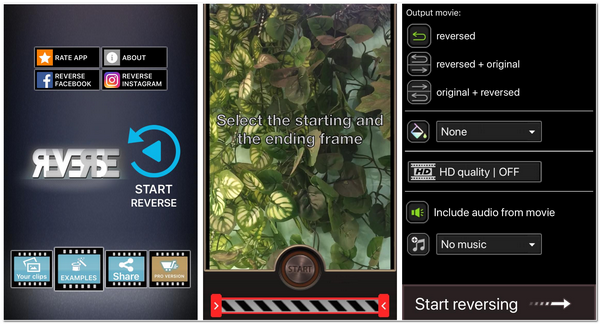
You can use Reverse Movie FX if you don’t want to go into complex video reversing processes. Despite its simplicity, this app provides compelling video reversing within just a few taps. Like the first two applications, this app lets you shoot a video through its built-in camera feature. Yes, it looks outdated and contains annoying advertisements, but it can achieve your desired video reversing need. So how to reverse a video on iPhone using Reverse Movie FX? Here are the steps for you.
Step 1Go to your App Store to download and install the Reverse Movie FX on your iPhone. After that, launch the app and tap START REVERSE on its interface.
Step 2Next, tap Choose Movie to import the video file you wish to reverse. Drag the Slider bar to select your preferred starting and ending frame. Once you are done with it, tap Start.
Step 3On the new screen, set your output settings according to your preferences. You can select your desired reverse effect and apply a watermark if you want to.
Step 4Once you finish your desired setups, tap Start reversing and wait until the app finishes loading. If it is done, tap Share at the upper right of your screen to save your work.
4. 4Easysoft Total Video Converter [Windows/Mac]
In addition to the apps mentioned above that offer tutorials on how to reverse iPhone videos, we also recommend trying the built-in video reversal feature in 4Easysoft Total Video Converter (available for Windows and Mac). This feature allows you to reverse videos quickly and easily, without any video editing experience. The interface is simple and intuitive, and you can reverse a video in just a few minutes.
Infused with Time Duration and Slider bar features to select the desired section to reverse.
Equipped with a Preview Section to help you monitor the section of your video to reverse.
Convert your reversed video to other formats to meet the social media requirements.
Have a lot of editing and enhancing features to reinvent the video after reversing it.
100% Secure
100% Secure
Part 2: How to Reverse Videos on iPhone through Online Tools
Aside from those downloadable applications with their steps on how to reverse video on iPhone, you can also reverse a video through online tools. With many available online, we featured 2 of the best online video reverser tools and their corresponding guidelines. Check them all out now!
1. Clideo Online
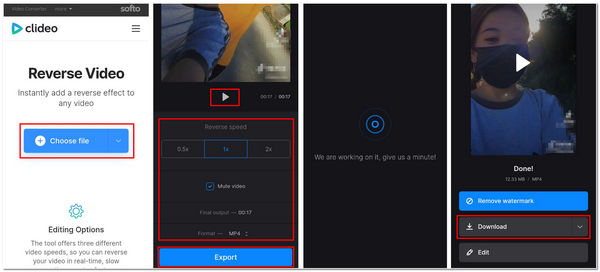
The first online video reverser tool is Clideo. This online tool is made to support various types of video formats. You can even add music to the video. Additionally, this tool won’t require you to sign into your account before you can use it. However, the video keeps stuttering while playing on its built-preview section, and it embeds a watermark on your video. But then, Clideo is still one of the most accessible online tools. How to reverse a video on iPhone through Clideo? Here are the steps to show you how.
Step 1Go to your iPhone’s browser and search for Clideo Reverse Video. After that, tap Choose file to import the video you want to reverse and wait for the tool to upload the video.
Step 2Next, in the preview section, scroll down to see some setup options. You can change the Reverse speed of your video. You can also change its video format if you want to.
Step 3After that, you can tap Play to check how Clideo’s video reverse feature affects your video. Once satisfied, tap Export and Download to save your work.
2. Adobe Online
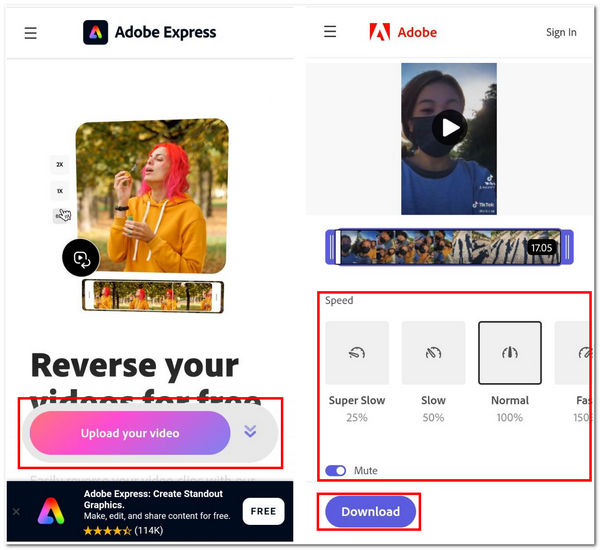
Another online tool that offers a video reverser feature is Adobe. This online tool lets you quickly reverse various videos in just a few taps or ticks. It is also infused with various options to speed up or slow down a reversed video. Moreover, it has a trimmer feature that lets you easily trim the video to shorten the length. However, uploading a video on this tool takes much time to finish, but if you are willing to wait, this tool is worth waiting for! Want to know how to reverse video on iPhone? Here are the steps for you.
Step 1Head to your iPhone’s browser, search for Adobe Express Online Video Reverser, and tap Upload your video to import the video you wish to reverse.
Step 2Next, wait for the online tool to upload. Once done, the tool will bring you to its editing interface. Here, you can modify your video’s reverse speed or mute it.
Step 3Once satisfied with your setups, tap Download to save your reversed video on your device’s local storage.
Check out this comparison chart to learn about the features of these products and find the best one for you.
| Tool | Platform | Speed Control | Output Quality | Format Support | Processing Speed | Editing Features | Output Customization | Stability |
| InShot | iOS / Android | Yes | HD | Common | Fast | Basic + filters | Low | Medium |
| Reverse Vid | iOS | Limited | HD | Limited | Very fast | Minimal | None | Low |
| Reverse Movie FX | iOS / Android | Yes | HD | MP4 / MOV | Medium | Effects-focused | Low | Medium |
| Adobe Express | Web | — | HD | Common | Fast | Strong (templates) | Low | Medium |
| Clideo | Web | Presets | HD | Common formats | Fast | Basic | Low–Medium | Network-dependent |
| 4Easysoft Total Video Converter | Windows / Mac | Full control | HD / 4K | 600+ formats | GPU accelerated | Full editing suite | High (codec/bitrate/resolution) | High |
Which Method Is Right for You?
- Mobile + Basic Needs: InShot / Reverse Vid
- Creative Features: Reverse Movie FX
- No Installation Required: Adobe Express / Clideo
- High Quality + Full Control: 4Easysoft Total Video Converter
Part 3: FAQs about How to Reverse Videos on iPhone
-
1. How to reverse video on iMovie iPhone?
Unfortunately, iMovie doesn’t have an infused video reverser feature to help you play videos backward. Alternatively, you can select a specific application featured in this article as an alternative to iMovie. You can also use the 4Easysoft Total Video Converter tool’s built-in Video Reverser feature for a much more convenient and effortless video reversing process.
-
2. How to reverse a video on the iPhone camera roll?
The only way to reverse various videos on your iPhone Camera roll is by using a third-party application. This is because iPhone devices don’t have a built-in video reverser feature. So to fulfill the need to reverse a video on iPhone, it is by using a third-party application such as those featured in this article.
-
3. How can I reverse a video on an iPhone without a third-party application?
You can rely on an Online Video Reverser tool like those mentioned in this post. It would be best if you had a browser, search for them, and you can reverse them right away. However, the process might take longer or sometimes fail because those tools greatly rely on the stability of your internet.
Conclusion
Using the iPhone apps or online tools mentioned above, you can reverse videos on your iPhone and create fun, creative clips in just a few simple steps. However, most of the recommended tools have some minor drawbacks. If you want the most convenient way to reverse videos, why not try the video reversal feature in 4Easysoft Total Video Converter? It’s simple and easy to use, making video reversal a breeze! Plus, it offers a range of other all-in-one editing tools for you to use.
100% Secure
100% Secure
