
Recover deleted/lost data from PC/Mac, HDD, USB, SD card and more.

3 Ways to Recover Deleted Video from iPhone [after 30 Days]

Posted by Paula Pailaga to iOS Recovery Dec 31, 2025
Accidentally deleting videos from iPhone is a stressful scenario. The good news is that depending on how and when the videos were deleted, you can recover deleted videos from iPhone by yourself. How? This guide here explains whether those deleted videos can be restored and shares 3 practical, easy ways to recover recently and permanently deleted videos from iPhone. As a bonus, a helpful tip awaits you here to prevent permanent loss in the future.
Guide List
Can Deleted Videos from iPhone Be Recovered? Directly Restore Videos from iPhone's Recently Deleted Album How to Safely Recover Permanently Deleted Videos from iPhone Steps to Restore Deleted Videos from iTunes/iCloud Backups Bonus Tip: Simple Tricks to Prevent Videos from Being Permanently Deleted on iPhoneCan Deleted Videos from iPhone Be Recovered?
Before trying any method to recover deleted videos, it's crucial to understand whether recovering iPhone videos is actually possible. The answer is yes, deleted videos can be recovered, but the successful process depends on how and when the videos were deleted.
Directly Restore Videos from iPhone's Recently Deleted Album
When you delete videos, they are not removed immediately. The deleted iPhone videos will be temporarily stored in the Recently Deleted album. Stop saving new files into the same storage space. Follow steps below to recover deleted videos from the iPhone Recently Deleted folder.
Step 1Inside the Photos app on your iPhone, head to the "Albums" tab and scroll down, and there tap on "Recently Deleted".
Step 2Next, find the deleted video you wish to recover.
Step 3Tap "Select", check the video, and then tap "Recover".
Step 4Confirm it, and the video will be restored to your library.
How to Safely Recover Permanently Deleted Videos from iPhone
Suppose the videos are no longer in the Recently Deleted album. The next best option to recover deleted videos from iPhone is to use a professional recovery tool, like 4Easysoft iPhone Data Recovery. The software is made to recover permanently deleted videos directly from storage without affecting existing data. It supports multiple data types, besides videos, including photos, messages, and app files. Additionally, it lets you preview videos before restoring, so you only get to recover what you exactly need to your iOS device.
Recover permanently deleted videos from iPhone, alongside photos, contacts, etc.
Perform fast, safe, and stable scanning, ensuring no other data will be affected.
Compatible with all iPhone models and the latest iOS versions without limits.
Let you preview videos before restoring, so you only recover the files you need.
100% Secure
100% Secure
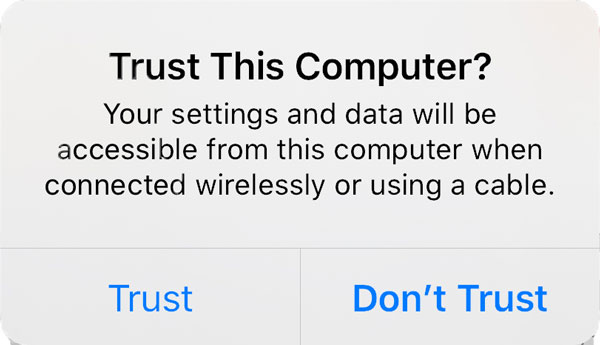
Step 1Start 4Easysoft iPhone Data Recovery. Plug your iPhone into the computer using a lighting USB cable. When you see the prompt, tap the "Trust" button to confirm.
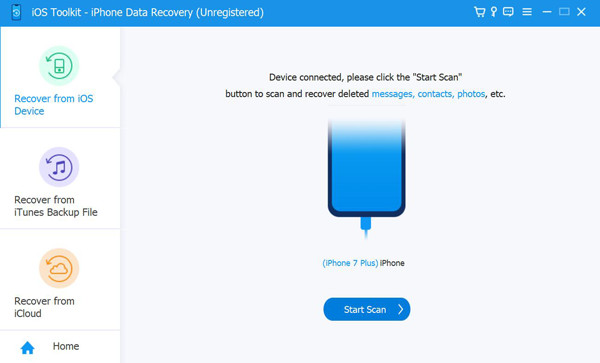
Step 2Choose the "iPhone Data Recovery" mode and select "Recover from iOS Device". Click "Start Scan" to start a deep scan of your iPhone, which can detect your permanently deleted videos.
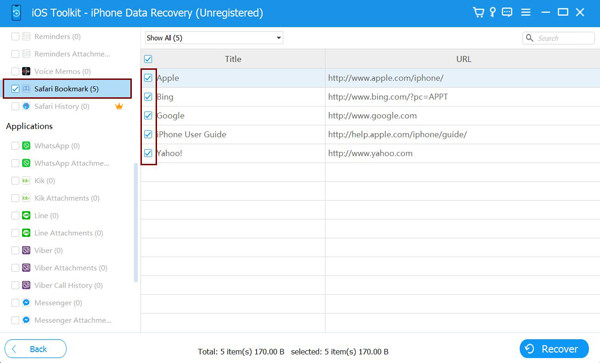
Step 3Go to the "Videos" category to find your deleted videos. Preview it. Then click the "Recover" button to recover permanently deleted videos from iPhone to PC.
100% Secure
100% Secure
Steps to Restore Deleted Videos from iTunes/iCloud Backups
Finally, if you have been regularly backing up your device, recovering deleted videos from iPhone using iTunes or iCloud backup is another reliable solution. This method works great if the backup was created before the videos were removed. However, take note that restoring deleted videos from iPhone using these backups may overwrite the existing data on your device. If you are okay with that, you can recover permanently deleted photos on iPhone using iTunes and iCloud backups too.
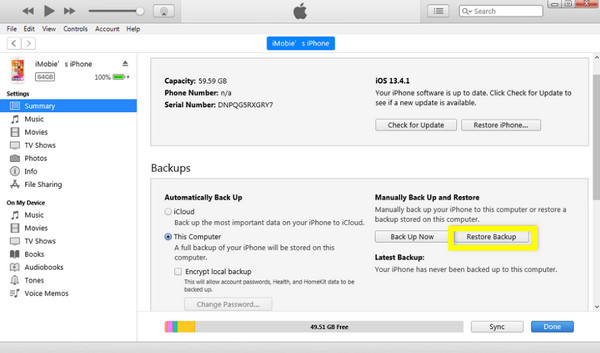
Recover Deleted Videos from iTunes Backup
- 1. Upon pairing your iPhone to a computer.
- 2. Open iTunes, then select your device icon above, and then click "Restore Backup".
- 3. After that, choose a backup created before the videos were removed.
- 4. Click "Restore" and wait for the process to finish.
Retrieve Deleted Videos from iCloud Backup
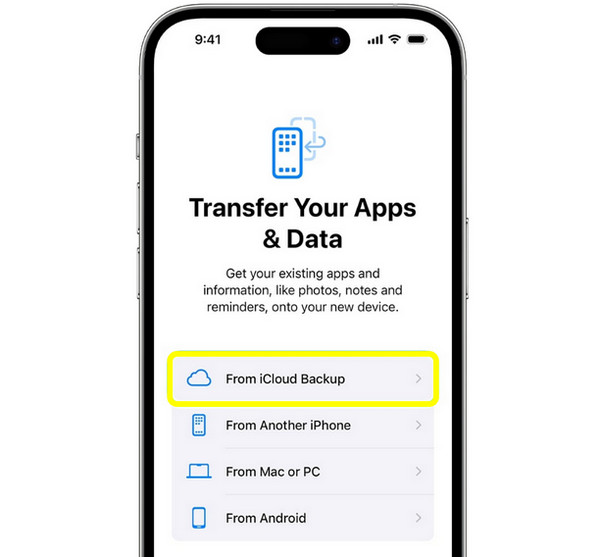
- 1. On your iPhone, go to "Settings", then "General" and select "Transfer or Reset iPhone".
- 2. There, tap on "Erase All Content and Settings".
- 3. Now, during setup, choose "Restore from iCloud Backup".
- 4. Sign in with your Apple ID, decide on the recent backup, and wait for it to finish.
Bonus Tip: Simple Tricks to Prevent Videos from Being Permanently Deleted on iPhone
Protecting your videos before they are lost forever is just as important as knowing how to recover deleted videos from iPhone. Luckily, there are easy steps you can take to prevent videos from being permanently deleted.
- • Enable iCloud Photos and Backups. Turn on iCloud Photos to ensure your videos are automatically uploaded to iCloud right away and stored safely in the cloud.
- • Check Backup Settings Regularly. iCloud backups happen automatically when your iOS device is connected to Wi-Fi, but only if backups are enabled. (See solutions to fix iCloud backup not working.)
- • Use iTunes/Finder Backups. Backing up your iPhone with iTunes on Windows/macOS Mojave or Finder provides an extra layer of protection.
- • Avoid Clearing Recently Deleted Album. When you delete a video on iPhone, it stays on the Recently Deleted album for up to 30 days.
Conclusion
As this guide shows how to recover deleted videos from iPhone after 30 days, accidentally losing videos won't be as stressful as before. Whether the videos are still in the Recently Deleted album, or in iTunes or iCloud backup, you can recover them quickly! Knowing whether the recovery is possible and having the correct method will improve the chances of restoring your videos. Meanwhile, if your videos are no longer accessible, recover rhythm using like 4Easysoft iPhone Data Recovery. It lets you safely scan your iPhone, preview videos, and restore permanently deleted files without affecting your existing data, making it the best choice for recovery.
100% Secure
100% Secure
