
Record, edit, and share video from all sources.

4 Ways to Record FaceTime Call on iOS, macOS, and Android

Posted by Aira Lesly Escoto to Record Audio, Record Video Dec 05, 2025
Recording a FaceTime call can be incredibly useful, from a special moment to an important meeting. However, you may be unsure which tools can safely and clearly record FaceTime calls. Fortunately, Apple provides built-in options, and many tools make the process even more convenient. This guide shares with you four ways to record a FaceTime call with audio across iPhone, iPad, Mac, and even Android. Explore here the best FaceTime recording options!
Guide List
Is It Legal to Record a FaceTime Call? Record a High-quality FaceTime Call with Audio on Mac How to Record a FaceTime Call on iPhone or iPad Use the Built-in Tool to Record FaceTime Calls on Mac How to Use and Record FaceTime on an AndroidIs It Legal to Record a FaceTime Call?
It's essential to keep the legal and privacy considerations in mind before recording a FaceTime call. You can record a FaceTime call legally. Just make sure all parties are notified and agree to the FaceTime call recording beforehand.
Since FaceTime calls are just like regular private calls, recording without permission, especially if it is done discreetly, may be considered unlawful. While some locations allow one-party consent, others need all participants to agree before any recording takes place.
Thus, to stay safe and respectful, it's always nice to ask for permission first before recording a FaceTime call, no matter what device you plan to use.
Record a High-quality FaceTime Call with Audio on Mac
The first recommended tool to screen record FaceTime with sound is 4Easysoft Mac Screen Recorder, a versatile recording program that delivers crisp video and audio quality. Unlike other built-in recorders, this program offers complete control over how your FaceTime call is captured, whether you wish to record the screen, internal audio, your mic, or a combination of all sources. You can also fine-tune audio levels, adjust output quality, and ensure your FaceTime call is recorded with clear and synchronized sound.

Can record FaceTime calls, online meetings, tutorials, and other activities on Mac.
Customizable hotkeys for quick start, pause, or stop while recording a FaceTime call.
Has noise reduction and audio enhancement for clearer call recordings.
Trimming tool to remove awkward pauses or extra sections after recording.
100% Secure
100% Secure
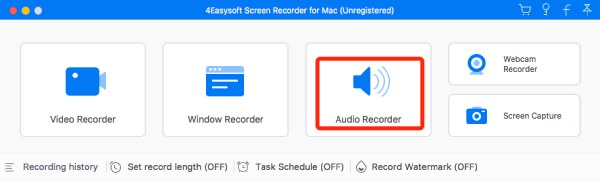
Step 1After opening 4Easysoft Mac Screen Recorder, select "Audio Recorder" to record only the sound from your FaceTime call without capturing your screen. But you can also pick "Video Recorder".
Step 2Select whether to record "System Sound" (the other person), "Microphone" (your voice), or both. Don't forget to adjust volume levels until they suit your preference.
Click the "Settings" button to adjust the output format, bitrate, sample rate, and more audio settings.
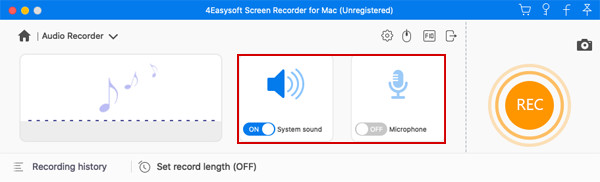
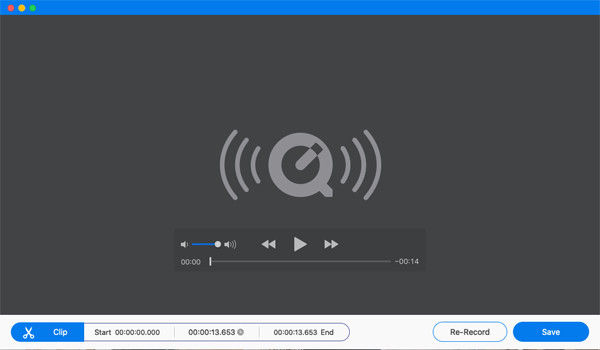
Step 3Click the "REC" button to start capturing your FaceTime call audio. When the conversation is over, click the "Stop" button. Listen to the recording, cut out extra parts if needed, and then click the "Save" button to get FaceTime call recording files.
100% Secure
100% Secure
How to Record a FaceTime Call on iPhone or iPad
To record a FaceTime call directly from your iPhone or iPad, you can do so using the built-in screen recording tool. This is the easiest way to do the task, just be sure to enable the microphone if you wish to capture audio.
Step 1Swipe down from the top-right or swipe up from the bottom on your iPhone or iPad screen to open the "Control Center" and look for the "Screen Recorder" icon there.
If it is not there yet, open "Settings" and tap on "Control Center", scroll down, and tap the "Add" button next to the Screen Recording to add it.
Step 2Press and hold the button to open more options; tap "Microphone" to enable audio recording. Then, tap "Start Recording", then begin your FaceTime call.
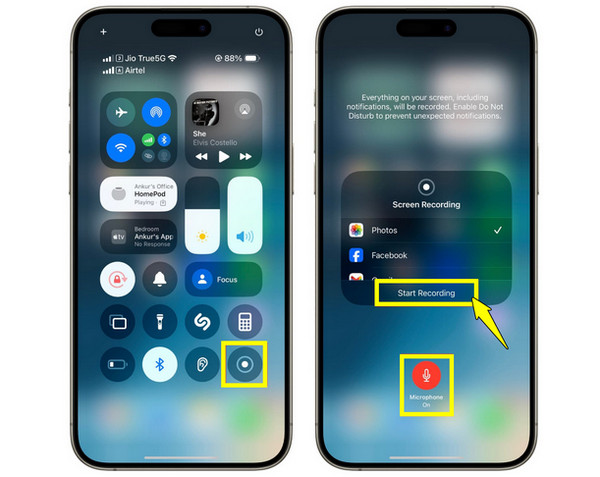
Step 3Once done, tap the "Red Recording" bar to stop recording. The video is saved automatically to the Photos app.
Use the Built-in Tool to Record FaceTime Calls on Mac
If you're using FaceTime on Mac, you won't need any external software to record FaceTime calls or take screenshots on FaceTime. Because macOS has its built-in screen recording tool that captures both video and audio. This quick and built-in solution makes it a convenient option for many users.
Step 1On your Mac, launch the FaceTime app and prepare your call. Then, press the "Command + Shift + 5" to open the macOS screenshot and recording toolbar.
Step 2There, click "Options" and select "Built-in Microphone" to make sure audio is included. Choose whether you wish to record the entire screen or just a portion. Click "Record" and start your call.
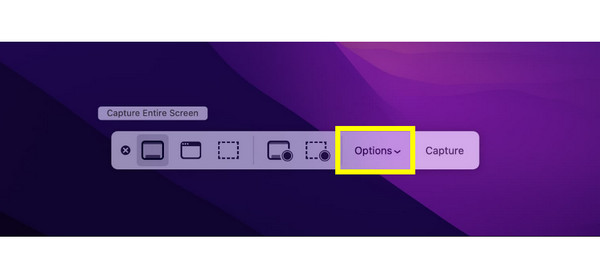
Step 3Once finished, click the "Stop" button in the menu bar. The recorded FaceTime call will then appear on your desktop or the specified locations.
How to Use and Record FaceTime on an Android
While FaceTime is primarily an Apple service, recent updates let users on non-Apple devices join FaceTime calls via the web, using the shared link. That's how you FaceTime from Android to iPhone or reversely. However, since FaceTime is not native to Android, to record a FaceTime call, you need a screen-recording app.
Step 1On your iOS device, tap "Create Link" in the FaceTime window, and pick the share method, such as email or social media platforms.
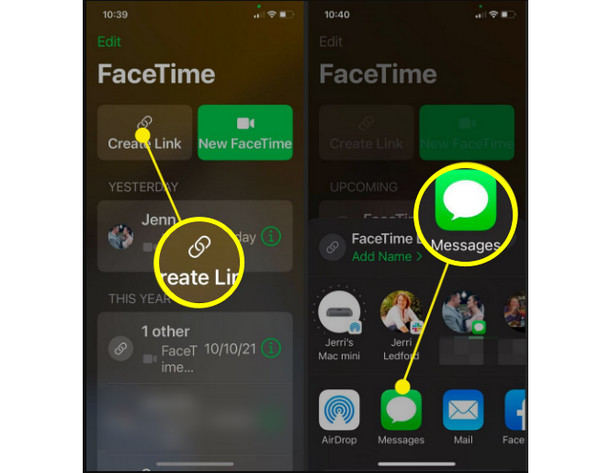
Step 2Use a screen recording app if your Android device does not have one by default. Open the app and grant any required permissions, such as mic access.
Step 3Now, tap "Record" then go to the FaceTime link you received and join the call through Chrome browser on your phone. Once done, stop recording, and it will be saved to your Gallery or your storage folder.
Conclusion
Recording a FaceTime call with audio on your iPhone, iPad, Mac, or even Android can save your calls safely and efficiently. With the ways mentioned here today, you can capture important meetings, interviews, and personal conversations; just make sure the other person agrees to the recording beforehand. For a seamless and professional experience, record FaceTime calls with 4Easysoft Mac Screen Recorder. Its dedicated recorder, adjustable audio sources, and enhancement features ensure your recordings are clear and ready to use.
100% Secure
100% Secure
