
Record, edit, and share video from all sources.

3 Easy Ways to Record a Zoom Meeting with/without Permission

Posted by Paula Pailaga to Record Video Dec 25, 2025
Since Zoom continues to go on top for work, school, and more virtual meetings, being able to record a Zoom meeting has become crucial. Whether you wish to save it for later review, Zoom has ways to capture every session. However, there's a limit included. Therefore, this guide breaks down three different ways to record a meeting in Zoom, from built-in functions to third-party solutions, alongside more details about recording them.
Guide List
Is It Legal to Record Zoom Meetings? Record a Zoom Meeting If You Are the Host How to Find Recorded Zoom Meetings Record Zoom Meetings as a Participant Without Permission How to Easily Record Zoom Meetings on iPhoneIs It Legal to Record Zoom Meetings?
Before diving into the methods for recording Zoom meetings, address the common question first: Is it legal to record a Zoom meeting?
Since the platform often involves sensitive information, it's nice to know what's allowed before recording. Doing so is legal as long as you have the permission from everyone in the meeting. Many countries use "one-party consent" rules, where you only need the approval of one participant. However, some need the "all-party consent", where you need to get everyone's approval before the session can be recorded.
Thus, to stay on the safe side, always inform the participants before you start recording, or you can request that the Zoom meeting host enable the recording permission for you.
Record a Zoom Meeting If You Are the Host
Start with Zoom's own built-in recording feature. This permission-based recording is ideal for hosts or participants who have access to the function. With this method, you won't need to install extra software; you just need a Zoom account with a recording feature.
Step 1Launch Zoom and start or join a meeting. Once inside, click the "Record" button at the bottom of the toolbar.
Step 2Select either "Record on this Computer" or "Record to the Cloud".
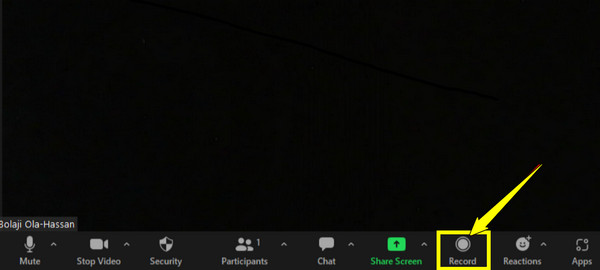
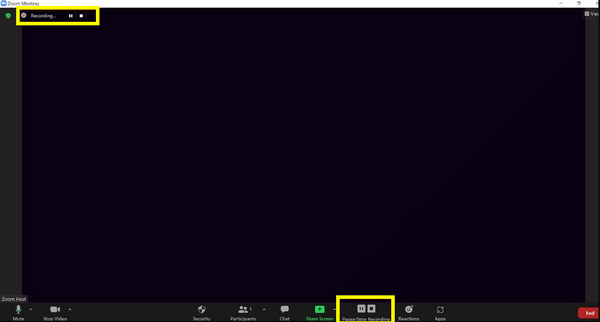
Step 3Zoom will then display a recording indicator, notifying all participants.
Step 4When finished, click the "Stop Recording" button. Find where Zoom recordings are saved in the path folder.
How to Find Recorded Zoom Meetings
After recording a Zoom meeting, you may be unsure where it was saved. Fortunately, Zoom organizes all recording files neatly and gives you access from both your desktop and your account dashboard. Here are the steps to locate a recorded Zoom meeting:
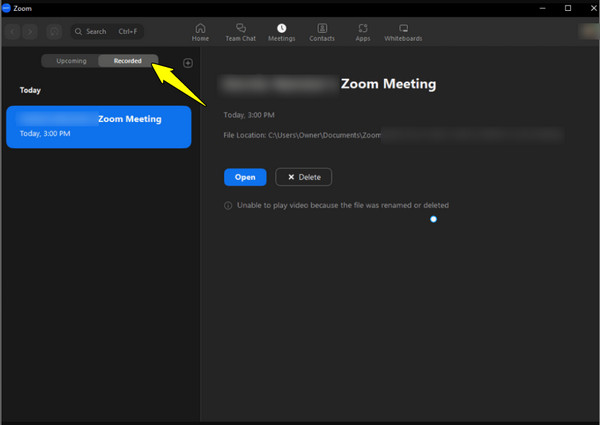
Step 1On the Zoom desktop app, click "Meetings".
Step 2From there, navigate to the "Recorded" tab and choose the meeting you recorded from the list.
Step 3Click "Open" to view the file in your folder, or you can choose "Play" to watch it directly.
Step 4For your cloud recordings, log in to the Zoom web portal, then go to "Recordings" in the left panel.
Record Zoom Meetings as a Participant Without Permission
Now that the built-in options are done, the next challenge is how to record a Zoom meeting without the host's permission. For this, you need the 4Easysoft Screen Recorder. No recording permission is needed. You can record a Zoom Meeting as a participant without time limit.
Record Zoom meeting video and audio up to 4K.
No host permission required to record all meetings.
Capture the entire screen, program window, or custom region.
Trim, compress, merge, convert, and edit metadata after recording.
100% Secure
100% Secure
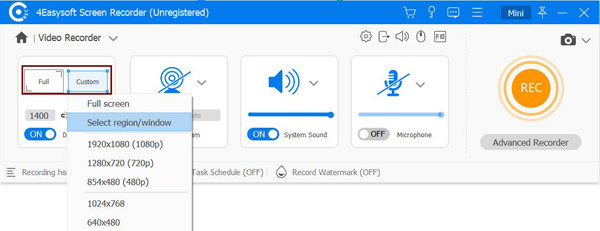
Step 1Open 4Easysoft Screen Recorder on your computer. Use the default "Video Recorder". Set the screen capture area as full screen or custom.
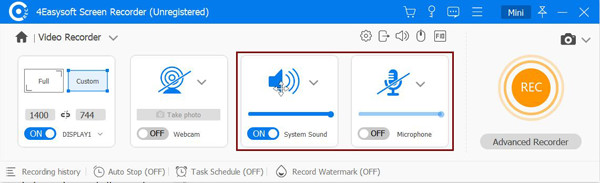
Step 2Next, turn on the toggle buttons before "System Sound" and "Microphone". Adjust the volume to ensure the audio balance. So you can record a Zoom meeting with audio from two sides.
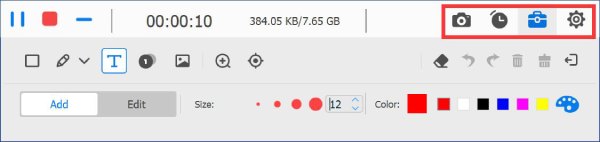
Step 3When everything is set, click the "REC" button. You can annotate your recording, add highlights, shapes, lines, or capture screenshots during recording using the floating bar.
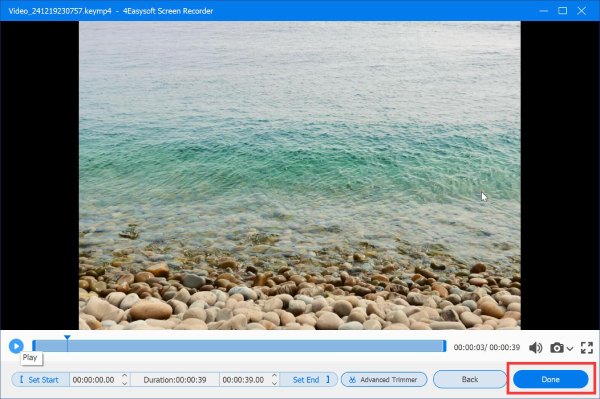
Step 4After the meeting, click the "Stop" button. You can preview, trim, merge, compress, convert, save and share the meeting video within the program.
100% Secure
100% Secure
How to Easily Record Zoom Meetings on iPhone
If you are the Zoom meeting host, or you get the recording permission, you can record a Zoom meeting directly on iPhone. There will be a recording notification before you start Zoom recording. If you are okay with that, you can record a video on Zoom on iPad and iPhone using the following steps.
Step 1Launch the Zoom app on your iPhone, and join or start your meeting.
Step 2From the toolbar, tap the "More" button (three dots) and select the "Record to the Cloud" option.
Step 3You'll then see a recording indicator at the top, which can be seen by all participants.
Step 4You can tap the "More" icon again to pause or resume Zoom call recording.
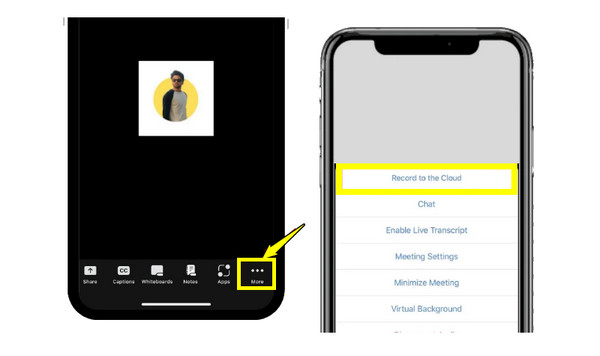
Step 5Later, when it ends, Zoom will automatically upload it to the "Zoom Cloud Recordings". Access or download it by logging into your Zoom account.
Conclusion
By exploring the three methods in this post, you now have reliable options for capturing your sessions on desktop or mobile. Zoom's built-in recording feature offers a safe and secure way to record on both a computer and an iPhone. However, if you're only there to attend, you need to ask for permission first before recording. So, to avoid the hassle, use the most flexible, high-quality, and friendly option among all these methods, 4Easysoft Screen Recorder. This tool is perfect for a clear, reliable solution to record Zoom meetings anytime you need it.
100% Secure
100% Secure
