
Transfer anything from/to iPhone, iPad, and iPod.

Need a Hard Copy? 4 Ways to Print Text Messages from iPhone

Posted by Paula Pailaga to iOS Transfer Jan 16, 2026
Whether it is for travel details, business, or important conversations, knowing how to print text messages from iPhone is crucial. However, doing so is not always straightforward, leaving you unsure where to start. Fortunately, this post here has four ways to print iPhone text messages, from built-in options to a more advanced tool. By the end, you can choose the best method based on your needs for a quick printout or a professional document.
Guide List
Methods for Securely Transferring iPhone Text Messages for Printing Printing iPhone Text Messages and iMessages via Screenshots Printing Text Messages/SMS on iPhone Using Email Forwarding iPhone Text Messages for PrintingMethods for Securely Transferring iPhone Text Messages for Printing
4Easysoft iPhone Transfer can export entire text messages in a readable and printable format. It lets you save essential details like timestamps, sender details, and full conversation threads, then print text messages from iPhone later. Also, this transfer tool ensures your data safety as it creates a direct connection between your iPhone and computer without affecting other files. With its professional and organized way, it is the ideal way to prepare and print entire iPhone text messages to PDF for printing.
Securely transfer iPhone text messages to a computer for printing.
Includes a preview panel to review messages before exporting them.
Supports multiple data types like messages, photos, videos, music, etc.
Allows you to organize, manage, and edit iPhone data like messages.
100% Secure
100% Secure
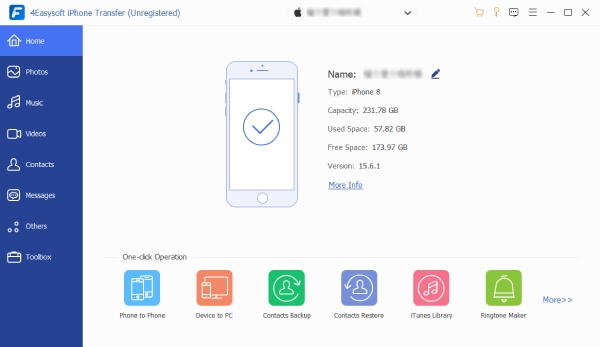
Step 1Launch 4Easysoft iPhone Transfer. Connect your iPhone to PC. Tap "Trust" on iPhone to confirm access. All iPhone data appears on the program after data scanning.
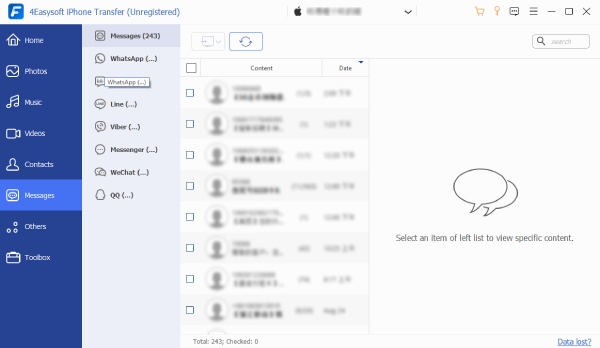
Step 2Click "Messages" in the left panel to see all conversations. Double-click on one conversion to preview details. Then choose the message threads you intend to transfer.
Step 3Click the "Export to PC" button. Set a destination folder to transfer the selected iPhone contacts to PC. Later, your iPhone messages will be saved in a printable format.
100% Secure
100% Secure
Printing iPhone Text Messages and iMessages via Screenshots
Taking screenshots is also a simple option to print iPhone text messages. This approach won't require you any extra software. Just use the default iPhone screenshot function. However, it is ideal for short conversations only, making it perfect for casual or personal use. It also works to search old messages on iPhone and then screenshot.
Step 1Launch the "Messages" app on your iPhone. Then, head towards the conversation you wish to print.
Step 2Take a screenshot of it by using the "Power + Volume Up" buttons (Home + Power buttons). Repeat the process as needed.
Step 3Now, open the "Photos" app. See all screenshots. Print it directly using "AirPrint" or transfer the images first to a computer.
Printing Text Messages/SMS on iPhone Using Email
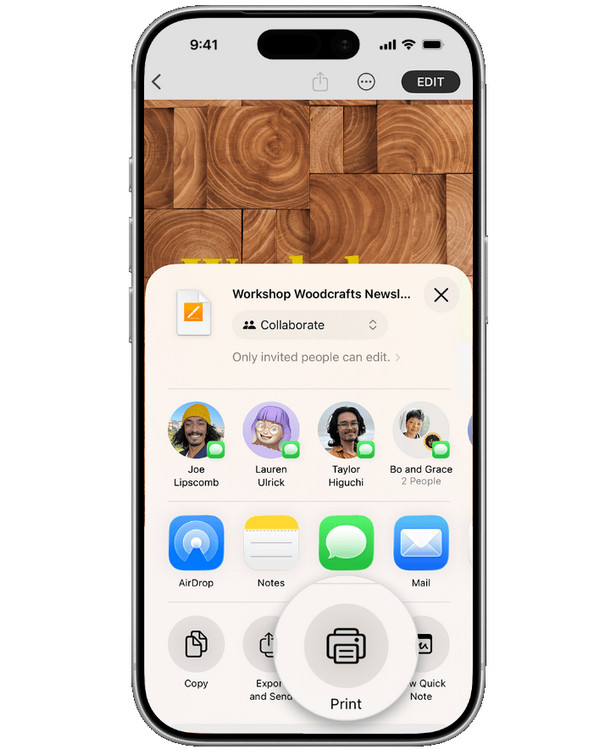
Moving on to the email method to print text messages from iPhone without a computer. This practical approach lets you compile selected text messages into a single email, making it easy for you to print from a computer. Although it requires manual selection, it has more flexibility than screenshots and is perfect for moderate-length conversations. (See methods to recover deleted text messages on iPhone.)
Step 1In the "Messages" app on your device, select a conversation.
Step 2Tap and hold a text message, then select "More". Then, select multiple messages from the conversation.
Step 3Tap the "Share" button and choose "Mail".
Step 4Send the email to yourself, then open it on a computer to get it ready for printing.
Forwarding iPhone Text Messages for Printing
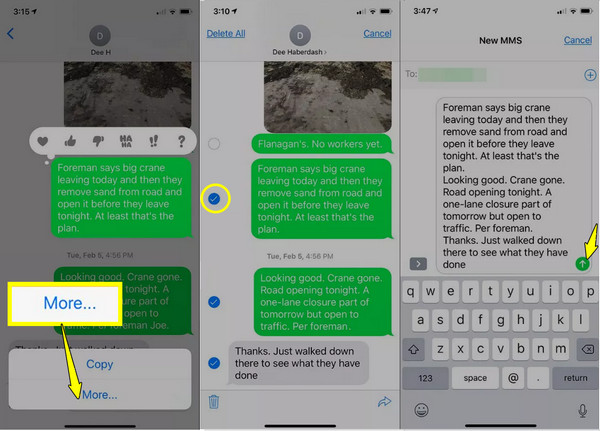
Lastly, forwarding messages is a simple option if you wish for an organized text message before printing. This method works very well if you want to print text messages from your iPhone for court, documentation purposes or send messages to another contact. While it needs extra steps, it is a convenient built-in feature of iOS that lets you print easily once received.
Step 1Launch the "Messages" app and select a conversation to be printed. Tap and hold a message, then tap "More".
Step 2Select the messages you wish to forward, then tap the "Forward" icon, and enter another number or email address to whom you want to forward.
Step 3Open the forward messages on another device and print them.
Conclusion
Printing text chats and conversions may seem complicated at first, but as you have seen, several practical ways to get the task done. From quick solutions like screenshots and forwarding to a more organized method, each option works well depending on how many text messages you need. Out of them, using a dedicated tool offers more professional and high-quality results. If you need to print out text messages from iPhone with proper formatting, 4Easysoft iPhone Transfer is what you need. This tool allows you to transfer these messages to your computer, making it a clean, organized, and stress-free solution to print text messages from iPhone.
100% Secure
100% Secure
