
Remove screen passcode, Apple ID, MDM and Screen Time from iPhone safely.

iPhone Unavailable? 4 Ways to Get into Your Locked iPhone

Posted by Alvin Cantero to iOS Unlocker Apr 17, 2026
"I can't remember my iPhone passcode at all - what can I do now?"
"My iPhone is locked after too many wrong attempts and says iPhone unavailable - how can I get back in?"
It can be very stressful and disruptive if you've forgotten your iPhone passcode. All your photos, messages, and important files are stuck inside. But don't worry - there are still solutions. In this guide, we'll show you four safe and effective ways to get into your locked iPhone.
Guide List
Things to Know Before You Get into a Locked iPhone Method 1: Get into a Locked iPhone Using an iOS Unlocker Method 2: Unlock iPhone Without Passcode Through Recovery Mode Method 3: Access Your Locked iPhone via Forgot Passcode Option Method 4: Remove the iPhone Lock with Find My FAQs About Getting into a Locked iPhoneThings to Know Before You Get into a Locked iPhone
Before trying any method, there are a few important things you should understand.
When the passcode is removed, the system requires the device to be reset to protect your personal information, so that unauthorized users cannot access the stored data. All the unlocking methods will erase the existing data on the device, including the messages, photos, apps, and settings.
It is recommended to check whether you have a backup before proceeding. If you previously backed up your iPhone through iCloud or iTunes/Finder, you can easily restore your data after the erase. If you are not sure whether a backup exists, you can sign in to your iCloud account and check the available backups associated with your device.
Method 1: Get into a Locked iPhone Using an iOS Unlocker
If you are looking for a reliable and efficient way to access your locked iPhone without a password, 4Easysoft iPhone Unlocker is your top choice. It stands out with its easy-to-use interface, powerful features and stable performance. It can remove various screen locks in minutes, including 4-digit/6-digit passcode, Face ID, and Touch ID. The tool is compatible with all iPhone models and the latest iOS versions, making it easy for both beginners and advanced users.
Get into your locked/disabled/frozen iPhone safely.
Bypass iCloud Activation Lock and Apple ID without a password.
Remove MDM and Screen Time restrictions easily.
Decrypt iTunes Backup if you forgot the password.
100% Secure
100% Secure
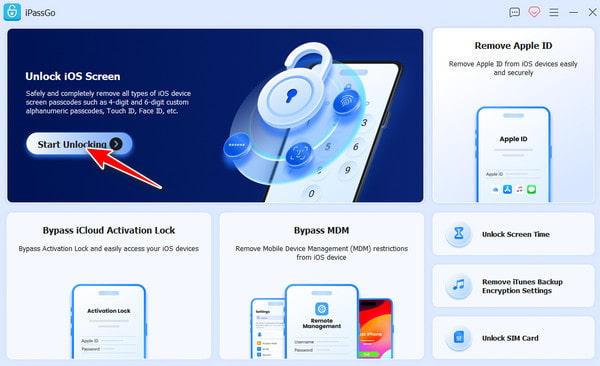
Step 1Launch the software on your computer and select "Wipe Passcode" from the main interface. Connect your iPhone to your computer with a USB cable, then click the "Start" button.
Step 2Check the information about your iPhone. If everything is correct, click "Start" to download the firmware package. Make sure your network connection is stable.
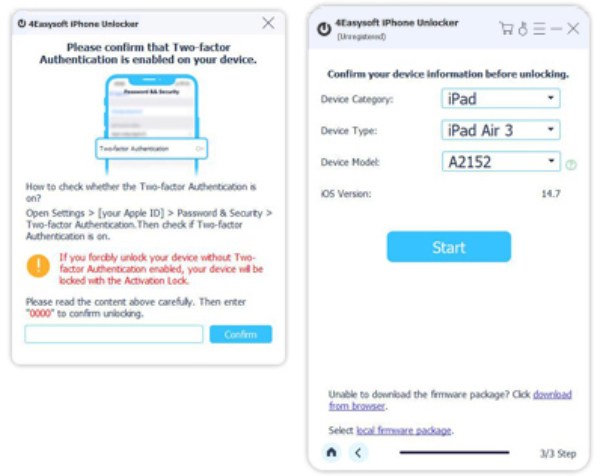
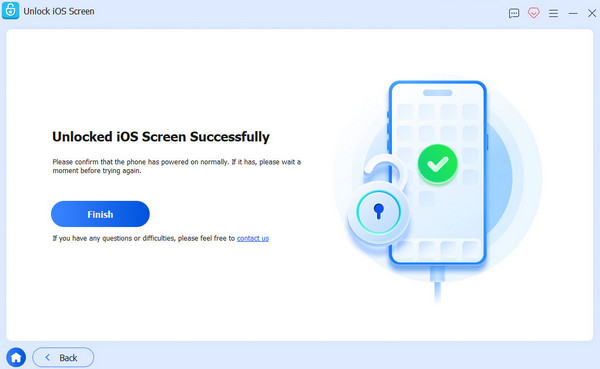
Step 3Follow the on-screen instructions to confirm the unlocking process, then click "Unlock". The screen passcode will be removed within a few minutes.
Method 2: Unlock iPhone Without Passcode Through Recovery Mode
One official method to get into a locked iPhone is using the Recovery Mode. You can restore your iPhone to factory settings to remove the password.
Step 1Download and install iTunes on your computer. Make sure it is updated to the newest version to avoid compatibility issues.
Step 2Next, you need to manually enter Recovery Mode. The button combination varies from different iPhone models:
iPhone 8 and later (including iPhone SE 2nd Generation)
Press and release the Volume Up button quickly, followed by the Volume Down button. Press and hold the Power button until Recovery Mode appears.
iPhone 7/iPhone 7 Plus
Press and hold the Volume Down button and Side button at the same time until the Recovery Mode screen appears.
iPhone 6S and earlier (including iPhone SE 1st Generation)
Press and hold the Home and Side buttons together until the Recovery Mode screen shows up.
Step 3Use a USB cable to connect your iPhone to the computer. Once connected, open iTunes and select your iPhone from the device list.
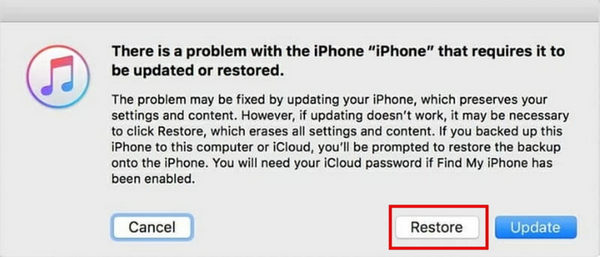
Step 4When a message appears asking whether you want to "Update" or "Restore" the device, choose "Restore". Then, iTunes will begin restoring your iPhone and erasing all the data.
Method 3: Access Your Locked iPhone via Forgot Passcode Option
If your iPhone runs iOS 17 or later, Apple provides a built-in option called Forgot Passcode that allows you to reset the device directly from the lock screen. This method requires your Apple ID and password. In addition, your iPhone must be connected to Wi-Fi or cellular data with Find My enabled.
How to reset your iPhone via Forgot Passcode:
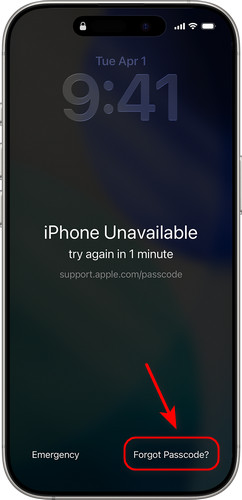
Step 1Enter the wrong passcodes repeatedly until the "iPhone Unavailable" screen appears.
Step 2Tap the "Forgot Passcode" option in the bottom right corner. If your device is running iOS 15.2 or iOS 16, this option will appear as "Erase iPhone."
Step 3Tap "Start iPhone Reset", then enter your Apple ID and password to verify your identification.
Step 4Tap "Erase iPhone" to remove all data and settings from your iPhone. Once the reset is complete, your iPhone will restart automatically.
Method 4: Remove the iPhone Lock with Find My
If you still remember your Apple ID credentials but forget the iPhone passcode, another effective solution to get into your locked iPhone is using the Find My feature through iCloud. When Find My iPhone is enabled, you can remotely erase the device and remove the screen lock.
Step 1Open a browser on another device and go to iCloud.com, then sign in with your Apple ID and password.
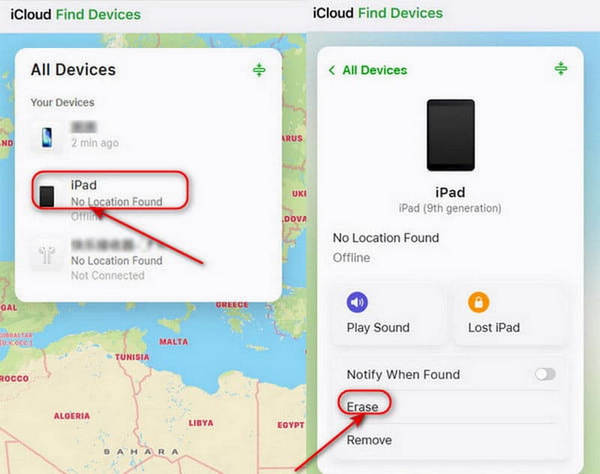
Step 2After logging in, click "All Devices" at the top of the screen. From the device list, find and select the locked iPhone you want to access.
Step 3Choose "Erase iPhone", then iCloud will remotely wipe the device, including the screen passcode and all existing data. Your iPhone will restart in minutes, and you can restore your iPhone from a previous backup.
FAQs About Getting into a Locked iPhone
-
How many failed attempts to unlock iPhone?
You can try entering the iPhone passcode up to 10 times. After 10 failed passcode attempts, your iPhone will become disabled. At this point, you won't be able to continue entering passcodes and will need to erase and reset the device to regain access.
-
How to get into a locked iPhone without the password?
If you forgot your iPhone passcode, try these common methods to unlock your iPhone:(1) Use Recovery Mode with iTunes/Finder to restore the iPhone. (2) Reset the device through the Forgot Passcode option. (3) Remotely erase the iPhone using Find My via iCloud. (4) Use a professional third-party tool like 4Easysoft iPhone Unlocker.
-
How to unlock the disabled iPhone without data loss?
Unluckily, there is no way to get into a disabled iPhone without data loss. To avoid data loss in the future, it's recommended to back up your important files regularly.
-
Can police get into a locked iPhone?
Usually not. Without the passcode, it's very difficult to access a locked iPhone due to strong encryption. In some cases, police may request data from iCloud with a legal warrant.
Conclusion
Being locked out doesn't mean you've lost your iPhone forever. If you're wondering how to get into a locked iPhone, there are several effective methods you can try, such as using a dedicated unlock tool like 4Easysoft iPhone Unlocker, Recovery Mode, the built-in Forgot Passcode option, or Find My. Just remember: unlocking will erase all your data, so always check for a backup first, then you can restore your iPhone from a previous backup after the erase.
100% Secure
100% Secure
