
Reliable video converter, editor, and compressor for daily tasks.

Top 6 Ways to Combine Two Videos on Desktop/Mobile/Browser

Posted by Aira Lesly Escoto to Edit Video/Audio Mar 06, 2026
To turn your spearmint moments into a single video, knowing how to combine two videos is an essential skill to have! You could be working on a social media reel, personal montage, or a project; having the right method to help will ensure your final project remains sharp. To cut the search, this guide shares the best 6 ways for every platform for combining two or more videos into one. Determine and master which one can help your videos be of high quality and ready for sharing.
Guide List
How to Combine Two Videos on Windows/Mac Easily Combine Two Videos One by One with Windows Photos How to Combine Two Videos Quickly Online Use Apple iMovie and Photos to Combine Two Videos on iPhone Combine Videos on Android with Google PhotosHow to Combine Two Videos on Windows/Mac Easily
Using a dedicated program ensures that high-bitrate files are handled smoothly without the lag of other alternatives. So, for this, you got here the 4Easysoft Total Video Converter. This software supports over 600 formats, ensuring you can merge two videos effortlessly. Its advanced hardware acceleration technology lets you process videos up to 60x faster than standard editors. But aside from simply video merging, the software features editing tools such as trimmer, rotator, effects, filters, watermarks, and more.

Effortlessly combine two videos, even if they are saved in different file types.
Built-in editor to trim unwanted segments, crop frames, and apply filters.
Guarantees that the quality of your footage is preserved throughout the process.
Rapid merging and conversion speed, perfect for handling huge projects.
100% Secure
100% Secure
Step 1Open 4Easysoft Total Video Converter on your system. Click the "Add Files" button to import your clips, or simply drag and drop them right into the main workspace.

Step 2Drag the chosen clips into your desired sequence. You can click the "Edit" or "Trim" button to enhance your footage, then use the "Format" dropdown menu to select your desired output profile and settings.Drag the chosen clips into your desired sequence. You can click the "Edit" or "Trim" button to enhance your footage, then use the "Format" dropdown menu to select your desired output profile and settings.
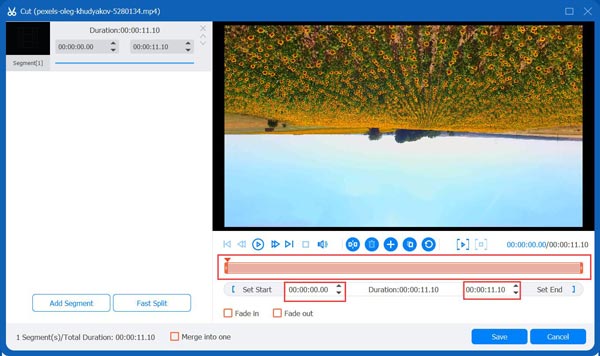
Step 3Later, check the box labeled "Merge into one file" at the bottom. Then, select your saving path, name the project, and click the "Convert All" button to stitch videos together.

100% Secure
100% Secure
Combine Two Videos One by One with Windows Photos
For Windows users wanting a built-in solution, the Photos app provides a simple way to join two videos without extra downloads. It is perfectly integrated into the Windows system, making it an accessible option for quick, basic edits. Here's how to combine multiple videos into one using Windows Photos:
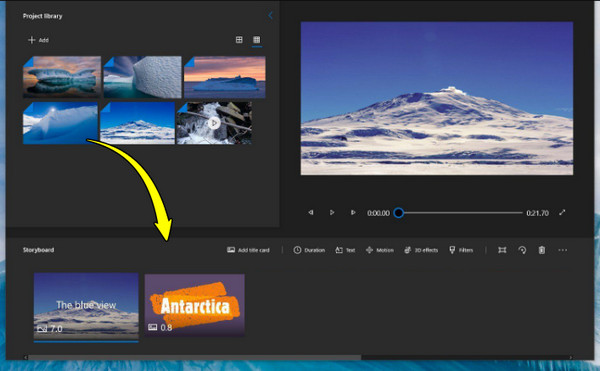
Step 1In the Windows taskbar, search for "Video Editor" and open it. There, click "New video project" and give it a name.
Step 2Click the "Add" button to import videos from your computer. Then, drag the videos from the "Project library" to the "Storyboard" area.
Step 3Once done, click "Finish video", choose your quality, then export.
How to Combine Two Videos Quickly Online
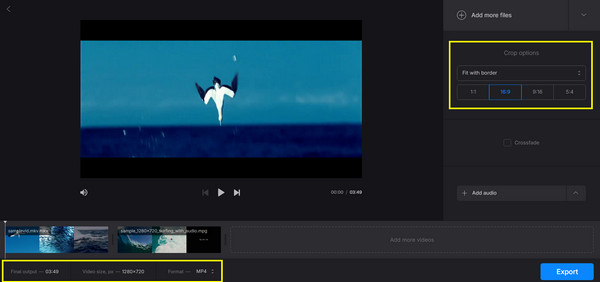
Perhaps the fastest way to combine video clips is by using online video mergers! And one of the highly popular web-based tools today is Clideo. This platform supports almost every format and offers helpful presets for social media aspect ratios, such as YouTube or Instagram. Since it operates entirely in the cloud, you can start your project on a computer and continue it on your phone.
Step 1Upon visiting the Clideo Merge Video main page, click the "Choose files" button to begin. Drag and drop the clips into your preferred order on the timeline.

Step 2You can use the "Crop options" to adjust any aspect ratios. Select your format, then click the "Export" button, and "Download" once the merging is complete.
Use Apple iMovie and Photos to Combine Two Videos on iPhone
The iPhone has a robust editing experience that rivals many desktop setups. You can select between the simplicity of the Photos app or the professional-grade control of iMovie. Switching to native Apple apps will give you the advantage of editing offline with minimal lag. See below how to use the iMovie and Photos app to merge two videos on iPhone:
Method 1. How to Combine Two Videos on iPhone with iMovie
1. Launch iMovie, and tap on "Start New Project", then select "Movie".
2. Tap the videos you wish to combine, and tap "Create Movie".
3. After that, long-press on a clip in the timeline to drag it to a new spot; tap the "Transition" icon between the clips to change the effect.
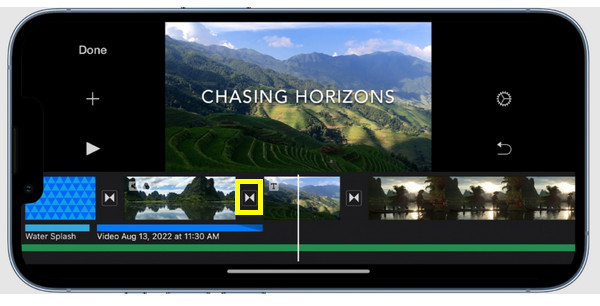
4. Later, tap on "Done" in the top-left, then the "Share" button, and choose "Save Video".
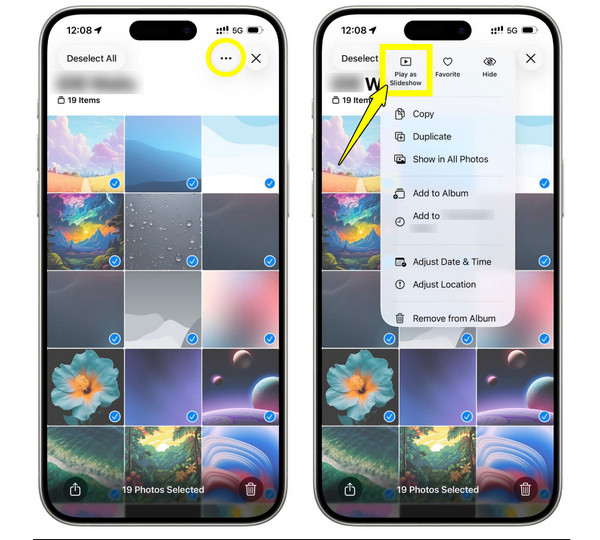
Method 2. How to Join Two Videos on iPhone Using Photos
1. Inside the "Photos" app, tap "Select" and choose the two videos you want to merge.
2. Tap the "Share" button (or the three-dot icon) above and choose "Create Highlight Video" (or Slideshow).
3. Then, the app will create a montage; tap the "Edit" button to manually reorder the clips, then tap "Save".
Combine Videos on Android with Google Photos
Android users have a powerful tool in Google Photos that makes combining two videos simple across different devices. This combining approach is perfect if you have already backed up your media to the cloud and want a simple way to create quick highlights. Unlike the complex timelines of other tools, experience the intuitive creations of Google Photos. Here's how to combine videos in different formats:
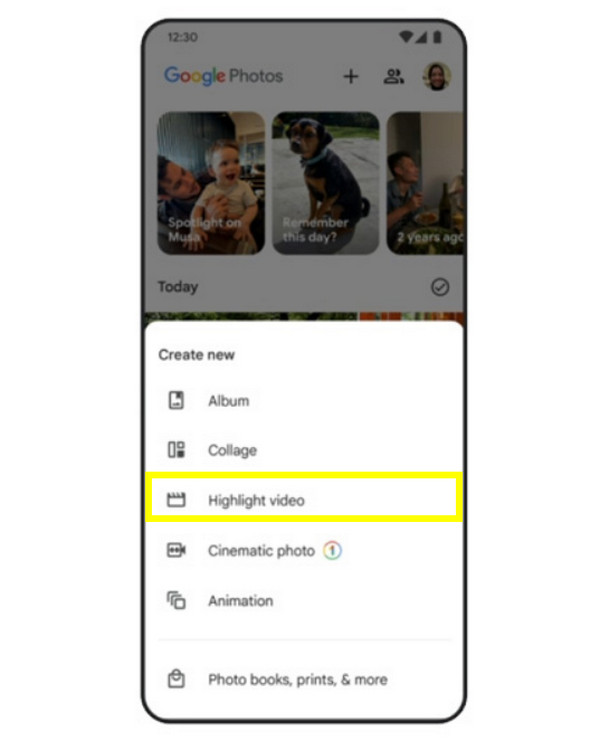
Step 1Open Google Photos, tap "Library" and then choose "Utilities".
Step 2From the "Create New", tap "Highlight Video" (Movie) and decide on your clips.
Step 3Afterward, drag the handles to trim chosen clips or move them to change the order.
Step 4Later, tap "Save" at the upper-right to load the combined video to your gallery.
Conclusion
By going after the steps outlined in today's guide for merging clips, you can merge two videos together effortlessly, eliminating the awkward cuts and creating seamless transitions. Each platform here has unique advantages, so choosing the right method depends on your specific video needs. Even so, if you seek a more robust experience on your Windows or Mac computer, 4Easysoft Total Video Converter is for you! It merges videos without technical hurdles but with advanced hardware acceleration technology, allowing you to process them faster than other alternatives.
100% Secure
100% Secure
