

A Beginner-Friendly Guide: How to Extract Audio from DVDs

Posted by Paula Pailaga to Rip DVD Jun 16, 2026
Many people are curious about how to extract audio from DVDs so that they can listen to the audio directly. Extracting the audio from a concert or live performance allows you to enjoy the music with an MP3 or devices alike. In this post, you will learn the methods that can help you extract audio from DVDs. Whether you have the relevant professional knowledge or not, the entire process will become very simple and understandable under the detailed steps provided in this post. Now, start reading this post to begin the process.
Guide List
The Most Efficient Way to Extract Audio from a DVD with High Quality Detailed Steps: How to Use VLC Media Player to Rip Audio from DVDs An Open-Source Tool to Burn Audio from DVDs with FlexibilityThe Most Efficient Way to Extract Audio from a DVD with High Quality
If you want to obtain an output file with the original quality or even higher during the process of burning audio from a DVD, then you will need a powerful professional tool. 4Easysoft DVD Ripper is precisely such a reliable option. With its help, you are allowed to directly extract audio from DVDs, even for copyrighted content. Before saving them, you can also customize the file format and final quality of the exported files to meet your requirements. Its operation and instructions are very intuitive. You can complete this task quickly by following the simple steps below.
Straightforward interface and an easy-to-execute audio ripping process from DVD.
Offer the option to modify the DVD audio’s loudness using its built-in volume modifier.
Infused with GPU-accelerated technology that rips DVD to audio at 60X faster speed.
Capable of decrypting DVDs with restrictions such as region codes and other protection.
100% Secure
100% Secure
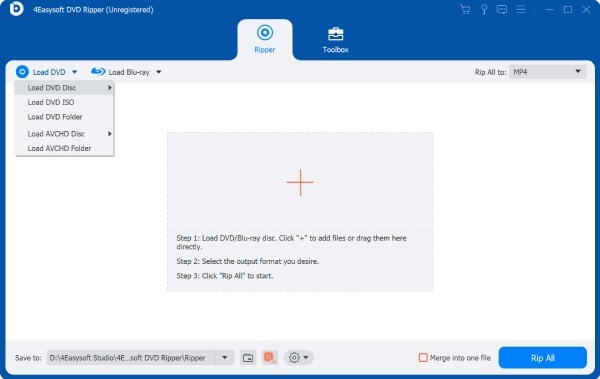
Step 1After inserting your DVD into the device, launch 4Easysoft DVD Ripper and click the "Load DVD Disc" button.
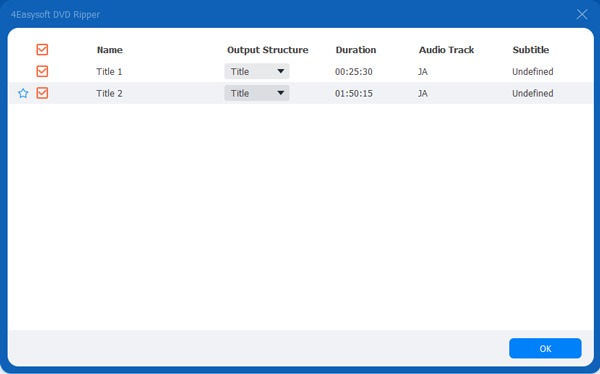
Step 2To select the audio to extract from the DVD, click the "Full Title List" button and click to choose the files you want to copy.
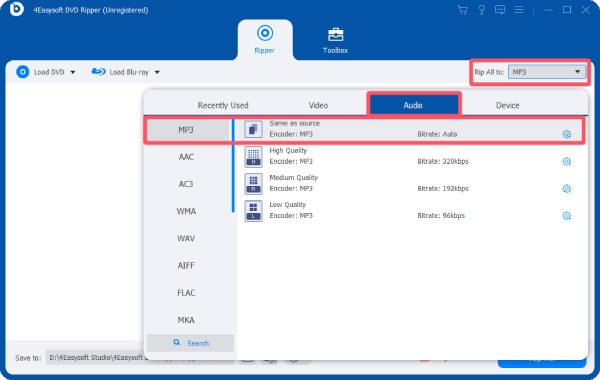
Step 3Click the "Rip All to" button and then click the "MP3" button under the "Audio" tab. Finally, click the "Rip All" button.
Detailed Steps: How to Use VLC Media Player to Rip Audio from DVDs
For some users, using VLC media player to play the content of DVDs has become a very common practice. However, you might have overlooked the fact that it can also be used to rip soundtracks from DVDs. After reading the following detailed steps, you will be able to save the audio when using VLC media player to watch DVDs, so that you can listen to it later.
Step 1Launch VLC media player and insert the DVD into the disc driver. Click the "Open Disc" button under the "Media" tab to load your DVD.
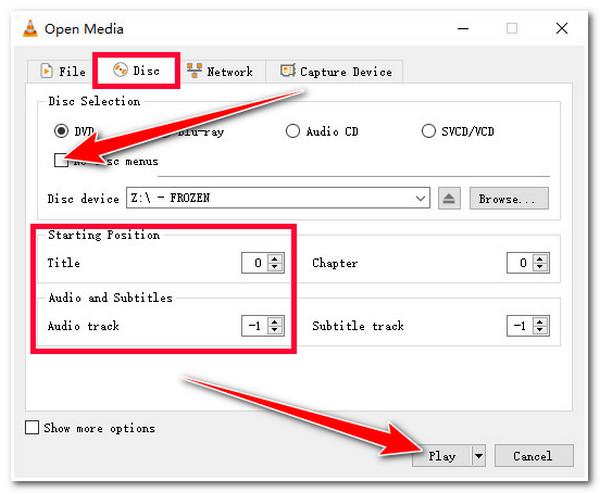
Step 2Click the "Disc" button to access a new page. Click the "No disc menu" button. Then, select the part for extraction from the DVD. Then, click the "Convert" button.
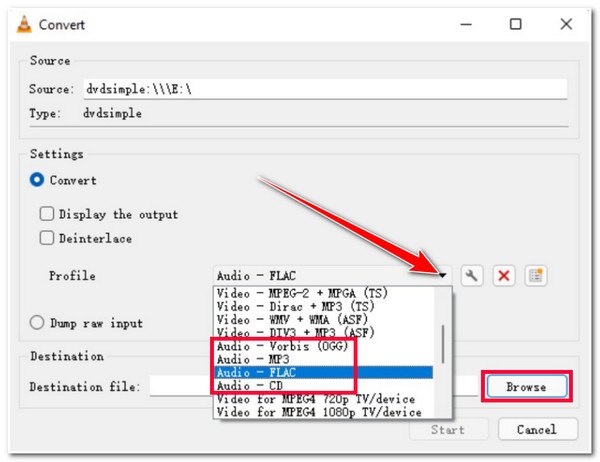
Step 3In the pop-up window, click the "Profile" button and then click the "Audio - MP3" button to designate it as the output format.
Step 4After clicking the "Destination" button to select the storage path, click the "Start" button to initiate the ripping process of the DVD to audio.
An Open-Source Tool to Burn Audio from DVDs with Flexibility
As a video editing tool that has been widely trusted by users for many years, HandBrake offers an open-source solution to help you rip audio from DVDs. Although it is a comprehensive tool rather than specifically designed for various types of DVD processing, it can still assist you in completing basic DVD processing tasks. However, there is one point to note: HandBrake can only assist you in converting DVDs into video formats. Therefore, for the task of audio conversion, you will need to rely on the help of other tools.
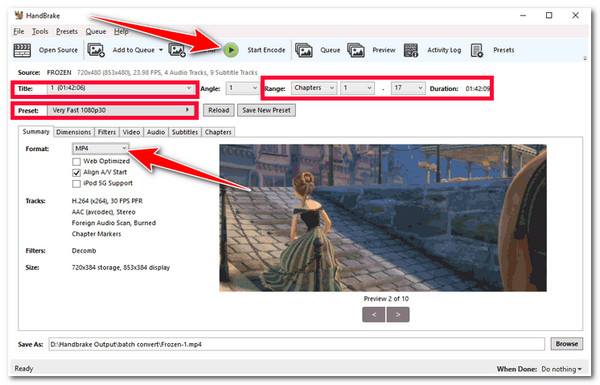
Step 1After inserting your DVD into the device, launch Handbrake, and it will detect your DVD automatically.
Step 2To select a certain part of audio to extract from the DVD, adjust the parameter under the "Range" tab. Then, click the "Presets" button to select a desired one.
Step 3Finally, click the "Start Encode" button to initiate the DVD ripping process. After the process, you can convert the output file to an audio format.
Conclusion
After reading this post, you should have learned how to get audio from DVDs. Whether you were previously familiar with the relevant knowledge of DVDs or not, as long as you follow the detailed plan provided in this post, you can easily complete this task. To achieve the highest quality and most efficient process, you can download and try 4Easysoft DVD Ripper for free to extract audio from DVDs.
100% Secure
100% Secure
