
Delete duplicates and free up storage on iPhone flexibly.

Erase All Settings and Content on iPhone/Mac in 4 Easy Methods

Posted by Alvin Cantero to iOS Cleaner Feb 27, 2026
When selling your iPhone or Mac, you need to erase all settings and content from the device. Alternatively, if you encounter lag or crashes, clearing all content and settings can resolve the issue. This service will delete all data from your iPhone 18 Pro/17 and Mac and reset all settings, restoring your device to its factory state. How can you thoroughly erase data from your device in any situation? Follow the step-by-step methods outlined in this article.
Guide List
Difference Between Reset All Settings and Erase All Content and Settings How to Erase All Content and Settings on macOS Use Disk Utility to Erase All Content and Settings on Mac How to Reset or Erase All Settings with iPhone Built-in Methods Best Method to Erase All Settings on iPhone ThoroughlyDifference Between Reset All Settings and Erase All Content and Settings
Reset All Settings
This action only restores system-level settings to their default state without deleting user data. It will clear Wi-Fi passwords, Bluetooth pairing records, notification and privacy permission settings, keyboard dictionaries, location and network settings, etc. However, photos, apps, chat histories, contacts, and files will remain intact.
Erase All Content and Settings
Completely erase all data from the device and restore it to factory settings. All apps, photos, videos, files, account information, and system settings will be deleted. After restarting, the device will enter the initial activation screen, functioning as if it were brand new. This is most suitable for selling or transferring the device, or when the system experiences severe malfunctions.
How to Erase All Content and Settings on macOS
In macOS Ventura and Monterey, using the Erase Assistant is a convenient way to completely wipe all content and settings from your Mac. However, the location of this feature differs slightly between the two systems. Therefore, you can choose the corresponding method to erase all settings based on your operating system.
On macOS Ventura
Step 1Open the Apple menu and select "System Settings". Click "General" and then "Transfer or Reset".
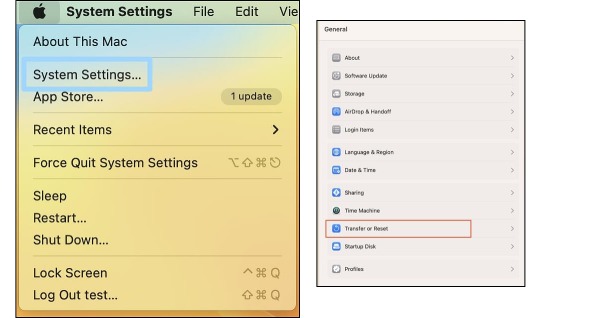
Step 2You will see two buttons in this window. Select "Erase All Content and Settings". Click the "Erase All Content and Settings" button and enter the administrator password.
You can choose to back up your Mac using Time Machine or skip this step.
Step 3All settings, media, and data will be erased. Click "Continue" to confirm the erasure. Enter your password to sign out of your Apple ID.
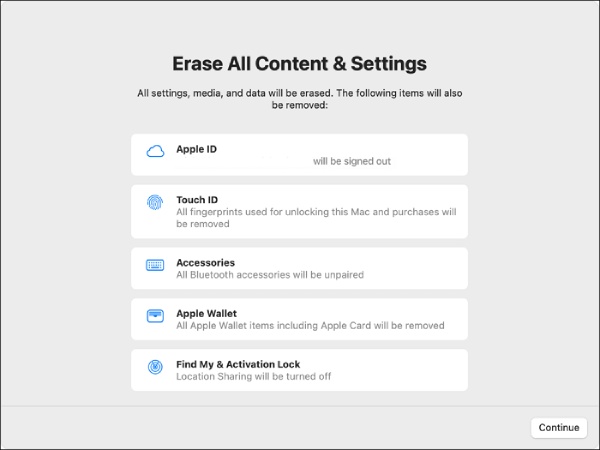
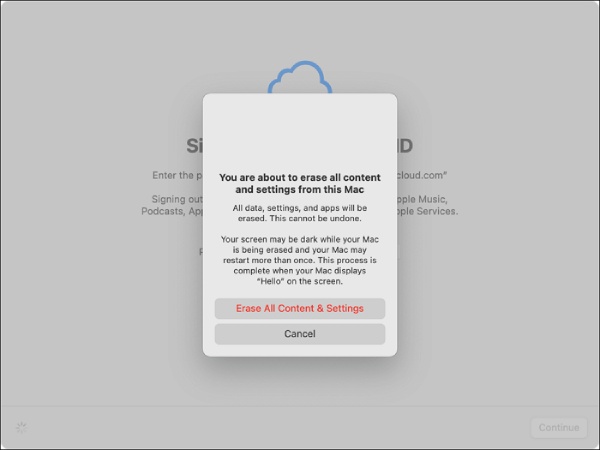
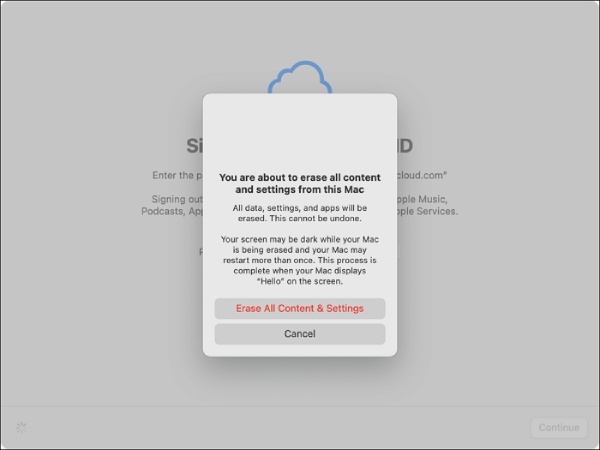
Step 4Click the button with red text, and your Mac will begin the reset. After the progress bar completes, click "Restart" to adjust settings and use your Mac.
On macOS Monterey
Step 1Open the Apple menu, then click "System Preferences". In the window, locate Erase Assistant and click "Erase All Content and Settings". Then enter the administrator password.
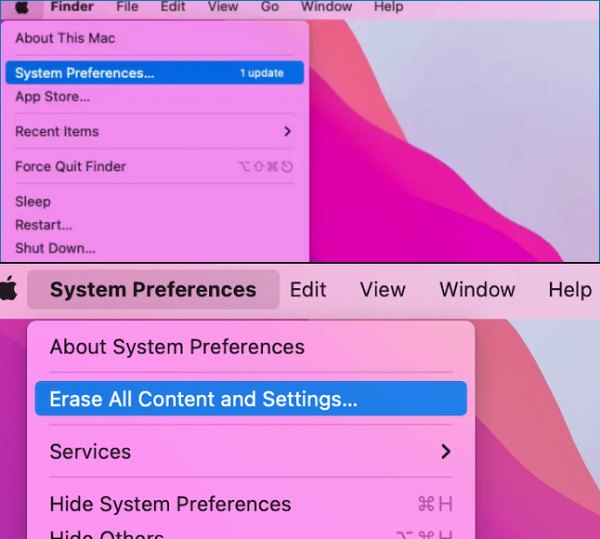
You can choose to back up your Mac using Time Machine or skip this step.
Step 2All settings, media, and data will be erased. Click "Continue" to confirm the erasure. Enter your password to sign out of your Apple ID.
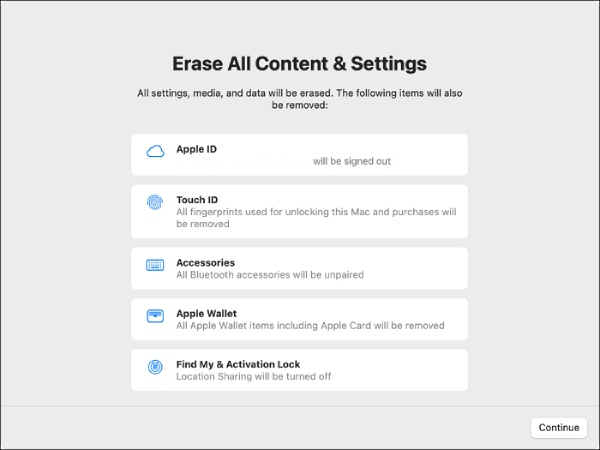
Step 3Click the button with red text, and your Mac will begin the reset. After the progress bar completes, click "Restart" to adjust settings and use your Mac.
Use Disk Utility to Erase All Content and Settings on Mac
Sometimes you may find that "Erase All Content and Settings" doesn't work on your Mac, or that your Mac doesn't support this option. "Erase All Content and Settings" isn't the only way to restore your Mac to factory settings. Disk Utility can also reinstall macOS to restore your Mac to factory settings without requiring a password.
Step 1On an Apple Silicon Mac, press and hold the power button. On an Intel Mac, press and hold the "Command" and "R" keys simultaneously to enter Recovery Mode.
Step 2Once in Recovery Mode, select "Disk Utility". Erase the disk labeled Macintosh HD.
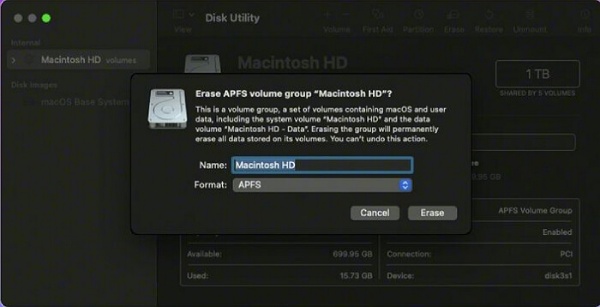
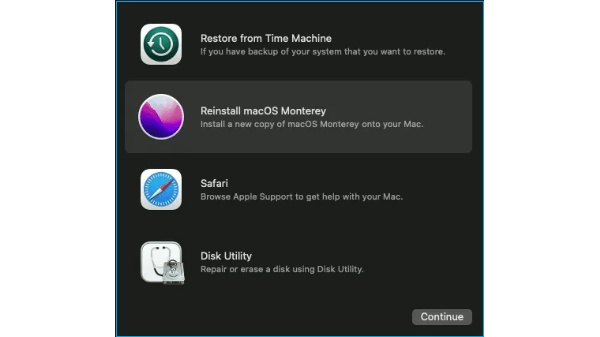
Step 3Choose "Erase" to erase the startup disk. You can then quit Disk Utility. Click "Reinstall macOS" and follow the prompts to reinstall macOS.
How to Reset or Erase All Settings with iPhone Built-in Methods
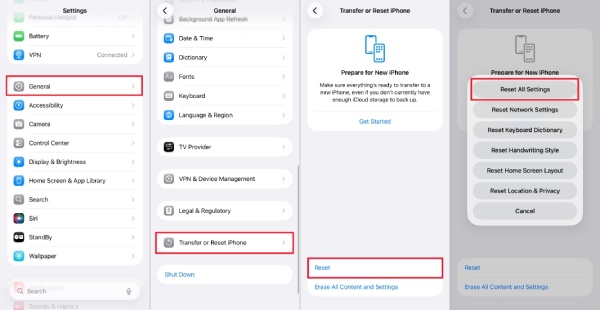
Using the built-in settings on your iPhone to erase all content and settings is arguably the quickest and simplest approach. Although you have erased all content and settings from your iPhone, you can still recover the deleted data like photos and more.
Step 1Open the Settings app on your iPhone, then tap the "General" button. Next, tap "Reset" and find "Erase All Content and Settings".
Step 2After reviewing the list of items to be deleted, tap "Continue" and enter your iPhone passcode.
Step 3You will be warned that this action will delete all media files and data and reset all settings. Tap "Erase iPhone" to confirm.
Step 4If you have Find My iPhone enabled, you'll be prompted to enter your Apple ID and password. After entering your password, tap the "Erase iPhone" button.
Best Method to Erase All Settings on iPhone Thoroughly
The above methods apply to iPhones with normal interfaces and no lag. If these methods are ineffective or you're concerned about incomplete erasure, you can also use the following method to erase all data and settings from your iPhone. 4Easysoft iPhone Cleaner is a simple and easy-to-use tool that wipes all content and settings from your iPhone when it becomes sluggish. With three erasure modes, it thoroughly cleans all private data before resale, ensuring data cannot be recovered after the highest-level wipe. Effectively safeguards your information security.

Provide 3 levels to free up space or erase all contents, flexible get more iPhone space.
Preview and backup the desired data after scanning, which enables you to select the unwanted ones to delete.
Simple clicks to uninstall apps completely, erase useless data, and free up space.
Supported on most iOS models and versions, including iPhone 18 Pro/17, iOS 26 and 27, and more.
100% Secure
100% Secure
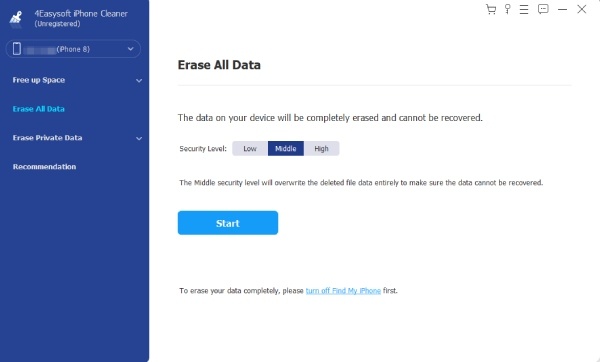
Step 1Launch 4Easysoft iPhone Cleaner on your computer and connect your iPhone to the computer via a USB cable. Then, click the "Erase All Data" button.
Step 2Click the "Medium" button. It will completely delete all data without recovery. Moreover, you can click the "High" button to overwrite three times and destroy the data.
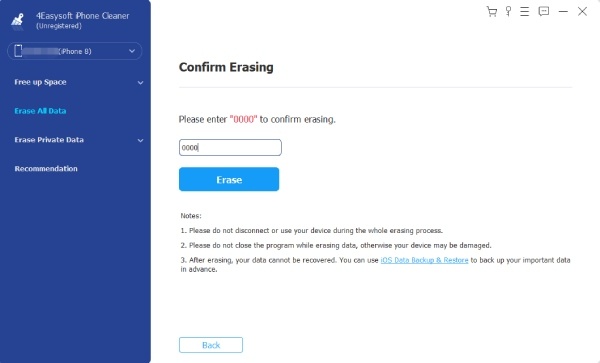
Step 3Next, enter "0000" to confirm the erasing process. Then, click the "Erase" button to start erasing all content and settings. Check and close any programs running or updating on your iPhone.
Conclusion
This article introduces four methods to help you completely erase all content and settings on your iPhone and Mac. These approaches address most issues related to clearing all content and settings. No matter what problem you encounter, there's always a solution to achieve your goal. Among iPhone cleaning apps with similar functionality, 4Easysoft iPhone Cleaner offers simple steps and thorough results. If you seek a complete erasure of all content and settings with satisfactory outcomes, this app will meet your expectations.
100% Secure
100% Secure
