
Burn Xbox game disc to digital files to save the video/audio files.

DVD Player for iPad: The Truth and What Really Works

Posted by Ethan Brooke to Rip DVD Sep 11, 2026
Looking for a DVD player for iPad? There is one important thing to know first: an iPad cannot simply read and play a physical DVD. Users have asked about connecting USB and external DVD drives, but iPadOS does not support optical media drives for direct playback. Instead of looking for a special DVD player app or adapter, the easier route is to convert the DVD to a video file on a Mac or PC and then watch it on the iPad. See what you can do with the following steps.
Guide List
Why There Is No DVD Player for iPad Two Methods That Actually Work to Watch DVD Movies on iPad Step 1: Rip DVD to a Digital File Step 2: Get the DVD File Onto the iPad Step 3: Play the Ripped DVD on iPadWhy There Is No DVD Player for iPad
The problem is that iPadOS isn't built to work with optical drives. iPads don't have a DVD drive, and plugging an external DVD drive into the USB-C port won't turn the iPad into a DVD player. While iPadOS can work with USB drives and SD cards for external storage, DVD drives aren't supported in the same way.
So, there is no app or simple adapter that turns an iPad into a traditional DVD player. If you want to watch a DVD on your iPad, the practical option is to use a Mac or PC to convert the DVD into a digital video file first. You can then transfer the file to your iPad and play it with a compatible video app.
Two Methods That Actually Work to Watch DVD Movies on iPad
Once the DVD is converted to a digital video, you have two practical ways to watch it on an iPad. Apple supports H.264 and HEVC playback. For offline viewing, rip the DVD to MP4 and then transfer the file to your iPad. If you want to keep the files on your computer or NAS, rip the DVD and stream it instead.
| Method | What it requires | Best for |
| Rip DVD to MP4, then transfer to iPad | Computer + DVD ripping software | Offline watching |
| Rip DVD, then stream from computer or NAS | Computer + Plex/Jellyfin or similar media server | Watching over your home network |
Both methods require ripping the DVD first. The difference is where the video file stays afterward.
Step 1: Rip DVD to a Digital File
4Easysoft DVD Ripper can rip DVDs into iPad-friendly video without spending time figuring out video settings. Therefore, you can bypass the problem of the iPad not playing the DVD due to the wrong codec or settings. It can convert DVDs, DVD folders, and ISO files to formats such as MP4, MOV, and MKV, with presets for Apple devices, including iPad. You can choose an iPad preset instead of manually working out the resolution, codec, and bitrate.
Convert DVDs to iPad-compatible video files.
Choose an iPad preset without complicated settings.
Strip out CSS protection, region codes, and other copy protection
Full control over resolution, bitrate, and frame rate before you rip.
100% Secure
100% Secure
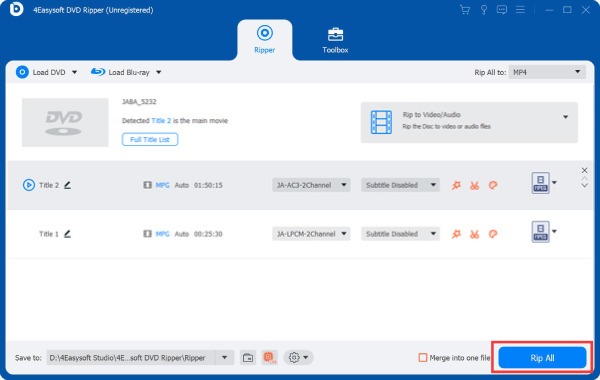
Step 1Open 4Easysoft DVD Ripper. Insert the DVD into your computer's internal or external DVD drive. Click the "Load DVD" button. Let the program scan the disc and load the content.
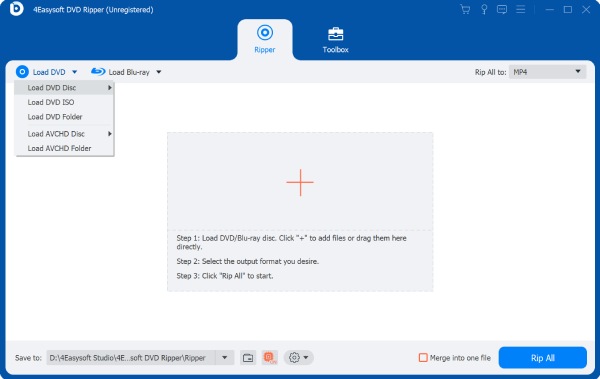
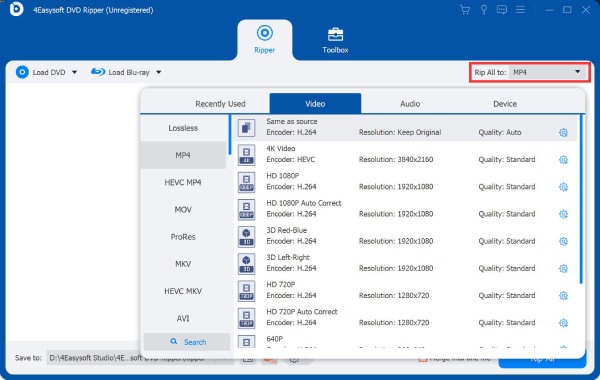
Step 2Unfold the format menu, select MP4 as the output format. Or you can go to the "Device" section and get the iPad preset.
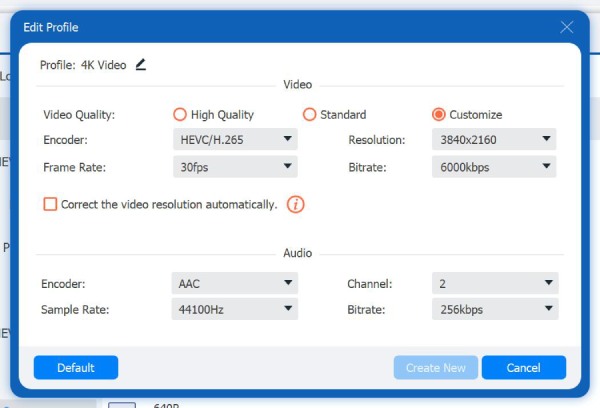
Step 3Click the "Settings" button. You can change the video quality to high quality or standard. Moreover, you can adjust resolution, bitrate, encoder, and more. Then click the "Create New" button to move on.
Step 4At last, click the "Rip All" button to extract DVD movies to iPad compatible formats.
Step 2: Get the DVD File Onto the iPad
Once you have ripped the DVD to MP4 or another iPad-compatible format, you need to move the video to your iPad. There are three easy ways to do this.
Transfer Directly to iPad
The most straightforward option is a wired transfer. Connect your iPad to the computer with a USB cable, then open Finder on a Mac or iTunes on Windows, and drag the video file over into the iPad's Files app or into VLC. If you'd rather skip Finder or iTunes altogether, 4Easysoft iPhone Transfer works as a simpler drag-and-drop alternative. You can move video files onto your iPad without wrestling with iTunes syncing. Either way, the file ends up stored on the iPad itself. Later, you can play DVDs on an iPad without an internet or Wi-Fi connection.
Upload to iCloud Drive or Google Drive
If you'd rather not deal with cables, upload the ripped MP4 to iCloud Drive or Google Drive from your computer. On the iPad, open it through the Files app for iCloud or the Google Drive app. You can either stream it or download it for offline playback later. This route works well if you're only dealing with a handful of movies. Cloud storage space is limited unless you're paying for more.
Stream via Plex or Jellyfin (Home Network)
For a large DVD collection, streaming may be a better choice. Install Plex or Jellyfin Server on the computer or NAS that stores your ripped videos, then install the matching app on your iPad.
You can stream your movies over your home Wi-Fi without copying every file to the iPad. This saves storage space and keeps your whole DVD library in one place.
Step 3: Play the Ripped DVD on iPad
Once the DVD has been converted and the video is on your iPad, playing it is much easier. You don't need a special DVD player app. The right choice mainly depends on the video format and where your files are stored.
- Files app (built-in): A simple choice for standard MP4 files. It is already installed on the iPad. So, there is nothing else to download.
- VLC for iPad (free): A good option if you need to play different video formats. VLC supports formats such as MP4 and MKV. It can open files transferred through several methods, including cloud storage and Wi-Fi.
- Plex: Best if your ripped DVDs are stored on a computer or NAS. Instead of transferring each movie to the iPad, you can use the Plex app to stream your collection over your home network.
Conclusion
There is no real DVD player for iPad because iPadOS cannot directly read commercial DVDs. Instead, think of the process as converting your physical collection into digital files. 4Easysoft DVD Ripper can make the first step easier with iPad-ready output presets and support for common DVD sources. Once the conversion is done, you can enjoy your movies without carrying a DVD drive around.
100% Secure
100% Secure
