

DVD Player for iPad Mini/Pro/Air: 3 Methods You Should Try!

Posted by Paula Pailaga to Burn DVD/Blu-ray Jun 11, 2026
There is no DVD player for iPad. Not external. Not Bluetooth. Not USB-C. iPadOS does not support optical drives at all, not even Apple's own SuperDrive. Even if you physically connect an external DVD drive via USB-C, the iPad will not recognize it.
This isn't a missing feature you can fix with an app. Apple Community moderators confirm: " iOS/iPadOS fundamentally does not support connection of any optical media drives." There are no drivers. No app (not even VLC) can read from a physically connected DVD drive on an iPad.
The only real solution: rip the DVD on a computer first, then transfer the file to your iPad.
This guide covers exactly how to do that, what tools actually work, what formats your iPad supports, how to transfer files, and what the original article got wrong.
Tested on: iPad Pro (M2), iPad Air 5th gen, iPad mini 6 | iPadOS 17-18
What iPad Video Formats Actually Work
Before picking a DVD ripping tool, know what your iPad can play natively (without a third-party app):
| Format | Container | Notes |
| H.264 | .mp4, .mov, .m4v | Most compatible. Use this. |
| HEVC (H.265) | .mp4, .mov, .m4v | Smaller files, supported on iPad Air 2 and later |
| MPEG-4 | .mp4, .m4v | Older, still works |
| Motion JPEG | .avi | Limited support, up to 720p only |
What iPad does NOT natively support: MKV, AVI (beyond M-JPEG), WebM, WMV, FLV, or VOB.Best format for ripping DVD to iPad: MP4 with H.264 encoding. It plays in the native Apple TV app, transfers cleanly via iTunes/Finder, and is compatible with every iPad model still in use.
If you have a newer iPad (Air 2 or later), HEVC/H.265 is also a good choice. Files are roughly 40% smaller at the same quality. But if you're not sure, stick with H.264 MP4.
How to Play DVDs on Your iPad Mini/Pro/Air
Now, how do you rip DVDs instead of using a DVD player for an iPad? Well, there are three ways to rip DVDs into digital formats compatible with your iPad, and you can see them all here! So, explore each of them and choose the one you think can help you!
1. 4Easysoft DVD Ripper(Windows/Mac)
The first way to rip a DVD to a digital format is to use the 4Easysoft DVD Ripper. This tool lets you rip DVDs to 600+ formats and device presets. It offers formats supported by iPad, such as MOV, MP4, AVI, and M4V. Moreover, regarding device presets, this tool supports ripping DVDs directly to iPad, iPad Air, and iPad Pro! Although this tool supports ripping DVDs with the original quality, it still provides you the option to enhance the quality further! This option includes altering the output quality, frame rate, resolution, and bitrate. Compared to other methods, this tool is a great choice to make the iPad’s default video player as a DVD player for iPad!
Support GPU acceleration technology that rips DVDs to iPad at 60X faster speed.
Offer options for adding subtitles, filters, effects, etc., to DVD before ripping.
Let you rip DVDs to a video format with 4K quality or the same quality as the source.
Allow you to rip various types of DVDs without any restrictions.
100% Secure
100% Secure
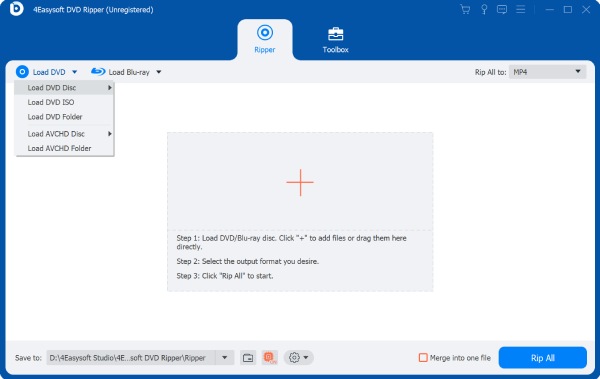
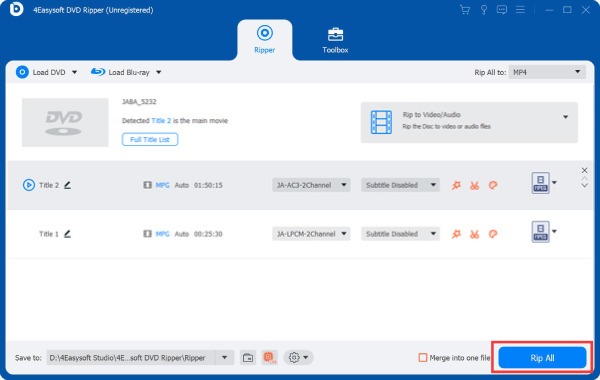
Step 1Install the 4Easysoft DVD Ripper on your computer. Then, run the tool, insert the DVD into your disc driver, and click the "Load DVD" dropdown. Next, select "Load DVD Disc".
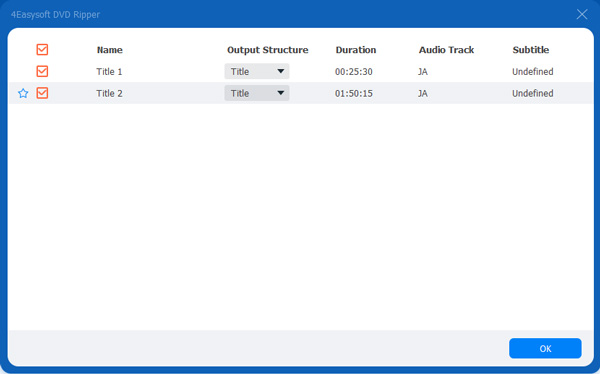
Step 2After that, click the "Full Title List" button and select all the titles you want to rip by ticking their corresponding "checkboxes". Then, once you are done, click the "OK" button.
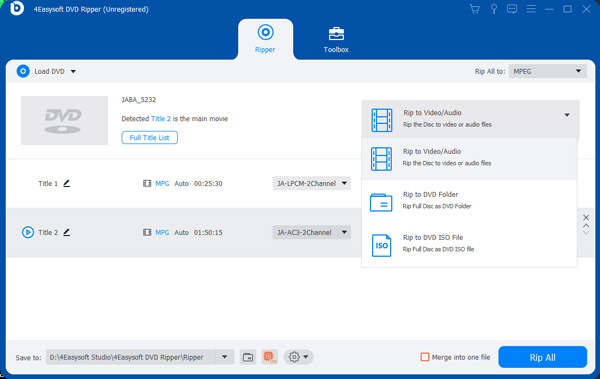
Step 3Next, select "Rip to Video./Audio" on the right and click "Rip All to:" at the top. Then, select the "MOV" format on the left pane under the "Video" tab and choose "Same as source".
Tips
You can also directly convert your DVD to an iPad, iPad Air, or iPad Pro based on your iPad model. These options are under the "Device" tab.
Step 4Then, click the "Rip All" button at the lower right corner to start the ripping process. And that’s it! That’s how you use this tool to make your iPad default player a DVD player for iPad!
2. Handbrake (Windows/Mac)
Another way to achieve the goal of making your iPad’s default player a DVD player for iPad Air/Pro/Mini is to use Handbrake. Handbrake is a free, open-source video transcoder tool that can also be used as a DVD ripper. Although this tool offers a limited format (MP4, MKV, and WebM) and quite a confusing interface compared to the first one, Handbrake can still provide/maintain good quality. Now, if you want to try this one, here are a few steps to follow:
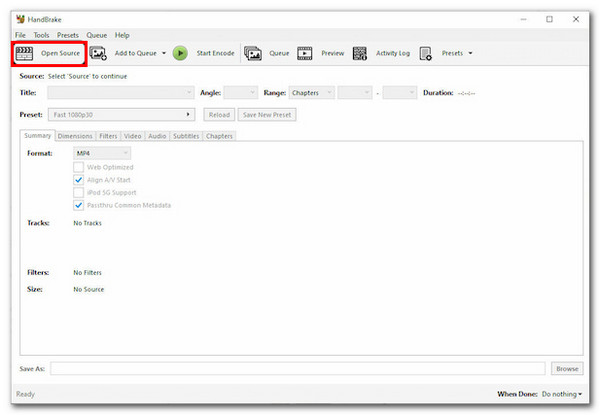
Step 1Install the Handbrake on your computer. Next, run the tool, insert the DVD into the disc driver, click the "Open Source" button at the top left, and select "DVD drive" as a source.
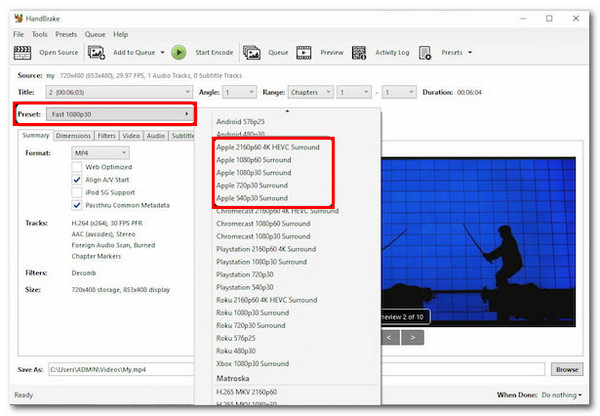
Step 2After that, click the "Preset" field, select the appropriate "Apple Devices" under the "Devices" section, and choose your preferred quality.
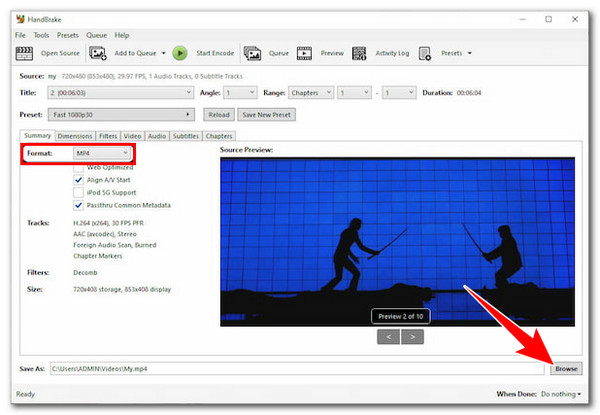
Step 3Then, click the "Format" dropdown button and select the "MP4" option. Then, click the "Browse" button at the lower right, choose your preferred file destination, and click "Save".
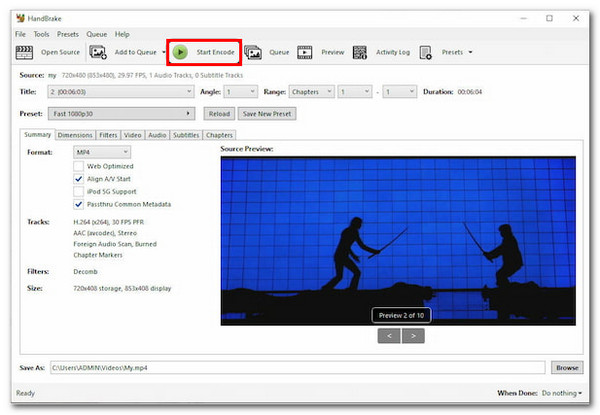
Step 4Once done, click the "Start Encode" button at the top of the tool’s interface to initiate the DVD-to-iPad ripping process.
3. WinX DVD Ripper Platinum (Windows)
The last tool that can help you make Apple’s default video player a DVD player for iPad is WinX DVD Ripper Platinum. Compared to the second tool on the list, this tool offers many formats and presets to rip your DVD. It lets you rip various DVDs directly to iPad or video formats such as MP4, MOV, MPEG, etc. However, unlike the first tool, WinX DVD Ripper takes much time to rip DVD content! If you still want to learn how to use this tool, here are the steps!
Step 1Download and install the WinX DVD Ripper Platinum on your Windows computer. Then, run the tool, click the "DVD Disc" button, and select the "DVD".
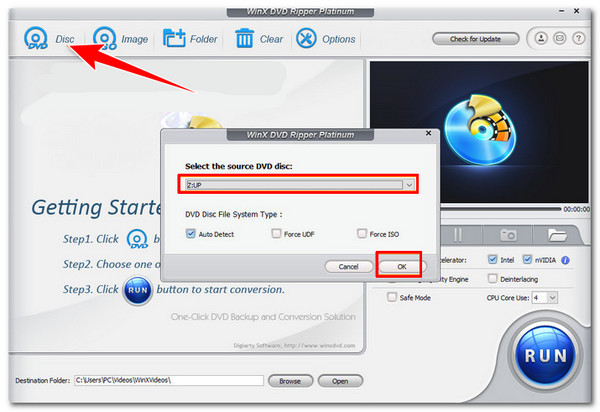
Don’t forget to insert the DVD into your computer’s disc driver.
Step 2Next, when you see the "Output Profile" window, scroll down to the "Apple Devices" section and click "to iPad Video". Then, choose an iPad based on which model you are using.
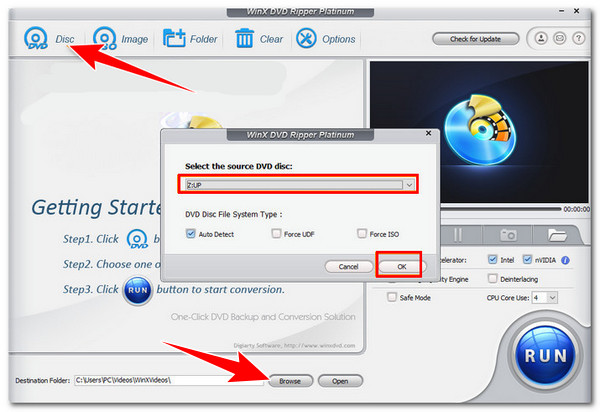
Step 3After that, click the "Browse" button, select your preferred file destination folder, and click the "RUN" button to start the DVD to iPad ripping process.
FAQs
-
1. Can I use a bluetooth DVD player for iPad to play DVDs?
No. You can’t use a bluetooth DVD player for iPad to play DVDs. As mentioned earlier, iPads don’t have built-in drivers for DVD players. Because of that, the iPad is unable to recognize DVD players.
-
2. What would be the best iPad-supported format to rip DVD?
If you want a format compatible with iPad and other offline and online platforms, consider choosing the MP4 format. Otherwise, if you want to use the iPad’s native format, you can rip your DVDs to MOV. Whatever your choice, both offer excellent quality.
-
3. How long will it take to rip a movie from a DVD to an iPad?
The ripping time will take anywhere from 30 mins to 2 hrs, depending on the speed of the DVD ripper tool you choose, the length of the file you are trying to rip, and your computer speed.
Conclusion
That’s it! Those are the three best DVD ripping ways you can do as an alternative to a DVD player for an iPad! You can efficiently achieve convenient DVD playback through these ways by ripping it to iPad-supported formats! If you are searching for a DVD ripper tool that offers tons of formats, a fast-ripping process, and high-quality output, then the 4Easysoft DVD Ripper tool is what you are looking for! Based on this tool’s description above, you can see that it will definitely provide you with the best DVD-to-iPad ripping process! So, feel free to use this tool now!
100% Secure
100% Secure
