
Rip DVD to MP4 (H.264/HEVC) and other popular formats with Original Quality

A Comprehensive Guide: Quick Conversion from DVD to ISO

Posted by Paula Pailaga to Rip DVD Oct 10, 2026
Many users are searching for a way to create an ISO from DVDs on the forum. There are many reasons to convert DVDs to digital formats. Simply put, it offers much compatibility concerning playback. If you also want to learn the methods, this post introduces 3 workable ones to help you complete the task. No matter what device you are using, a Windows PC or a MacBook, you can always find a convenient solution in this post. Start reading now and learn how to make ISO files from DVDs.
Guide List
Reasons for Ripping DVDs to ISO Files How to Rip DVDs to ISO with High Quality on Windows/Mac [Windows] How to Convert DVD to ISO During Playback with VLC [Mac] A Built-in Solution to Converting DVD to ISO Using Disk UtilityReasons for Ripping DVDs to ISO Files
Before delving into the detailed methods for getting ISO from a DVD, it can be helpful to know the reasons for doing so. These reasons concern not only the preparations, but also what you should notice during the ripping process. Start reading this section now to learn more details.
1. Preservation and Backup
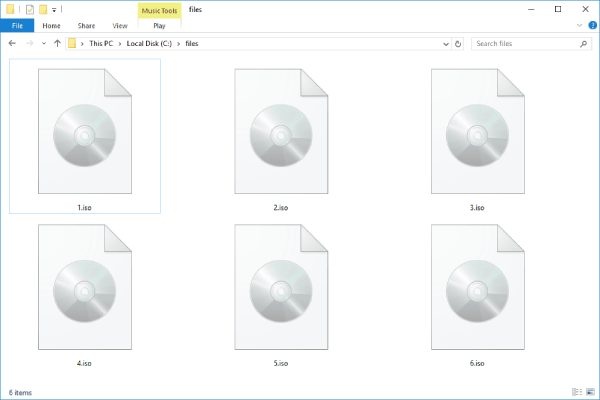
Using a disc as the carrier, a DVD is essentially a physical storage method. This means that if the disc is damaged, the data inside it may also be lost. The DVD is actually quite fragile. Frequent playback or accidental bumps could damage its surface. And creating a DVD ISO file lets you store the disc's contents in digital format. It can both protect the disc and back up the DVD on the computer.
2. Convenience and Accessibility
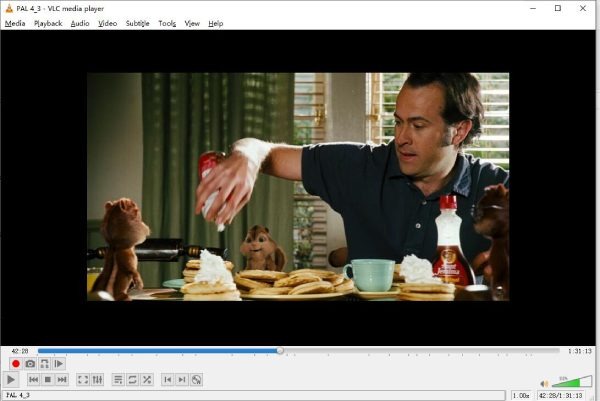
Generally speaking, if you want to watch content on a DVD, you need a DVD player and a television. If you want to watch different DVDs, you will also need to switch discs frequently. But once you learn how to create ISO files from DVDs, you will be able to enjoy the convenience of playing them. No additional equipment is required; no disc insertion or removal is necessary. With your computer, you can enjoy any DVD content with ease.
3. Storage and Organization
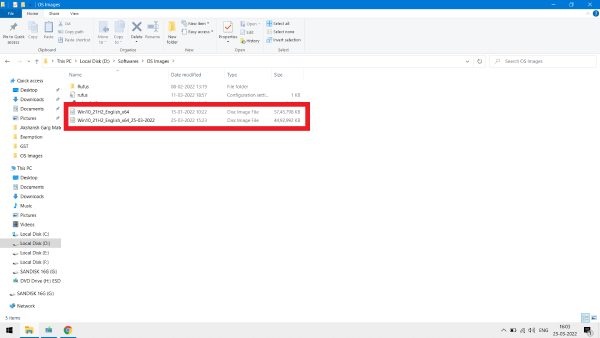
So why choose to convert a disc to ISO? What about other formats? They are certainly useful, but they are not as convenient as the ISO format. When you directly rip all the content from a DVD, it is usually split from VIDEO_TS into multiple files. There can be one VOB file, one IFO file, and one BUP file. The DVD is only separated into several parts directly. They serve as a single video, but obviously become complex to organize. Meanwhile, ISO allows you to save content to a DVD as a single file, which is more convenient for storage and organization.
How to Rip DVDs to ISO with High Quality on Windows/Mac
If you are going to create an ISO image from a DVD, you surely want the result to be perfect. It means all the titles and chapters on the disc are saved properly, with no loss of quality. These requirements make 4Easysoft DVD Ripper the best tool. It allows you to convert a DVD to an ISO image with simple steps, and the result is professional. You can follow the steps below to get the perfect result in no time on Windows or Mac.
Rip all the contents of DVDs to ISO files on Windows/Mac.
Friendly to beginners to rip DVDs to ISO files with guides.
Rip DVDs to ISO files while keeping the menus and titles.
Rip DVD to ISO files quickly with GPU Acceleration.
100% Secure
100% Secure
Step 1Insert the DVD into your device and launch 4Easysoft DVD Ripper. In the main interface, click the "Load DVD Disc" button.
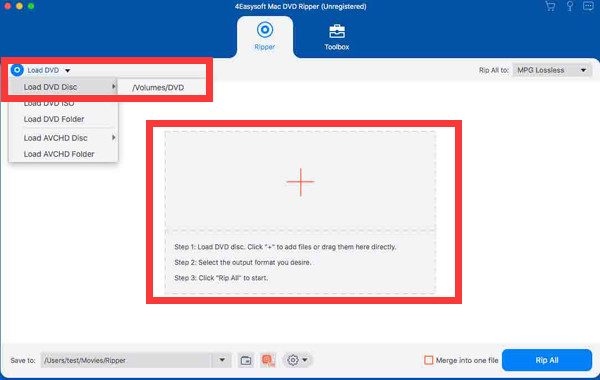
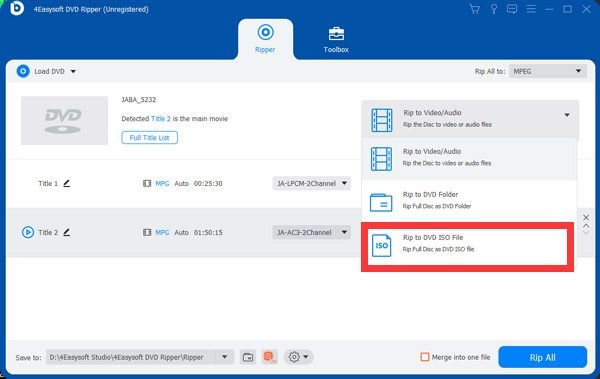
Step 2Once the DVD is loaded, click the "Rip All to" button and then the "Rip to DVD ISO File" button.
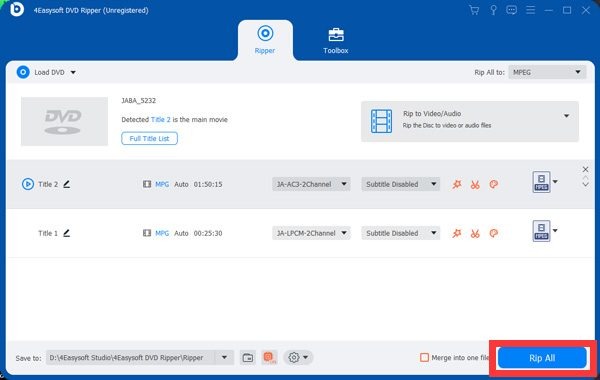
Step 3Finally, click the "Rip All" button, and 4Easysoft DVD Ripper will automatically create an ISO file from the DVD.
[Windows] How to Convert DVD to ISO During Playback with VLC
If you happen to play DVDs on your Windows PC using VLC media player, then this task becomes easier. Many people may use VLC media player only as a versatile video player, overlooking the fact that it can also be one of the best DVD rippers on Windows 10. With its built-in tools, you can convert and save the DVD that you are playing. Since this option hides itself so well, it can be quite difficult to find. Don't worry; follow the steps below to create an ISO from a DVD quickly.
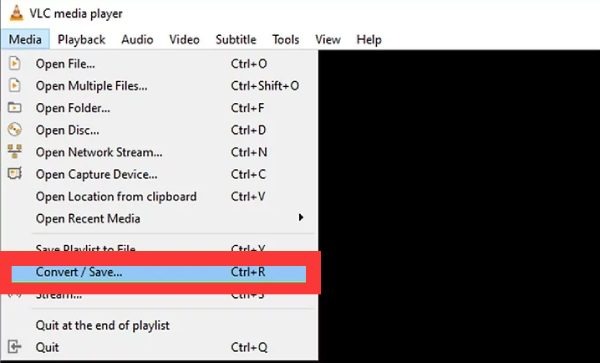
Step 1After inserting the DVD, launch VLC media player. Under the "Media" tab, click the "Convert / Save..." button.
Step 2In the new pop-up window, click the "Browse..." button under the "Disc" tab. You can select the DVD from the disc device.
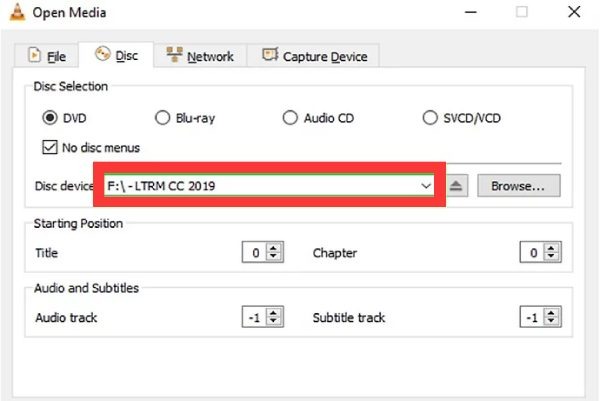
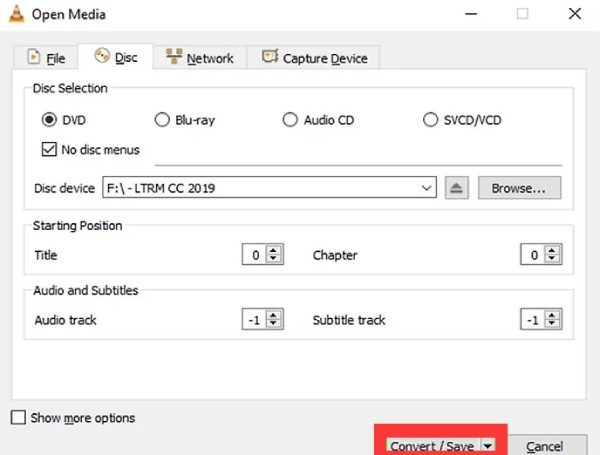
Step 3After selecting the desired title and chapter, click the "Convert / Save" button. You will get the ISO from the DVD after a little while.
[Mac] A Built-in Solution to Converting DVD to ISO Using Disk Utility
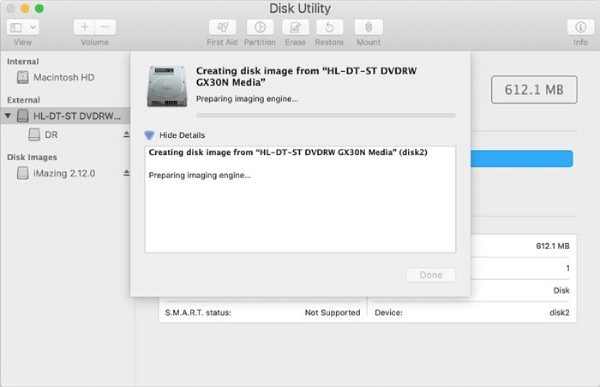
For Mac users, a built-in software can help you convert DVDs to ISO images. Just search for "Disk Utility" on your Mac to find the default ISO maker. You don't need to download extra tools on your Mac, since it's pre-installed. The detailed steps are as follows:
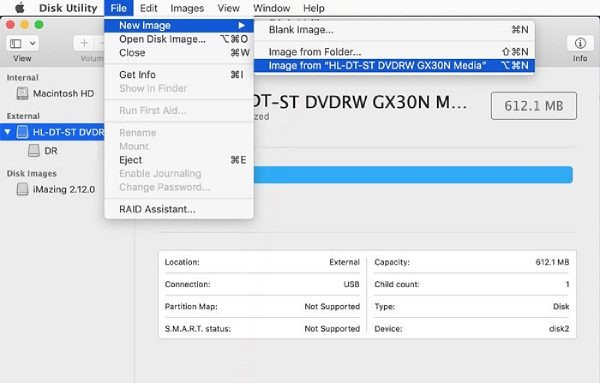
Step 1Insert the DVD into your Mac and launch Disk Utility. Under the "File" tab, click the "New Image" button and then the "Image from..." button.
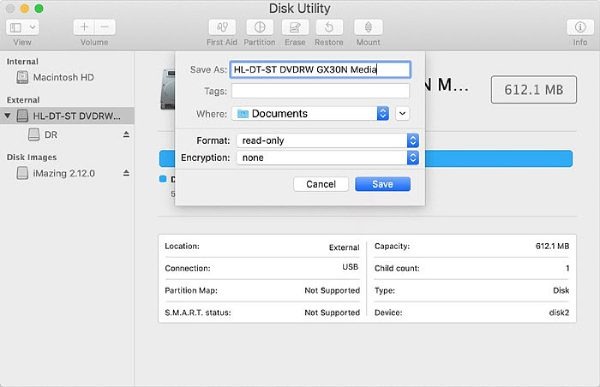
Step 2A new window will pop up, asking you to customize detailed information. Type all the required information and click the "Save" button.
Step 3The process of creating a DVD from an ISO file will start automatically. Wait until the process finishes, and you will get the ISO file.
Conclusion
This post has offered you 3 practical ISO makers from discs. Whether you are using a Windows PC or a MacBook, there is always an efficient way. However, if you want to obtain all the DVD content without any quality loss, a professional tool is more recommended. You can download and try 4Easysoft DVD Ripper for free. Start now and enjoy a seamless playback of your DVDs.
100% Secure
100% Secure
