
Delete duplicates and free up storage on iPhone flexibly.

2 Ways to Delete Voicemail on iPhone with 2 Recovery Tips

Posted by Alvin Cantero to iOS Cleaner Jan 29, 2026
The voicemail box on iPhone fills up quickly with spam, appointments, and other checking-in calls. So, whether you're looking for ways to delete voicemails on iPhone or you are trying to find a way to recover accidentally deleted ones, knowing the built-in ways is essential. This guide not only covers the Phone app's corners but also other ways to clear all iPhone voicemails and save them when all seems lost. Effectively manage your voicemail messages on iPhone today!
Guide List
Delete Voicemail with Built-in Methods on iPhone Use a Professional Tool to Delete iPhone Voicemail in Batch Recover Accidentally Deleted Voicemails on iPhone How to Recover Deleted Voicemails with iCloudDelete Voicemail with Built-in Methods on iPhone
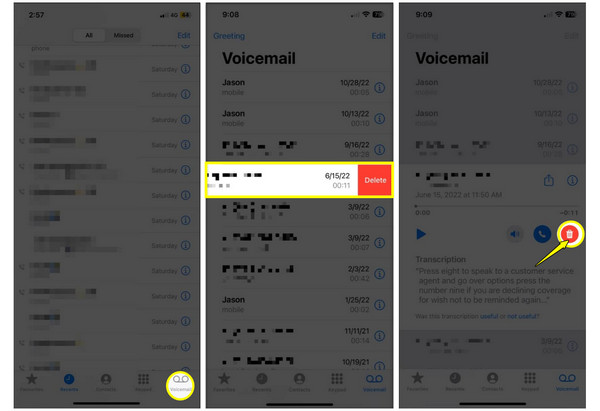
Before any advanced software, it is worth your time mastering the built-in methods to delete voicemail messages on iPhone. Most users swipe to delete, but there are even faster ways to handle a bunch of messages within the Phone app. Here are the steps to delete stored voicemails on iPhone manually:
Step 1Inside the "Phone" app, tap on the "Voicemail" tab at the bottom.
Step 2To delete a single voicemail message, "swipe left" on the selected voicemail and tap the "Delete" button.
Step 3For multiple voicemails, tap the "Edit" button at the top, select the circles next to the chosen voicemail, and tap the "Delete" button.
Use a Professional Tool to Delete iPhone Voicemail in Batch
When you're dealing with a lot of voicemail clutter, a professional cleaner is your safest and best bet to delete voicemail on iPhone. 4Easysoft iPhone Cleaner works well for this task, giving you a complete solution to wipe all of your unwanted data. This tool goes beyond simple removal by scanning your device deeply for hidden files or large attachments. It is made with a straightforward interface that does not require anyone to be a tech expert to start. Also, aside from voicemails, it handles oversized photos, useless apps, and more iPhone data in one go. Using this tool, you can guarantee that once your data is gone, it will be truly unrecoverable, giving you peace of mind regarding your personal data.

Can identify and delete voicemails on iPhone individually or in one go.
Removes temporary files, crash logs, system caches, photos, videos, and more.
Erase levels are offered that suit different security and privacy needs.
Real-time voicemail preview before deletion to avoid any data loss.
100% Secure
100% Secure
Step 1Run 4Easysoft iPhone Cleaner on your computer. Link your iPhone to your PC using a Lightning-to-USB cable. When prompted on your iOS device, tap "Trust" to allow access.
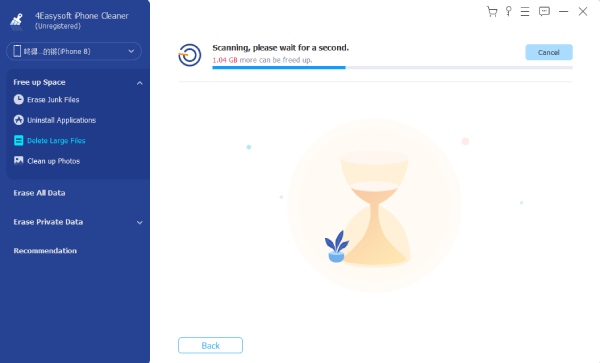
Step 2On the main screen, aim for "Free up Space" on the left side bar. Then, under it, click on the "Delete Large Files" button to start scanning.
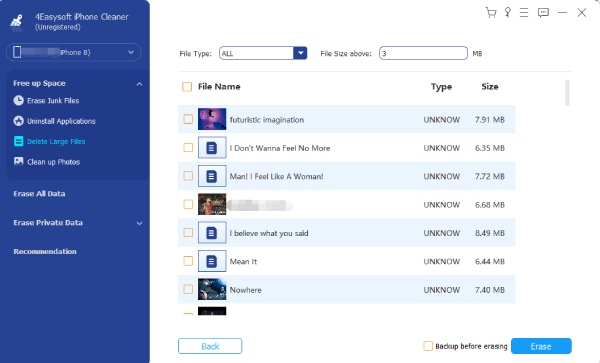
Step 3Check the scanning results once finished. You can see all files here, including music, videos, and voicemails. Check the box beside the selected voicemail, or the one beside the "File Name" to delete all.
Step 4Click the "Erase" button to confirm and delete multiple voicemails on iPhone.
100% Secure
100% Secure
Recover Accidentally Deleted Voicemails on iPhone
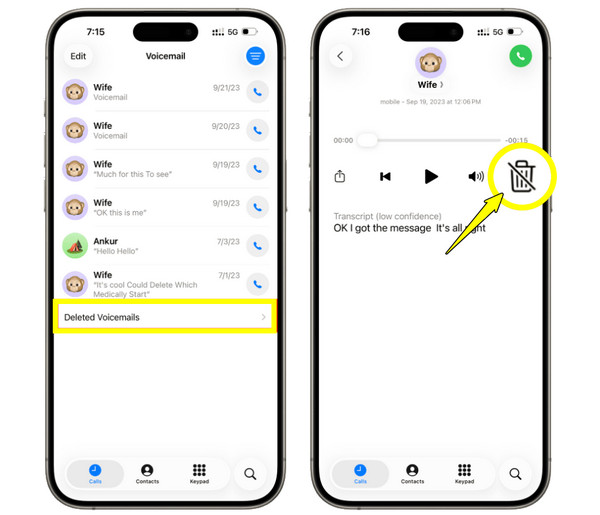
But what happens if your finder slips and you accidentally delete voicemails you actually need? Luckily, iPhones have a built-in feature that holds onto your deleted audio for a short time. With this temporary folder, you can decide to empty it manually or recover accidentally deleted iPhone voicemails quickly.
Step 1Open the "Phone" app on iPhone, and head towards the "Voicemail" section. Scroll to the bottom and locate the "Deleted Voicemails" folder.
Step 2Look for the voicemail message you mistakenly removed and tap on it.
Step 3Tap the "Undelete" button to restore it to your primary inbox.
How to Recover Deleted Voicemails with iCloud
Suppose the message is not in your Deleted Messages folder, then you may need to look in iCloud. If you have been making your device backups regularly, your deleted voicemails on iPhone might be sitting in your iCloud storage. However, be aware that recovering deleted voicemails with iCloud works by resetting your device, affecting your existing data, so ensure your current data is backed up first. But if you want to transfer voicemails to a new iPhone, it is a good way to consider.
Step 1Head to "Settings", then "General" and tap on "Transfer or Reset iPhone". There, select "Erase All Content and Settings".
Step 2Now that your iPhone is restarted, start setting it up until it reaches the "Apps & Data" screen.
Step 3Tap "Restore from iCloud Backup".
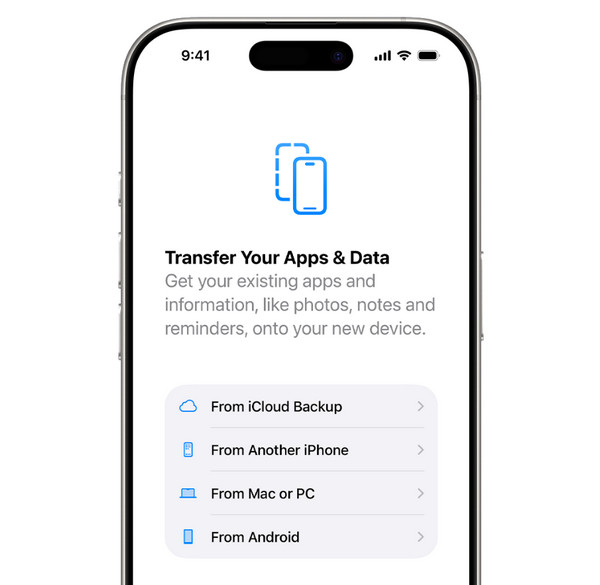
Step 4Please sign in with your Apple ID and pick the recent iCloud backup containing the missing voicemails.
Step 5Wait for the progress bar to undelete voicemails on iPhone.
Conclusion
Managing your voicemail box is not just about freeing up a few spaces on your iPhone; it also makes sure only important ones are organized and safe. From manual swiping of the Phone app to a desktop tool, you can now clear voicemail red dot on iPhone exactly how you want. Also, remember to check the built-in folder first and keep your iCloud backup active for a successful iPhone voicemail deletion. As for the desktop tool 4Easysoft iPhone Cleaner, manual work is skipped while ensuring your iPhone won't deal with large files anymore, thanks to its secure erasing modes. This tool gives your iPhone the cleaning it deserves.
100% Secure
100% Secure
