
Reliable video converter, editor, and compressor for daily tasks.

How to Convert MOV to MP3 Audio in 5 Practical Ways

Posted by Aira Lesly Escoto to Convert Video Feb 13, 2026
Music videos on your MacBook take up too much space, yet you still want to listen to songs anytime. Converting MOV files to MP3 not only saves storage space but also perfectly addresses both needs. If you can batch extract music from videos, you'll save even more time. Keep reading as we recommend 7 top MOV to MP3 converters to help you effortlessly obtain the music files you need.
Guide List
The Best Way to Batch Convert MOV to MP3 with High Quality 3 Ways to Quickly Convert MOV to MP3 Online Use VLC to Convert MOV to MP3 for Free and EasilyThe Best Way to Batch Convert MOV to MP3 with High Quality
As the first recommended method, 4Easysoft Total Video Converter is a comprehensive converter that supports batch conversion of MOV videos to MP3. It handles over 1000 file formats and covers a wide range of devices. It also offers editing features to trim desired MP3 audio, merge audio clips, and even boost MP3 volume. Additionally, you can adjust audio codecs, sample rates, and other settings to ensure superior quality.

Convert MOV, MP4, and other videos to MP3 with a batch process.
Adjust the audio codec, sample rate, bitrate, and others to keep quality.
Support boosts the audio volume, adjusts audio track, and more editing functions.
Add the title, artist, album, composer, track, and comment to manage MP3 files.
100% Secure
100% Secure
Step 1Launch the program on your computer. Click the "Add Files" button to import the MOV files you want to convert into the program.
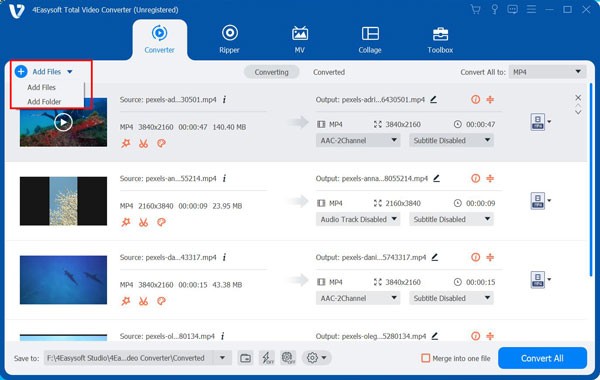
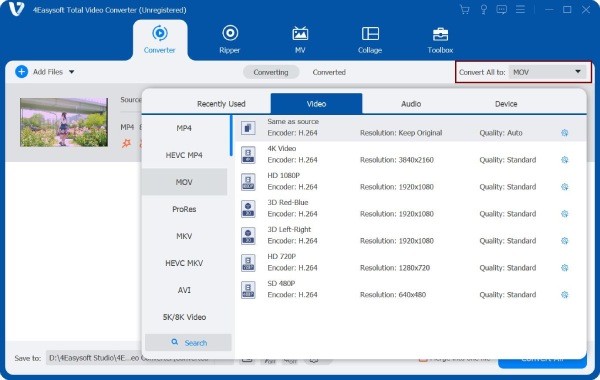
Step 2Click on the "Format" button and select "Audio". Then choose the MP3 format. Just click the "Custom Profile" button to tweak the audio codec, channel, sample rate, and bitrate.
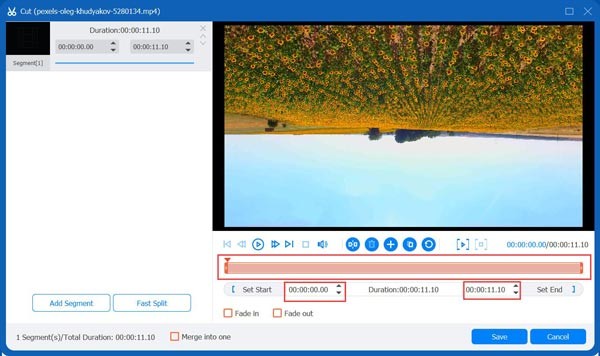
Step 3Click the "Cut" button to merge multiple MOV files into a single playlist. Drag the trimmer to cut out unwanted segments; the portion enclosed within the red box will be retained.
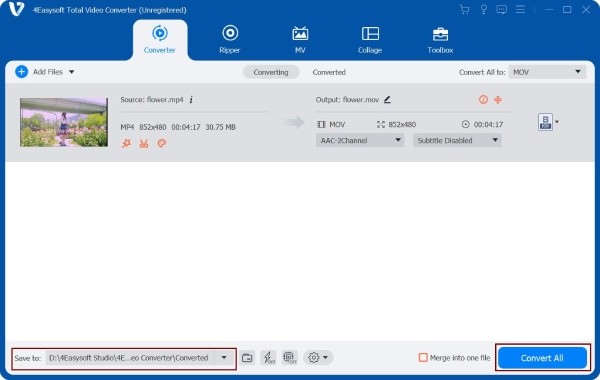
Step 4Select the destination folder for output MP3 music files. Click on the "Convert All" button to convert MOV to MP3 in batch.
3 Ways to Quickly Convert MOV to MP3 Online
If you find downloading too cumbersome, online tools can also quickly convert MOV to MP3. Here are three recommended options for your reference.
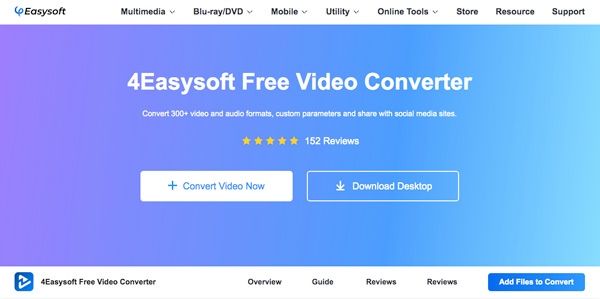
1. 4Easysoft Free Video Converter
Free Video Converter is a convenient online tool that solves your MOV to MP3 conversion needs. This utility supports over 600 video and audio formats. It's powerful, maintains near-perfect quality during conversion, and enables batch processing. No software download required—start using it immediately!
- Pros
- Support batch addition of multiple files with no file size restrictions.
- Allow customization of output parameters.
- Simple operation process—completes conversion in just a few steps.
- Cons
- Some advanced audio quality optimization options may be missing.
2. Zamzar
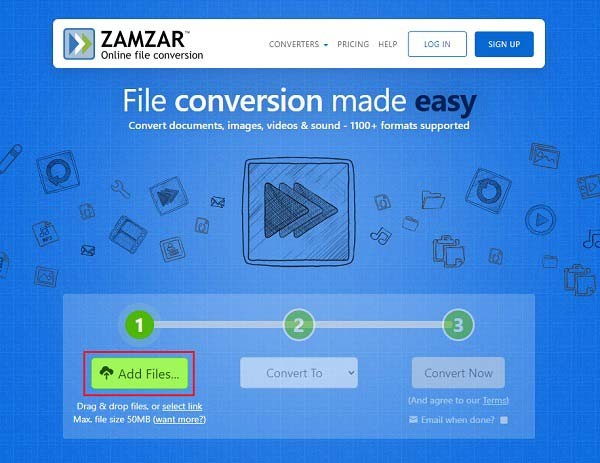
Zamzar is an online file converter that also supports compressing audio, documents, images, and videos. It can convert over 1,200 formats, such as PDF to Word, MP4 to MP3, and PDF to Excel. However, it lacks more advanced cropping and adjustment features, serving primarily as a convenient conversion tool.
- Pros
- Support conversion between thousands of formats.
- Intuitive and clean interface, easy for beginners to get started.
- Download converted files via email or directly from the page.
- Cons
- Free version has a lower file size limit (approximately 50 MB).
- Free users typically have a daily conversion limit of 2 times per day.
- Batch conversion is not supported for free users.
3. Convertio
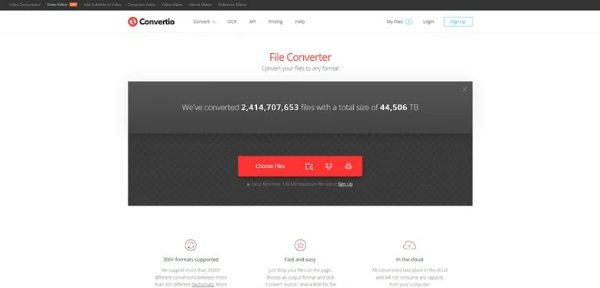
Convertio is a comprehensive file converter that handles conversions across multiple formats, including audio, images, and documents. With its streamlined interface, you can effortlessly convert MOV files to MP3 format with just a few clicks. Additionally, it offers batch conversion capabilities for MOV to MP3, significantly reducing conversion time.
- Pros
- Support conversion of over 300 file formats.
- Offer batch conversion and custom parameter settings.
- Files are automatically deleted after upload to ensure privacy and security.
- Cons
- The free version upload size limit is approximately 100 MB.
- Online conversion speed may be affected by network fluctuations.
Use VLC to Convert MOV to MP3 for Free and Easily
VLC Player supports the playback of various media resources and is a well-known video player for all formats. In fact, it can function as a versatile transcoding tool, converting videos into multiple formats such as MP4, MP3, WebM, TS, ASF, and more. It is compatible with Windows and Mac, offers free conversion, and allows you to customize the transcoding process while achieving excellent output quality.
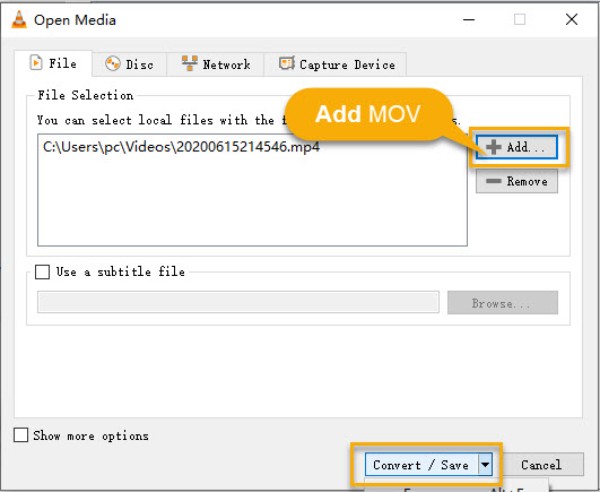
Step 1Open VLC and go to "Media" and find "Convert / Save". Click "Add" to import your MOV file.
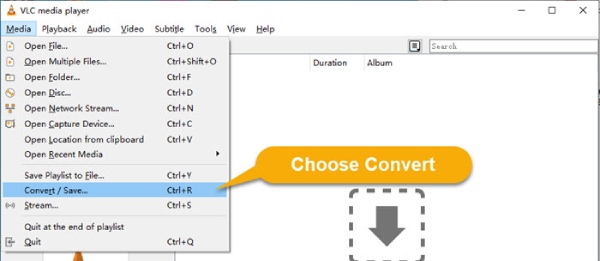
Step 2When the file is already added, click the "Convert / Save" button, then select "Audio – MP3" from the Profile list as your output format.
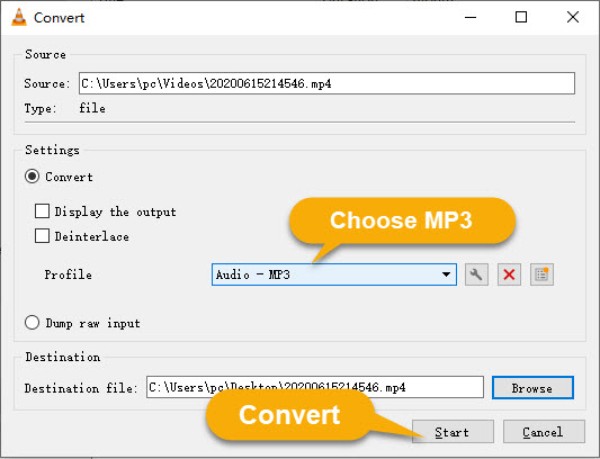
Step 3Click "Browse" to choose the save location, rename the file with the .mp3 extension, and click "Start" to begin converting.
Conclusion
Conclusion Here are five efficient methods to smoothly convert MOV video files into MP3 audio format. You can choose the fastest and most convenient approach based on your needs. If you need to convert a large number of MOV files, merge different video clips, or even add metadata to music files, 4Easysoft Total Video Converter is your best choice. It can also help you edit and merge audio clips after conversion. Download it now and give it a try.
100% Secure
100% Secure
