

Convert, Edit and Enhance MKV Videos with AI

How to Convert MKV to MP4 on Windows/Mac/Online in One Click

Posted by Aira Lesly Escoto to Convert Video Mar 06, 2026
MKV files are commonly used for ripping DVDs and Blu-ray discs, making them less compatible with mobile devices. Converting them to MP4 preserves high-definition quality while enabling playback across multiple devices. To learn how to convert MKV to MP4 on your computer, continue reading the methods outlined in this article.
Guide List
A Professional Method to Convert MKV to MP4 Easily How to Use VLC Media Player to Convert MKV to MP4 Convert MKV to MP4 Freely with HandBrake Use FFmpeg to Convert MKV to MP4 3 Online Tools to Convert MKV to MP4Before trying the next methods, you can know them by this table first.
| 4Easysoft Total Video Converter | VLC Media Player | HandBrake | FFmpeg | |
| Output Quality Control | ✔ (Resolution, bitrate, encoder adjustable) | ✖ (Limited parameter control) | ✔ (CRF, bitrate, filters available) | ✔ (Fully customizable) |
| Batch Conversion | ✔ | ✖ | ✔ | ✔ |
| Device Presets | ✔ | ✖ | ✔ | ✖ |
| Conversion Speed | Hardware acceleration | Medium | Medium | Fast |
| Graphical User Interface (GUI) | ✔ | ✔ | ✔ | ✖ |
| Video Editing Support | ✔ | ✖ | ✔ | ✖ |
| Supported Video Formats | 1000+ formats, like MP4, MKV, MOV, AVI, WMV, FLV | MP4, MKV, MOV, FLV, WebM, TS, etc. | Output: MP4, MKV; Input: AVI, MOV, TS, etc. | Nearly all mainstream formats |
A Professional Method to Convert MKV to MP4 Easily
When it comes to video conversion, 4Easysoft Total Video Converter stands out as a feature-rich and high-quality solution. It supports over 600 input and output formats, including MKV to MP4, while preserving original video quality and allowing customization of relevant parameters. Its built-in editing toolkit also enables you to freely edit converted videos, making viewing more convenient.
Support high-definition conversion for over 600 video formats, such as MKV to MP4.
Adjust the video parameters, including video resolution, bitrate, frame rate, etc.
60X faster speed to convert a batch of MKV files to MP4 with GPU acceleration.
Support video editing, such as adding subtitles, trimming, and more.
100% Secure
100% Secure
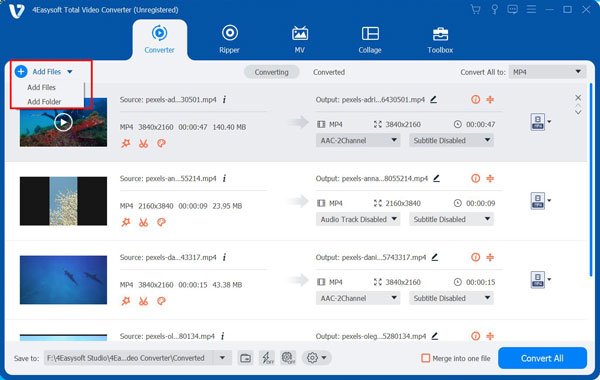
Step 1First, launch it on your PC/Mac. Then click on the "Add Files" button. You can also drag and drop all your files at once to add batch videos.
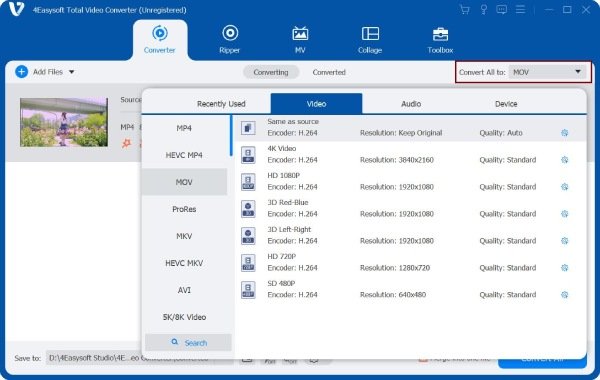
Step 2Click on "Convert All to" to choose the MP4 format. You can also customize the parameters of the MP4 file.
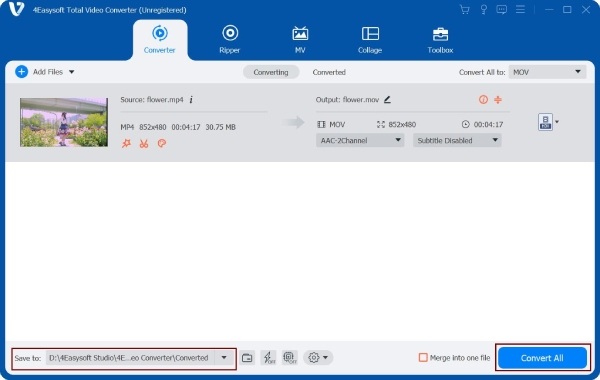
Step 3Finally, click on "Convert All" and choose a file location for you to find your converted videos quickly. Then, wait for the process, and your MKV will be successfully converted to MP4.
How to Use VLC Media Player to Convert MKV to MP4
VLC media player supports converting MKV to MP4 through its built-in Convert/Save feature. It allows users to transcode MKV files into MP4 using common codecs such as H.264, with basic profile presets available for compatibility. Users can manually adjust parameters like codec type, bitrate, resolution, and frame rate.
Step 1Click the "Media" button in the top-left corner, then select "Convert/Save". Click the "Add" button to browse and import the target MKV video.
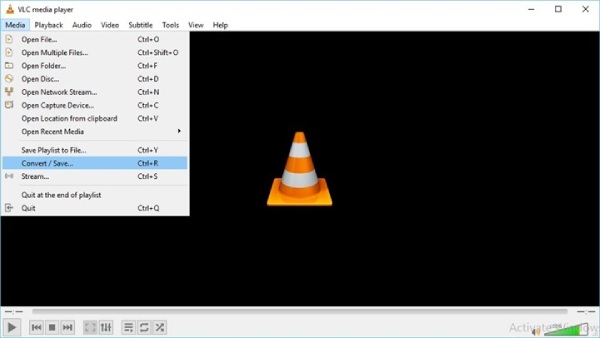
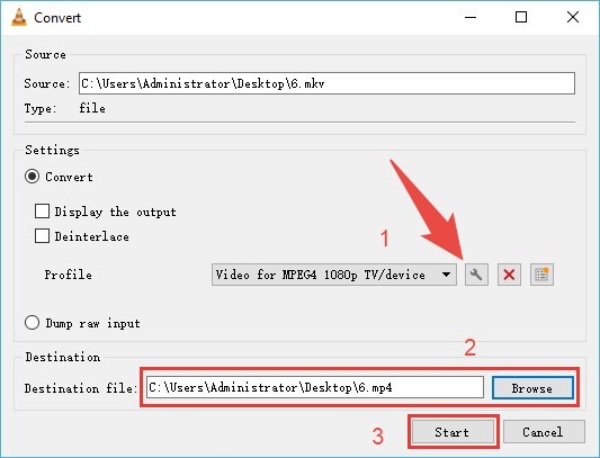
Step 2Select "Video - H.264 + MP3 (MP4)" as the output format. You can also customize video details by "Edit Selected Profile" next to the dropdown list.
Step 3Click "Browse" to specify the destination path for the output video. Finally, click the "Start" button to convert MKV to MP4.
Convert MKV to MP4 Freely with HandBrake
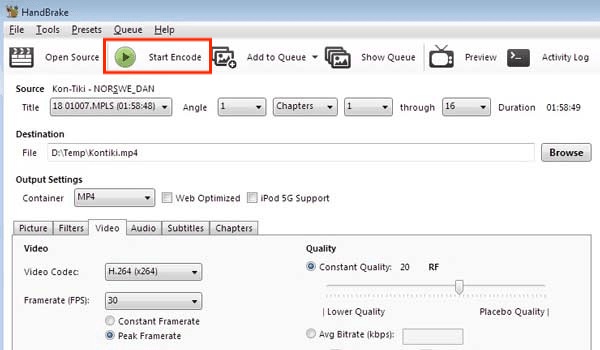
HandBrake employs a professional transcoding process when converting MKV to MP4. It commonly uses video codecs, including H.264, H.265, and supports AV1 in certain versions. Users can precisely control output quality and file size through CRF, bitrate control, resolution adjustment, and frame rate settings. Additionally, HandBrake provides device presets and supports batch queue processing.
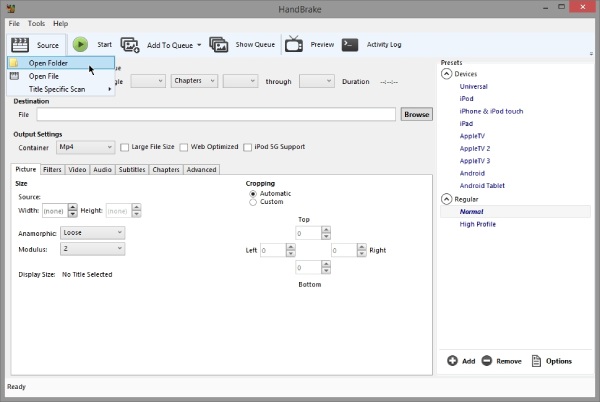
Step 1Install HandBrake and launch it. Then click "Open Source" or drag the MKV file directly to add it.
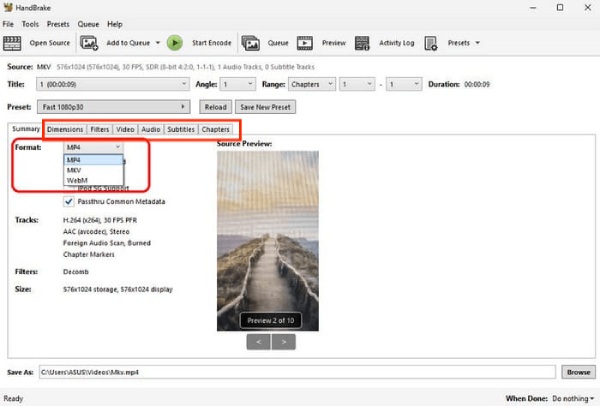
Step 2Choose MP4 as the output format below the "Summary" tab. You can adjust video dimensions, resolution, codecs, subtitles, deinterlace, reduce noise, sharpen video, and access more editing features.
Step 3Click the "Browse" button to select the destination folder for the output video. Click "Start Encoding" and wait for the process to complete.
Use FFmpeg to Convert MKV to MP4
FFmpeg is a command-line conversion tool. It offers high flexibility when converting MKV to MP4, supporting both transcoding and lossless container repackaging. It enables granular parameter control, including adjustments to bitrate modes, resolution scaling, and more. FFmpeg can also compress video with the command line. However, it is not beginner-friendly, and mastering it requires a significant time investment.
Step 1Configure FFmpeg on your computer by pressing "Win + R", then enter cmd to open the DOS window.
Step 2Type 'cd test_video' and navigate to the current storage location of the MKV video. Enter the FFmpeg command line: 'ffmpeg -i spreed.mkv -c:a copy -x265 -params crf=25 spreed1.mp4'
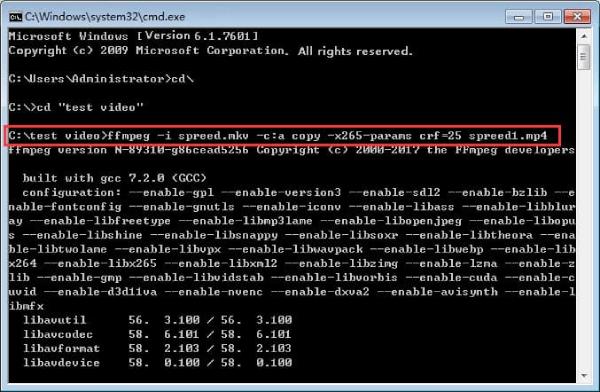
Step 3Finally, just press "Enter" on your keyboard. You will then obtain the desired .mp4 file. If you need to repackage MKV into MP4, enter the following command line: ffmpeg -i spreed.mkv -map 0 spreed1.mp4.
3 Online Tools to Convert MKV to MP4
If you prefer not to download desktop software, you can also use online tools to convert MKV files. The following four online options are available for your selection.
| CloudConvert | Online-Convert | FreeConvert | |
| Output Quality Control | ✔ | ✔ | ✔ |
| Batch Conversion | ✔ | ✔ | ✔ |
| Conversion Speed | Depends on network & server load | Depends on network & server load | Depends on network & server load |
| Supported Video Formats | 200+ formats incl. MP4, MKV, MOV, AVI, WebM | 100+ formats incl. MP4, MKV, MOV, AVI, FLV | 500+ formats incl. MP4, MKV, MOV, AVI, WebM |
1. CloudConvert
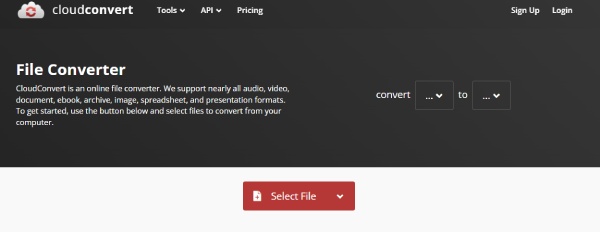
CloudConvert employs a cloud-based transcoding architecture, eliminating the need for software installation. It supports adjusting video parameters and can process subtitle tracks. The conversion process from MKV to MP4 occurs on the server side, typically offering good compatibility and suitability for occasional or cross-platform usage needs. However, its performance depends on network speed and file size, and the free quota is limited.
2. Online-Convert
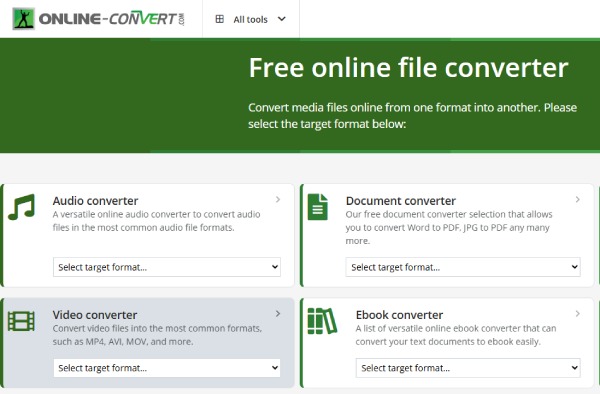
Online-Convert is suitable for you if you are searching for an online converter that will enable you to modify the video settings while converting MKV to MP4, MPG to MP4, etc. It allows you to adjust screen size, bitrate, file size, and frame rate. However, the site contains a large number of ads, which may affect the speed of converting MKV files.
3. FreeConvert
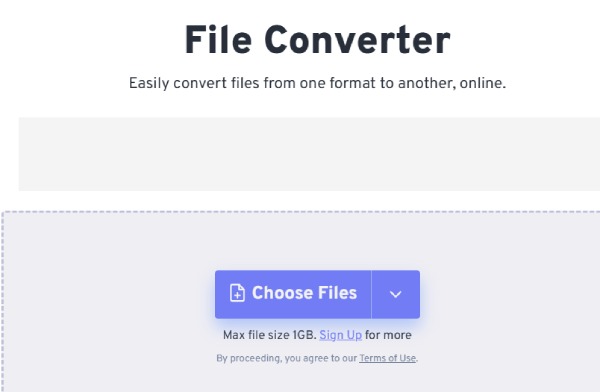
FreeConvert can convert MKV to MP4 across multiple devices. It employs cloud-based transcoding, allowing you to select common encoding formats, adjust resolution, bitrate, frame rate, and audio parameters, while also providing basic compression options. Upload local files or import via cloud storage links, then download the MP4 file after conversion.
Conclusion
Now that you've read the entire article, converting MKV to MP4 isn't difficult at all. Practical tools exist for conversion across various devices. This is especially true if you have 4Easysoft Total Video Converter installed on your device. This powerful tool delivers high-quality conversions and supports video editing. Download it for free now and convert MKV to MP4 in just a few simple steps!
100% Secure
100% Secure
