
Remove screen passcode, Apple ID, MDM and Screen Time from iPhone safely.

[Detailed] How to Change iPhone Lock Screen Password

Posted by Alvin Cantero to iOS Unlocker May 07, 2026
Many Apple beginners are wondering about how to change their iPhone lock screen password. This habit of regularly updating your passcode can strengthen security, as it plays an important role in protecting personal data and preventing unauthorized access to your device. Fortunately, Apple provides several ways to change or reset the lock screen password depending on your situation. In this guide, you will learn the essential information about iPhone lock screen passwords and explore different methods to change or reset them easily.
Guide List
Part 1: Things You Need to Know About iPhone Lock Screen Password Part 2: How to Change iPhone Lock Screen Password You Forgot Part 3: How to Reset iPhone Lock Screen Password via Settings Part 4: For Convenience - Change a 4-Digit Numeric iPhone Lock Screen Password Part 5: For Safety - Change an Alphanumeric Lock Screen Password on iPhonePart 1: Things You Need to Know About iPhone Lock Screen Password
The iPhone lock screen password is a key security feature that protects your device and personal information. It prevents unauthorized users from accessing apps, photos, messages, and other sensitive data stored on the device. You can customize and change your lock screen password according to your preference on your iPhone.
Changing your lock screen password regularly can help improve device safety, especially if your phone is frequently used in public places. In addition, if you forget your passcode, the iPhone may become disabled after several incorrect attempts, requiring recovery methods to unlock it.
It is also important to note that the lock screen password works together with other security features such as Face ID or Touch ID. These methods can help you access your iPhone in a more convenient way, not just through a numeric password. Even so, you cannot perform actions like a factory reset on your iPhone without a password.
Part 2: How to Change iPhone Lock Screen Password You Forgot
If you forget your iPhone lock screen password, accessing the device can become difficult. However, with a professional unlocking tool, you will find it is not a big deal. 4Easysoft iPhone Unlocker is designed to remove screen passcodes quickly and help users regain access to their devices. With a simple interface and easy operation, it supports various iPhone models and allows you to change the lock screen password in just a few steps.
Can bypass iPhone lock screen password, e.g., Face ID, Touch ID, etc.
It offers a faster unlocking operation, lessening everyone's waiting time.
Provide clear instructions on how to operate the unlocking quickly.
No iTunes helps to access your iPhone once again and change your password.
100% Secure
100% Secure
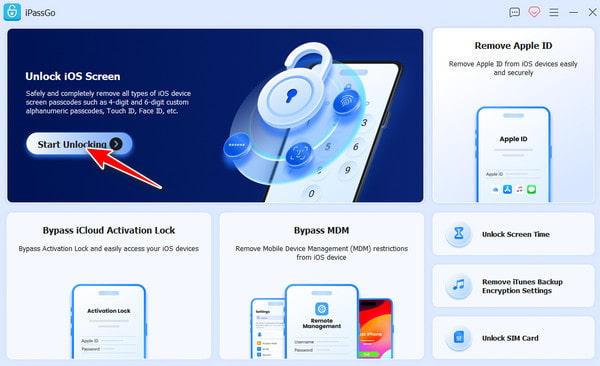
Step 1Launch 4Easysoft iPhone Unlocker and click the "Unlock iOS Screen" button in the main interface. Then, connect your iPhone to the computer.
Step 2Once your iPhone is detected, its information will be scanned and displayed. Click the "Start" button if everything is right.
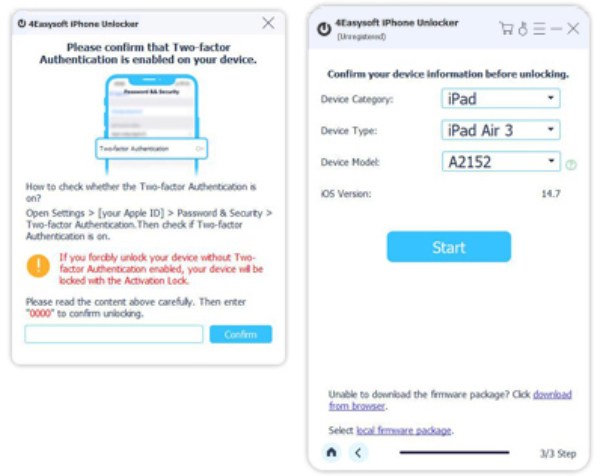
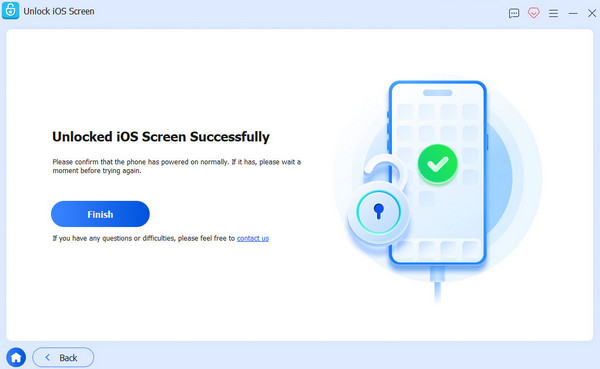
Step 3When the firmware is downloaded, confirm and click the "Unlock" button. You can now change the iPhone lock screen password as the device is reset.
Tips
4Easysoft iPhone Unlocker can also help you access and unlock your iPhone without a password.
Part 3: How to Reset iPhone Lock Screen Password via Settings
If you still remember your current passcode, the easiest way to change it is through the iPhone's Settings app. Apple provides a built-in option that allows users to update and change the lock screen password directly from the device. This method is simple, safe, and does not affect your existing data.
Step 1Open Settings and scroll down, find and tap the "Face ID & Passcode" button.
Step 2Enter your passcode to access the page. Navigate to and tap the "Change Passcode" button.
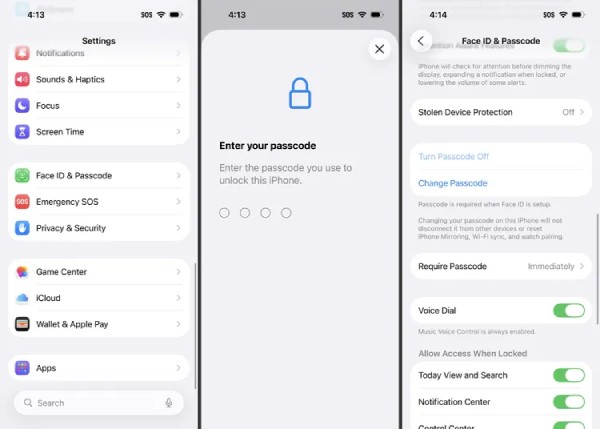
Step 3Enter your current passcode and enter the new passcode twice to change your iPhone lock screen password.
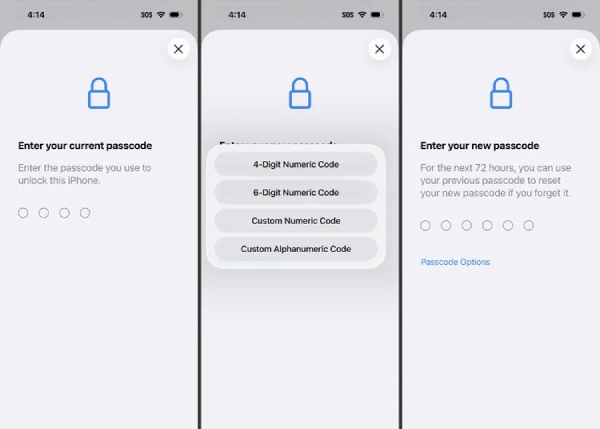
Part 4: For Convenience - Change a 4-Digit Numeric iPhone Lock Screen Password
Some users prefer a simpler passcode for quick access to their devices. A 4-digit numeric password is easy to remember and allows you to unlock your iPhone quickly. In this section, you will learn how to change your lock screen password to a 4-digit numeric code for greater convenience.
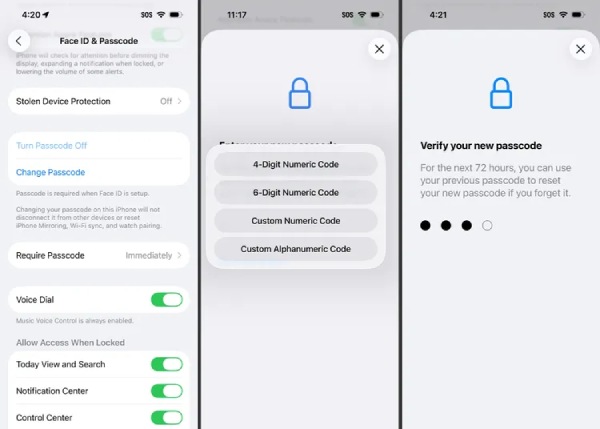
Step 1Open Settings on your iPhone. Find and tap the "Face ID & Passcode" button.
Step 2To access this page, you need to enter your current passcode. Then, tap the "Change Passcode" button.
Step 3Tap the "4-Digit Numeric Code" button, and you can change a 4-digit numeric iPhone lock screen password.
Part 5: For Safety - Change an Alphanumeric Lock Screen Password on iPhone
For users who want stronger protection, an alphanumeric password can provide a higher level of security. This type of passcode combines letters, numbers, and sometimes symbols, making it more difficult for others to guess. In this section, you will learn how to set or change an alphanumeric lock screen password to enhance your iPhone's security.
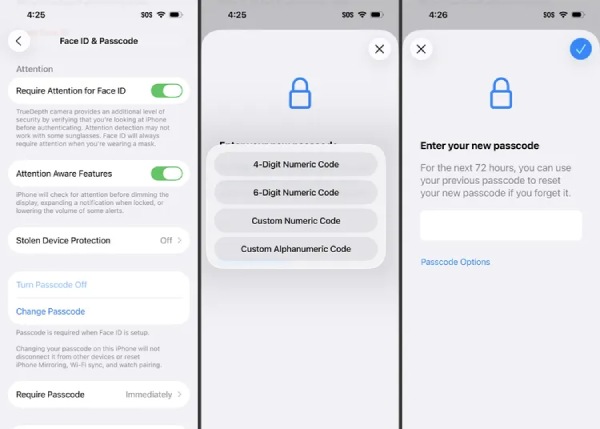
Step 1On the Settings app, tap the "Face ID & Passcode" button and enter your passcode to access a new page.
Step 2Enter your current passcode for safety. Then, tap the "Change Passcode" button and the "Passcode Options" button.
Step 3Tap the "Custom Alphanumeric Code" button to change an alphanumeric lock screen password on your iPhone.
Conclusion
In conclusion, knowing how to change the lock screen password on your iPhone is an important step in protecting your personal data and maintaining device security. No matter what kind of password you prefer, there are several options available provided in the previous sections. You can finish the task in no time, following the content provided. If you forget your password, 4Easysoft iPhone Unlocker can also help you regain access to your device safely.
100% Secure
100% Secure
