

Reliable video converter, editor, and compressor for daily tasks.

How to Add Text or Photo Watermark to Videos As Your Logo

Posted by Aira Lesly Escoto to Edit Video/Audio Mar 20, 2026
High-quality video content often helps brand pages stand out. However, people may try to steal others’ content to drive traffic to their own businesses. To prevent this, you can add a watermark to your videos, making them look more professional and aligned with your brand image! How exactly do you do this? If you have video editing software, the process is very simple. Check out the simple and effective methods summarized in this article—even users with no experience can add watermarks to their videos.
Guide List
Part 1: How to Add Text/Photo Watermark to Videos with Effects Part 2: 5 Easy and Fast Ways to Add Watermarks to Videos Online Part 3. Quick Summary of Watermark Editors' Features Part 4: FAQs about How to Add Watermark to VideosPart 1: How to Add Text/Photo Watermark to Videos with Effects
Are you searching for the best program to help you add watermark to videos? Worry not, since the 4Easysoft Total Video Converter is there to provide! You can get a watermarked video with superb quality with this software. This editing tool supports adding watermarks in two easy methods. You can go to the Converter tab or its Toolbox to add an image or text watermark to videos, which not all software provides.
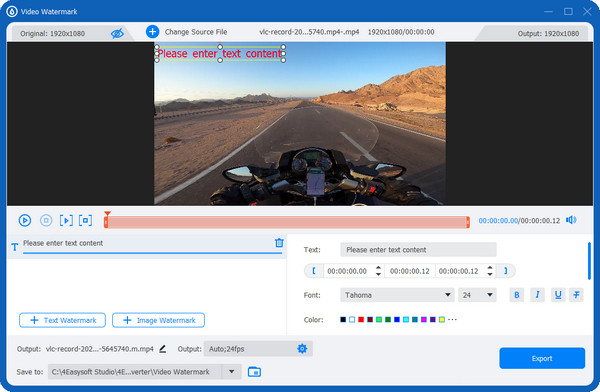
Furthermore, you can quickly get your preferred text by setting the font, size, color, and other text settings. Besides adding a text watermark, you can also add an image, which is effective for brand awareness. When ready, go to the program’s main page, then download and install.

Equipped with a Video Watermark tool in its Toolbox, allowing you to easily add text or images as watermarks in your videos or images.
For an alternative, you can add watermarks to your videos on its Converter tab, as this also has the function to add one.
Provide a wide range of options for customizing text, fonts, colors, sizes, and other text settings.
Allow you to monitor every change you make to your videos with its preview function.
100% Secure
100% Secure
Step 1After downloading the program, complete the installation process and launch. It’s up to you whether you go to the "Converter" tab or "Toolbox" to add watermark to videos. Whatever you choose, both are effective and easy to add watermarks.
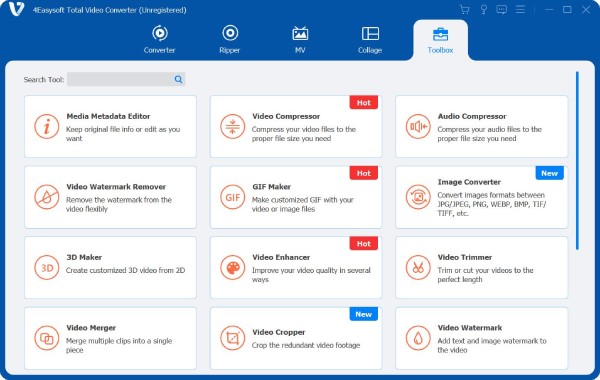
Step 2In the "Converter" tab, add your file by clicking the "Add File" button. Or choose the straightforward one, the "Video Watermark" in the "Toolbox". Then, click on the radio buttons of "Text" and "Image", according to which one you prefer to add as your watermark. Do some customization on your text.
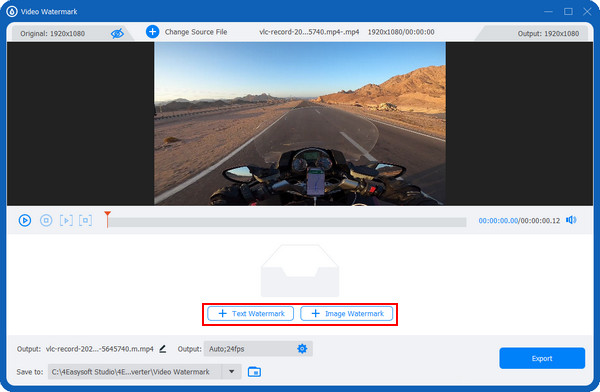
Step 3Assume you click on the "Text Watermark". Enter your "text" in the Text menu. You can also set your desired font, color, size, and more. Afterward, adjust other settings in the "Output" menu below with a "Gear" icon. Select a file name and location, and then you’re ready to "Export" your video with a watermark.
Part 2: 5 Easy and Fast Ways to Add Watermarks to Videos Online
Another way to add watermark to videos is through online tools. Luckily, there are several options you can choose from without a hassle. Take a look at the four best online tools to add a watermark; each will give you detailed steps.
1. VEED.IO
A simple online watermarking tool that lets you add and remove watermarks is VEED.IO. You simply have to upload your video to the page and easily add a watermark to the video frame. Furthermore, you can post your created video with a watermark to several social media platforms, such as Facebook, Pinterest, YouTube, etc.
- Pros
- Provide logo or brand templates and a library of assets.
- Support collaborative editing.
- Offer presets for exporting to social media platforms.
- Cons
- Videos exported from the free version will include a VEED watermark.
- Uploading and processing large files is relatively slow.
- The browser may lag when working with longer videos.
Step 1Go into "VEED.IO’s official website", click on its "Tools", then "Add Watermark to Video". After that, click on the "Choose Video" button in the middle to upload your file.
Step 2After adding your file by opening it on the page or drag and drop it into the box. To add a watermark, click on "Media" to upload an image and place it on your preferred part in the video frame. Or, click on the "Text" option below to add a text watermark.
Step 3After customizing, you can click on the "Export" button above to download your video with a watermark.

2. Kapwing
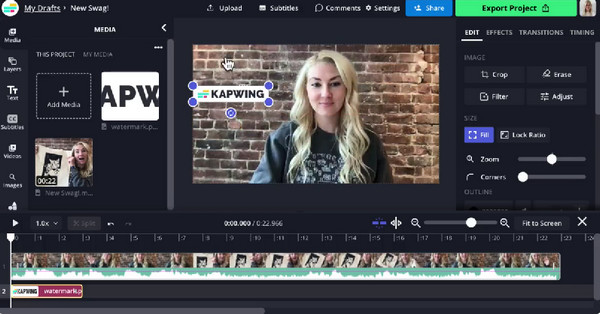
The second online tool to help add watermark is Kapwing. This online watermarking tool assists you in having brand awareness across social media platforms by adding watermarks with icons, text, and more. Besides adding text watermarks, you can also use an image to create one.
- Pros
- Simple interface; add elements with a drag-and-drop.
- Robust subtitle editing capabilities.
- Support collaborative projects.
- Offer short video templates.
- Cons
- Free exports include a Kapwing watermark.
- Lacks professional video editing features.
Step 1Start by going to "Kapwing main page", then to "Watermark Video" under its "Tools" menu. Then, click the "Upload video" to enter the editing page.
Step 2Upload your video to the page or paste a link of the one you wish to add a watermark to videos. Start adding the text or logo you want to apply, then "drag" them to your desired position in the video frame. You can also make further edits using the tools in the "sidebar".
Step 3Lastly, hit on the "Export" button when finished. You can download it on your computer or share it on social media platforms.
3. FlexClip
FlexClip supports creating videos in just a minute! Similar to the first two mentioned, you can enter any text or use an image to add watermark using this free online watermarking tool. You are also allowed to do customization, such as changing the position, transparency, size, font, color, and more.
- Pros
- Offer a wide variety of video templates.
- Featured a rich selection of text animations that can be used as dynamic watermarks.
- Include a built-in media library (videos, music, icons).
- Cons
- The free version has lower export resolution and may include a watermark.
- Timeline editing features are fairly basic.
- Video length and export capabilities are limited in the free version.
Step 1Once you enter the "FlexClip leading site", click the "Create a Video" button to start. Upload your video to the "Media" section, or "drag and drop" your file.
Step 2Click on the "Watermark" menu, then you can start entering any text or upload an image as your watermark. Do some customization by changing its size, opacity, and more.
Step 3If satisfied with your work, click the "Export" button to save your video with a watermark

4. Media.io
The fourth useful tool is Media.io. It allows you to add text, logos, images, and more as watermarks to your videos. Even beginners can easily customize watermarks thanks to its user-friendly interface. You can also adjust the watermark’s size, text, font, and other properties as needed.
- Pros
- Offer AI tools for background removal, image enhancement, and more.
- Integrate multiple online video tools, including compression, conversion, and watermarking.
- Featured a clean interface, making it ideal for quickly adding logos to videos or images.
- Cons
- Some AI features require a paid subscription.
- Upload and processing speeds depend on internet connectivity.
- Limited editing capabilities.
- Processing large video files takes a long time.
Step 1Once you’re on the main page of "Media.io", click on the "Watermark Video Now". After that, upload your video by clicking on the "Upload" menu. Or, you can click the "From URL" option to paste a link or drag and drop your file.
Step 2To add watermark, click on the "Text" menu to enter your text. If you want to add an image as your watermark, click the "Upload" option, then open a PNG or JPG file.
Step 3When done, simply click on the "Export" button. Select a file name and set the resolution to save your video with a watermark.
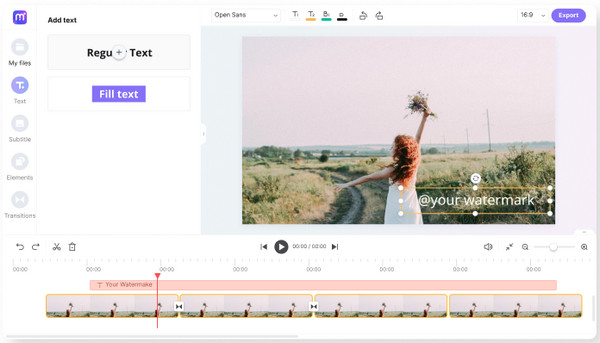
5. Canva
Canva supports adding video watermarks via text, logos, or images with adjustable position, opacity, size, and rotation. Its drag-and-drop timeline and templates make it easy to apply consistent branding, though advanced controls and batch processing are limited.
- Pros
- Support various formats, including text, images, and logos.
- Parameters such as position, opacity, and size are fully customizable.
- Optional templates ensure a consistent style with your brand kit.
- Cons
- Lack advanced animation features and fine-tuning options.
- Not suitable for adding watermarks to large volumes of videos.
- The free version has limitations on resolution and media files.
- Since it’s an online editor, processing large files is slow.
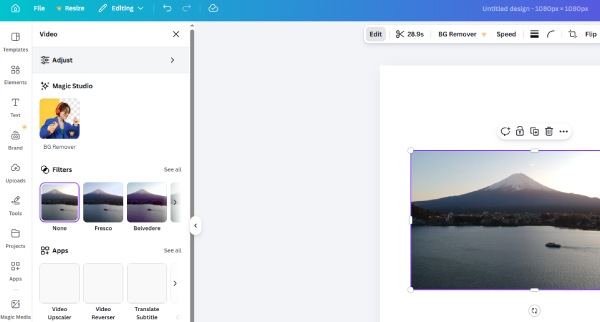
Step 1Click "Create a design" and "Video," then locate "Upload files" to import your video. Next, click "Text," "Uploads," or "Elements" on the left to select text or a logo and add it to the canvas.
Step 2Select the watermark, use the toolbar at the top to adjust its position, size, and other settings, then drag it onto the timeline to cover the entire duration. Click "Share," select "MP4 Video," and export it.
Part 3. Quick Summary of Watermark Editors' Features
| 4easysoft Total Video Converter | VEED.IO | Kapwing | FlexClip | Media.io | |
| Watermark Timing Control | Precise time range | Timeline | Timeline | Simple timeline | Simple timeline |
| Batch Add Watermark | √ | × | × | × | × |
| Batch Video Processing | √ | × | × | × | × |
| Watermark Removal Tool | Dedicated tool | Crop workaround | × | × | AI cover |
| GPU Acceleration | √ | × | × | × | × |
| Video Parameter Adjustment | Resolution Bitrate Frame rate | Basic resolution | Basic resolution | Basic resolution | Basic resolution |
| Supported Format Examples | MP4, MKV, MOV, AVI, FLV, WebM, MP3, AAC, FLAC, PNG, JPG | MP4, MOV, GIF | MP4, MOV, GIF | MP4, MOV, GIF | MP4, MOV, AVI |
| Operation Difficulty | Low | Low | Low | Very Low | Very Low |
Part 4: FAQs about How to Add Watermark to Videos
-
How can I add a watermark to videos in Canva?
Go to your design in Canva. If you don’t have a watermark, you can search in its search bar on the left side or create one from scratch. You can also upload an image on the side menu, then edit it on the blank page.
-
How to make my watermark transparent in a video?
Adjust the opacity (transparency) of your watermark layer in the editor. Most video tools allow you to reduce opacity to around 20%–50%, so the watermark is visible but not distracting. For best results, use a PNG image with a transparent background and fine-tune size and contrast to match the video.
-
What is the best position for a watermark?
The most common and effective position is the bottom-right corner, as it avoids blocking key content while remaining visible. Top corners are safer for platforms with bottom overlays. Bottom corners are standard for YouTube or landscape videos.
Conclusion
Adding a watermark to your video can promote your brand quickly and prevent anyone from stealing your video. This post discusses the best solutions, four online tools, and one excellent program that can help you add watermark. Whether it is a text or an image, you can add them and customize them on your video! To have better quality or for more editing functions, the 4Easysoft Total Video Converter is the perfect tool for you. It is an ideal program to easily add watermark with its Video Watermark tool and do additional edits to make your video look attractive and on-brand.
100% Secure
100% Secure
