
Record video, audio, gameplay, and webcam with precious moments on Computers.

How to Screen Record on Chromebook? 6 Tools on Desktop/Online

Posted by Aira Lesly Escoto to Record Video Dec 19, 2025
For students, teachers, and professionals, screen recording on Chromebook has become essential to capture tutorials, presentations, or other on-screen activities. Fortunately, ChromeOS has several convenient ways to record screens, from shortcuts to free recording tools. Today's guide shares with you the six best options to screen record on Chromebook. By the end, you'll have the best method for your workflow and start recording with confidence.
Guide List
How to Screen Record on Chromebook with Screen Capture Chromebook Screen Recording Using Keyboard Shortcuts Screen Record on Chromebook with Audio Using Screencast Convenient Way to Record High-Quality Videos on Chromebook Record on Chromebook Online Using VEED.IO with Easy Sharing Fast Chromebook Recording Online with Loom Screen RecorderHow to Screen Record on Chromebook with Screen Capture
Chromebook's built-in Screen Capture tool is the easiest way to record audio and screen on Chromebook without third-party software. It is integrated directly into ChromeOS, letting you begin recording with just a few clicks. Overall, it is ideal for anyone who needs a quick and accessible recording option.
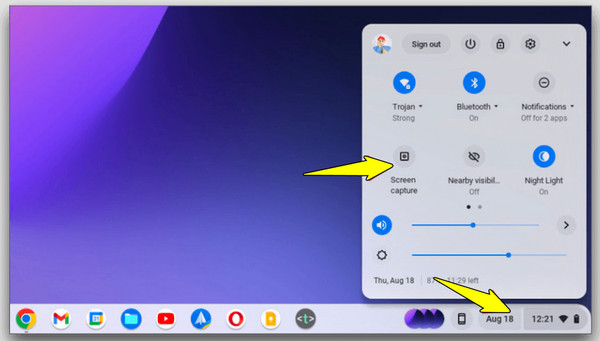
Step 1On the bottom-right corner of your screen, click the "Clock" icon to open the Quick Settings panel.
Step 2There, select "Screen Capture"; switch to "Video" to enable the recording mode.
Step 3Choose the recording area, and turn on the "Microphone" if needed.
Step 4Then, tap on "Record", and later click "Stop" to finish.
Chromebook Screen Recording Using Keyboard Shortcuts
If you want a faster method to screen record on a Chromebook, keyboard shortcuts can open the built-in screen recorder. The shortcuts activate the interface but speed up the complete process, as it won't require navigating through menus. Furthermore, it is accessible on all ChromeOS versions that support built-in video recording.
Step 1Press the "Shift + Ctrl + Show Windows" keys, then select the "Video" icon in the toolbar to enter the recording mode.
Step 2Select a recording area, and enable your microphone if needed.
Step 3Click the "Record" button to begin.
Step 4Later, click the "Stop" button when you're finished.
Screen Record on Chromebook with Audio Using Screencast
Moving on to another built-in solution to make screen recordings on Chromebook, the Screencast offers enhanced recording capabilities. Aside from simple recording, it allows you to annotate on-screen, add your camera feed, and save recordings to Google Drive automatically. It is especially made for those who opt for voiceovers and interactive lessons.
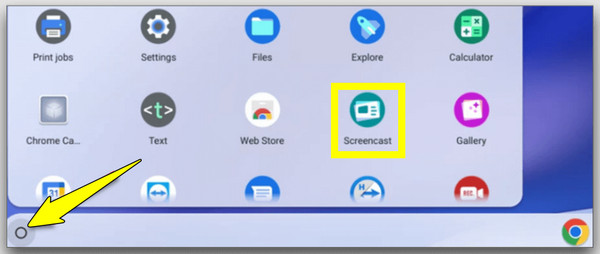
Step 1Launch the Screencast app from your Chromebook's launcher.
Step 2There, click the "New Screencast" option to begin.
Step 3Select your recording area and enable audio options.
Step 4Click the "Record" button to start capturing content.
Step 5Later, click the "Stop" button, review the video, and save it to Google Drive or share using a link.
Convenient Way to Record High-Quality Videos on Chromebook
Now, for a more powerful and professional way, 4Easysoft Screen Recorder is an excellent choice to record screen on Chromebook. This program offers more advanced features than built-in tools, making it perfect for recording gameplay, tutorials, presentations, and long sessions. Aside from allowing you to trim recordings before exporting, it provides noise cancellation and a real-time preview to ensure your final output meets your standards. By using this recording on a Chromebook, you can capture everything with superb clarity.
Capture Chromebook screen up to 4K resolution for detailed recordings.
Save your finished recording in formats such as MP4, MOV, AVI, and others.
Select between recording your entire Chromebook display for more precise capture.
Customize your recording by adjusting resolution, quality, frame rate, and more.
100% Secure
100% Secure
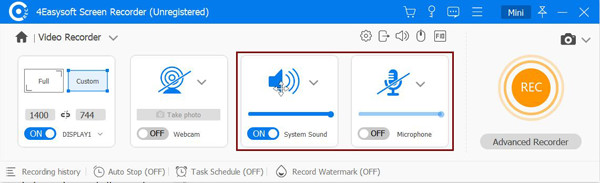
Step 1Launch 4Easysoft Screen Recorder on your computer. Click the "Video Recorder" to begin setting up your Chromebook recording. Choose your recording area: "Full" to capture the entire display, or "Custom" to capture a specific region.
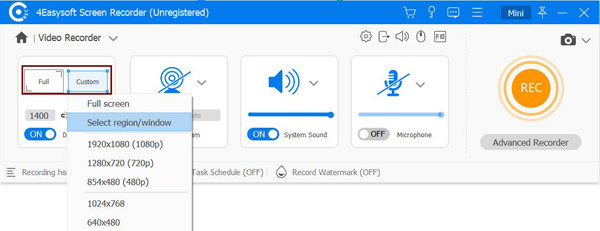
If needed, go to "Settings" to fine-tune video quality, format, frame rate, and other advanced settings before you start.
Step 2Decide whether you want to capture Chromebook audio, your voice, or both. Turn on the "System Sound" toggle for internal audio, and activate "Microphone" for voice narration. Adjust each volume to your desired level.
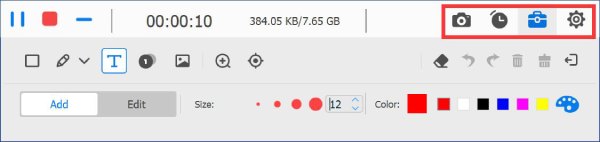
Step 3Once you're ready, click the "REC" button to begin capturing your Chromebook screen. During the session, use the floating toolbar to draw shapes, add annotations, highlight areas, or take screenshots in real-time.
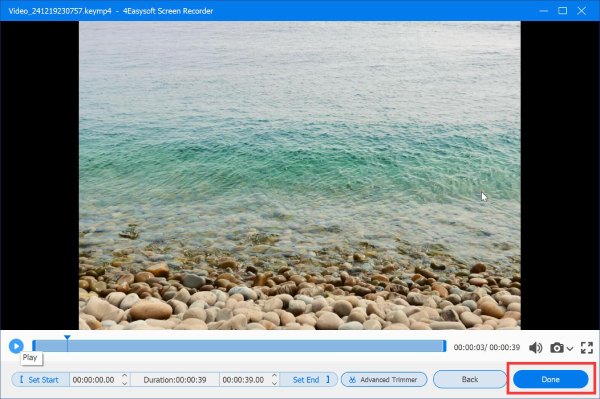
Step 4When you're finished, click the "Stop" button. A preview window will appear where you can trim unnecessary parts of your video. After reviewing, click the "Save" button to export your high-quality Chromebook screen recording.
100% Secure
100% Secure
Record on Chromebook Online Using VEED.IO with Easy Sharing
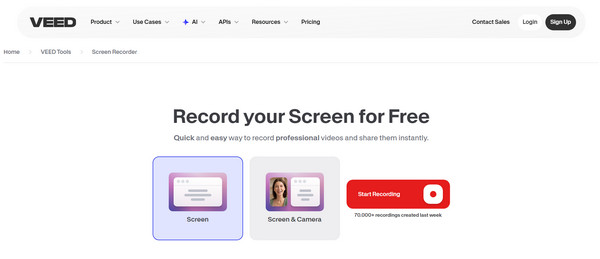
Next, for anyone who wants an online, no-install solution, VEED.IO Screen Recorder offers a quick and convenient way to screen record on Chromebook. It supports recording the screen and webcam, making it great for tutorials, meetings, and other work. See below to record Chromebook screen directly from your browser.
Step 1Visit VEED.IO Free Screen Recorder in your web browser.
Step 2Click the "Start Recording" button to access the tool, then choose a recording mode.
Step 3Next, grant permissions for the mic and camera if required.
Step 4And finally, click "Start", then "Stop", and download or edit your Chromebook recording as you wish.
Fast Chromebook Recording Online with Loom Screen Recorder
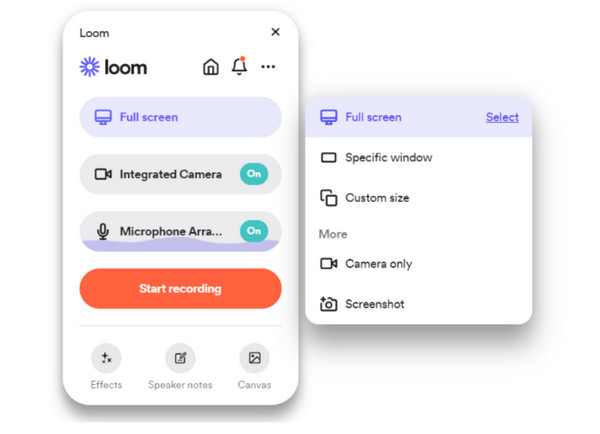
Finally, Loom offers another fast solution to record Chromebook video and audio. It provides an intuitive interface and saves your videos to the cloud, letting you share them immediately using a link. It is widely used by professionals, students, and remote teams for quick communication and demonstrations. Or you can use Loom alternatives to do Chromebook screen recording.
Step 1You can either open the Loom Screen Recorder on your browser or get the Loom Chrome Extension.
Step 2Once you're done signing in, select our recording style, and enable your mic or camera if needed.
Step 3Select the screen area to capture, then click the "Start Recording" button.
Step 4When finished, click the "Stop" button, and your video will upload to your Loom library for sharing..
Conclusion
From quick demonstrations to polished presentations, you can record screen on Chromebook with or without audio smoothly. And if you want a more professional and high-quality recording experience, 4Easysoft Screen Recorder is an excellent choice. It offers advanced controls, flexible recording modes, and high-resolution output, making it perfect for anyone who wishes for maximum clarity and performance for their Chromebook recording.
100% Secure
100% Secure
