
Convert, edit, and compress videos/audios in 1000+ formats with high quality.

Get that Perfect Slow-Mo! 4 Ways to Slow Down a Video

Posted by Aira Lesly Escoto to Edit Video/Audio Dec 10, 2025
Slow-motion footage can create a cinematic effect, emphasize a dramatic movement, or simply elevate your video's emotional impact. But to perfectly slow down a video, you'll need to have the right method that fits your device and preferences. Thus, this guide shares 4 different, easy-to-use ways to edit video speed to slow motion, whether you use a mobile, a desktop, or a browser. By the end, you will be ready to select the ideal technique for slowing down your video.
Guide List
Slow Down a Video with Powerful Video Editor on PC/Mac How to Slow Down a Video with Clideo Online Quickly Use iMovie to Slow Down a Video on iPhone Slow Down a Video with Popular EzgifSlow Down a Video with Powerful Video Editor on PC/Mac
When dealing with high-quality footage or needing precise control over the slow-motion effect, professional editing software surpasses the capabilities of mobile apps. One of the powerful, all-in-one desktop slow motion video maker for both PC/Mac is the 4Easysoft Total Video Converter. This program ensures that all your videos are processed in high resolution without any loss of quality. It can be your perfect solution for anyone needing to create slow motion videos while accessing a full range of extra editing features, such as filters, effects, and various templates.

Carefully adjust playback speed alongside other editing tools.
Ensures fast processing and exporting, even for large, high-resolution files.
Fully compatible with HD, 4K, and all standard formats like MP4, MOV, and HEVC.
A real-time preview to verify all slow-motion adjustments before saving.
100% Secure
100% Secure
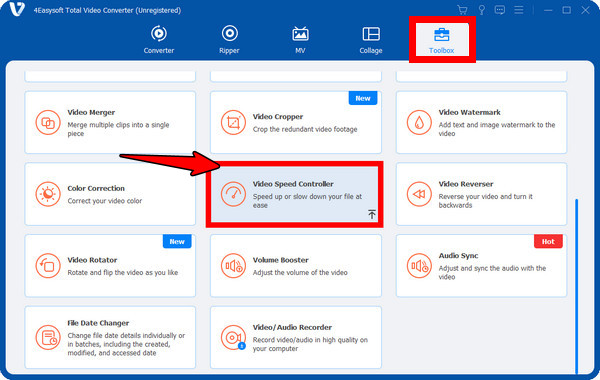
Step 1Launch 4Easysoft Total Video Converter on Mac or PC. Navigate to the "Toolbox" tab in the main menu, and then select the "Video Speed Controller" tool among other toolkits.
Step 2Click the "Add" button to load your desired video file. Choose a speed from the slow-motion options, from 0.75x down to 0.125. You can watch the video in the preview window as you adjust.
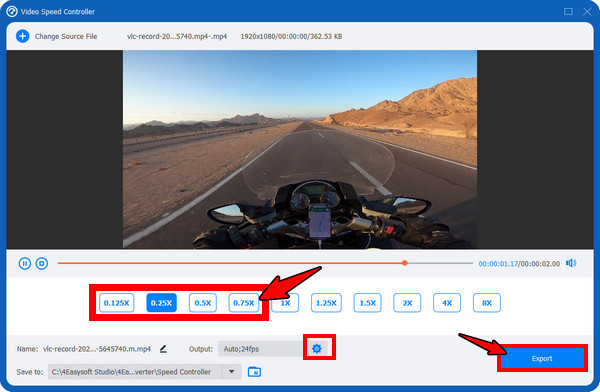
Step 3Before finalizing your slow-motion video, click the "Settings" button beside the Output configuration. Use this to fine-tune details like the quality, resolution, and encoding to ensure the highest possible quality. Click the "Export" button make your video slow down successfully.
100% Secure
100% Secure
How to Slow Down a Video with Clideo Online Quickly
If you need to adjust video speed without getting any software, an online tool offers the quickest solution. Clideo here is a web-based solution that is famous due to its simplicity and speed, helping you slow down a video with no hassle. This method is excellent for making quick and minor adjustments to short video clips from your web browser.
Step 1On your chosen web browser, navigate to the official website of Clideo Video Speed Changer. Click the "Choose file" button to upload the video you wish to slow down.
Step 2After the video loads, look for the speed options on the right. Select a value less than 1 to slow down a video; you can watch the changes in the player window. Optionally, make sure you choose your desired output format.
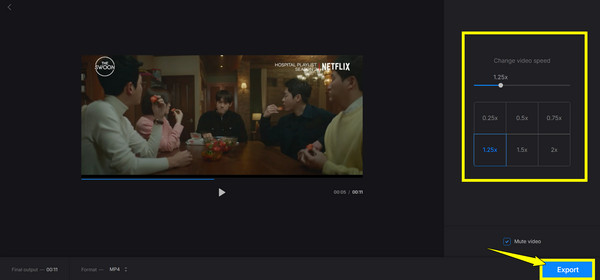
Step 3Click the "Export" button to process the speed change and to save the slowed-down version of your computer.
Use iMovie to Slow Down a Video on iPhone
For users of Apple devices, iMovie is the native, free app that offers a solution to slow down a video on iPhone. This approach is the best choice for iPhone and iPad to change video playback speed. If you want to edit video quickly on the go on your iOS devices, follow the steps below:
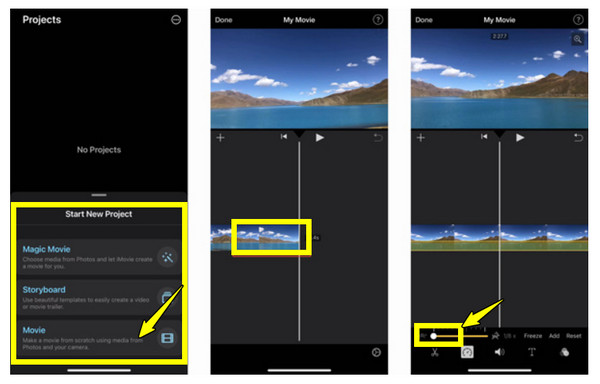
Step 1Launch iMovie on your iPhone, and tap "Start New Project", then choose "Movie". Upload the video you wish to edit and tap on "Create Movie".
Step 2From the timeline, tap the video clip and look for the "Speed" button in the toolbar. A slider will appear; please drag it to the left toward the "Tortoise" icon to slow down a video. You can fine-tune it using the custom slider or preset options that show up.
Step 3Tap "Done" in the upper-left corner, and review your video before tapping the "Share" button. And finally, select "Save Video" to download the final slowed-down clip to your camera roll.
Slow Down a Video with Popular Ezgif
Aside from the previous online tool, Ezgif is another highly popular web-based solution to slow down a video. It is great for quick, file-based adjustments where you have to upload a video, add slow motion effects, and get the results quickly, offering a reliable alternative for straightforward speed manipulation.
Step 1Open your browser and visit the Ezgif Video Speed Changer official website. Click the "Choose File" button to upload a video directly from your computer, or paste the video URL. Click the "Upload video!" to successfully load it onto the site.
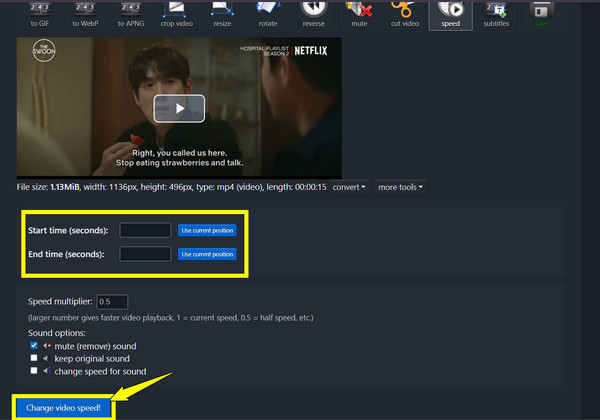
Step 2Once the video appears, locate the "Multiplier" field. Enter a value less than 1 to slow down a video. Then, click the "Change speed!" button below.
Step 3The video will then appear below. Click the "Save" button to download the slowed-down video.
Conclusion
Mastering how to slow down a video is essential for anyone looking to add drama to their footage. You've seen here the four reliable methods, from browser-based tools like Clideo to native apps like iMovie. Each method here provides steps to slow motion, but they offer uniqueness in control and output quality. But for creators who wish for maximum control, a wide range of formats, and the ability to make videos slower while keeping the original quality, use 4Easysoft Total Video Converter. By choosing this tool, you will have a reliable, high-quality solution that makes stunning slow-motion effects and other edits to your video.
100% Secure
100% Secure
