

Reliable video converter, editor, and compressor for daily tasks.

How to Upscale 720P to 1080P with High Quality on Windows/Mac

Posted by Aira Lesly Escoto to Edit Video/Audio Mar 27, 2026
Watching videos in a lower quality frustrates you? For some laptops, 720P is fine, but for TV with large screen, it fails to live up to your watching expectations; upscaling videos from 720P to 1080P is essential here. All videos should be in 1080P to have an excellent experience as it offers a better viewing on a large TV screen or in any large display. You’re lucky ‘cause you're on the right path! To achieve this, read on to learn how to upscale 720P to 1080P in three ways.
Guide List
Part 1: How to Upscale 720p to 1080p with High Quality [AI Supported] Part 2: Steps on How to Convert 720p to 1080p with Adobe Premiere Part 3: How to Upscale 720p to 1080p Online for Free Part 4: Use HandBrake to Upscale 720p Videos to 1080p Part 5: Recommended Frame Rates and Bitrates for 720p to 1080p Part 6: FAQs about How to Increase 720p to 1080pPart 1: How to Upscale 720p to 1080p with High Quality [AI Supported]
Looking for a simple yet effective solution? 4Easysoft Total Video Converter is the perfect choice for you. It uses AI technology to automatically upscale 720p videos to 1080p and 4K resolutions. In addition, its powerful AI capabilities can optimize brightness, remove noise, stabilize shaky footage, and more. Beyond resolution enhancement, it also offers editing features such as cropping and rotating.
Equipped with a Video Upscaler tool in its Toolbox, allowing you to get your desired resolution, including 1080P and 4K.
Support AI Technologies so you enhance video, apply filters, remove dirty noise, and more with artificial intelligence.
Enable you to adjust video settings, such as the Resolution, Quality, and Aspect Ratio, before exporting your created video.
Offer a preview function, so you can monitor all changes you apply to your video.
100% Secure
100% Secure
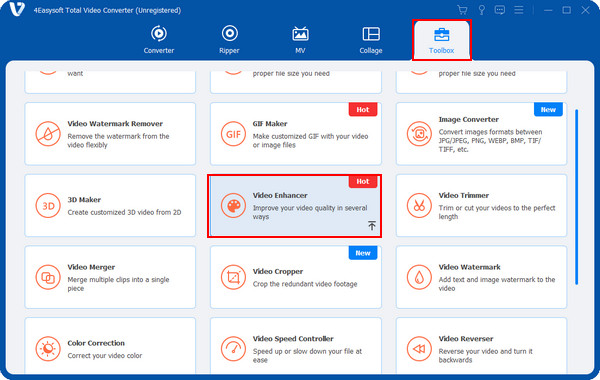
Step 1You have to download and install the program first, then launch it on your computer. Once you have launched it, go to its "Toolbox". Then, among the 20+ toolkits, select the "Video Enhancer" to upscale 720P to 1080P.
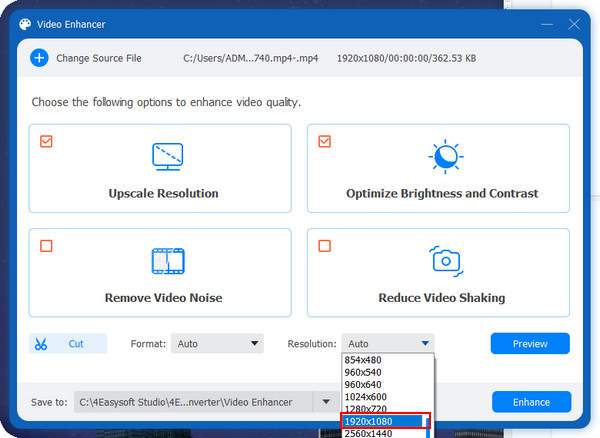
Step 2With AI technology of the program, you can improve the video quality with 4 aspects provided, these are: "Upscale Resolution, Optimize Brightness and Contrast, Remove Video Noise", and "Reduce Video Shaking". Click on the "Upscale Resolution" option.
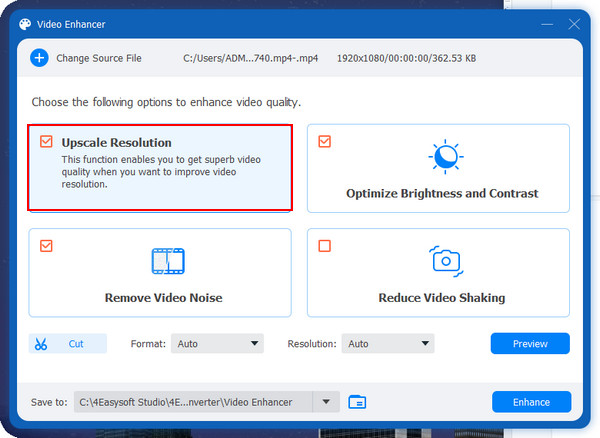
After that, on the drop-down menu of Resolution, select 1920x1080 to upscale 720P to 1080P. You can also select the format and the destination file.
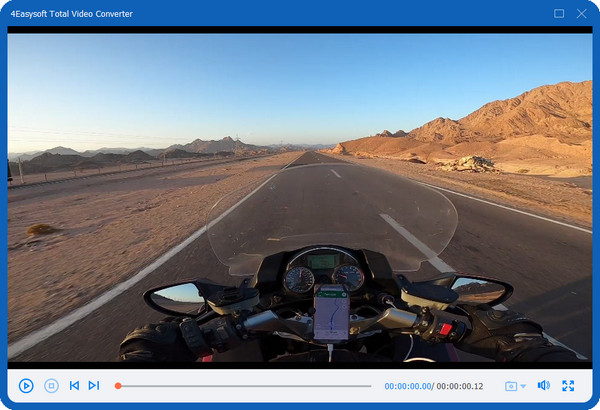
Step 3Before exporting, you can check the changes by clicking on the "Preview" button on the right side of the interface. Finally, hit the "Enhance" button once all the changes have been made.
Part 2: Steps on How to Convert 720p to 1080p with Adobe Premiere
After knowing the best program to upscale 720P to 1080P, another way to upscale is through Adobe Premiere. This software can be one of your best options if you are professional in upscaling video. With the timeline, editing tools, and tweaking video, you can upscale 720P to 1080P conveniently. Here are the steps for you:
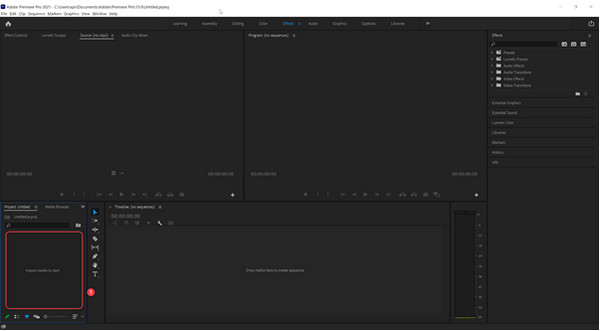
Step 1Download "Adobe Premiere" and complete the installation process. Then, launch the program once ready. Create a New Project, then double-click the "Import media to start" the panel to open the file you want to upscale.
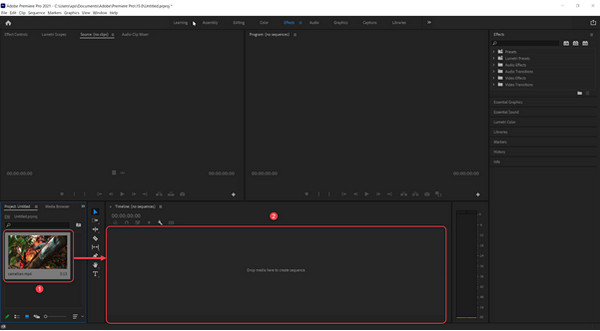
Step 2Add your video to the timeline, then drag and drop it in the "Drop media here to create a sequence" panel.
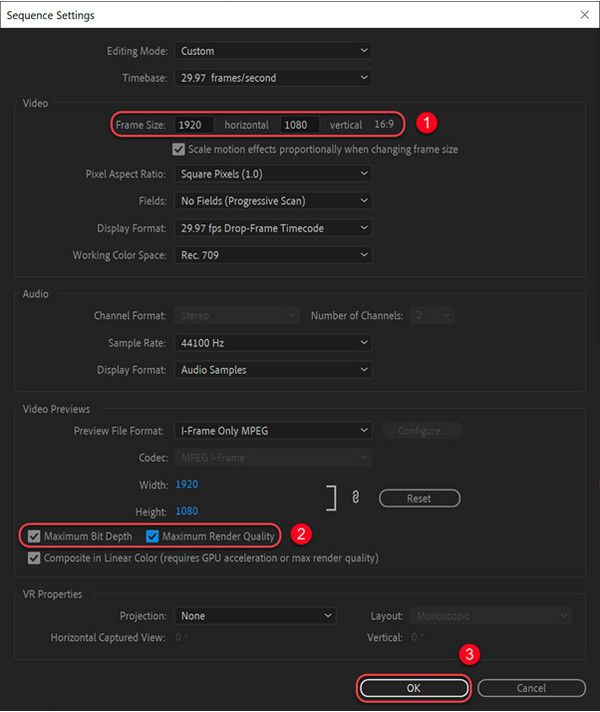
Step 3After adding it, go to the "Sequence", then click on the "Sequence Settings". Go to the Video section on the "Sequence Settings" window, then adjust the "Frame Size to 1920x1080". Please click the "checkbox" of "Maximum Bit Depth" and "Maximum Render Quality". Then, click the OK button to apply changes.
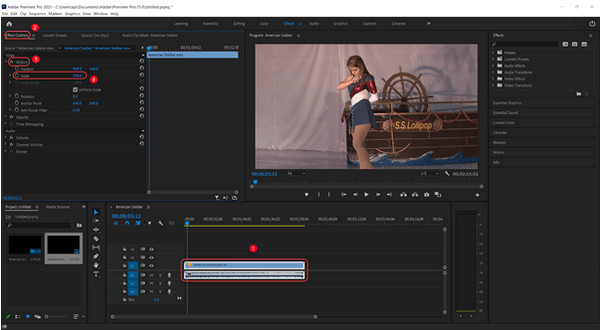
Step 4After upscaling videos from 720P to 1080P, click the video, activate the "Effect Controls", and expand the "fx Motion" under the "Video" section. Next, set the "Scale" to "200".
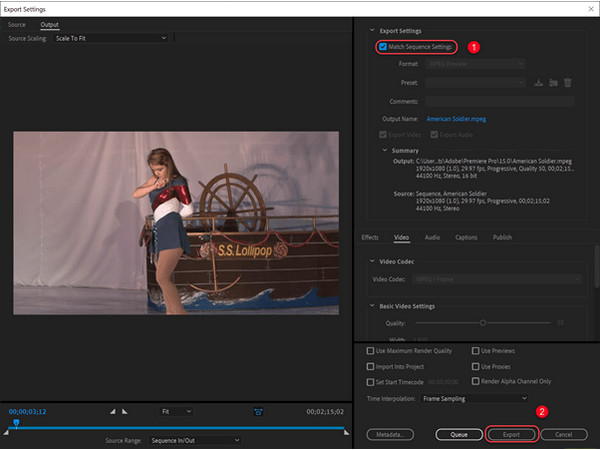
Step 5When satisfied with your work, click on the File menu, navigate to the "Export", and then click on the "Media" from its side-kick menu. In the pop-up window, ensure to click the "checkbox" of "Match Sequence Settings" then you’re ready to hit "Export".
Part 3: How to Upscale 720p to 1080p Online for Free
Aside from a program, you can also use an online tool to upscale 720P to 1080P. Start upscaling video online for free with FlexClip. This online tool helps users to convert videos to 1080P without downloading, and no installation is required. Unlike other online tools rich in ads, FlexClip lets you work without worrying about advertisements. You can also upscale videos without annoying watermarks. See below the detailed guide on upscale 720P to 1080P with FlexClip.
Step 1Open any web browser on your Windows PC or Mac computer, then search for "flexclip.com." On the main webpage, "drop" your video file or open it by clicking "Browse Video"
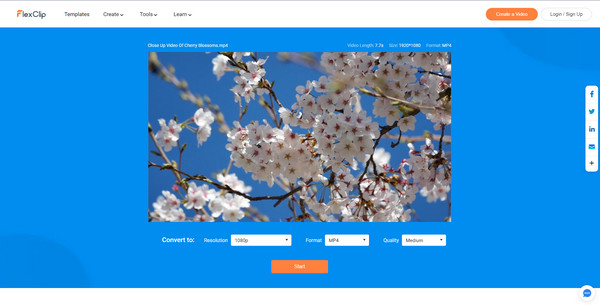
Step 2After that, in the editing window, you can set your preferred resolution, format, and quality level in the "Settings" section. To choose a resolution, click on the "Resolution" drop-down, then select "1080P". Next, navigate to the "Quality" drop-down menu and choose "High".
Step 3When you’re finished, click "Start", and the upscaling process will begin. Once it gets completed, click the "Free edit" to do further edits.
Part 4: Use HandBrake to Upscale 720p Videos to 1080p
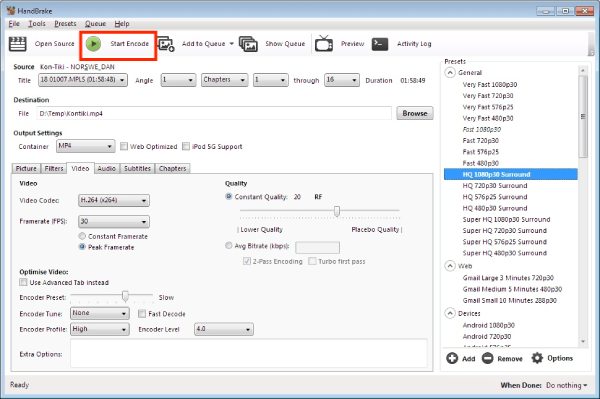
If you're looking for a free solution, HandBrake can handle some of these tasks. Essentially an open-source video transcoder, it can upscale 720p to 1080p by adjusting the resolution and optimizing the encoding. It's ideal for standardizing video specifications before uploading, while also enhancing visual quality through bitrate adjustments and filters.
Step 1After launching the software, click "Open Source" to import a 720p video file. Click "Dimension" and set the resolution to 1920×1080.
Step 2In the "Video" tab, configure the Video Codec by selecting H.264 or H.265, and adjust the Constant Quality or Average Bitrate to 8000–12000 kbps.
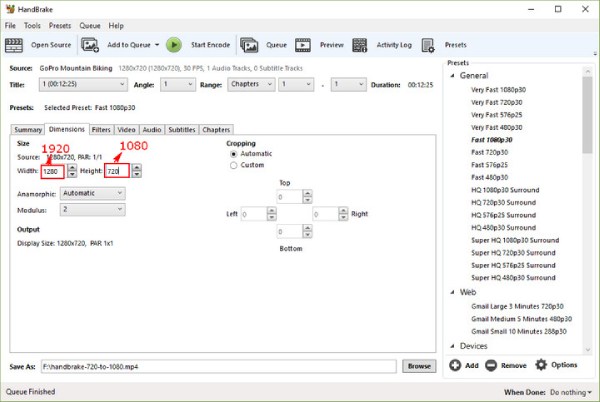
Step 3Click "Browse" next to "Save As" at the bottom, select the path where you want to save the output file, and enter a filename. Then click "Start Encode" to begin the conversion.
Part 5: Recommended Frame Rates and Bitrates for 720p to 1080p
1. Bitrate
Recommended: 8–12 Mbps (H.264)
For H.265: 6–8 Mbps
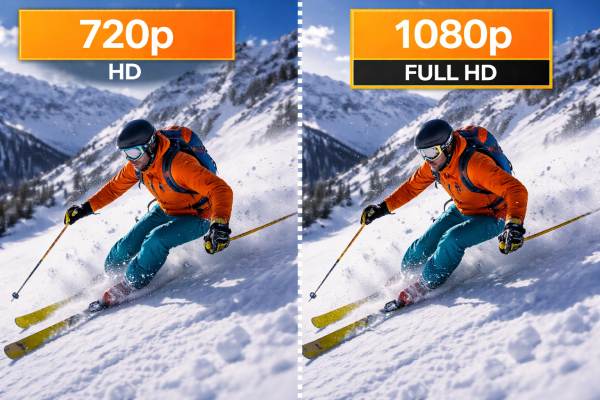
If you increase the resolution to 1080p, you must also increase the bitrate; otherwise, the video will appear blurry.
2. Frame Rate
Keep the original video’s frame rate. We do not recommend forcing a change from 30 to 60 fps.
Part 6: FAQs about How to Increase 720p to 1080p
-
How to use VLC Media Player to upscale 720P to 1080P?
Aside from being a famous media player, VLC can also assist in simple video upscaling. You don’t have to install any third-party program to help. Simply go to the Effect feature then you can get your upscaled video.
-
Can I convert 720P to 1080P using iMovie?
Unfortunately, iMovie doesn't allow you to export 720P into 1080P or higher. If you import a video file with 720P, the 1080P, and above will be out. However, iMovie is best in terms of quickly editing videos on Mac.
-
Why does simple upscaling 720p to 1080p look blurry?
Because simple scaling only stretches existing pixels instead of creating new detail. The player or encoder uses interpolation algorithms (like bilinear or bicubic) to fill in missing pixels. This process smooths edges and blends neighboring pixels, which results in a softer, slightly blurry image.
-
What Does ‘Upscaling’ Actually Do?
Upscaling improves perceived image quality by increasing resolution through interpolation algorithms (such as bilinear or bicubic) or AI models that analyze edges and textures to predict and fill in new pixels. However, its limitation is that it cannot recreate truly lost detail-upscaling only estimates and enhances visuals based on existing data, rather than restoring original information.
Conclusion
If you have reached this part, you surely know now how to upscale 720P to 1080P with the three ways mentioned. You can use FlexClip as your online upscaler without installation, and Adobe Premiere is also available. However, for a Mac and Windows user, it is best if you go to 4Easysoft Total Video Converter. Rich with editing functions, you can upscale your videos with high quality and make additional edits to have an appealing video.
100% Secure
100% Secure
