
Remove screen passcode, Apple ID, MDM and Screen Time from iPhone safely.

Practical Solutions to Removing MDM from Your iPhone

Posted by Alvin Cantero to iOS Unlocker May 19, 2026
Many users wonder how to remove MDM from an iPhone permanently if they are no longer part of that organization. It seems a complex task to remove MDM and regain full access to their iPhone for security, especially for beginners unfamiliar with system settings or administrative controls. In this guide, you will learn practical, accessible methods to safely and efficiently remove MDM from your iPhone.
Guide List
Things You Need to Know Before Removing MDM from iPhone A Default Method to Remove iPhone MDM Profile How to Remove MDM from Any iPhone Permanently Free iPhone MDM Removals for Business and SchoolThings You Need to Know Before Removing MDM from iPhone
Before attempting to remove MDM (Mobile Device Management) from an iPhone, it is necessary to first understand what MDM is for and its key features. In simple terms, MDM (Mobile Device Management) is used by various organizations, including companies, schools, or other organizations that need to manage a certain number of personnel, to manage device profiles. By installing MDM, they can exercise certain control over mobile phone activities and prevent the leakage of sensitive information or malicious network attacks. In summary, these are all measures taken to ensure the security of the institution.
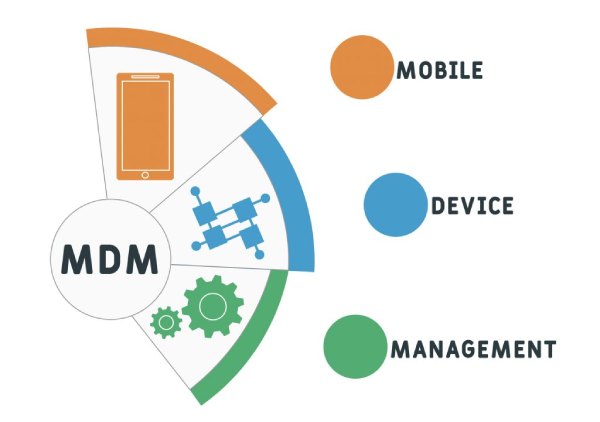
However, when you leave the organization but still retain the equipment, MDM profiles become quite troublesome. Due to its limitations, you cannot use it like a regular mobile phone because the settings of MDM profiles are not automatically removed when you leave. If you want to remove the MDM profiles on your iPhone, you will need a professional solution.
A Default Method to Remove iPhone MDM Profile
For devices with simple settings that a formal organization has not managed, you can remove the MDM profiles on iPhones directly in settings without installing any additional software. By navigating the settings, you can delete the MDM profile directly without using third-party tools, making it a simple, official solution for getting into a locked iPhone.
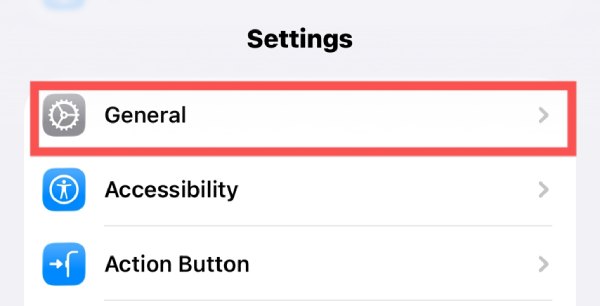
Step 1Open Settings on your iPhone and tap the "General" button to access a new page.
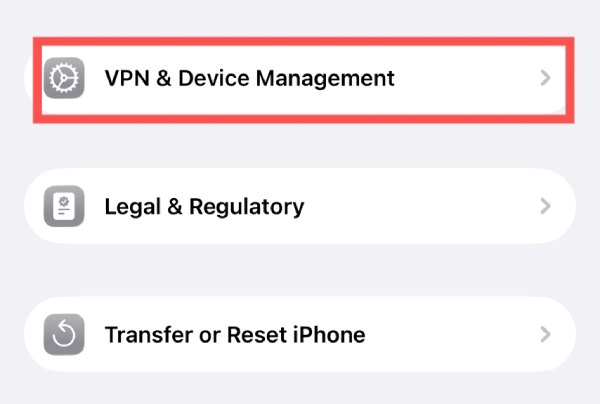
Step 2Scroll down and tap the "VPN & Device Management" button to proceed.
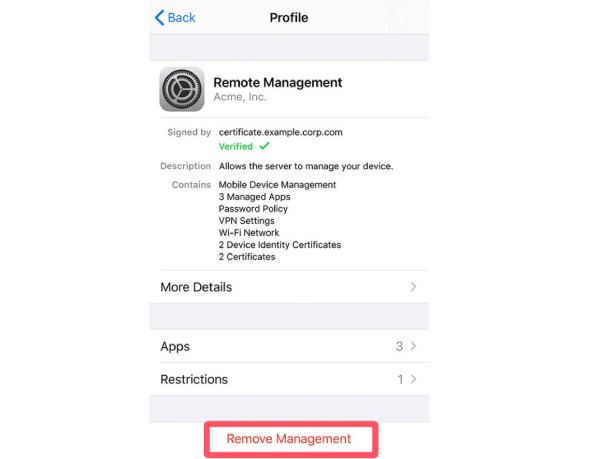
Step 3Tap to select the MDM profile to adjust the settings. To remove MDM from the iPhone, tap the "Remove Management" button.
How to Remove MDM from Any iPhone Permanently
If you don't know how to resolve the issue, 4Easysoft iPhone Unlocker can help you permanently remove MDM from your iPhone. This specialized tool has implemented a dedicated mode to remove MDM profiles, enabling rapid elimination of their effects. With this tool, you cannot only restore your phone to normal operation but also protect your privacy from potential monitoring by the previous organization.
Remove MDM profiles from organizations without admin credentials.
Disable MDM controls while keeping all data on your iPhone.
Remove the MDM lock from a work or school device without a trace.
Bypass the MDM restriction on iPhone without damaging the security.
100% Secure
100% Secure
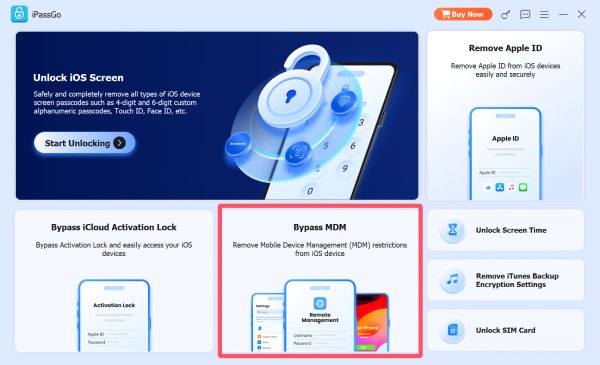
Step 1Use a USB cable to connect your iPhone to the computer. Launch 4Easysoft iPhone Unlocker and click the "Bypass MDM" button.
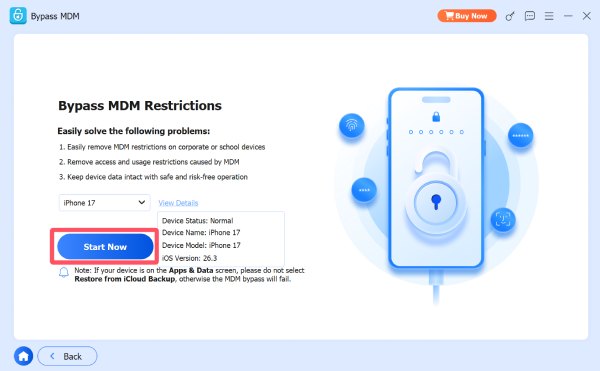
Step 2In the pop-up window, put your mouse on the "View Details" button to check the information. Then, click the "Start Now" button.
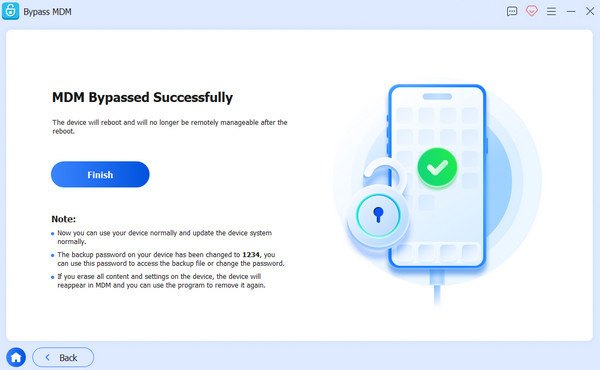
Step 34Easysoft iPhone Unlocker will remove MDM from your iPhone automatically after a short time of processing.
Free iPhone MDM Removals for Business and School
For devices still linked to organizations, removal often needs to be handled through platforms like Apple Business Manager or Apple School Manager. These systems allow administrators to manage and bypass MDM on iPhones properly. If you have access to the administrator account or can contact the organization, this method ensures a legitimate and complete removal without risking device functionality.
Step 1Navigate to the official website of Apple Business Manager or Apple School Manager based on your organization.
Step 2Log in with the Apple ID that you use on your iPhone. Then, click the "Devices" button on the left panel.
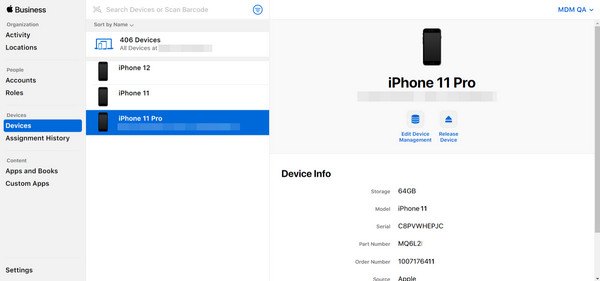
Step 3The information about the MDM profile will be listed. You can click the "Release Device" button to remove MDM from your iPhone.
Conclusion
In conclusion, removing MDM from an iPhone requires a clear understanding of the device's management status and the available methods. For iPhones that are no longer under the management of the manufacturer, you can solve this problem directly in the settings. For those devices that cannot be separated from the previous organization's management, you can also seek the assistance of professional tools. Following the instructions using 4Easysoft iPhone Unlocker, you can safely remove MDM and regain full access to your iPhone.
100% Secure
100% Secure
