
Reliable video converter, editor, and compressor for daily tasks.

A Comprehensive Guide: How to Remove Logo from Videos

Posted by Aira Lesly Escoto to Edit Video/Audio Jun 09, 2026
"How to remove the logo from a video" is a problem that many people find quite challenging. As the content is overlaid on the video, it is a rather complicated process to remove it completely without leaving any trace. But don't worry. This post will introduce a series of effective methods to help you remove the logo. If you want to remove the logo from a video easily, start reading this post right now.
Guide List
Things You Should Know Before Removing a Logo from Videos The Most Powerful Tool to Remove Logos from Videos How to Remove Logo from Video in Premiere Pro A Quick Solution to Removing a Logo from Videos Online Reliable Mobile Apps to Remove Logo from Videos for FreeThings You Should Know Before Removing a Logo from Videos
Before starting to learn how to remove logos from videos, it is helpful to understand some information related to the process. Generally speaking, some common logos are placed in the corner area of the video, without disturbing the viewing experience. In this situation, all you need to do is use simple tools and operations to directly remove them from the corners of the video without affecting the visual appeal of the video itself.

However, for some more complex watermarks, they are irregularly distributed in different areas of the video. This not only affects the normal viewing of the video but also makes the task of removing logos from videos much more complicated. In this situation, some ordinary tools won't be able to assist you. Only some reliable tools that can remove logos from videos using AI can handle such complex tasks.
The Most Powerful Tool to Remove Logos from Videos
Whether it is dealing with simple or complex logos, 4Easysoft Total Video Converter can complete the task excellently with almost no trace left. When you use it to remove the logo from videos, you can specifically define the area that contains the logo. Then, the AI model will automatically analyze the entire area and identify the logos that are incompatible with the scene. It will help you remove the logo as much as possible without affecting the overall visual effect of the video. The operation method is very simple. You can quickly complete this task by following the steps below.

Quickly remove logos by dragging the frame to select the desired area.
Freely crop your video and drag the frame where the logo is placed.
Allow you to add an image watermark so that you can cover the logo.
Provide you with a preview to check all changes you have made.
100% Secure
100% Secure
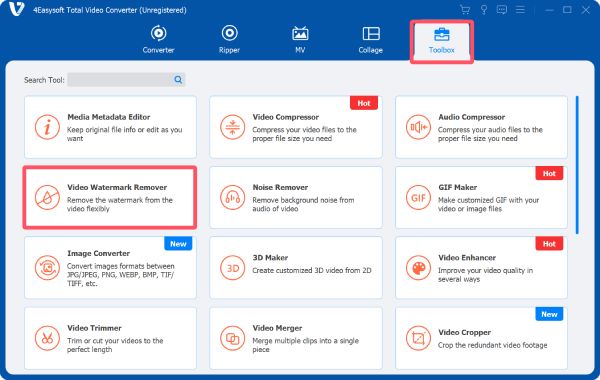
Step 1Launch 4Easysoft Total Video Converter and click the "Video Watermark Remover" button under the "Toolbox" tab.
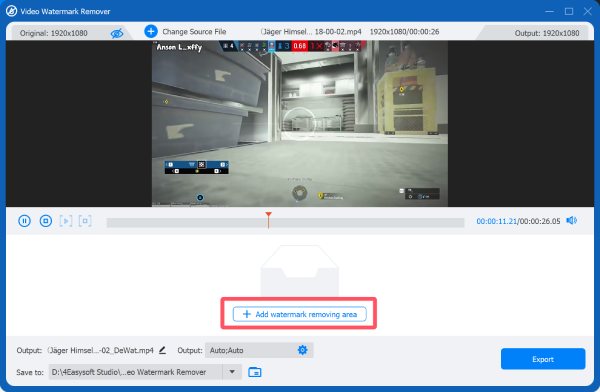
Step 2After importing the video file by clicking the "Add Files" button in the pop-up window, click the "Add watermark removing area" button.
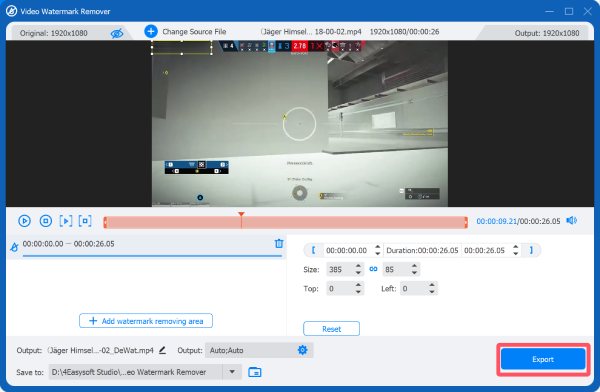
Step 3Now, you can select the area to remove the logo from the video. Finally, click the "Export" button.
How to Remove Logo from Video in Premiere Pro
If you have any knowledge about video processing and editing, then you surely won't be unfamiliar with Adobe Premiere Pro. As a professional tool that has been popular for many years, this video editing software with no watermark can also help you remove logos from videos by applying specific effects and adjusting precise parameters. If you have indeed purchased a license but are unsure about how to proceed, you can quickly complete this task by following the steps below.
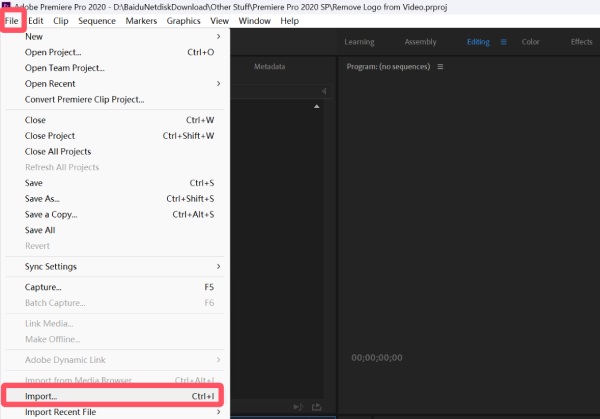
Step 1After creating a new project, click the "Import..." button under the "File" tab to import the video with the logo.
Step 2Drag your video into the timeline. Then, create a copy of the video and drag it above.

Step 3In the left panel, under the "Opacity" tab, click to select the tool of a desired shape.

Step 4Now, you can adjust the position and the shape of the selected area to cover the logo precisely.
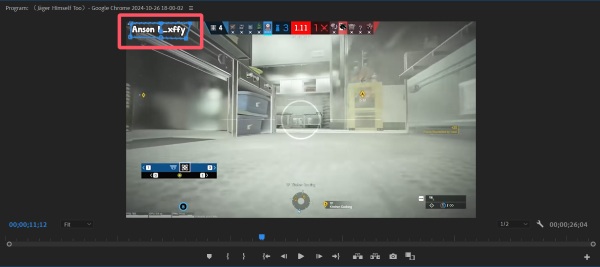
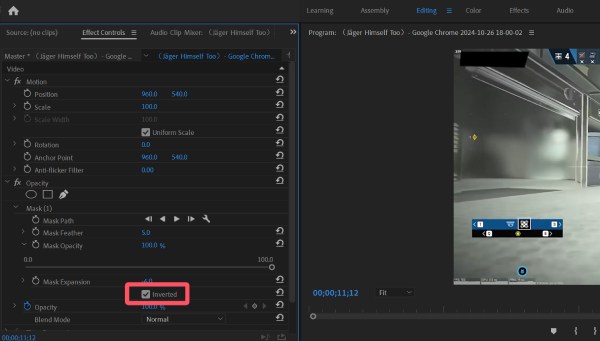
Step 5After clicking the "Inverted" button, adjust the opacity to remove the logo from the video the way you want.
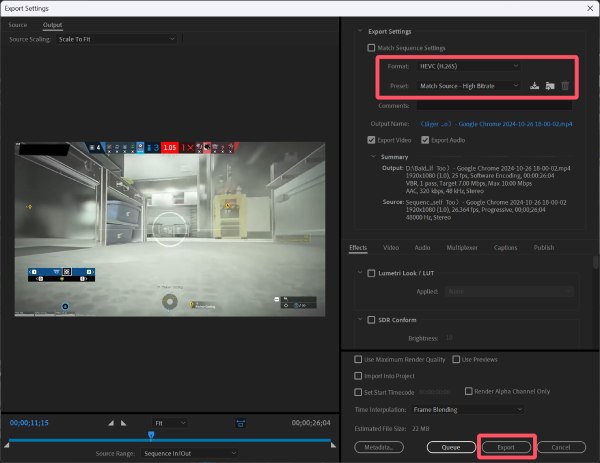
Step 6Click the "Export" button under the "File" tab. You can decide the output format. Finally, click the "Export" button.
A Quick Solution to Removing Logo from Videos Online
Although online tools cannot handle large video files, if you happen to have short or small-sized video files at hand, choosing a web-based tool to remove logos from videos online is also a good option. Although its processing capacity is limited, which may not be able to completely remove the watermark, it still provides a very convenient and efficient way to help you remove the watermark from the video.
Step 1Navigate to the official website of 123 Online Video Cutter and click the "Choose Files" button to upload the video file.

Step 2Click to select the area that contains the logo you want to remove from the video. Click the "Apply" button to proceed.
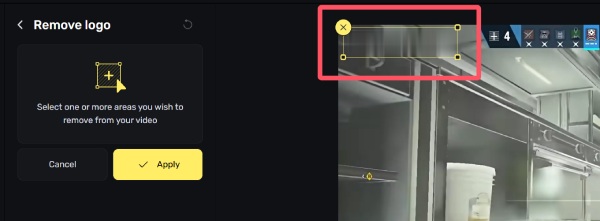
Step 3Finally, click the "Export" button to export the video and save it on your device.

Reliable Mobile Apps to Remove Logo from Videos for Free
So, is there a way to allow you to remove the logo from videos on the mobile device? This section provides you with solutions for both the Android platform and the iPhone platform. Although their effectiveness is not particularly good, they can still help you complete some basic watermark removal tasks without a computer.
[Android] Remove Logo
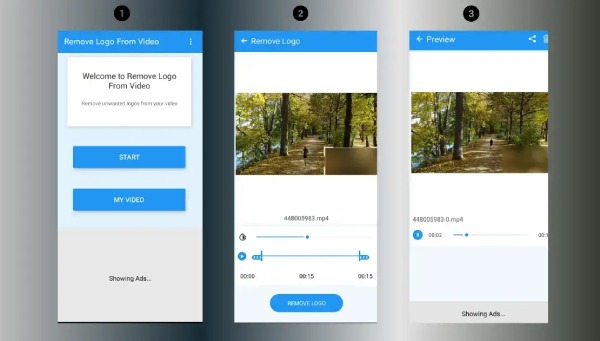
For Android users, using Remove Logo to remove the logo from videos is a good choice. Just as the name of the software indicates, it can help you deal with some simple cases where watermarks are attached to the edges of the video.
Step 1Launch Remove Logo on your Android device and tap the "Upload" button to upload your video file.
Step 2Tap the "Remove Logo" button and select the area that contains your logo to remove from the video.
Step 3Finally, tap the "Share" button at the top of the screen to share it directly or save the output video on your device.
[iPhone] Photos App
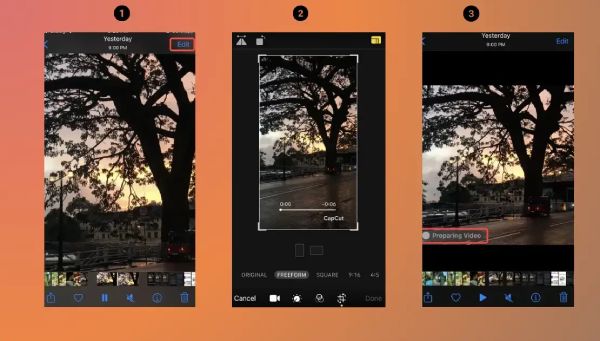
If you are using an iPhone and want to remove the logo from videos, the easiest way is to open the Photos app and directly cut out the watermark at the edge of the video.
Step 1Launch the Photos app on your iPhone and select the desired video. Then, tap the "Edit" button.
Step 2To remove the logo from the video, tap the "Crop" button to remove the part that contains the logo.
Step 3Finally, tap the "Done" button to save the video as a new one on your iPhone.
Conclusion
Removing logos from videos may present different levels of difficulty, depending on the type of watermark you encounter. However, this post offers you a variety of different solutions to help you deal with different types of watermarks on various devices. After learning these methods, you can quickly restore a good visual presentation effect for your videos. If you need to handle complex watermarks, then you can download and try 4Easysoft Total Video Converter for free right now.
100% Secure
100% Secure
