
Fix 150+ iOS system problems without data loss.

No Sound on iPhone? 5 Causes and 4 Proven Fixes Here!

Posted by Alvin Cantero to iOS Recovery Feb 09, 2026
Missed an urgent phone call? Perhaps you can't hear your morning alarm. Whatever that is, a no sound on iPhone problem is a headache where you can't hear anything, despite turning the volume up. While you may think of going to the nearby Apple Store, these audio problems can occur due to many reasons that can be fixed with simple tweaks. Today's guide explores five of the main reasons alongside four effective ways to fix iPhone sound not working. Bring the volume back!
Guide List
Five Possible Reasons Why Your iPhone Has No Sound Turn off iPhone's Mute or Focus Mode Check Bluetooth and Headphone Connections Clean the Speakers and Earpiece, or Restart the iPhone Use Professional Tools to Fix iPhone No Sound BugsFive Possible Reasons Why Your iPhone Has No Sound
Before anything else, for fixing iPhone no speaker sound, it will be helpful if you understand what might be causing the silence. Here are the five most common culprits:
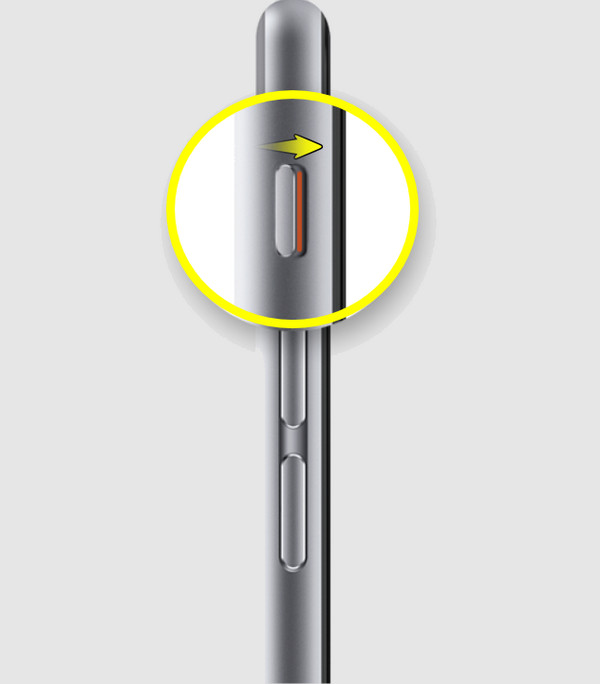
- 1. Your iPhone is in Silent Mode. The Ring/Silent switch on the side of your iPhone might be flipped to orange.
- 2. Stuck in Headphone Mode. The iPhone incorrectly thinks headphones or earphones are plugged in because of software errors or debris.
- 3. Focus Mode or Do Not Disturb. When your device is in DND mode, notifications and calls are silenced.
- 4. System Software Bugs. Sometimes, a temporary glitch in your system is preventing the audio driver from working correctly.
- 5. Bluetooth Interference. Your iPhone audio is being routed to a pair of headphones, a speaker, or AirPods you forgot were connected.
Turn off iPhone's Mute or Focus Mode
Usually, the solution for the iPhone suddenly has no sound issue is as simple as a tap on the screen. Besides the on-screen feature, the iPhone has a physical mute switch that can be easily toggled by accident, which makes your iPhone quiet. Sometimes you just forgot that you muted a video before. Also, it has Focus modes that silence your device during certain times of the day. Checking them both first will make sure you aren't going through some complicated situation.
Step 1On the left side of your iPhone, check the Ring/Silent switch. If you see the orange line, flip it toward the screen.
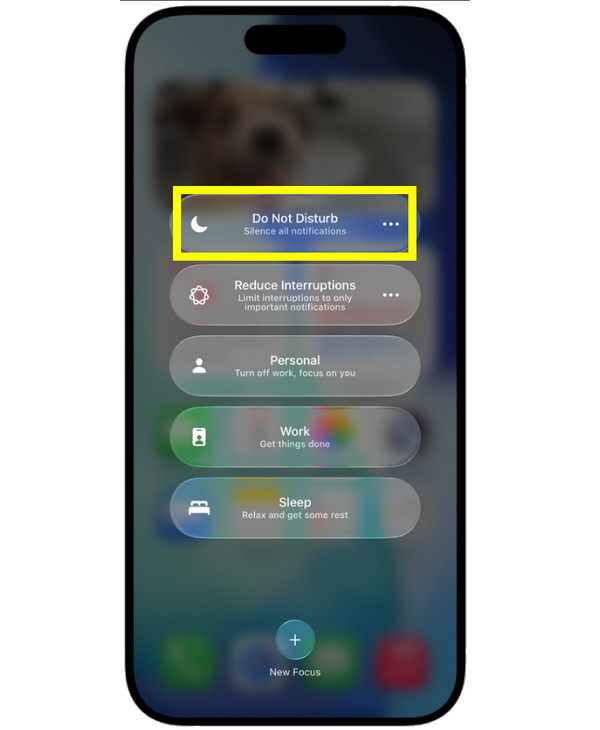
Step 2To check the Focus mode, access the Control Center by swiping down from the top-right corner.
Step 3Tap the Focus button (Moon icon) to turn off any active profile.
Check Bluetooth and Headphone Connections
Moving forward, your iOS device might really be playing the sound perfectly, just not through its own speakers. If your Bluetooth is activated, there's a possibility that a speaker or headphones are paired with it. This connection redirects all audio output away, so you may think you have no sound on iPhone. Checking the output source is a crucial step to getting back the audio on your device.
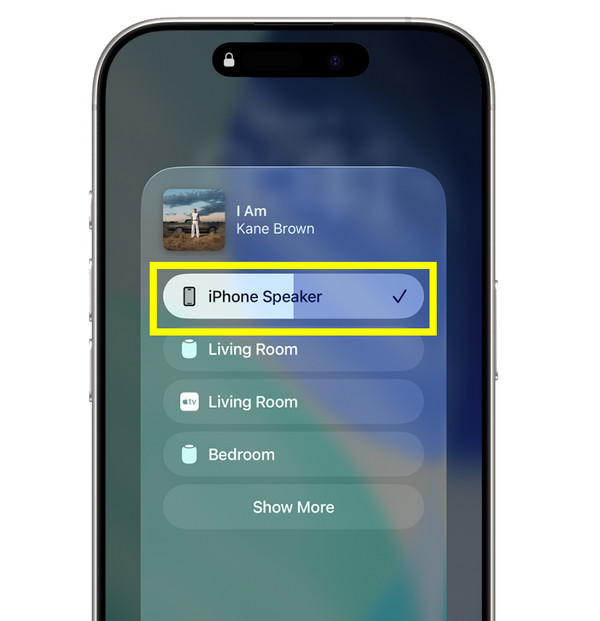
Step 1Open the Control Center and tap the AirPlay icon in the music playback box.
Step 2Then, make sure the iPhone is picked as the playback device.
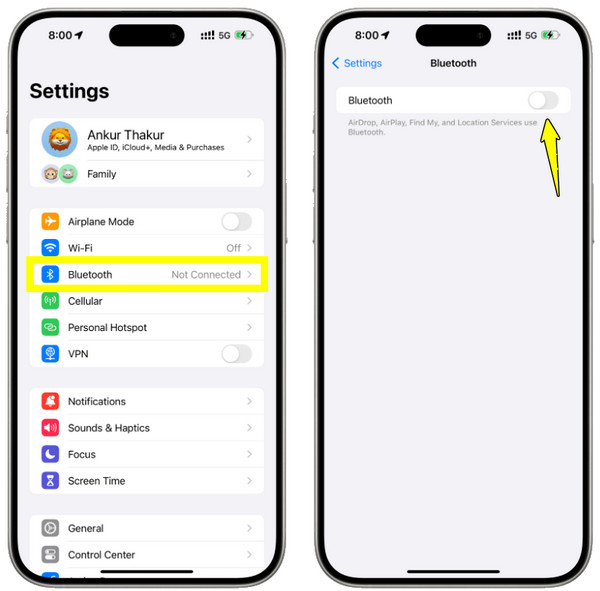
Step 3Otherwise, head to Settings, then Bluetooth. There, ensure the switch is toggled off to get the audio back to the iPhone.
Step 4Also, unplug any accessories that affect the output audio to fix sound functionality on iPhone.
Clean the Speakers and Earpiece, or Restart the iPhone
Suppose your settings are just set correctly, but still have no sound on iPhone issues. Physical debris or minor system glitches may be the cause of the problem. Over time, dust can pack into the speaker grilles, affecting the sound output. However, if the speaker looks clear, then frozen audio might be the issue. Here's how to address iPhone won't play audio problems: (Also see solutions to fix iPhone text sound not working.)
Step 1Get a soft brush to gently clean the debris out of the speaker grilles. Don't use any sharp metal objects that can damage it.
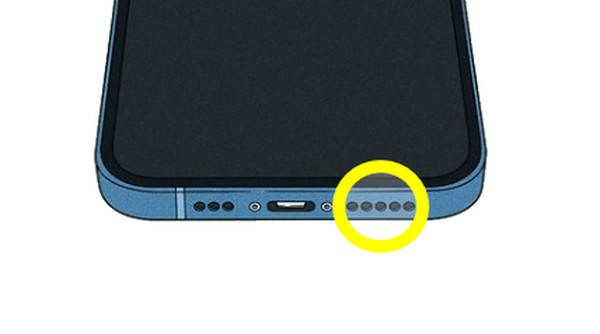
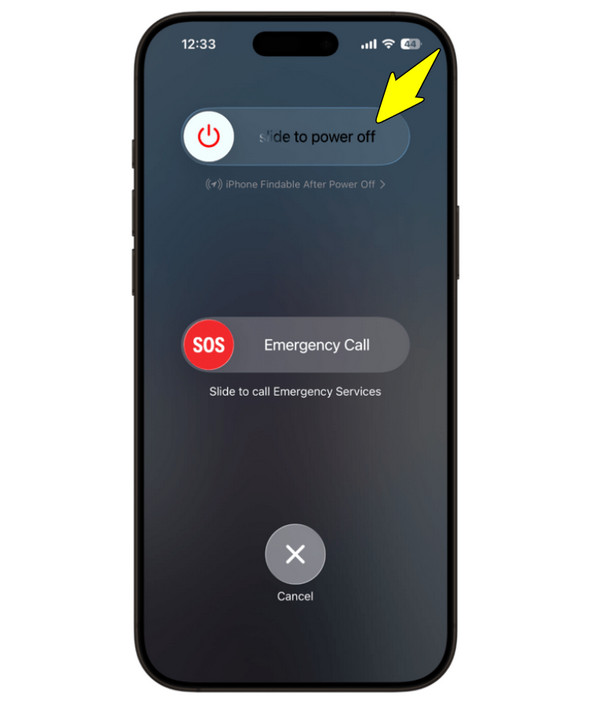
Step 2For the frozen audio problem, restart your iPhone by pressing and holding the Power button and either the Volume button until the slider appears
Step 3Slide to power off, then wait for a while before turning it back on.
Use Professional Tools to Fix iPhone No Sound Bugs
When manual troubleshooting fails to fix no sound on iPhone during calls or media playback, the problem may lie deep within the iOS system. For this, using 4Easysoft iOS System Recovery is much better to get rid of stubborn software bugs that cause sound failure. Unlike the other standard factory reset, this tool targets the root cause of the silence without affecting your existing data. It features a streamlined experience for all your iPhone system errors, whether the sound fades after an update or due to system glitches.
Resolves audio glitches, frozen displays, black screen issues, and more.
Offers a Standard Mode for data-safe repairs and an Advanced Mode for deeper fixes.
Smart detection to pinpoint and fix hidden errors affecting the audio.
Optimized for all the latest iPhone models and all versions of iOS.
100% Secure
100% Secure
Step 1Launch 4Easysoft iOS System Recovery on your computer. Connect your iPhone to it using a high-quality USB cable. Once the program detects your device, select iOS System Recovery, and click the Start button.
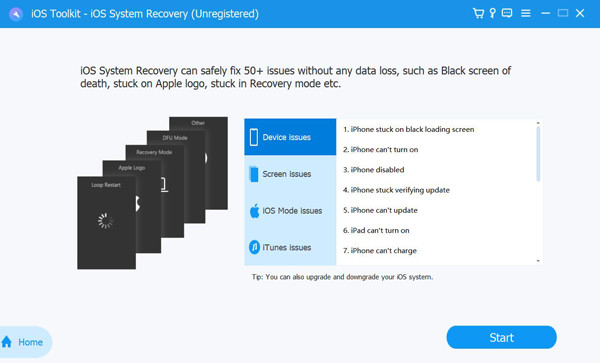
Step 2An automated scan will be performed to identify the bug causing the audio loss. Select Fix to move to the mode selection screen.
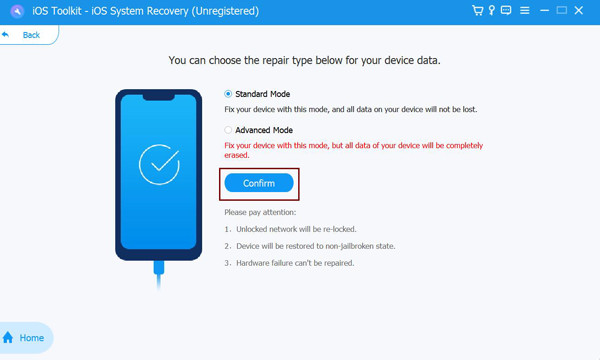
Choose Standard Mode to fix no sound on iPhone issues while keeping your data. If the problem is severe and persistent, aim for Advanced Mode for a deeper system fix, but you will lose your data. Click the Confirm button to lock in your choice.
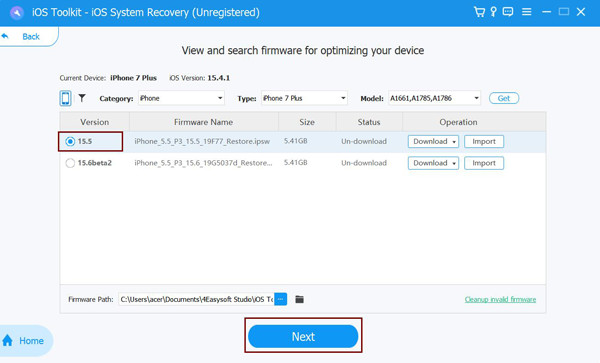
Step 3Check the device model and version shown on the screen. Download the one that is suggested, and once it finishes, click the Next button. The program will start refreshing and eliminating the bugs from your iPhone that are causing sound issues.
Conclusion
Facing a sudden no sound on iPhone issue is a major disruption. But as you've explored today, solutions are just a few taps away! After knowing the five common reasons, you've learned that a simple flip on the mute switch, checking the Bluetooth connections, and more quick tweaks can eliminate the problem. However, after doing all that and still having the iPhone sound not working issue, get 4Easysoft iOS System Recovery to get rid of the iOS system bugs. This tool deeply scans your system for errors and repairs them without risking your precious data. With this software, a minor glitch won't turn into a severe hardware headache.
100% Secure
100% Secure
