
Fix 150+ iOS system problems without data loss.

Why Your iPhone 17 Camera Shakes and How to Fix It

Posted by Alvin Cantero to iOS Recovery Sep 23, 2026
"After this update (iOS 15.7.2), the camera has a strange behavior of shaking, making most of the pictures blurry without focus. The same happens on recorded video. Any solution?" - from Apple Community
"Why is my iPhone camera shaking?" Many iPhone users complained that their iPhone camera shook after the update to iOS 15.7.2, which is a software issue. If you can ensure that your iPhone is not broken, then restoring your iPhone may solve this simple software problem. Besides that, a dirty lens and interference from external factors will also cause your iPhone camera to shake. Don't worry; This article will show you the possible reasons and how to fix this problem.
Guide List
The Reasons Why Is Your iPhone Camera Shaking Fix iPhone Camera Shaking with iOS System Recovery 6 Workable Methods to Fix Your Shaking iPhone Camera FAQs about iPhone Camera ShakingThe Reasons Why Is Your iPhone Camera Shaking
There are software issues and physical problems that may cause your iPhone camera to shake.
Physical Problems
If your camera lens gets dirty and the dust enters the camera's placement, your camera will be unstable. Sometimes, your iPhone's gyroscope gets affected, then the camera and the location features may also not work well.
Software Problems
But there's more chance that your iPhone camera shakes because of software problems. Sometimes, a newer iOS version may generate bugs to make your iPhone camera start shaking. If you usually install apps from unknown sources, your iPhone may accelerate more bugs. However, the software problems may be easier to solve. You can use the powerful program below to remove them with only one click.
Fix iPhone Camera Shaking with iOS System Recovery
If you've cleaned the lens, removed a metal case, restarted your iPhone, and updated to the latest iOS, but your camera is still shaking, the cause may be a deeper software glitch that a normal update didn't fully clear. In that case, 4Easysoft iOS System Recovery can reinstall your iPhone's system files to remove corrupted data left behind by a bad update. Not needing a full restore through iTunes or Finder.

Fix potential iOS system glitches safely.
Offer Standard Mode for common system problems.
Provide Advanced Mode for more serious issues.
Work on all iPhone models and iOS versions.
100% Secure
100% Secure
Step 1Connect your iPhone
Open 4Easysoft iOS System Recovery on your computer. Connect your iPhone with a USB cable. Tap the "Trust" button on your iPhone if prompted.
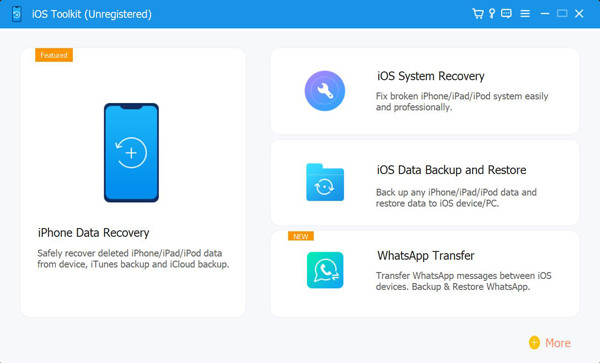
Step 2Choose iOS System Recovery
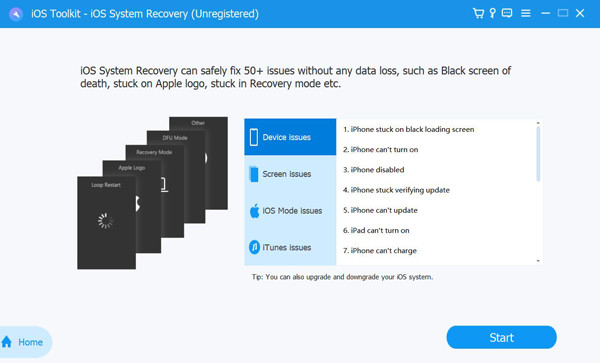
Click the "iOS System Recovery" button from the main interface. Then click the "Start" button to let the program detect your iPhone and display its device information.
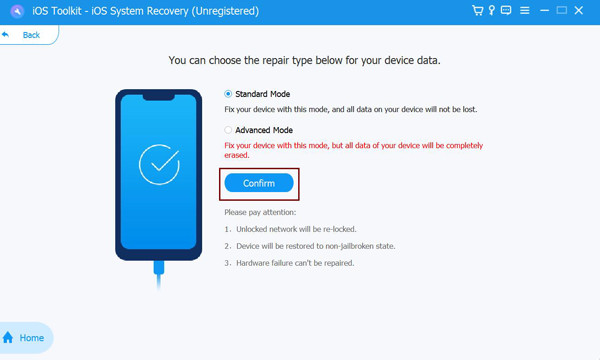
Step 3Select a repair mode
Choose "Standard Mode" first if you suspect a normal iOS system glitch. The "Advanced Mode" is intended for more serious system problems.
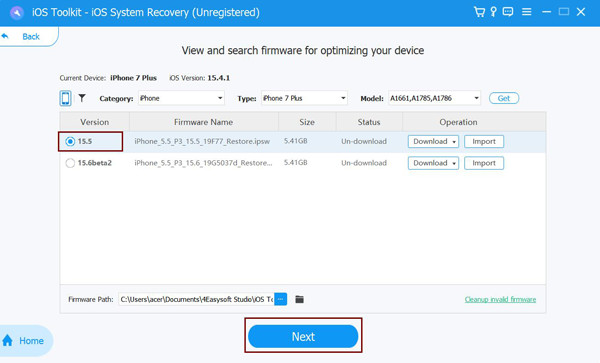
Step 4Download the firmware
Check the detected iPhone model and select the appropriate firmware package. Click the "Download" button and wait for the firmware to finish downloading. Later, click the "Next" or "Repair" button to start the recovery process.
Step 5Test the camera
After the process finishes, disconnect your iPhone and open the Camera app. Test the rear and front cameras to see whether the iPhone camera shaking problem has been resolved.
6 Workable Methods to Fix Your Shaking iPhone Camera
If you don't want to install a program on your PC, you can also modify some settings on your iPhone to find a way out. However, it's like finding a needle in a haystack. The specific cause of your shaking iPhone camera is really hard to find out.
1. Lock Your Camera in Settings
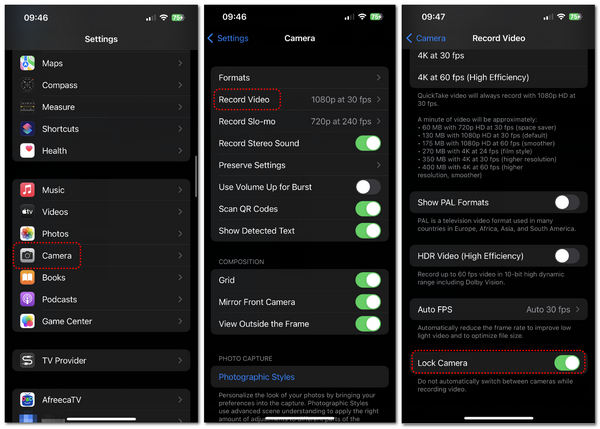
If your iPhone has 2 or more rear cameras, the Lock Camera feature can avoid automatically switching between cameras. Therefore, you won't encounter a false focus or inconsistent picture size while recording a video. This may help you fix the shaking iPhone camera.
Step 1Open the "Settings" app on your iPhone. Slide down to tap the "Camera" button. Here, you can check all the features of the camera on your iPhone.
Step 2Tap the "Record Video" button, and then tap the "Lock Camera" button.
2. Clean Your iPhone Camera Lens
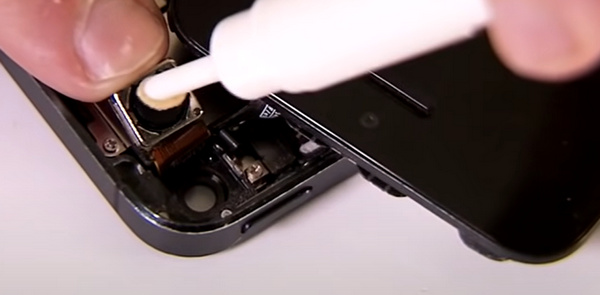
Your iPhone camera may shake if the lens gets dirty. You can clean the lens with a soft lint-free cloth (microfiber). If cleaning the lens housing doesn't help, you'd better clean inside the lens with the help of a repair shop or AppleCare.
3. Remove the Case of Your iPhone
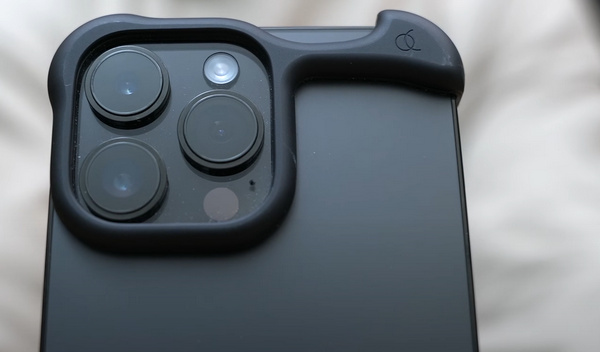
Sometimes, the gyroscope may be influenced by a metal iPhone case, which will cause the iPhone camera to be unstable. If your iPhone case is also made of metal, you'd better remove it or change to a case made of other materials like PU plastic and liquid silicone.
4. Restart Your iPhone
When it is not a physical problem on your iPhone, you can also try restarting it to fix the shaking camera.
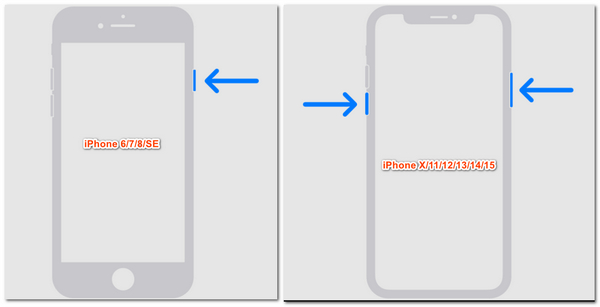
For iPhone 6/7/8/SE models with a home button, press and hold on to the "Power" button until the "power-off" slider appears. Drag the slider to shut down your iPhone. After about 30 seconds, press and hold on to the "Power" button again to turn it on.
For iPhone X/11/12/13/14/15 models, you should press and hold on to either volume and the "Power" buttons to unlock the "power-off" slider and then do it again to turn it on.
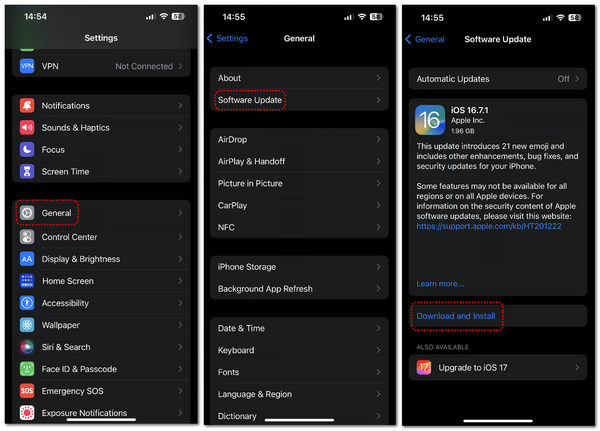
5. Upgrade Your iOS System
If your iPhone camera still shakes after you restart it, you can upgrade your iOS system version. Some users reported camera problems after specific iOS updates, including iOS 15.7.2. So you can update your system version to clean the errors and unlock the "Continuity Camera" feature.
Step 1Go to the "Settings" app. Tap the "General" button. Tap the "Software Update" button. You can wait for your iPhone to check for available updates.
Step 2You can see your available newer iOS system. You can tap the "Download and Install" button.
6. Resort to Your Nearby Apple Provider
If all the methods above can't solve your shaking iPhone camera, what you can do is only ask your nearby Apple provider or AppleCare for help. You should know that all products from famous or small brands can't ensure a hundred percent yield. It's rare but sensible that your iPhone's camera shakes because it is not a good product. Therefore, it's time for the after-sales services to make a difference.

FAQs about iPhone Camera Shaking
-
How do I record videos on my iPhone camera without shaking?
Some tips may help. You'd better hold your iPhone with two hands. Also, you'd better tuck in your elbows against your body, such as your ribs. In this way, you can keep a perfect balance.
-
How can I prevent my iPhone camera from shaking when I zoom in?
This is inevitable. You'd better move closer to the object and zoom in towards the wide angle to reduce the shaking.
-
Can vibrations cause my iPhone camera to shake?
Yes. Great vibrations (like motorcycle vibrations) can damage an iPhone camera. Therefore, it's best to keep your iPhone away from great vibrations.
-
Can I use a video editor to reduce the video shakes from my iPhone camera?
Yes. Professional video post-production programs like Premiere Pro can easily do this. It has the effect of reducing video shakes.
Conclusion
You can try many methods to fix your iPhone camera shaking. However, most of them are just trials. 4Eaysoft iPhone Data Recovery won't waste your time, for it can fix all your iOS system errors and change your iOS system to fix your shaking iPhone camera eternally. Then, you can take good photos or videos again.
100% Secure
100% Secure
