
Remove screen passcode, Apple ID, MDM and Screen Time from iPhone safely.

How to Unlock iPhone Without Passcode or Face ID [5 Ways]

Posted by Paula Pailaga to iOS Unlocker Jan 08, 2026
Locked out of your iPhone? This can be frustrating, especially when the lock code slips from your mind, or you are unable to detect Face ID after many attempts. How to unlock iPhone without passcode or Face ID, then? Luckily, you are not completely out of options. This guide shares five easy and reliable ways to get into a locked iPhone without passcode or Face ID, from official Apple solutions to trusted tools. Get back to using your device with no stress today!
Guide List
Effective Methods to Unlock iPhone without a Passcode or Face ID TikTok-Popular Method to Unlock iPhone without Face ID or Passcode Unlock your iPhone without Face ID or Passcode with Finder or iTunes Unlock your iPhone by Entering DFU Mode Use the "Find My iPhone" Feature to Unlock your iPhoneEffective Methods to Unlock iPhone without a Passcode or Face ID
Being locked out of your iPhone happens due to forgotten passcodes, unresponsive Face ID, or repeated failed attempts. So, for a fast, safe, and hassle-free solution to open a locked iPhone without passcode, Apple ID, or resetting, here's 4Easysoft iPhone Unlocker for you. This unlocking software is made specifically to help you regain access to your iPhones even when the passcode is forgotten or the Face ID stops working. Furthermore, it stands out with its user-friendly interface, making even those non-techy users unlock iPhone with just a few clicks. With its stable performance and high success rate, the software is an ideal first choice to remove various lock types, from passcodes and Touch ID to Face ID.
Removes all types of iPhone locks, like digit passcodes, Face ID, and Touch ID.
Fully compatible with iPhone models and supports the latest iOS versions.
Delivers a high unlocking success rate while keeping the process secure.
Unlock a disabled or locked iPhone with high success rate.
100% Secure
100% Secure
Step 1Launch 4Easysoft iPhone Unlocker on your computer. Choose the "Wipe Passcode" button from the home screen. Ready a USB cable to link your locked iPhone to this computer. Follow the on-screen guide to detect iPhone content on desktop.
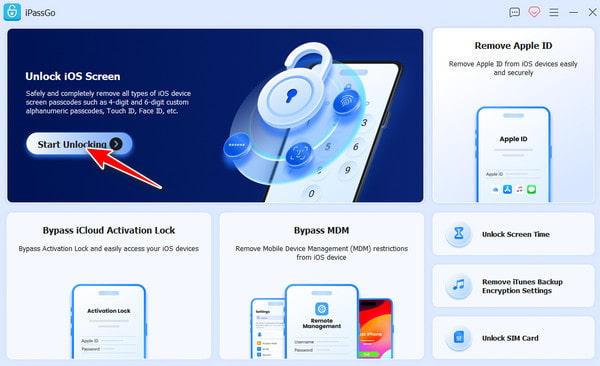
Step 2Your iPhone's device details will show up on the screen. Review all information to ensure everything is correct, then click "Start" again to download the matching firmware needed for iPhone unlocking.
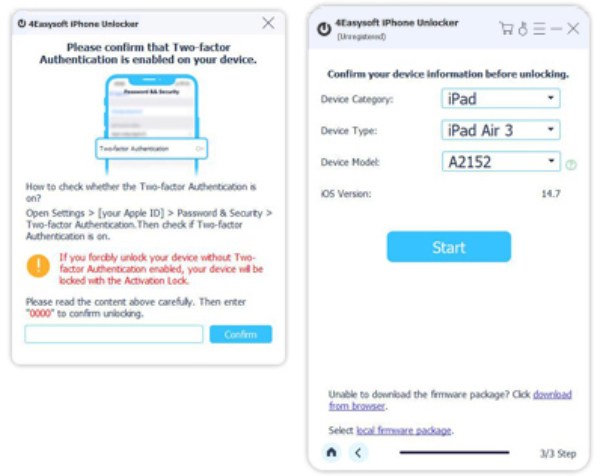
Step 3Check the warning message cautiously, then type "0000" to verify. Click the "Unlock" button. It takes within 2 minutes to unlock an iPhone without a passcode.
100% Secure
100% Secure
TikTok-Popular Method to Unlock iPhone without Face ID or Passcode
Moving on to a less common way to unlock iPhone passcode without computer or Face ID. There are TikTok videos that claim to unlock iPhones with emergency tricks, which may involve features like Emergency Call, Control Center, or Voiceover. While it can be brilliant, it is not officially supported and may rely on specific iOS bugs that Apple quickly resolves.
Step 1From the lock screen, open the "Control Center" by swiping down or swiping up. There, turn on "Airplane Mode" to disable all connections.
Step 2Then, go to the "Calculator" app, flip your device horizontally to access "Scientific calculator mode". Try typing a sequence like "7 + 4 + EE = 280,000".
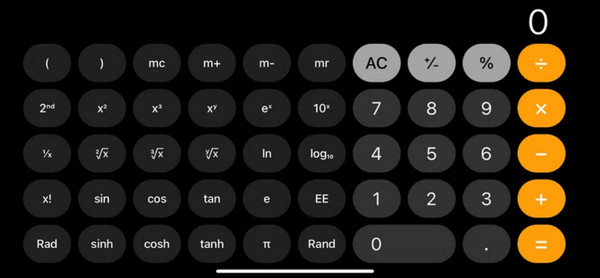
Step 3After that, swipe up on your screen again, and see if it takes you to your home screen without a passcode.
Unlock your iPhone without Face ID or Passcode with Finder or iTunes
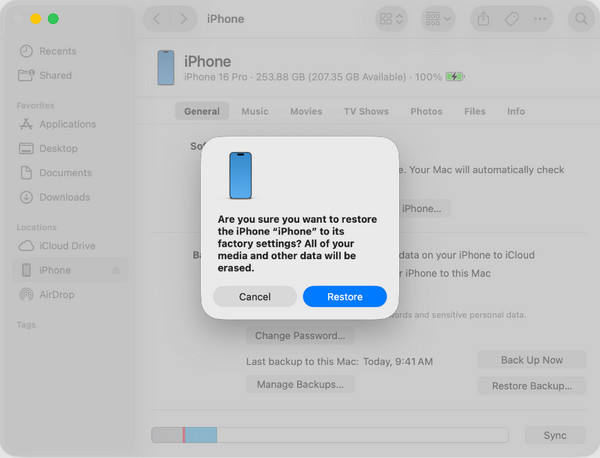
You can also use Finder (on macOS Catalina and later) or iTunes (on Windows or older macOS) can unlock a locked iPhone without passcode or Face ID. This solution works by restoring your iPhone, so keep in mind it may erase all data unless you have a backup.
Step 1Shut off your iPhone completely. Put your device into "Recovery Mode" by pressing the "Power" button (Volume Down button for iPhone 7 models and Home button for iPhone 6s and earlier).
Step 2Now, plug your device into the computer, and launch Finder/iTunes.
Step 3There, click on your device icon and select "Restore" when you see a pop-up. Wait for the process to finish.
Unlock your iPhone by Entering DFU Mode
For a deeper system-level unlocking, DFU mode or Device Firmware Update mode is another option to crack an iPhone passcode without Face ID. This method goes beyond Recovery Mode and reinstalls the firmware from the beginning, removing stubborn locks. Doing so is more technical and should be used carefully, as incorrect steps may cause problems.
Step 1Pair your iPhone with your computer. Then, open Finder or iTunes, and turn off your iOS device first.
Step 2Enter the DFU mode with the following steps.
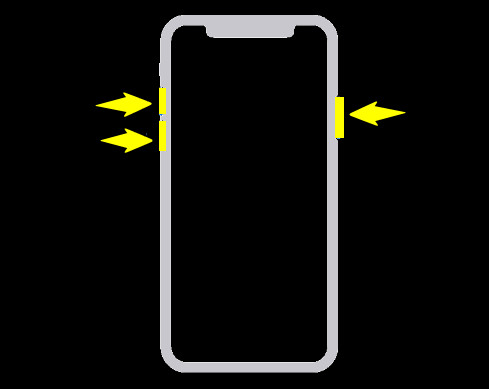
iPhone 8 and later models: Quickly press and then release the "Volume Up" and then the "Volume Down" buttons. Press and hold the "Power" button until the screen turns black.
Next, press and hold the "Volume Down" button while holding the Power button. After just 5 seconds, release the "Power" button and keep holding the "Volume Down" button until it is in DFU mode.
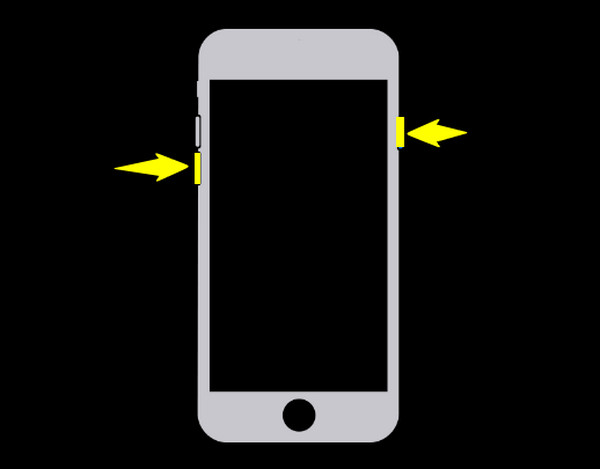
iPhone 7/7 Plus models: Press and hold the "Power" button and "Volume Down" together. Keep them both on hold for 8 seconds, then release the "Power" button, and keep holding the "Volume Down" for 10 seconds until the screen remains black, and enter the DFU mode.
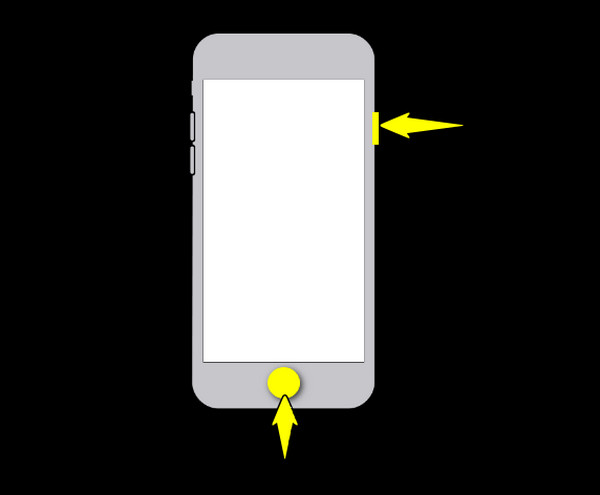
iPhone 6s and earlier models: Press and hold the "Home" and "Power" buttons. Hold both for 8 seconds, then release the "Power" button, but keep the "Home" button on hold for 10 seconds until the screen goes black and enters the DFU mode.
Step 3Once the Finder and iTunes detect it, choose "Restore" and wait for the installation to bypass iPhone passcode.
Use the "Find My iPhone" Feature to Unlock your iPhone
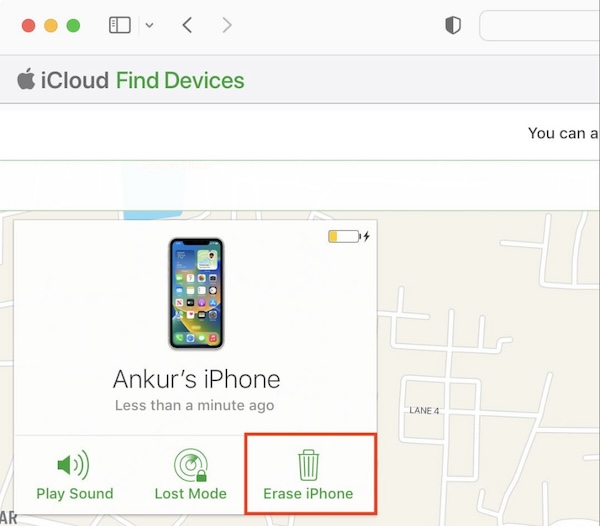
Finally, if you previously turned on the Find My iPhone feature, you can unlock iPhone without a computer or Face ID remotely via iCloud. Using this solution is convenient even if you don't have quick access to your iPhone, but remember your Apple ID credentials. However, just like the previous method, this will erase your device and successfully eliminate the passcode.
Step 1Open iCloud.com on your chosen browser. Then, sign in with the Apple ID associated with the locked iPhone.
Step 2Head towards "Find Devices" and select your iPhone.
Step 3Click "Erase iPhone" on that page and confirm your choice.
Step 4Once erased, set up your iOS device as new or restore from a backup.
Conclusion
Getting locked out of your iPhone does not have to mean panic or permanent data loss. As you've seen here, there are five effective ways to unlock iPhone passcode, from Apple solutions to more advanced system-level tools. But among all the options, 4Easysoft iPhone Unlocker stands out as a reliable solution. Thanks to its high success rate, broad device compatibility, and straightforward process that removes all iPhone locks, it is the best method to quickly regain access to your iPhone.
100% Secure
100% Secure
