
Capture screen, system sound, microphone, and webcam on Windows and Mac without lag.

No Record Button? 3 Ways to Record Audio on Google Slides

Posted by Ethan Brooke to Record Audio Mar 13, 2026
Building a stunning deck in Google Slides, but you don't know how to record your voice to guide the audience? Whether you're a teacher or a student, narration or audio adds personality that text alone cannot provide. How to record audio on Google Slides? While it lacks the one-click recording feature, this post breaks down three ways to record and add audio in Google Slides using desktop recorders and web-based tools. Get an immersive slideshow experience here.
Guide List
Record Audio on Google Slides for Both Microphone and System Sound Use ChromeMP3 to Record Google Slides Audio [Only Chromebook] Use Online Voice Recorder to Record Audio on Google SlidesRecord Audio on Google Slides for Both Microphone and System Sound
If you need a robust solution that captures both your narration and the background music from your computer, 4Easysoft Screen Recorder is your best bet! It is a versatile tool that handles high-quality audio and video capturing without the lag found in browser-based tools. Using it, you can toggle between your microphone and system audio, ensuring your voiceover sounds wonderful while any visuals are also captured clearly on screen. Furthermore, it features basic editing tools that let you trim out mistakes or dead air before finalizing the audio recording in Google Slides. With all these capabilities, you don't need to search for more for recording audio on Google Slides.
Record mic and system audio at once without affecting quality.
Export audio recording for Google Slides in multiple formats like MP3, AAC, M4A, etc.
Built-in mic and noise cancellation for clearer narrations.
Scheduled recording for a specific time to start and stop your capture.
100% Secure
100% Secure
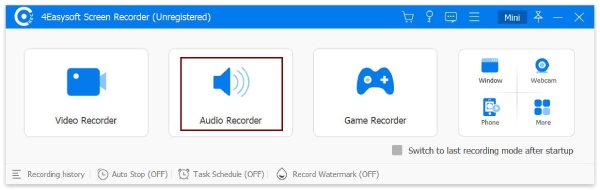
Step 1Open 4Easysoft Screen Recorder on your computer, then choose the "Audio Recorder" mode on the main screen.
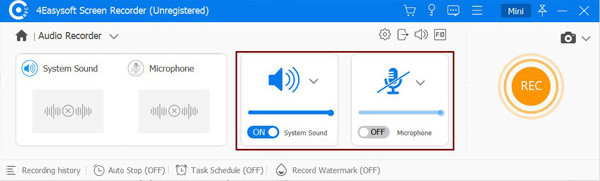
Step 2Toggle the "System Sound" switch ON if you wish to record from your computer, like background music, and make sure the "Microphone" switch is ON too for your voice.
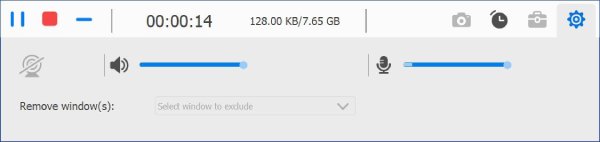
Step 3Then, click the "REC" button to record your voice and start presenting your Google Slides. During recording, you can adjust the system sound and microphone volume.
Step 4Once finished, click the "Stop" button. Now, use the preview window to listen to your audio recording, trim your clip, and save it as an MP3 file by clicking the "Save" button (Floppy Disk icon).
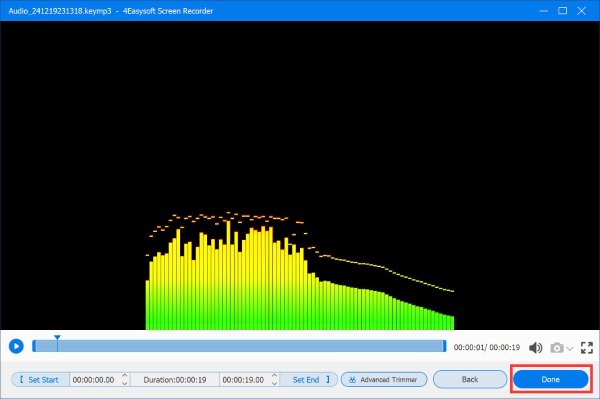
Step 5In Google Slides, hover over the "Insert" and then choose "Audio", select your audio recording file from your Google Drive, and click "Select" to insert audio into a google slide.
100% Secure
100% Secure
Use ChromeMP3 to Record Google Slides Audio [Only Chromebook]
You might prefer a tool for recording audio in Google Slides that runs in your browser, especially if you're using a Chromebook. Here's ChromeMP3 Recorder for you! It is a lightweight extension that works directly with your Google ecosystem. Since it saves files directly as MP3s, you will not have to worry about compatibility issues that sometimes trouble other formats. It has a simple three-step workflow that fits perfectly into a busy setting. You can use ChromeMP3 and other video slideshow makers together to create your first slideshow.
Here's how to record audio slide by slide using ChromeMP3:
Step 1From the Chrome Web Store, add the "ChromeMP3 Recorder". Then, start the app in your Chromebook's App Launcher or Chrome toolbar.
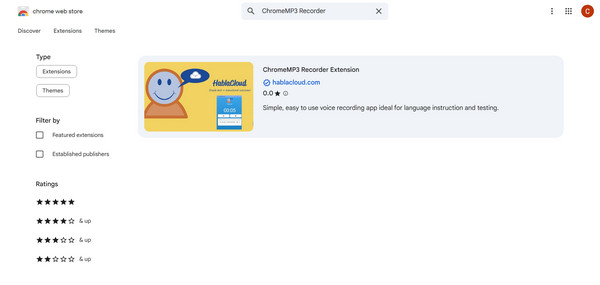
Step 2Next, click the "Record" button and start speaking your Google Slides notes clearly. Later, click the "Stop" button when finished, and the app will prompt you to save it.
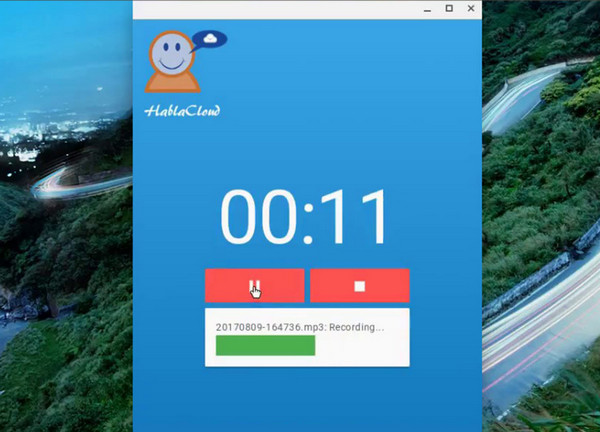
Step 3At this point, choose "Google Drive" as your destination path to ensure the audio recording file is available for Google Slides.
Step 4Then, go to your slide now, click "Insert", then "Audio", and select the file in your Drive.
Use Online Voice Recorder to Record Audio on Google Slides
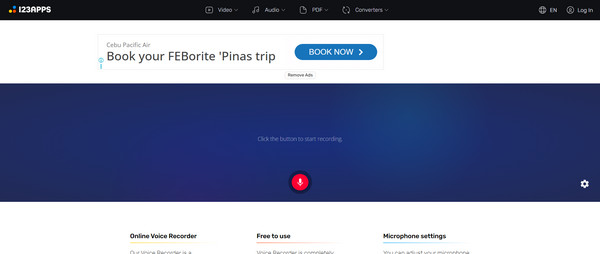
Don't wish to install anything to record your voice on Google Slides? A web-based recorder is the most convenient, quick approach available. One of the solutions that works without needing an account is the Online Voice Recorder. Its interface is clean and simple, focusing entirely on recording your voice from your mic. Plus, it offers an auto-trim feature that detects and removes dead air at the beginning and end of your audio recording.
Step 1Search for the Online Voice Recorder leading site. Once in there, click the "Microphone" icon and grant permissions for websites to access your mic.
Step 2Begin speaking your slide notes and click the "Stop" button when you're finished.
Step 3Then, use the sliders to cut any silences, and then click the "Save" button.
Conclusion
Now, you can make sure your Google Slides presentation is not just seen, but truly heard! In each of the tackled methods, you can learn how to record audio and voiceover on Google Slides, depending on your comfort level and specific goals. But remember that audio quality is as important as visual quality, so to ensure a crystal-clear recording, use the 4Easysoft Screen Recorder. This audio recorder captures microphone narration alongside system audio in lossless quality, making it the perfect companion for creating professional-grade presentations with great ease.
100% Secure
100% Secure
