
Record, edit, and share video from all sources.

How to Record a Podcast? A Step-by-Step Guide for Beginners

Posted by Paula Pailaga to Record Video Dec 31, 2025
To record a podcast, having a clear idea, the correct format, and a proper setup is necessary, besides simply turning on a microphone. Whether it is an audio-only show or a video podcast, many starters struggle to start because they skip the required steps. Therefore, in this complete guide for podcast recording, you'll learn everything you need to start, such as selecting a format, some recommendations, etc. By the end, you can record a podcast with confidence.
Guide List
Define the Concept of Video Podcasting Before Recording Select Your Preferred Video Podcast Format Record Video Podcasts Using All-in-one Recording and Editing Software Video Podcasting Equipment and Location RecommendationsDefine the Concept of Video Podcasting Before Recording
Before recording a podcast, clearly spell out what your video podcast is all about. Video podcasting mixes audio with visual elements. So, you can connect with your intended audience on a deeper level. Having a well-defined concept allows you to shape your content, maintain consistency, and stand out in the podcasting world.
Here are the following elements you have to decide in advance, prior to starting a podcast recording.
- • Main topic. Select a specific area to avoid unfocused content.
- • Podcast purpose. Clarify the reasons for creating a video podcast, such as for education, interviews, entertainment, etc.
- • Podcast style. Decide whether the podcast will be casual, professional, educational, or conversational.
- • Visual approach. Determine how visuals will be connected to your message.
- • Episode length. Decide how long each episode will be and how frequently you will publish.
Select Your Preferred Video Podcast Format
Now that you have defined your video podcast concept, the following steps for making a podcast are to choose a format that best fits your style and audience expectations. See below the most common video podcast formats you can choose from:
- 1. Solo video podcast. A host speaks to the camera for commentary, storytelling, or educational content.
- 2. Interview-style podcast. The host and guest use Q&A sessions, talks, or expert insights.
- 3. Co-hosted podcast. Two or more hosts share the computer screen for natural conversations and discussions.
- 4. Screen-sharing podcast. Combines webcam with tutorials, slides, or demonstrations.
- 5. Panel discussion podcast. Several participants discuss a topic together, perfect for debates.
- 6. Remote video podcasts. Hosts and guests record from various locations with online recording tools.
Record Video Podcasts Using All-in-one Recording and Editing Software
Once you have decided on your podcast concept and format, it's time to record a podcast using reliable. Choose 4Easysoft Screen Recorder as your podcast recording software. You can record screen, webcam, system audio, and microphone audio at the same time. Thus, you can record non-camera podcasts and screen-based conversations. Also, it offers real-time drawing and annotation tools, which are helpful in highlighting points during recording.
Record a podcast and video at the same time.
Select audio recording sources from system and microphone audios.
Real-time annotations and basic editing tools are offered.
Supports high-quality output, such as HD and 4K video podcast recording.
100% Secure
100% Secure
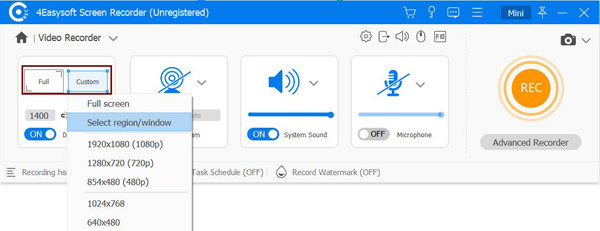
Step 1Open 4Easysoft Screen Recorder. You will be in the default "Video Recorder" mode. Set the recording area as "Full" or "Custom" area based on your need.
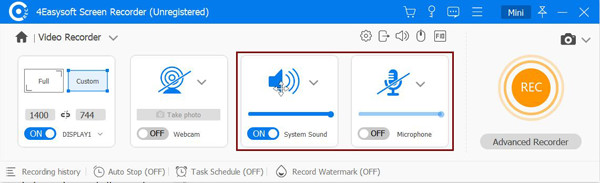
Step 2Turn on "System Sound" if your video podcast includes computer audio, such as clips or a guest. Meanwhile, enable "Microphone" to add your voice clearly. Adjust the audio settings to balance system audio and mic input for clean, professional podcast sound.
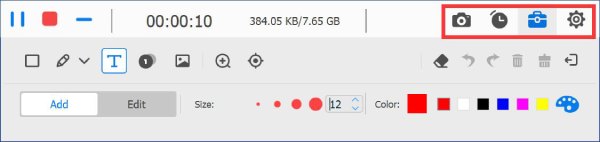
Step 3Click the "REC" button to start video podcast recording. Use on-screen annotation tools to highlight key points or visuals while recording.
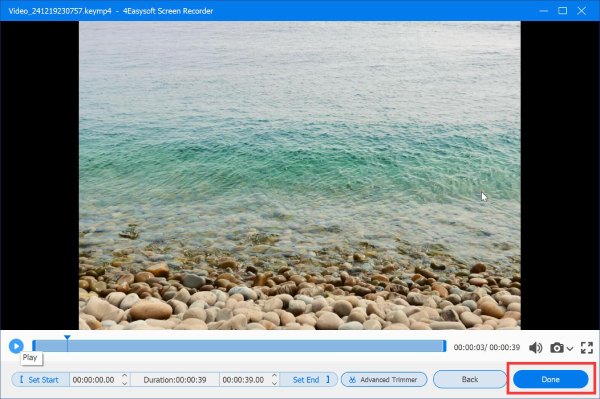
Step 4When you're finished, click the "Stop" button to end the video podcast recording. Here, in the preview window, you can review the content and edit unwanted sections. If everything looks great, click the "Save" button to export your podcast episode.
Video Podcasting Equipment and Location Recommendations
While the correct video podcast recording software is crucial to make the video podcast recording workflow very easy, setting up your recording and environment can dramatically improve the quality of your podcast. Check out the essential recommendations for you to produce consistently.
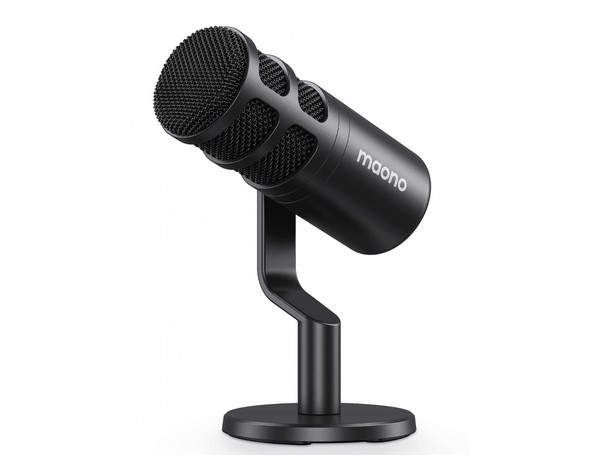
• Microphone. A good quality USB or XLR mic is needed to capture clear, professional audio. Popular choices here include dynamic mics.
- • Headphones. To monitor audio quality and catch issues like background noise, closed-back headphones are suggested.
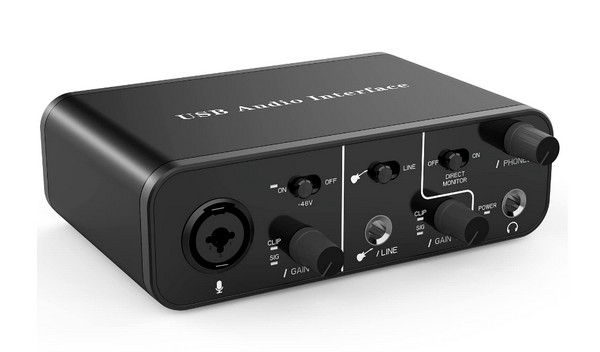
- • Audio Interface. If you’re using an XLR mic, get an audio interface to pair it to your computer and control gain levels.
- • Camera/Webcam. A high-definition webcam enhances visual quality for video podcasts.
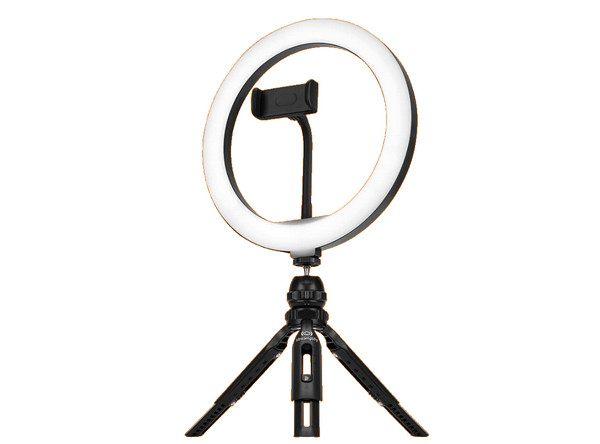
- • Lighting. Ring lights or LED panels can reduce shadows and improve video clarity.
- • Pop Filter. These accessories minimize plosives and help deliver a smoother, more professional sound.
- • Mount. To prevent shaky footage, use a mount to stabilize your camera/webcam.
- • Quiet Room. As for location, choose a room that is far from background noises.
- • Clean Background. A neutral backdrop will make your video podcast recording more professional and keep viewers’ attention on you.
- • No Interruptions. Ensure you record during quieter times of the day to avoid the interruptions from outdoor noise, people, pets, etc.
Conclusion
That's how to record a video podcast! Doing so becomes much easier and more effective with this guide's simple, step-by-step approach. From defining your content, setting your desired podcast format, and using reliable software to record video podcasts, you can produce episodes that are engaging and enjoyable for your audience. To simplify the record process and achieve high-quality results, just use 4Easysoft Screen Recorder. You can record podcast video and audio along with webcams in one stop. The built-in video trimmer, merger, and converter can simplify the podcast editing process effectively.
100% Secure
100% Secure
