
Rip DVD to MP4 (H.264/HEVC) and other popular formats with Original Quality

How to Copy a DVD on Mac: A Beginner-Friendly Guide

Posted by Paula Pailaga to Rip DVD Oct 10, 2026
If you want to know how to copy a DVD on a Mac, then you’ve come to the right place. After testing, this post provides 4 practical ways to get a copy of your DVD quickly. From built-in tools to customized solutions, you can always find the way that meets your requirements. Once you get the copy on Mac, you can freely enjoy the DVD content without a physical disc. Start reading now to copy a DVD to a DVD on a Mac with easy ripping methods.
Guide List
Disk Utility: A Built-in Tool to Copy a DVD on Mac How to Copy a DVD on Mac with All Original Content How to Copy a DVD on Mac Separately Using HandBrake A Quick Way to Copy DVDs on Mac in Full without TitlesDisk Utility: A Built-in Tool to Copy a DVD on Mac
For those searching for how to duplicate a DVD on a Mac using a default method, this section provides detailed steps. As a macOS-exclusive software, Disk Utility is pre-installed on your Mac. You can use this tool to handle most disk-related tasks. Once you insert the DVD into your Mac, it will be recognized as an external disk device. Since the DVD has now become a disk, Disk Utility will handle the copying smoothly. You can easily copy and back up a DVD on your Mac following the detailed steps below.
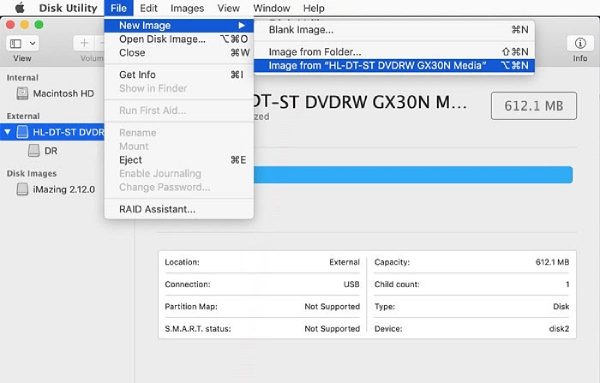
Step 1Launch Disk Utility after inserting the DVD into your Mac. Under the “File” tab, click the “New Image” button and then the “Image from...” button.
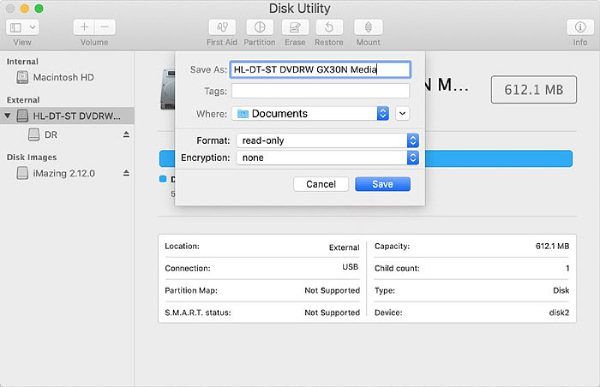
Step 2A new window will pop up, allowing you to customize the detailed file information. Once finished, click the “Save” button.
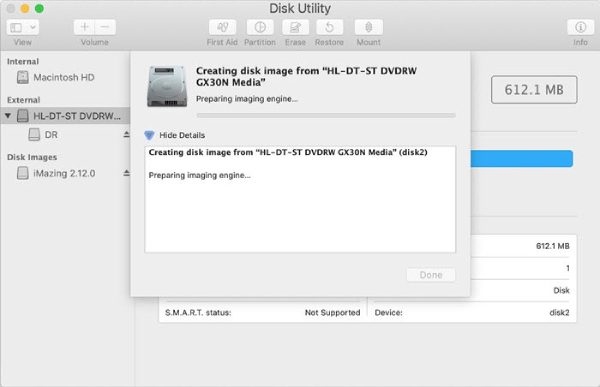
Step 3This default Mac DVD copier will start the process automatically. Once you see a .cdr file, it means that the conversion is complete.
How to Copy a DVD on Mac with All Original Content
If you want to know how to copy DVDs to a MacBook without losing any content, 4Easysoft DVD Ripper can be the best tool ever. When it comes to copying DVDs, 4Easysoft DVD Ripper allows you to copy any desired part of your DVD. Not a single trailer or a bonus feature will be ignored, let alone the titles or the chapters. And you can get all the videos in their original quality. The process is straightforward yet produces very professional results. You can follow the steps below to get started quickly.
100% complete copy of all contents of a DVD on your Mac.
Support converting DVD to formats like MKV, MP4, and so on.
Copy a DVD on a Mac while keeping all the original titles.
Convert a DVD to videos on a Mac with GPU Acceleration.
100% Secure
100% Secure
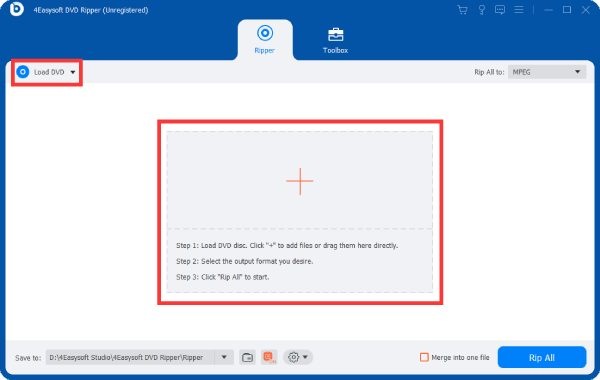
Step 1Launch 4Easysoft DVD Ripper after inserting the DVD. Click the “Load DVD” button to import your DVD content.
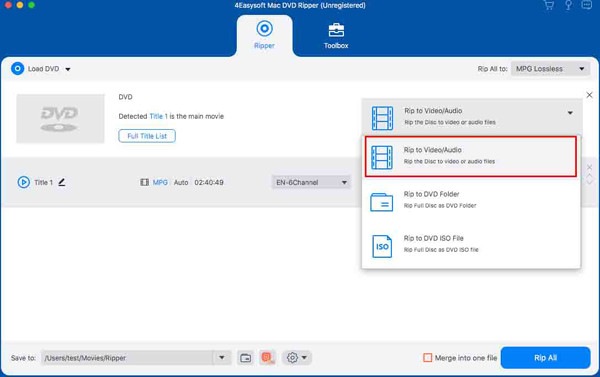
Step 2Click the “Rip All to” button. And you can select the desired output format from the drop-down menu.
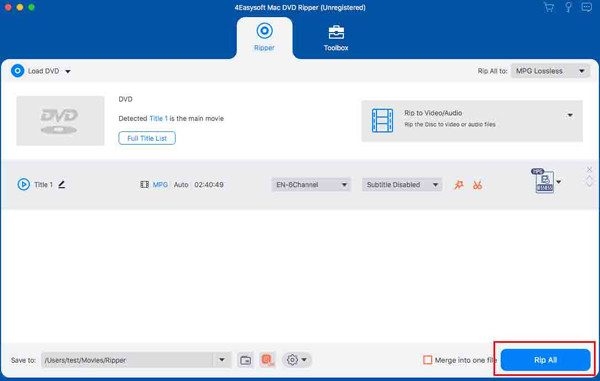
Step 3Finally, click the “Convert All” button, and 4Easysoft DVD Ripper will automatically copy the DVD to your Mac.
How to Copy a DVD on Mac Separately Using HandBrake
Is there a completely free tool for copying DVDs to a MacBook? HandBrake stands out as one of the best options. This open-source video tool has been popular among video professionals. Its comprehensive features have already made it a powerful tool compared with other open-source software. And copying a DVD can be done easily in HandBrake. Although it only copies a single title from your DVD, the output quality remains the same. That’s why many users select HandBrake as their free DVD burner.
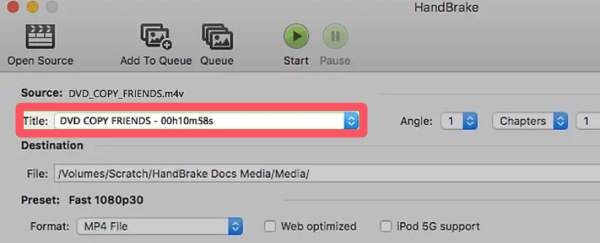
Step 1Insert your DVD into your Mac. Launch HandBrake and click to select the DVD. Then, click the “Title” button to select a part from your DVD.
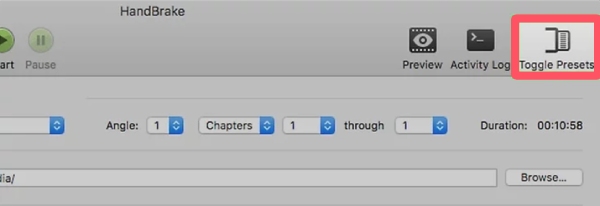
Step 2Now, you can customize the detailed parameters to suit your needs. Otherwise, click “Toggle Presets” to restore the original settings.
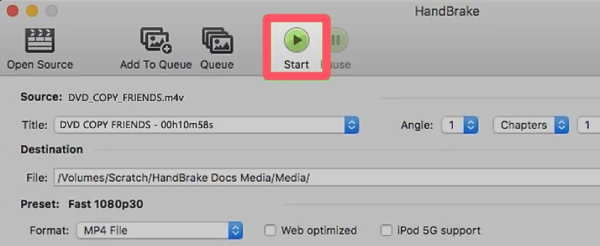
Step 3Finally, click the “Start” button and wait for a few seconds. HandBrake will automatically copy the DVD to your Mac.
A Quick Way to Copy DVDs on Mac in Full without Titles
If you want to learn how to transfer a DVD to a Mac, you can use MakeMKV. MakeMKV can efficiently handle almost all DVD types. Once the DVD you insert is detected, MakeMKV will quickly load all its contents. It will save all the included elements as a single MKV file. However, this is also a drawback of MakeMKV, as it does not allow you to customize the selection of titles or chapters. And MKV is the only available output format. For detailed steps, follow the instructions below.
Step 1Once you launch MakeMKV after inserting the DVD, it will scan the DVD content automatically. And the detailed content will be displayed.
Step 2Click the “DVD disc” button to expand a drop-down menu. Here, you can select the desired part you want to copy from the disc.
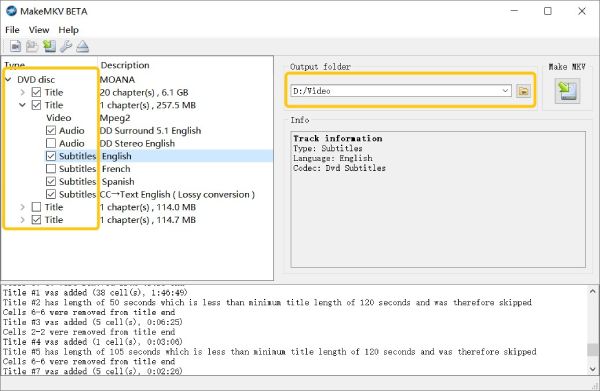
Step 3After selecting the output folder, click the “Make MKV” button to copy the DVD to your Mac.
Conclusion
This post shows you how to burn a DVD to a DVD on a Mac using 4 practical methods. Based on your requirements, you can choose the proper tool. For instance, you can save a specific section from the DVD or combine all the videos into a single file. While these selections usually require different tools, you can use 4Easysoft DVD Ripper as an all-in-one assistant. This tool incorporates all the useful functions. You can customize and select the desired parts to copy your DVD.
100% Secure
100% Secure
