
Burn videos to DVD/ Blu-ray with templates and editors.

How to Burn Blu-ray Discs on Windows and Mac Easily

Posted by Paula Pailaga to Burn DVD/Blu-ray Sep 04, 2026
If you want to burn an MP4 or MKV to Blu-ray, there is one important detail to know first. Simply copying the video file to a blank disc does not usually create a playable Blu-ray movie. It creates a data disc instead. Some players may read the files, but others will not. For a disc that works like a normal Blu-ray movie, you need to first author the video into a Blu-ray structure, such as BDMV. This guide walks you through what you actually need to know about Blu-ray burning, step by step. Just read and follow.
Guide List
What Do You Need to Burn a Blu-ray How to Burn a 4K or HD Video to Blu-ray How to Burn Existing ISO or BDMVWhat Do You Need to Burn a Blu-ray
Before you start using any Blu-ray burner software, make sure you have the right hardware and enough space for the job.
- Blu-ray burner drive: You need a Blu-ray writer, either built into your computer or connected by USB. A regular DVD drive cannot burn Blu-ray discs.
- Blank Blu-ray disc: Use BD-R for a permanent burn. For longer videos, a BD-R DL can hold up to 50GB. BD-RE is rewritable, but compatibility can vary.
- Reliable disc brand: Verbatim discs are often recommended by users. Very cheap or unknown discs can lead to failed burns or playback problems.
- Blu-ray authoring software: Choose software that can create a proper Blu-ray video structure, not just copy files to a disc.
- Enough free storage: Keep around 30-50GB of free space for temporary files. Blu-ray authoring may require much more storage than the final video file.
How to Burn a 4K or HD Video to Blu-ray
If your goal is to play your videos on a standard Blu-ray player, you need to author them before burning them. There is no need to build the BDMV folders by yourself. A Blu-ray authoring program can handle that part for you, which is 4Easysoft Blu-ray Creator. It handles the Blu-ray authoring process while still giving you control over the videos, menus, and output. Whether you want to burn home videos and other projects into a playable Blu-ray, this is a practical choice.
Burn videos to Blu-ray disc, ISO file, or BDMV folder.
Get premade and customizable menu templates.
Preserve the original audio tracks and subtitles.
Support BD-25, BD-50, BD-R, BD-RE, BD+R DL, BD-R DL, etc.
100% Secure
100% Secure
Step 1Open 4Easysoft Blu-ray Creator. Click the "Blu-ray Disc" button.
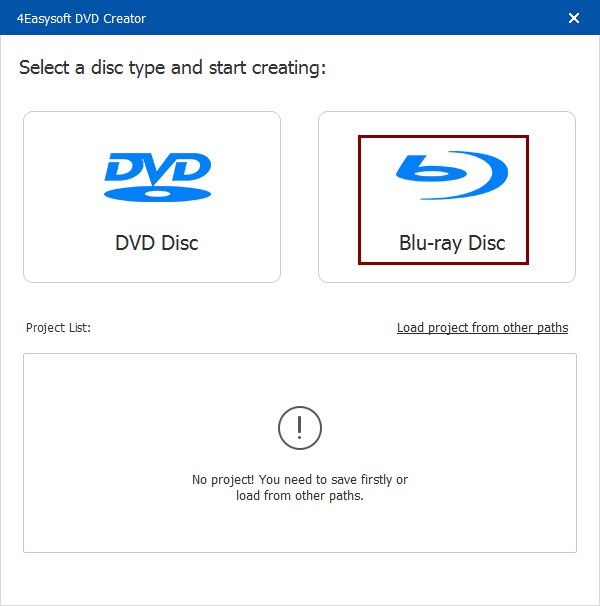
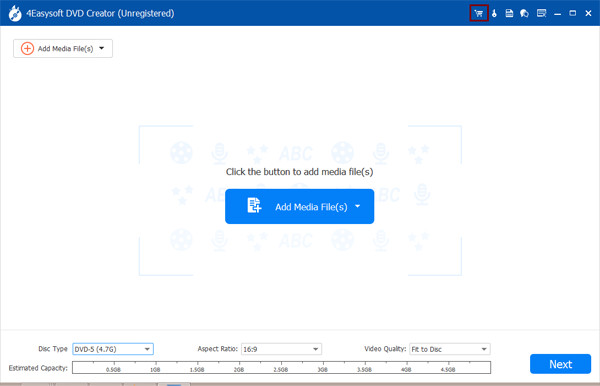
Step 2Click the "Add Media Files" button to import your videos. Specify disc type, aspect ratio, and video quality below. Later, click the "Next" button to move on.
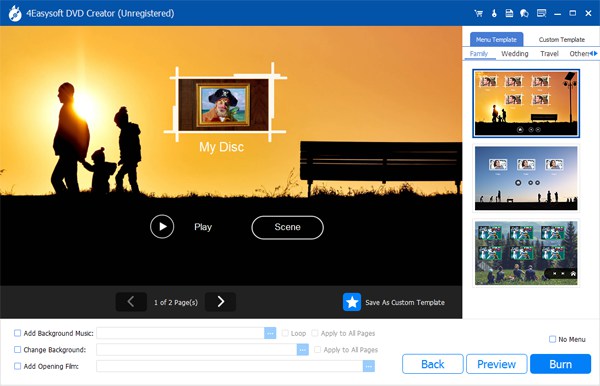
Step 3Choose from free menu templates in the right panel. Or you can go to "Custom Template" for more options.
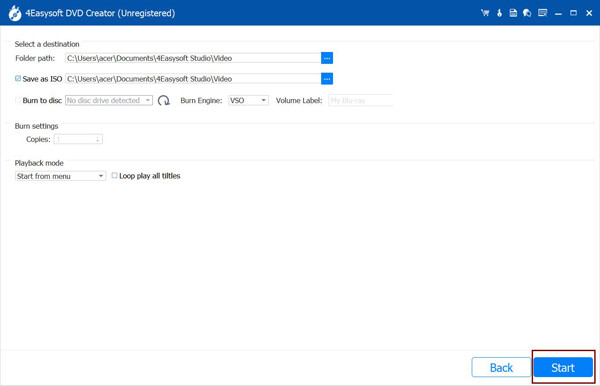
Step 4Set the destination folder and adjust other burn settings. At last, click the "Burn" button to burn a Blu-ray disc.
How to Burn Existing ISO or BDMV
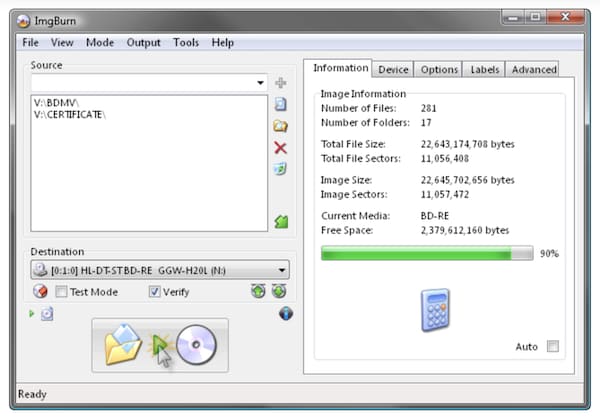
If you already have a Blu-ray ISO or a properly prepared BDMV folder, you do not need to re-author the video. You can write the existing content to a blank Blu-ray disc. ImgBurn is a free Windows Blu-ray burner that can handle this job. It does not create menus or convert video files. Just burn what's already been authored.
- 1.Prepare the BDMV folder. Make sure an authoring program has already created the Blu-ray structure.
- 2.Insert a blank Blu-ray disc. Use a disc with enough capacity for the entire project.
- 3.Open ImgBurn. Choose "Build" to create a disc from the existing Blu-ray files.
- 4.Add the Blu-ray folders. Add the required Blu-ray structure, including the BDMV and CERTIFICATE folders when they are present.
- 5.Select the file system. Go to the advanced file-system settings, select "UDF", and set "Revision 2.50" for Blu-ray video.
- 6.Choose a 4x write speed. A slower, steady write can be preferable to pushing the burner to its maximum speed.
- 7.Burn and verify the disc. Let ImgBurn complete the writing and verification process. Later, you can test it on a Blu-ray player.
Conclusion
Burning a Blu-ray is easier once you know the difference between a data disc and a playable Blu-ray. If you only need to store files, a simple data burn is enough. But if you want to watch videos on a TV-connected Blu-ray player, you need proper authoring first. For an easier workflow, 4Easysoft Blu-ray Creator can turn common video files into Blu-ray content, add menus and chapters, and burn the finished project to disc in a few simple steps.
100% Secure
100% Secure
